

Leveraging open source software to unlock the power of geographic information
The European Commission has been a strong advocate for the use of open source software, recognizing its potential to reduce costs, increase flexibility, and promote innovation. One area in which the Commission has identified a great potential is the use of geographic information for data analysis and policy-making.
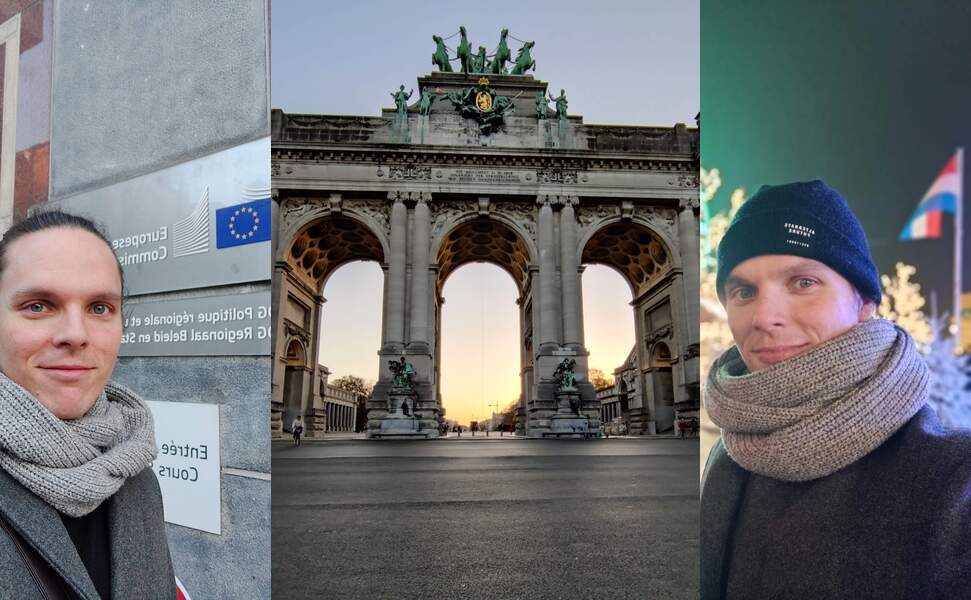
Geographic information can provide valuable insights into a range of complex issues, such as demographic trends, economic conditions, and environmental patterns. The Commission recognizes the importance of leveraging this information to support evidence-based decision-making, and has taken steps to build capabilities in this area. One way the Commission is doing this is through the use of open source software, such as QGIS, which enables employees to easily access and analyze geographic information. By training employees in the use of QGIS, the Commission is empowering them with the tools they need to harness the full potential of geographic information for policy-making. Gispo delivered two QGIS training courses for European Commission and Parliament employees in November 2022 (in Luxembourg and Brussels).
From map-making to guiding decision-making with geographic information
Geographic information has enormous potential to revolutionize the way we approach decision-making. Idenfying this potential for every attendee of a QGIS course and implementing the first steps for the value realization with QGIS is the hard part of these types of training courses. Besides the growth of geospatial data is leading to an exponential increase in the possibilities for analysis and interpretation which makes the experience kind of overwhelming (!).
Open source geospatial technologies offer a flexible solution to this challenge. By utilizing tools such as QGIS, organizations like the European Commission can provide end-users with the necessary data, tools, and insights to effectively analyze domain-specific geographic data. This approach eliminates the overwhelming nature of big data (having data all over the place) and enables users to focus on gaining valuable insights and making informed decisions.
The combination of growing data sets and flexible open source technologies will continue to push the boundaries of what is possible. By embracing these new tools and techniques, organizations can harness the full potential of geographic information to drive more informed and effective decision-making.
Real-World Experience: Insights from the Field
During the QGIS training courses the attendees gained valuable insights into the potential of QGIS and how they can leverage it to support their domain-specific processes.
The courses were prepared precisely for this audience and the attendees valued the tailoring of the training material:
“I liked the structure of the course and that content was tailor made to EU institutions.”
As the trainees learned more they got more inspired by QGIS. The feedback showed that empowerment to use QGIS was appreciated:
“Freedom to play with the software and ask questions”
The trainees also appreciated the fact the individual needs were attended. The attendees were experts representing variety of domains, and it was important to identify what benefits GIS could provide for different domains. When asked what was executed especially well in the training, one of the trainees responded: “meeting the individual needs of each attendant”.
A final note: The importance of geography and the benefits of open source geospatial technologies
Geography has always played a major role in shaping the world around us, and in today’s data-driven society, it is more important than ever. The European Union, in particular, recognizes the value of geographic information in decision-making processes, which is why it has been working with open source software to unlock the full potential of this information.
The use of open source geospatial technologies has many benefits, including reduced costs, increased flexibility, and promotion of innovation. These benefits are especially important for organizations, such as the European Commission, that rely on geographic information to make informed decisions. By embracing open source software, the Commission is able to access the latest tools and technologies without being tied down to other solutions.
In conclusion, the combination of the power of geography and the benefits of open source geospatial technologies makes for a winning combination in today’s data-driven world. By leveraging these technologies, the European Commission is able to make informed decisions that shape the future of the European Union and beyond.
You can read more about tailored training and courses offered by Gispo in here, or contact Santtu to learn more.
QGIS is developed by various dedicated volunteers and organizations. Participating in the development of the QGIS project can be done in many different ways: by developing new plugins, translating the program into new languages, fixing known bugs. The QGIS community wants to promote community involvement in the project and to enhance the quality of QGIS software training. For mainly these two reasons the community has launched the QGIS Certificate Program. An organisation providing training in QGIS software may apply to become a certified organisation. Once the QGIS community has approved the applicant, the organisation can issue certificates for people participating in their training. The list of certifying organisations can be seen here.
Gispo is the first, and so far only, QGIS Certified Organisation in Finland. As a certified organisation Gispo can issue certificates for our QGIS course participants. For each issued certificate a small fee is paid for the QGIS project. Small contributions create steady flow that supports the community and the development of the software. Thus by participating in our courses you’ll become a member of the QGIS community and help the development of QGIS.
Joona Rissanen, our head of training services, is happy that Gispo has been approved as a certified organisation. The certification also serves as a quality assurance for the courses.
“Participants benefit from certification as they will receive a certificate for the courses. The certificate can be used as part of a CV or LinkedIn profile to show for training in QGIS. The certificate comes with a unique identifier and link, so the authenticity can be confirmed. One further proof of authenticity is the course convener’s signature,” explains Joona.
During the application process the applicant must submit their training materials for review. However, excellent training materials alone are not enough to get accepted as a QGIS Certified Organisation. In addition the applicant needs to detail their contributions to the QGIS project. An active community is crucial in the development of open source software. Showing active involvement in the QGIS community was straightforward for Gispo, as we contribute to the QGIS project in many ways. Gispo’s CEO Sanna Jokela finds it important to support the QGIS project as a firm and on a personal level.
“For several years now, Gispo has been a sustaining member in the QGIS community, and issuing certificates is one more method in our aspiration to promote the use and development of open source software. Each time I download a new version of QGIS, I personally donate a small contribution to the community. And I wish everybody else would do the same. After all, QGIS is one of the most important tools for GI professionals. And the community is amazing!” Sanna concludes.
Since it’s only in Finnish at the moment, probably some of you haven’t noticed, but there is a pretty little new web map service in town – at least if your town happens to be Tampere. Gispo recently implemented a simple open-source outdoor map service called outdoorstampereregion.fi with focus on mobility and lightning-fast browsing. The service should guide anybody in the Tampere region to any outdoor activities they could ever dream of, and it works beautifully on desktop as well, though most users enjoy it on the go.
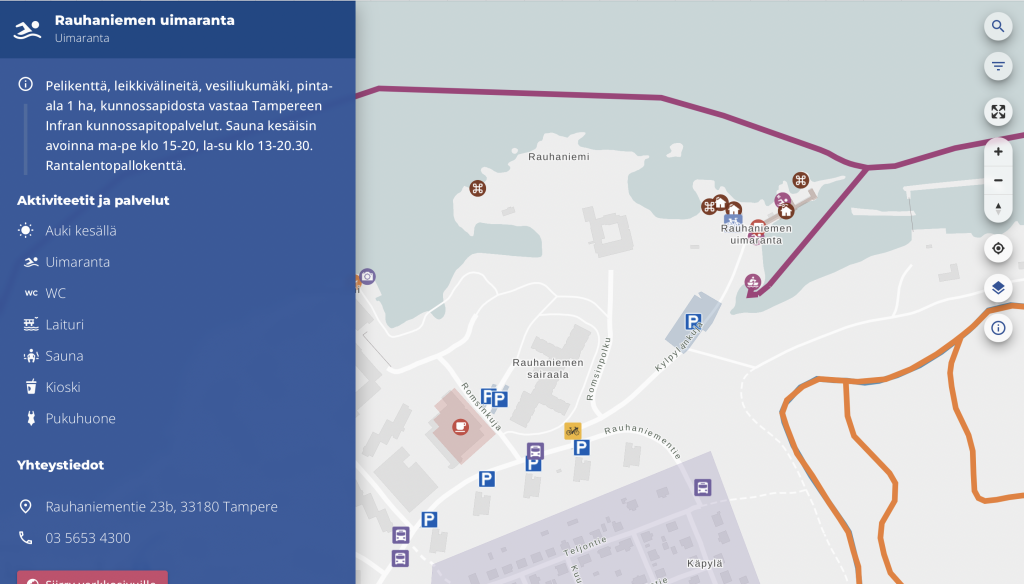
Table of Contents
Data-dependent styling: MapLibre expressions!
Zoom-dependent styling: More expressions!
Dynamic layers: URL parameters!
Introduction
To make the service as fast and simple as possible, I could list a variety of buzzwords, but basically they boil down to two: serverless and vector tiles. So the idea is that we have all the data in a PostGIS database and serve all of it in vector tile format with a barebones tile server called pg_tileserv. Technically, serverless here means we have no custom server code, just a database and a standard container running on your favorite container platform. The whole architecture might warrant a separate blog post later on, but here we want to focus on what the user sees on their screen. I will touch on the amazing features of pg_tileserv here too at the end of the post, though.
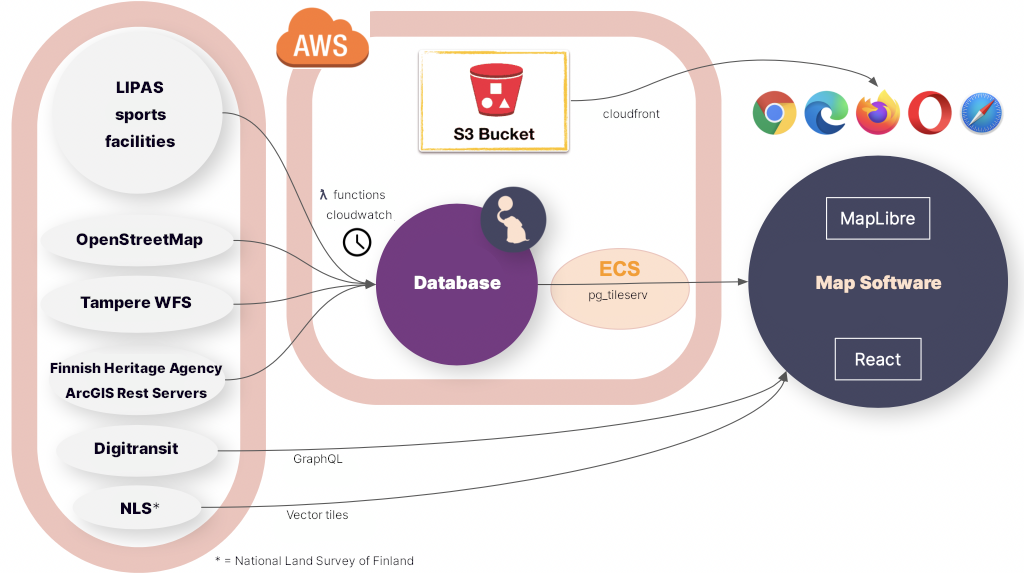
MapLibre GL JS is the open source fork of a map technology formerly known as Mapbox GL JS v1. Due to the projects having a common history, the vector tile standard that MapLibre supports is called Mapbox Vector Tile specification.
There are at least three (perhaps four!) reasons to pick vector tiles when going forward with a modern map service:
- Performance. Since vector tiles are vector data, not pixels, you can imagine the amount of data needed to transfer all the map layers in e.g. our map above. The amount varies greatly depending on if you transfer the map images, or just the encoded vector features in the area. — Obviously, the more features there are in an area, the more data you have to transfer, but in most maps the total amount of data is much smaller if you just transfer the layer data, not the image.
- They are data. Transferring raster map tiles, that is what the user gets. A raster image, no metadata, no vector features, no properties, nothing. If you want the user to get some extra data on a feature on a raster map, you have to implement a separate API calls anyway just to query and transfer the actual feature data. Transferring vector map tiles, on the other hand, each feature can have any number of properties and additional data bundled in. — This means we can be truly serverless, i.e. we don’t have to implement a backend that serves all the structured data. Of course, here you have to be careful not to encode too much data in the properties of each feature. That may slow down rendering of the map so that *gasp* it might sometimes be almost as slow as a raster map.
- They are rendered in the browser. Partly, again, this is a performance issue, since this allows for fast rendering of things such as 3D views. Indeed, MapLibre supports 3D rendering of maps in the browser by default, and 2D rendering and zooming is blazing fast. — But this is more than just a performance issue. This also gives the tile client much more control over what the user sees. Don’t like the color of the map or the shape of the markers? Want to tweak the background when the user does something? Want to highlight some features and fade out others in response to user actions? Want to make a completely different view of the data? You are in control of what your map looks like, not just rendering tiles made by somebody else.
- Fancy extra stuff. You have to count on us on this one, or read the last chapter of this blog post, to find out all the extra things pg_tileserv can do for you out of the box.
So browser rendering is what we are talking about here. Mind you, not *all* the data has to be vector. Indeed, the Tampere outdoor map allows e.g. looking at the vector features on top of the raster aerial images of the area. MapLibre allows you to mix and match raster and vector layers to your liking.
MapLibre styles in React
So, it is MapLibre GL JS that is responsible for reading the tiled vector data and drawing the map. How the data translates to the map seen by the user is defined by the MapLibre styling specification. Among other visual things, it defines what are the data sources for the map, what are the map layers to draw and, for each layer, how features are drawn. The style spec can, of course, be provided by the tile server, or it can be bundled in the UI or, indeed, it can be dynamic so that the styles may change. The great thing here is expressions, i.e. any layout property, paint property or map filter can be an expression that depends on the data or the state of the map.
Adding dynamic map styling to a React application is made possible by react-map-gl, which is a React wrapper for Mapbox and MapLibre GL JS. What this looks like in practice is a React component that just needs some props and child components:
<MapGL
  ref={mapReference as Ref<MapRef>}
  initialViewState={{
        latitude: 61.498,
        longitude: 23.7747,
        zoom: zoom,
        bearing: 0,
        pitch: 0,
  }}
  style={{ width: "100vw", height: "100vh" }}
  mapLib={maplibregl}
  mapStyle={mapStyle}
  onResize={toggleNav}
  styleDiffing={false}
>
  {/* Area polygons */}
  <Source id={LayerId.OsmArea} {...OSM_AREA_SOURCE}>
    <Layer {...{ ...OSM_AREA_STYLE, filter: categoryFilter }} />
  </Source>

  {/* Linestrings */}
  <Source id={LayerId.LipasLine} {...LIPAS_LINE_SOURCE}>
    <Layer {...{ ...LIPAS_LINE_STYLE,
        filter: categoryFilter,
        layout: {
          visibility: searchString === "" ? "visible" : "none",
        }, }} />
  </Source>

  {/* Points */}
  <Source id={LayerId.Point} {...POINT_SOURCE}>
    <Layer
      {...{
        ...POINT_STYLE_CIRCLE,
        filter: categoryFilter,
        layout: {
          visibility: searchString === "" ? "visible" : "none",
        },
      }}
    <Layer
      {...{
        ...POINT_STYLE_SYMBOL,
        filter: categoryFilter,
        layout: {
          ...(POINT_STYLE_SYMBOL as SymbolLayer).layout,
          visibility: searchString === "" ? "visible" : "none",
        },
      }}
    />
  />
</MapGL>
This is a simplified example of our actual outdoor map component. The example above renders a MapLibre map with four layers, three of which have a different vector tile source:
- Polygon layer from a vector tile source that provides some polygons from OpenStreetMap
- LineString layer from a vector tile source that provides some outdoor exercise tracks (line strings)
- Circle layer from a vector tile source that provides some outdoor exercise points
- Symbol layer from the same vector tile source that provides some outdoor exercise points
Instead of a single big style json file, this allows us to provide any data to any MapLibre layer as React props. Since we have a huge amount of data, we define all the layer styles in a separate style.ts file:
- known id strings for each layer so we can refer to the right layer
- source objects for each layer that tell MapLibre what is the address of the vector tiles, e.g.
export const OSM_AREA_SOURCE: VectorSource = {
  type: "vector",
  tiles: [
    `${process.env.TILESERVER_URL}/kooste.osm_alueet/{z}/{x}/{y}.pbf?filter=deleted=false`,
  ],
  minzoom: 0,
  maxzoom: 22,
};- style objects for each layer that tell Maplibre how to render the layer, e.g.
export const OSM_AREA_STYLE: LayerProps = {
  "id": LayerId.OsmArea,
  "source": LayerId.OsmArea,
  "source-layer": "kooste.osm_alueet",
  "type": "fill",
  "paint": FILL_PAINT,
  "minzoom": 13,
};
These style objects can be as simple or as complex as we desire. In general, we define the static style objects in style.ts.
“Static” here means that the styles may depend on the data in all kinds of exotic ways, but they do not depend on React state. In addition, as seen above, it is possible to introduce dependencies to the React state simply in the Layer props passed on to the layer. In our case, we have an object called categoryFilter that changes when the user clicks around in the interface, and triggers various data on each layer to be visible or invisible.
Another React prop that affects the visibility of layers is searchString. You can see that point and line layers will get visibility value true if searchString is empty. However, once the user starts typing in a search field, we don’t want to display all the features on the map; all the default layers are rendered invisible if the user has entered search mode.
Data-dependent styling: MapLibre expressions!
First, let’s focus on the style.ts that does not depend on React state. Our example above is already a good starting point. OSM_AREA_STYLE says that our OSM polygons should be painted with FILL_PAINT. What is that? Well, just another kind of object:
/**
 * Paint object for all area layers
 */
const FILL_PAINT: FillPaint = {
  "fill-color": COLOR_MATCH,
  "fill-opacity": 0.2,
};
Nice! So, it tells me to draw the OSM polygons with opacity 0.2 and the color COLOR_MATCH. Pray tell, what color is that? Well, it’s not actually a single color:
const COLOR_MATCH: Expression = [
  "match",
  ["string", ["get", "tarmo_category"]],
  "Luistelu",
  getCategoryColor("Luistelu"),
  "Uinti",
  getCategoryColor("Uinti"),
  "Kahvilat ja kioskit",
  getCategoryColor("Kahvilat ja kioskit"),
  palette.primary.dark,
]
This is a shortened version of all the possible object categories in our outdoor map. This is a MapLibre expression that depends on the tarmo_category property of the vector object. We will get different colors for the color fill depending on what kind of a polygon we are drawing.
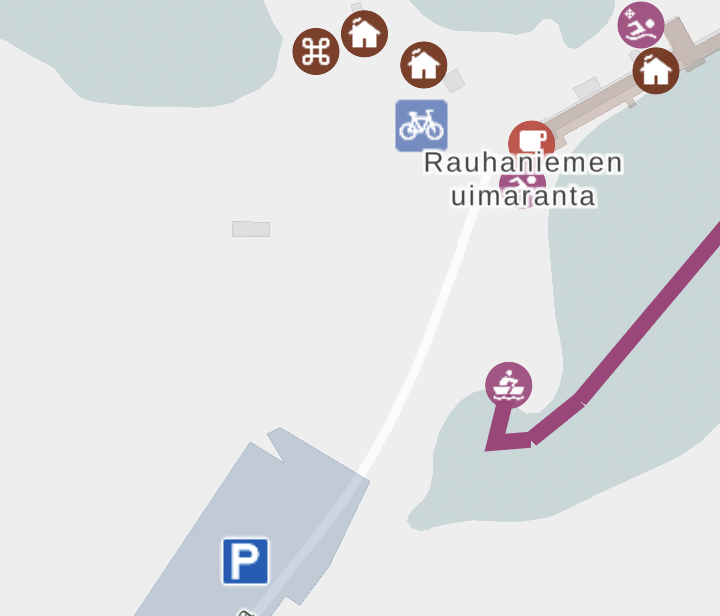
In addition to color, obviously any layout or drawing property may depend on the data in a variety of ways. In our outdoor map, each point has a colored circle and a symbol. The circle color is selected like above. In addition to circles, we had the second point layer, which displays symbols for the same data:
export const POINT_STYLE_SYMBOL: LayerProps = {
  "id": LayerId.Point,
  "source": LayerId.Point,
  "source-layer": "kooste.all_points",
  "type": "symbol",
  "layout": SYMBOL_LAYOUT,
  "minzoom": 14,
};
Again, SYMBOL_LAYOUT is something that can depend on the data:
/**
 * Layout object for all symbol layers
 */
const SYMBOL_LAYOUT: SymbolLayout = {
  "icon-image": [
    "match",
    ["string", ["get", "tarmo_category"]],
    "Luistelu",
    "skating",
    "Uinti",
    "swimming",
    "Kahvilat ja kioskit",
    "cafe",
    /* In some categories (looking at you, parking) icons are determined by osm tags */
    /* We could also select icon based on type_name, but this will do for now */
    ["get", "amenity"],
  ],
  "icon-size": [
    "match",
    ["string", ["get", "tarmo_category"]],
    "Pysäköinti",
    1,
    0.75
  ],
  "icon-allow-overlap": true,
};
This has some weird things because we actually want to display icons based on tarmo_category or in some cases, original OpenStreetMap amenity tag, so we can have different parking and bicycle parking icons, even though they both belong to the Pysäköinti (Parking) category. Also, we want to render parking icons larger than other service icons, since they look different anyway.
Zoom-dependent styling: More expressions!
Finally, it is possible for the icons and layers to depend on zoom. You probably didn’t notice that in POINT_STYLE_SYMBOL, minZoom is set to 14. This means that below zoom level 14, this layer is not rendered.
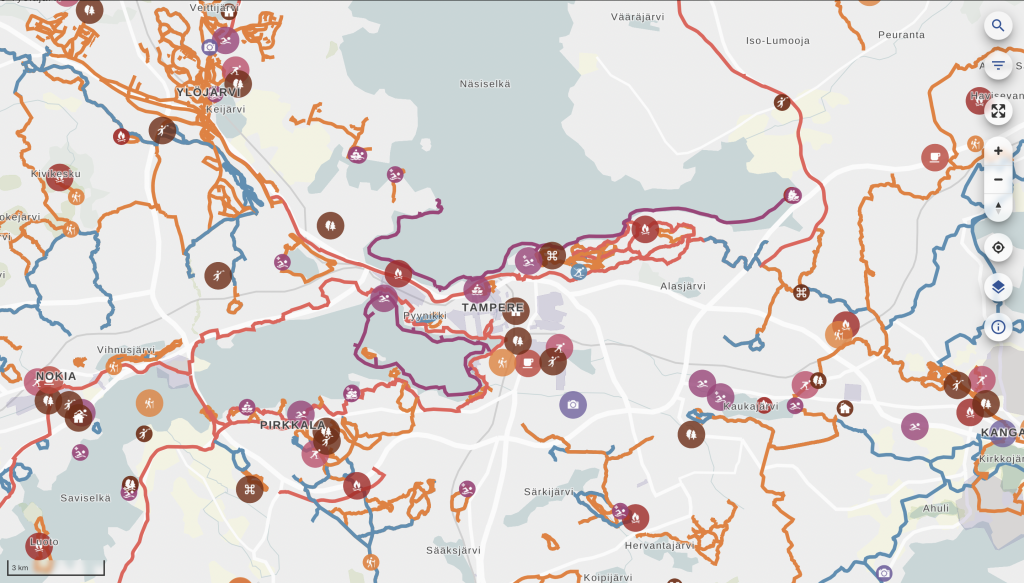
The trick here is that in actual code, we have lots of different layers depending on zoom level. This may not be the most elegant solution, but it is one we came up with to allow clustering points when the user is further away. Clustering (combining) feature data that has been already loaded to Maplibre layers proved tricky, so what we did is actually create lots of PostGIS views of all point layers in the database. Called point_clusters_8 all the way to point_clusters_13, we have a different vector layer for each zoom level, and all points within a given distance of each other are clustered on each level to provide a view like this when the map is zoomed out. When the user zooms in, the visible layer will change, and they will see more clusters or points in place of these clusters:
export const POINT_CLUSTER_9_STYLE_CIRCLE: LayerProps = {
  "id": `${LayerId.PointCluster9}-circle`,
  "source": LayerId.PointCluster9,
  "source-layer": "kooste.point_clusters_9",
  "type": "circle",
  "paint": CLUSTER_CIRCLE_PAINT,
  "minzoom": 9,
  "maxzoom": 10,
};
The code snippet above is a Maplibre style that will render the kooste.point_clusters_9 layer only in the right zoom range. All these layers contain both single points and clusters at each zoom. The way to render them differently is
/**
 * Point cluster layers at zoom levels below 14
 */
const CLUSTER_CIRCLE_PAINT: CirclePaint = {
  // indicate more spread out clusters by increasing the size when zooming in
  ...CIRCLE_PAINT,
  "circle-radius": [
    "interpolate",
    ["linear"],
    ["zoom"],
    8,
    ["match", ["number", ["get", "size"]], 1, circleRadius, 1.2 * circleRadius],
    13,
    ["match", ["number", ["get", "size"]], 1, circleRadius, 2 * circleRadius],
  ],
  "circle-opacity": [
    "interpolate",
    ["linear"],
    ["zoom"],
    8,
    ["match", ["number", ["get", "size"]], 1, 0.9, 0.9],
    13,
    ["match", ["number", ["get", "size"]], 1, 0.9, 0.7],
  ],
};
This snippet renders either a standard sized circle for single clusters or a larger circle if the cluster should have multiple points.
The radius of the circle could be made to depend on the size of the cluster, but it might not be very clear or informative; rather, the radius is made to depend on the zoom level. This illustrates the fact that the clustering radius (and the number of clusters) is dependent on the zoom level. interpolate is a MapLibre expression that scales the size linearly depending on zoom level, from level 8 to 13. circleRadius is a constant that can be easily tweaked to adjust the size of all symbols. We handle opacity similarly: even as clusters get smaller at smaller zooms, we want to make them more opaque to illustrate that the points are most likely located underneath the clusters. This is by no means a perfect way to illustrate clusters: it is always a tricky thing to do, especially as the technology underneath dictates how they are plotted in the first place.
Dynamic layers: URL parameters!
There are certainly lots of other ways the React state, the zoom level, data and other properties could be tweaked to improve the Maplibre visualization and make it respond to user actions and the state of the application. Some of these will certainly be introduced in the outdoor map in the future, since we will be developing the software further together with the municipally owned company Ekokumppanit. However, I want to show one more trick the vector tiles have up their sleeve: namely, filtering capabilities that mean our default pg_tileserv installation is very close to providing a full-fledged API to all our data out of the box, no configuration needed!
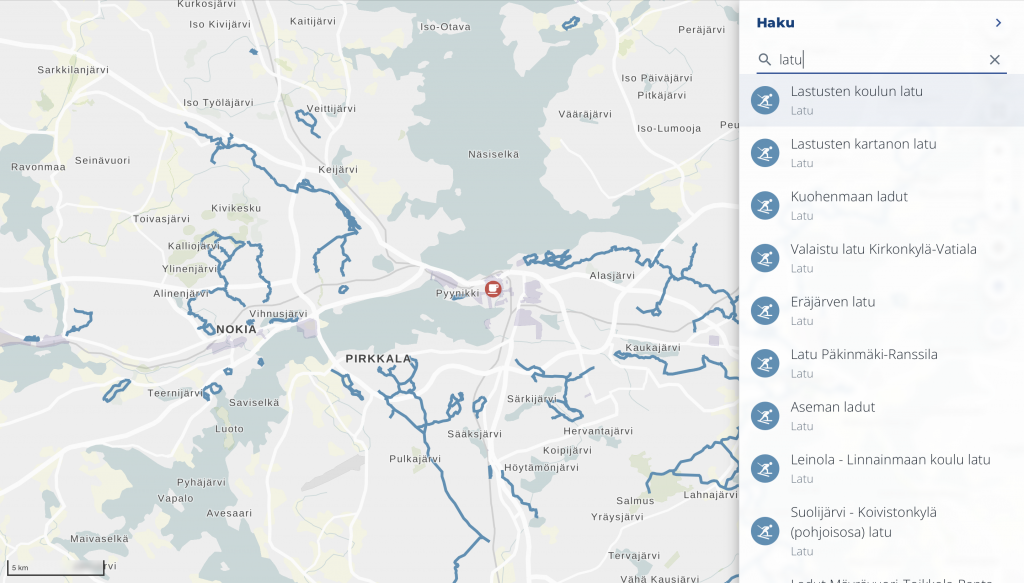
You may have noticed that outdoorstampere.fi actually has a functional, albeit simple, search box built in. Start typing a string, and you are shown all the objects in the area containing that string in a split-second. Click on one on the list and it will center the map to the corresponding feature. It was so fast that we had to slow it down not to confuse the user, because interim results would show up and confuse the user whenever they would start typing.
How is it implemented, then, if there is no API whatsoever to the data? Well, there kinda is. In addition to rendering vector tiles, pg_tileserv knows how to query the database with any filtering expressions. This means our UI can actually request tiles from the server with a URL containing any database queries in CQL. This allows us to actually create a Maplibre layer whose URL parameters change when the React state changes. At every letter, the layer is reloaded. This is implemented with
/**
 * Dynamic search point layer. Maxzoom defines the size of the tile
 * used to search for the input string when zoomed in.
 */

export const SEARCH_POINT_SOURCE: VectorSource = {
  type: "vector",
  tiles: [
    `${process.env.TILESERVER_URL}/kooste.all_points/{z}/{x}/{y}.pbf?filter=${cityFilterParam}%20AND%20(name%20ILIKE%20'%25{searchString}%25'%20OR%20type_name%20ILIKE%20'%25{searchString}%25'%20OR%20tarmo_category%20ILIKE%20'%25{searchString}%25')`,
  ],
  minzoom: 0,
  maxzoom: 6,
};
If this looks ugly, don’t worry; we just happen to have a few CQL expressions in all the URLs thrown in for good measure. Firstly, we have a city filter that is actually defined as const cityFilterParam = cityName%20IN%20(${process.env.CITIES}); . This one will only load features having the right city name strings, so we don’t load data outside our area of interest. {searchString}, then, is a placeholder string that can be replaced with the current React props in the Map render method:
{/* Dynamic search layer*/}
<Source
 id={LayerId.SearchPoint}
  {...{
    ...SEARCH_POINT_SOURCE,
    tiles: [SEARCH_POINT_SOURCE.tiles![0].replaceAll('{searchString}', searchString)],
  }}
>
  <Layer
    {...{
      ...SEARCH_STYLE_CIRCLE,
      filter: categoryFilter,
      layout: {
        visibility: searchString === "" ? "none" : "visible",
      },
    }}
  />
  <Layer
    {...{
      ...SEARCH_STYLE_SYMBOL,
      filter: categoryFilter,
      layout: {
        ...(SEARCH_STYLE_SYMBOL as SymbolLayer).layout,
        visibility: searchString === "" ? "none" : "visible",
      },
    }}
  />
</Source>
So, when the user starts typing a search string, the search layer appears and reloads the tiles whenever the string changes!
The caveat here, of course, is that this is still a tiled server. There is no way you can do a global search to all the map data when the map is zoomed in: the map only loads those tiles that are visible at the moment.
It depends on the intended usage whether this is a feature or a bug. In general, of course, the user might be interested in their surroundings, not a location very far away; and luckily, ours is a local, not global, map service. The easy way around this is not to provide the search layer with too large a zoom. In our case, the maximum zoom level for the search layer is 6, which means that whenever the user is zoomed in, the search will happen on the local tile on that zoom level. It pretty much covers the whole area of our map.
Another way to handle the situation would be to zoom out whenever search starts, to indicate to the user that we are searching on a larger area. However, we think the user may not want to lose the local context, so we rather just display the list of the results and allow the user to click on them to pan to the selected feature at the current zoom level.
Conclusion
This shows you that pg_tileserv is actually a very fast queryable client to your PostGIS instance. When indexes are set up correctly for all the fields you want to filter with, any queries to the database really produce tiles lightning-fast. And React bindings to Maplibre allow you to create a UI that a) instantly loads different data depending on user interactions, and/or b) styles the existing data differently depending on user interactions, UI state and the data itself.
Since pg_tileserv can do PostgreSQL queries, it can of course also query e.g. PostGIS functions. We haven’t yet tried out layers that are dynamically generated on the backend by simpler or more complex SQL functions. They might come in useful in a variety of use cases in the future, though. Similarly, Maplibre on the frontend is constantly evolving, getting close to v3 release at the moment, providing new ways of visualizing our vector data. In all, the two feel like a very promising combination of cutting-edge technologies that allows developing fast and responsive web maps for a long time to come.
All the code of outdoorstampereregion.fi, including the snippets presented here, is open source and available on Github.
We at Gispo are happy to announce that we have become Mergin Map partners and will offer courses and support for Mergin Maps in 2023! We have started a partnership with Lutra Consulting who have developed Mergin Maps. We have previously written about Mergin Maps in Finnish for our blog, but for those who missed it the first time around, here’s a quick summary.
Mergin what?
Mergin Maps is an open source platform for data collection. Basically the application allows you to collect spatial data from the field and import it to your existing QGIS projects using your mobile device. The application is based on QGIS and works seamlessly with the desktop version of QGIS. Mergin Maps works well on both Android and iOS platforms and can be easily integrated with existing Spatial Data Infrastructure. So, if you have QGIS projects that you would like to edit or add data to, you can import the projects to your mobile device and work on them with Mergin Maps!
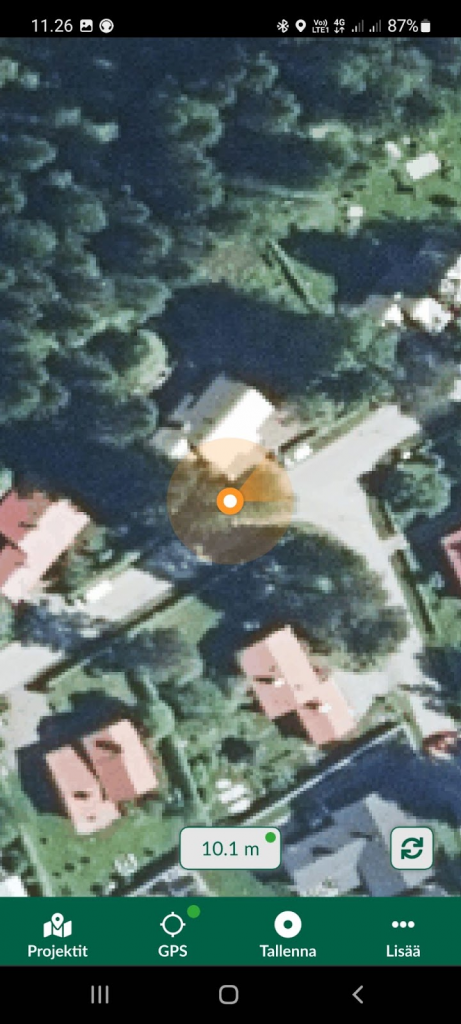
The application is not limited to only collecting locations using the GPS of the mobile device. Mergin Maps also supports several users of the same organization to work on the same project at the same time. The user rights can be viewed in your web browser and the site keeps track of the change history. And since we are working with mobile devices, the application also has support for taking photos of the new features added on the map! You can also connect your mobile device to a separate high accuracy GPS unit to collect very precise data using Mergin Maps.
The application uses the same file formats as the desktop QGIS and all the background maps, symbols and labels will look the same on both platforms. You can even use OGC API Features if you want. And, last but not least, if there are features you would like to have in future releases of Mergin Maps, you can contact us!
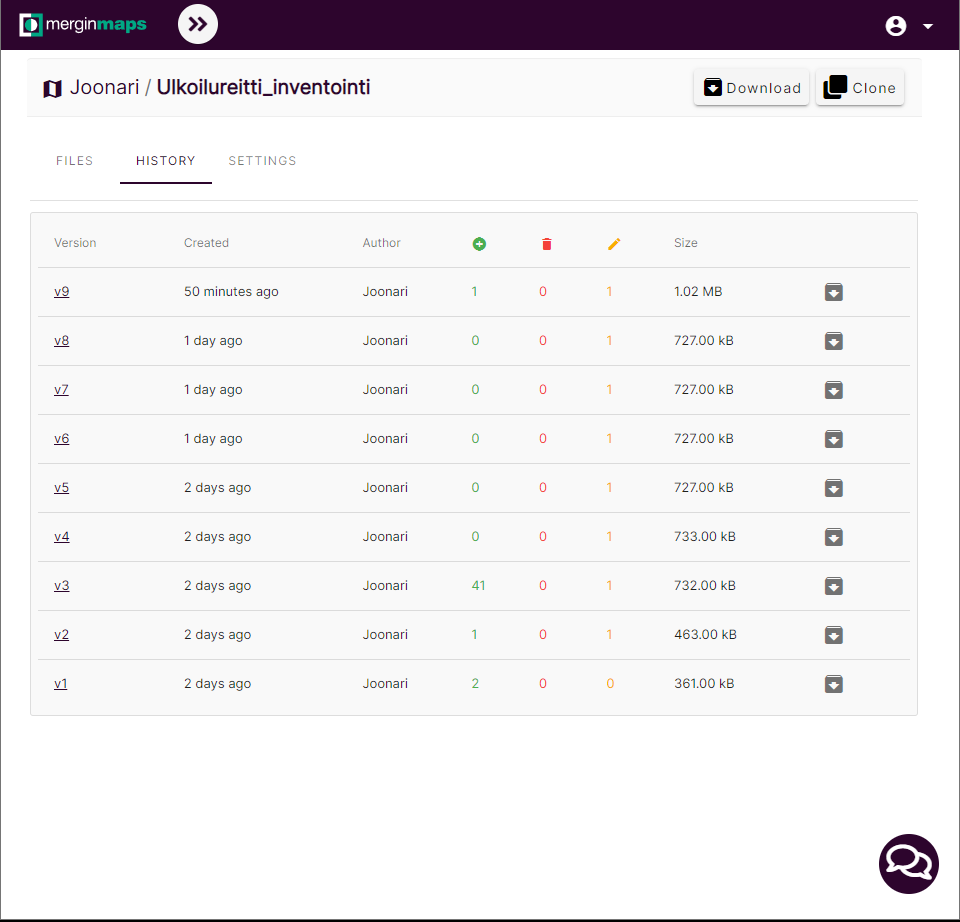
We got you covered
So, if you want to dive into the world of collecting spatial data from the field with Mergin Maps and don’t know where to start, we’re here to help! Gispo offers training courses where you’ll learn all the basics you need to use Mergin Maps – whether you’re working on your own, with a team or a bigger organization. We’ll cover all the phases from QGIS project preparation to field data collection. The course covers form design, background maps and getting to know the application with a very hands-on type of training. Additionally, those who participate in our Mergin Maps online course will get a 2-months subscription to GispoHelp support service. Our support team at GispoHelp will answer all of your “where was that button?” and “why does this dataset look like this?” questions.
We also offer consultancy and support. If your organization needs help with designing a survey project or you want us to help you to handle a whole new data collection project with Mergin Maps, contact our team and ask for an offer!
Finally, if you have any questions, ideas, want to sign up for our course or just want to reach out to us to talk about data collection with mobile devices, send us an email to info@gispo.fi!

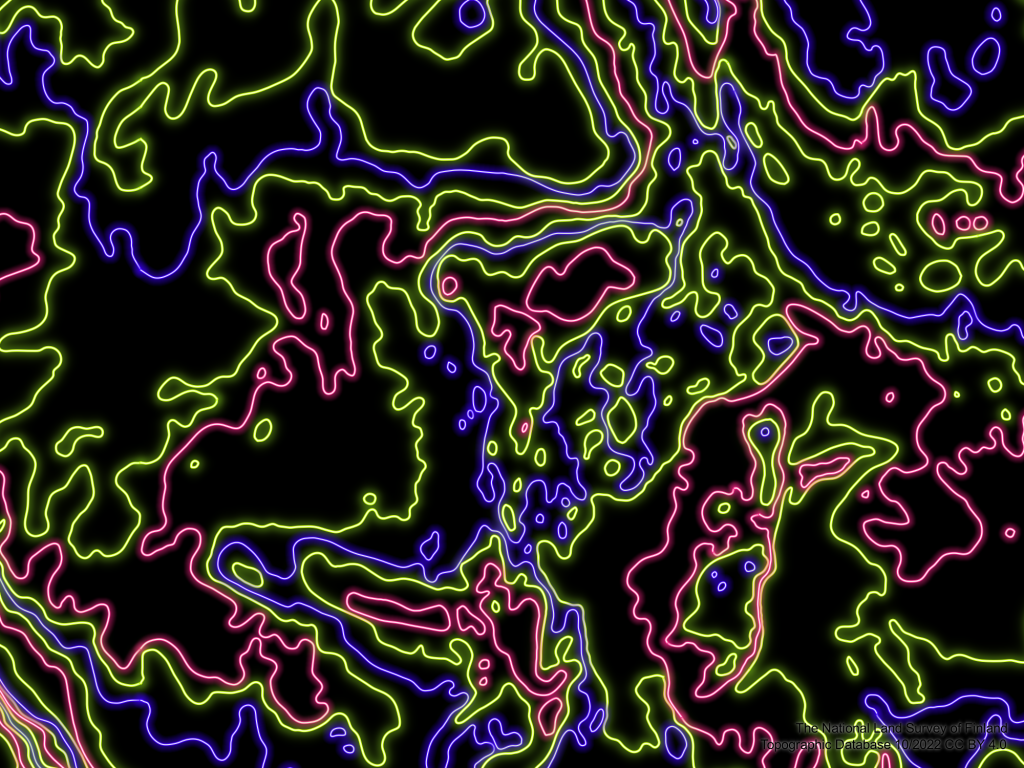
It has become a tradition here in Gispo to take part in the #30DayMapChallenge as a team. So we did again this year. Participating in the challenge gives an opportunity to explore something you’ve never done before, or make the map you’ve always wanted to make. You might also end up googling the colour codes for neon colours.
Great ideas and not-so-great data
We asked our team what sort of difficulties they run into while making their maps. The biggest challenge (if time deficit isn’t counted) seems to be finding the great idea if you don’t already have one. The second greatest hurdle is how a great idea of a map can be ruined by lack of data. How wonderful it would be to have open data on just about anything you can think about, and the data would be perfect and up to date! But in this reality we make do with what we have.
Other sources of difficulties included lacks in the skills and tools, the size of the data, and language barriers. Sometimes the skills of the map maker didn’t coincide with the vision of the said map maker. It is rather frustrating not to be able to do what you want, but on the other hand it is a great motivation to learn more. Even when you have the skills it may require meticulous work to reach the result you envisioned. Especially if you are very strict about what kind of symbols and fonts you want for your map – you might end up creating your own symbols to get what you want!
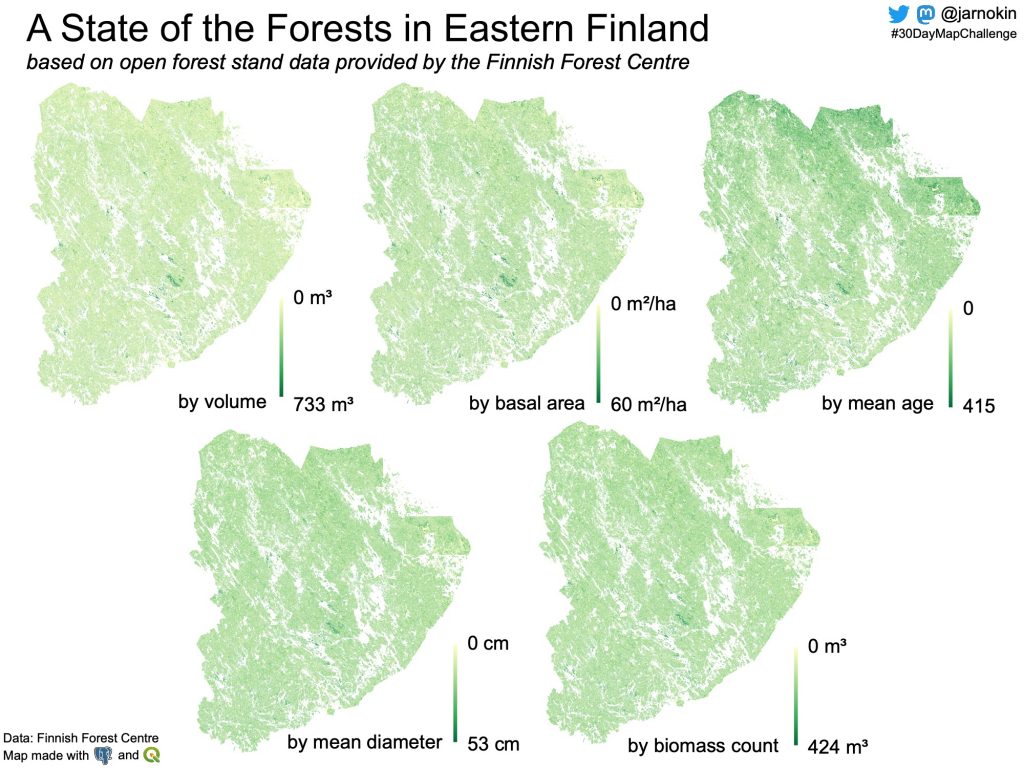
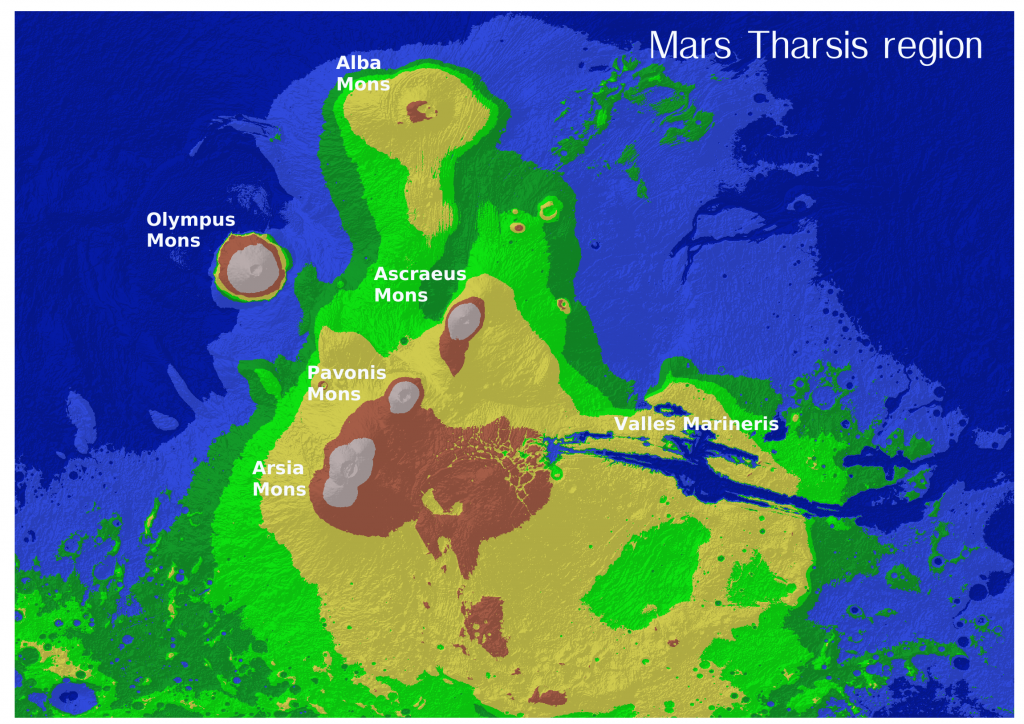
Whether the data is about space or Finnish forests, the size of the data set can be one source of difficulty as our map makers on days 4 and 9 of the challenge learned. Also when you leave the Earth and use data from Mars, it is much more difficult to find proper projection. Similarly, our map maker on day 22 had issues with projection as they would have liked to create a new projection.
Language barriers and headaches
The day 3 polygon mapper was longing for more developed digitising tools in QGIS. When an object changes, it is not very easy to do the changes in QGIS. Especially the curves and overlapping polygons can be difficult to update.
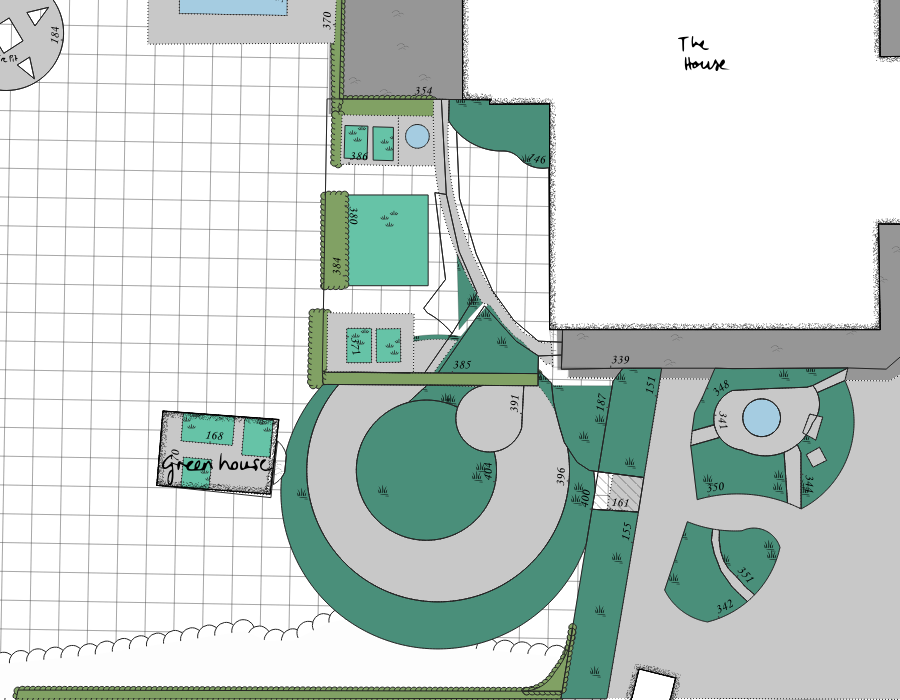
Language barrier turned out to be a slight challenge with Ukranian and Icelandic data (days 5 and 26). Finding the data and then figuring out what it is about and what kind of licence it has, would have been easier had the map makers been fluent in the native languages.
One more difficulty worth mentioning is the neon light effects and how looking at those for longer periods of time may cause headache.
As a team effort we finished the #30DayMapChallenge 2022, had fun doing it and also learned something new!
The growth of geospatial data is astounding. What language do data analysts and scientists use to programmatically examine the growing volumes of data? SQL is becoming the standard language for analyzing big data.
As a vital data input for all decision-making processes, geospatial data is an integral component of any big data platform. For those who work with geospatial data in general, spatial SQL and SQL in general are crucial.
SQL is gaining importance and organizations don’t want to fall behind. Millions of specialists use SQL more and more frequently as part of various cloud-based big data platforms. These platforms are expanding their support for spatial SQL.
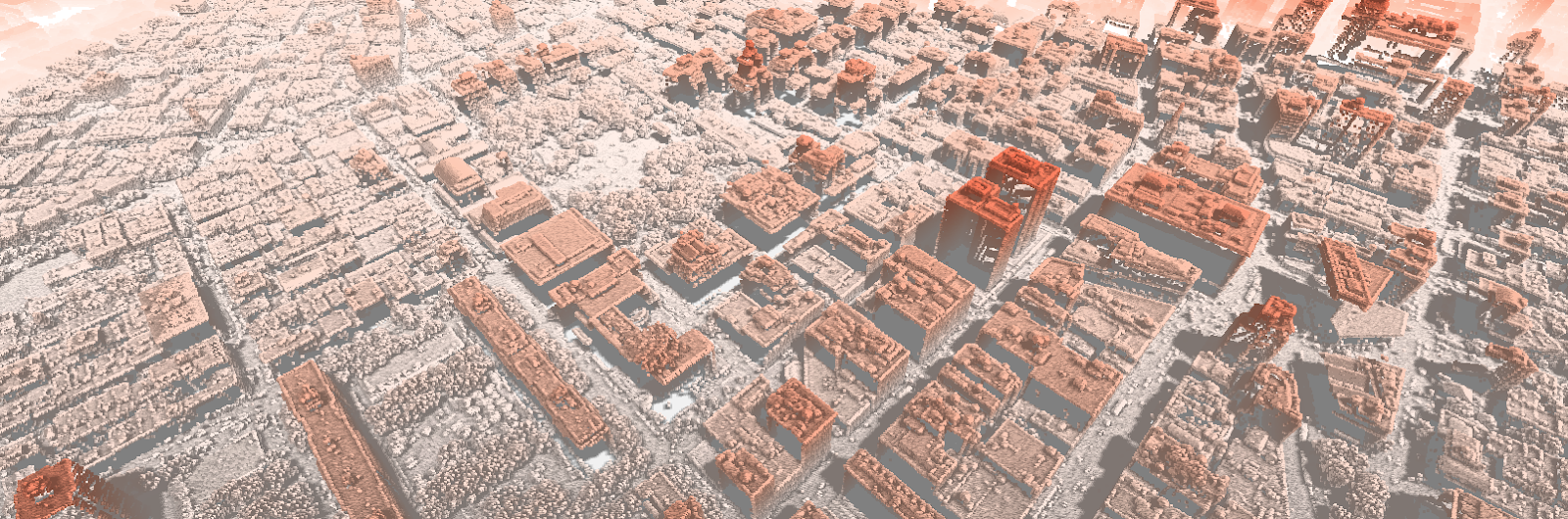
PostGIS, the North Star of spatial SQL
Here in Gispo we assist our clients in building geospatial solutions with modern open source geospatial software. We are also fully aware that spatial SQL lies at the very heart of geospatial solutions. The primary tool we use for practically all consulting projects is PostGIS, which is the driving force behind Gispo’s development.
PostGIS, the world’s most popular geospatial database engine, enables developers and analysts to use, update, and analyze geographical data using SQL. It enables the geospatial enterprise-ready OLAP-databases (Online Analytical Processing) for quick, predetermined data queries and the OLTP-type databases (Online Transaction Processing) for transactional geospatial data processes.
Besides being the number one favorite tool for developers and analysts, PostGIS is also the reference project that guides the product development for spatial analytics (at least partially) for some of the cloud-based big data platform providers, such as BigQuery (Google) or Snowflake, as well as Presto.
Why has SQL attracted attention?
So, PostGIS is the reference for Spatial SQL, but why SQL came to be the lingua franca for different big data platforms? There are a few key factors that have contributed to SQL becoming the preferred data programming language :
- Ease-of-use:
- Domain specialists and business analysts can use SQL to effectively extract insights from big data to address business issues.
- Reproducibility:
- By using SQL you use code for your analysis. You can quickly change and rerun your code.
- Standard-based:
- Easy to deploy processing over different SQL-engines. You use almost the same syntax in different platforms.
- Common language in-between silos:
- Data engineers can effectively communicate with data analysts by using SQL.
- No need for separate runtime – process the data where the data lives:
- SQL does not require any separate engine for running the queries.
The importance of Spatial SQL for enterprise GIS
A GIS analyst is trained to work locally on their computer using the graphical user interface of their favorite desktop GIS. Databases and SQL are also hugely useful on localhost and on one’s computer, but the significant benefits come from working in an enterprise environment.
Spatial data curation with QGIS and PostGIS
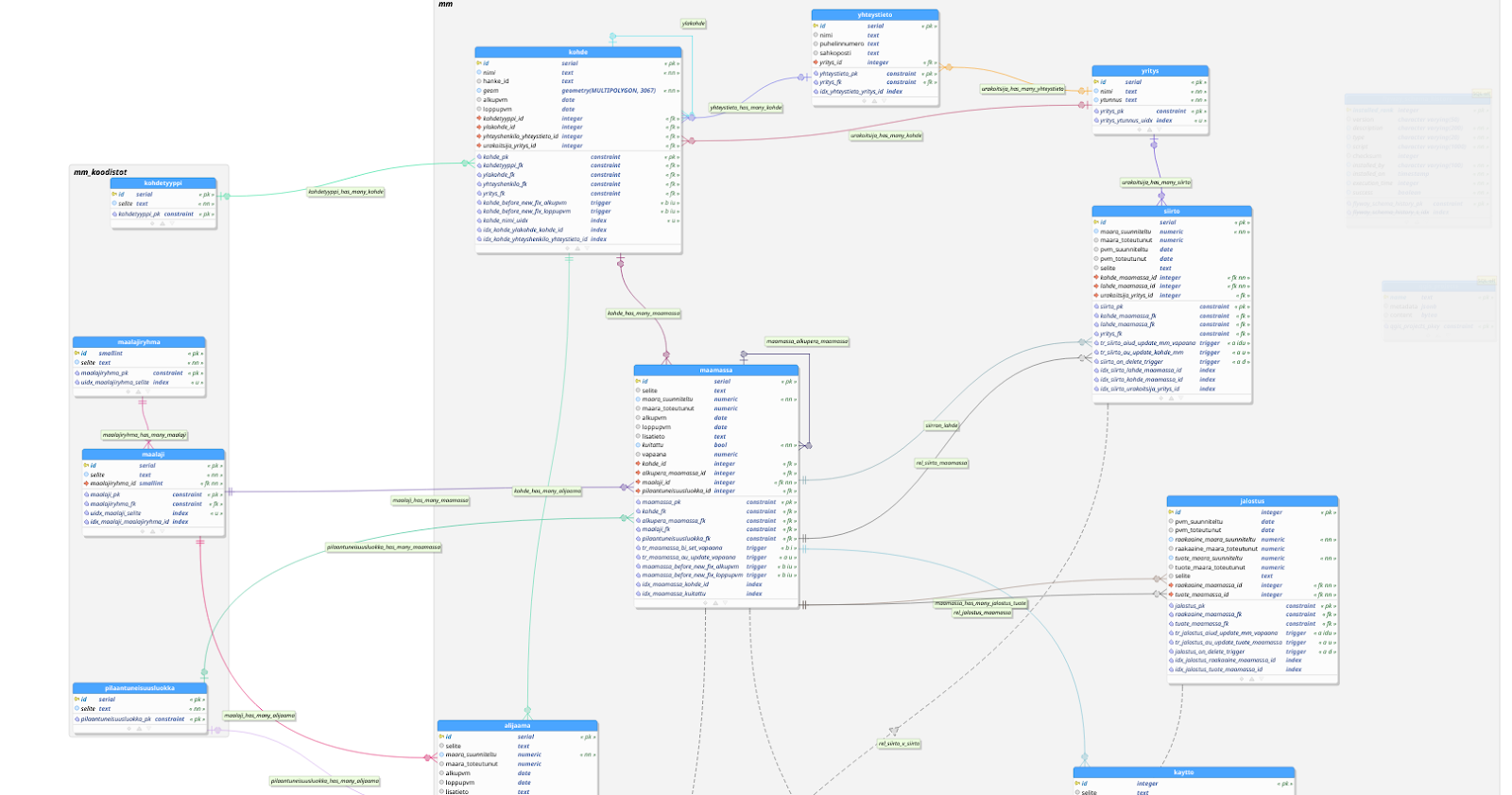
When discussing the creation, modification, and construction of data with spatial databases (the “OLTP” use case), one example is the usage of PostGIS as a backend for storing data in a QGIS-based data generation process. QGIS works as a map-based frontend for the users for creating and editing data. An example would be a QGIS-based solution we did for the City of Tampere for coordinating the logistics around urban soil management. The city officials need to know where different soil types are stored and generated (e.g. construction sites) in the city and where they need to move them next.

The spatial analytics use case
For data analysts and specially for data scientists SQL- and other code-based processes are part of their daily routines, whereas for traditionally trained GIS experts, it’s all about using the graphical interface for any analysis, right? It shouldn’t be like this forever, right?
Spatial SQL becomes important as data volumes increase and different cloud-based big data choices (including the all-powerful PostGIS) incorporate spatial analytics features more widely. The databases embedded and backing up the enterprise GIS systems should be accessible applications clients that support SQL. For instance, automated reporting to assist wise decision-making will be made easier as a result.
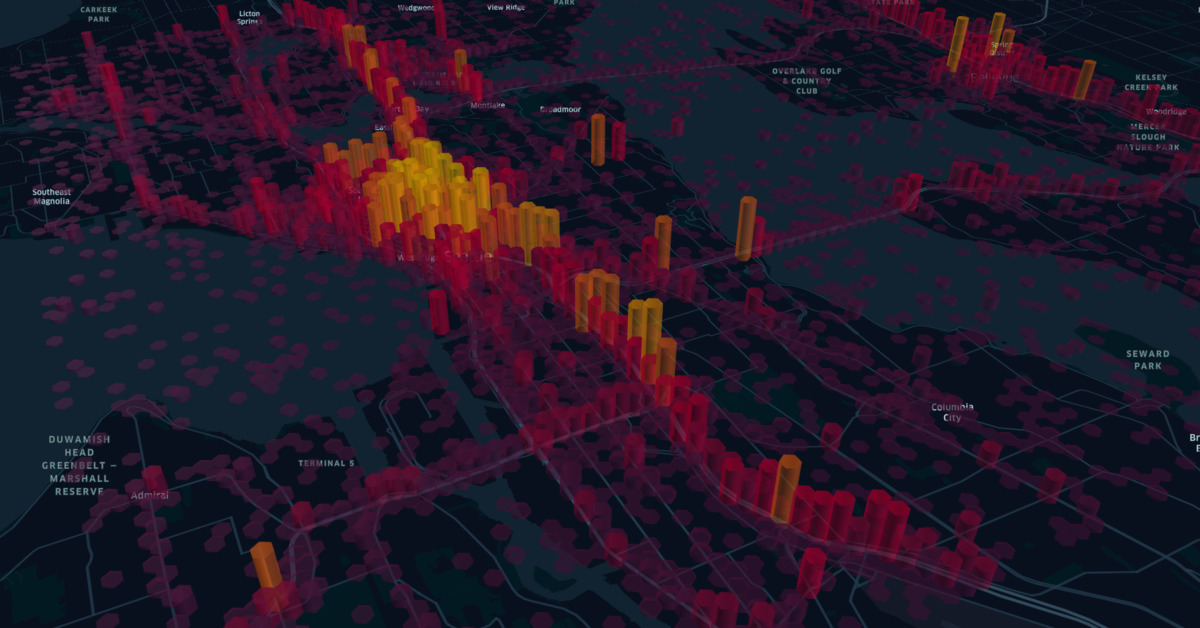
To give an example (the “OLAP” use case), in a recent project here at Gispo we built a PostGIS-backed reporting tool for municipal waste management. The data was stored in a RDMS (i.e. PostgreSQL) and was accessible for different client applications such as QGIS and PowerBI. While QGIS-users appreciated the map-based exploration of the data, the PowerBI dashboard sought to enhance decision-making with simple-to-read graphs and tables based on automated table views (i.e. materialized views) aggregated from dozens of tables with row counts over 5 figures.
Spatial SQL as an investment for the future
As said, at Gispo, we help our customers in almost all the projects by using PostGIS as the spatial database engine of choice. With some customers, we build PostGIS-based data workflows where users create data from QGIS and with some customers we build data analysis data pipelines for driving their business values and organizational goals by using geographical data. This is how we see spatial SQL as a key feature of our customer solutions.
This year we are embarking on a massive project related to developing new open source tools for mineral exploration. The project is the result of the Exploration Information System (EIS) proposal compiled by a pan-European consortium including 17 partners from research institutes, academia, service providers and the industry lead by Geological Survey of Finland (GTK).

Mineral exploration
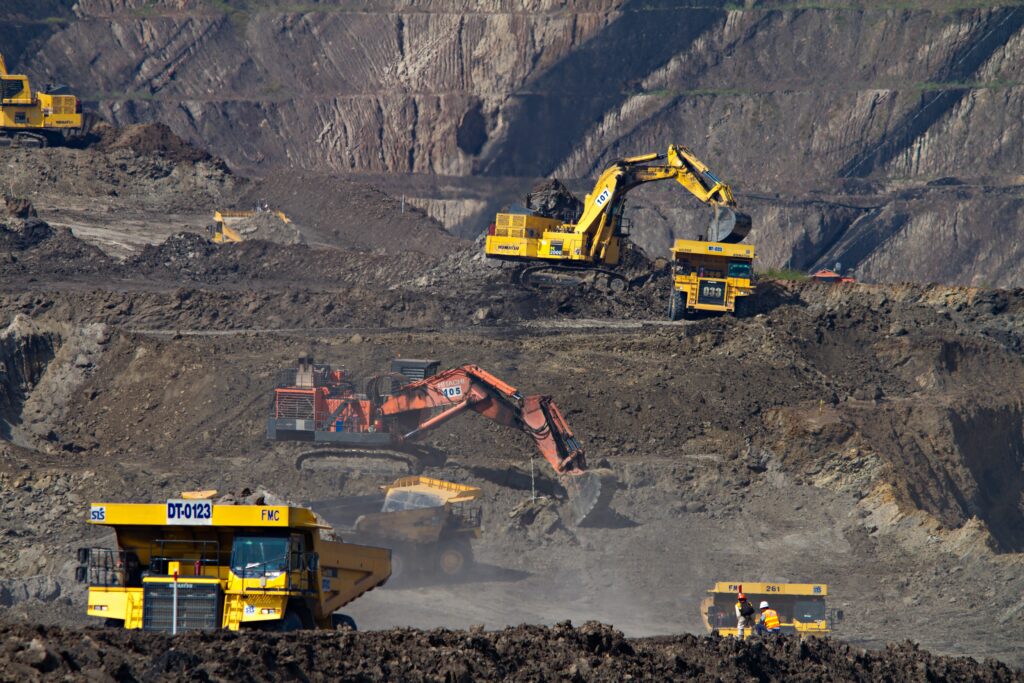
Mineral exploration is a complex process of searching for deposits of minerals. Without going into the intricacies, making it more efficient carries numerous benefits. Accurately predicting the locations of minerals reduces the impact that mining has on ecosystems, as fewer locations have to be excavated. This also means less emissions and exploration costs, directly supporting the EU’s goal of carbon neutrality by 2050.
The need for the EIS project
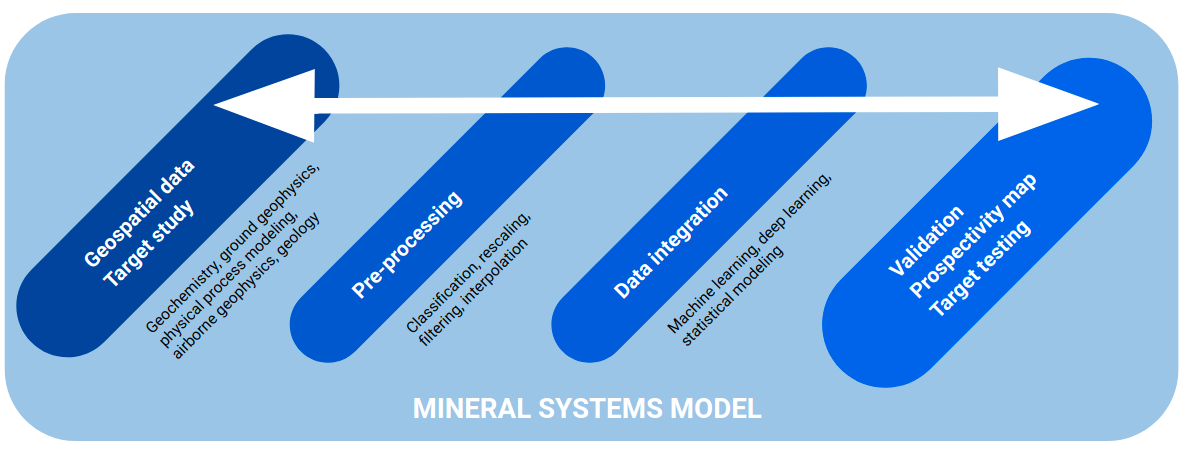
In recent years geology has seen a rapid increase in both available data and analysis methods. Many of these advancements are applicable to mineral exploration as well. Methods such as artificial intelligence, machine learning and deep learning make it possible to utilise the available data more efficiently, thus enabling us to find prospective locations more precisely.
However, on software level there exists no openly available yet cohesive environment to carry out a mineral prospectivity analysis in. The applicable solutions are scattered, and they encompass only small parts of the complete analysis workflow. This leads to each research group, consultant, and mining company implementing their own selection of tools. The result is a lot of duplicate work that should be avoidable and, most importantly, the ecosystem of tools becomes fragmented and undiscoverable.
The goal of the EIS project is to solve these issues by developing a set of open-source software applicable to all stages of prospectivity analysis. The main effort is to first define the typical prospectivity analysis workflows, and then implement the functionality necessary to accomplish them. As a whole, this set of software makes up a Exploration Information System, EIS.
Exploration Information System in development
The Development of the EIS project is at a very early stage. At this point, we’re heading towards two points of focus – The EIS toolkit and the EIS QGIS wizard.
EIS toolkit
The EIS toolkit is the core of the project. Simply put, it will be developed to be a Python library in which the necessary analysis methods are implemented. Using Python is the logical choice here, as it has the most extensive ecosystem for all of the things the EIS project focuses on: modelling, machine learning, neural networks, data visualisation and spatial analyses.
EIS QGIS wizard
The EIS QGIS wizard will act as a graphical user interface to the functionality provided by EIS toolkit. Implemented on top of QGIS, the goal is to couple the advantages QGIS brings to handling geospatial data with the analytical functionality of the toolkit.
More to come!
The EIS project has only just begun – expect more info about the progress as it is happening! For more information about EIS, the website of the project is a good place to start: https://eis-he.eu/
We at Gispo are always looking for different ways to publish and visualize spatial data. Sometimes we encounter needs where the best way to accomplish this is to provide an interactive map that the end user can digest in the way they please. Most commonly these needs are related to work projects but this is not the whole truth…
In this article we’ll be looking at the possibilities of combining qgis2web QGIS plugin with GitHub Pages. These two together offer a simple way for creating an interactive and customised map to play with! With these tools you can minimize the implementation effort and focus rather on the style tuning and refining the data itself.
Why qgis2web?
qgis2web generates a web map from your current QGIS project. In the background the plugin utilizes either OpenLayers, Leaflet or Mapbox GL JS. qgis2web replicates as many aspects of the project as possible. In practice, the plugin will create a web map containing your layers, styles (including labels or categorized / graduated symbols) and extent.
Prepare your map as far as possible in QGIS, as you want it to appear in your web map <-> do not leave any extra layers hanging in the QGIS project! Specific tasks you can carry out to improve your web map include:
- Modifying the data you want to display by adding / removing objects in a layer or adding / removing attribute data column
- Use QGIS’s tools / algorithms to create new layers highlighting some property in your original “raw” data layer
- Configure style of your layers (symbols, labels, scale-dependent visibility..)
- Give your layers human-friendly names in the Layers panel
- Give your layer columns human-friendly names
- Hide the columns you don’t want to appear in your popups (but still don’t want to remove) by changing their Edit widget to “Hidden”
- If any of your fields contain image filenames, change their Edit widget to “Photo” to have the images appear in popups
- Set your project title, background and highlight colours
Installation procedure
Launch QGIS. In the upper menu bar select Plugins > Manage and Install Plugins… -> a pop-up window opens. Navigate to the All tab and type qgis2web into the search box:
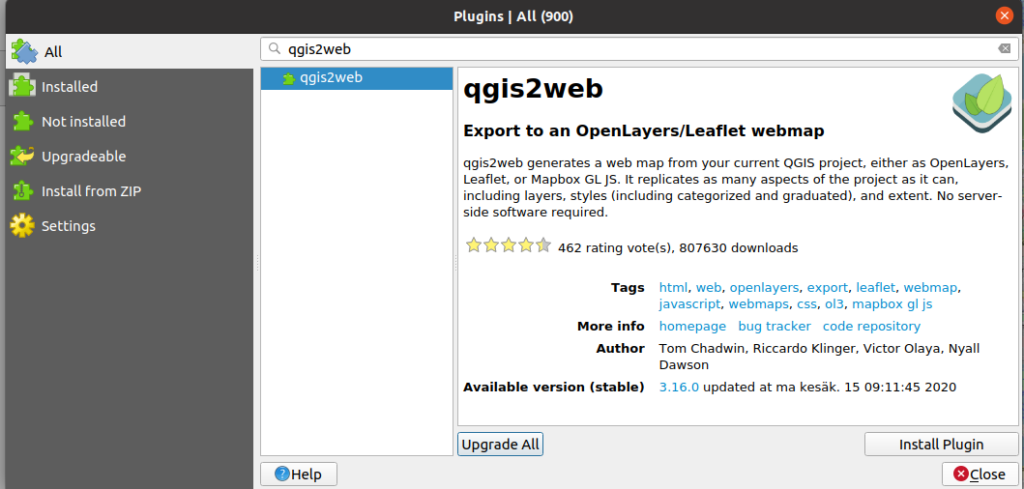
After finding the correct plugin, just click Install Plugin button!
Usage
Run qgis2web from QGIS’s upper menu bar by navigating Web > qgis2web > Create web map, or via its icon. A new pop-up window should emerge. In the pop-up window’s right panel you will see a preview of your QGIS project as an interactive map. Notice that not all properties necessary show in the preview (e.g. highlight objects on hover).
The pop-up window’s left panel lets you set options separately for each layer. The pop up window’s bottom panel sets overall options for your project. Remember to click “Update preview” to see the effect of each choice. All options are written to your QGIS project, so save your project if you want to keep these settings. Since there is a bunch of decisions to make, here is a collection of screenshots representing the choices I made in order to create my interactive demo map:
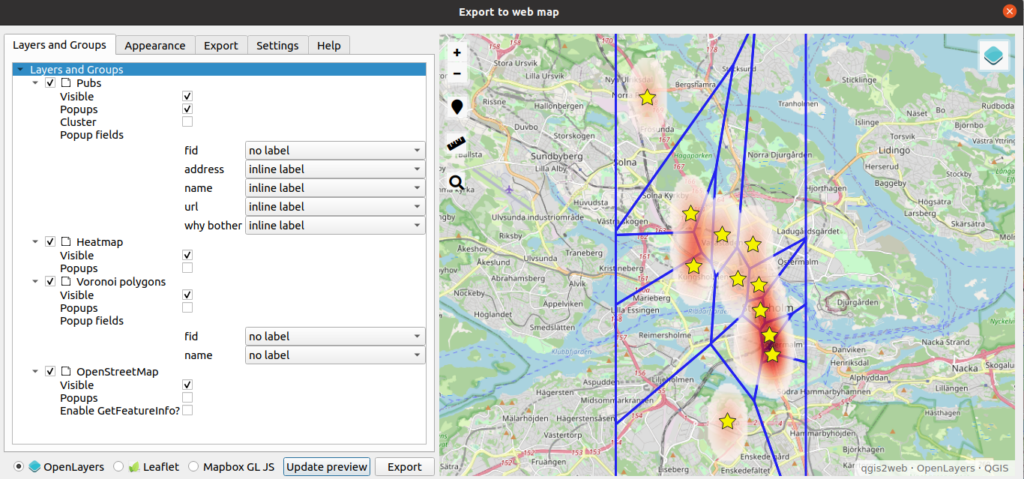
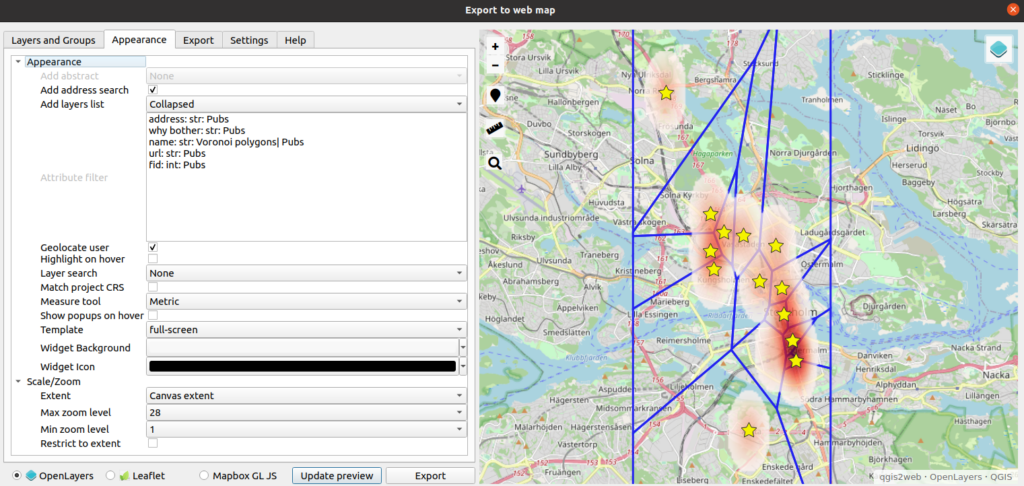
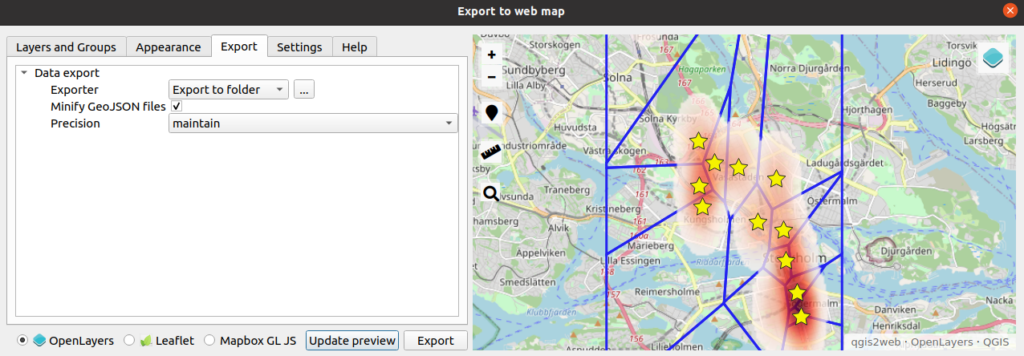
Remember to set the path for saving the folder qgis2web plugin creates, before clicking Export button! After a successful export, the plugin automatically opens index.html file into browser. Check that the result satisfies you. If not, make alterations and export a new version of the interactive map.
Why GitHub pages?
GitHub is a very important and useful community to get involved in. First of all, Git/GitHub is a very popular version control system. GitHub has also a very useful feature called GitHub Pages, which allows you to publish website code live on the web. GitHub Pages are public web pages for users, organizations and repositories. GitHub Pages are freely hosted on GitHub’s github.io domain (or on a custom domain name of your choice).
You can store any code you like in a GitHub repository. In order to use the GitHub Pages feature to full effect, your code should be structured as a typical website, e.g. with the primary entry point being an HTML file called index.html.
Your site will be automatically generated by GitHub Pages when you push your source files. With GitHub Pages it is possible to just push generated HTML and you’re good to go without any further setup. In our case, we can use GitHub Pages for publishing the interactive map we just created with qgis2web plugin!
Usage
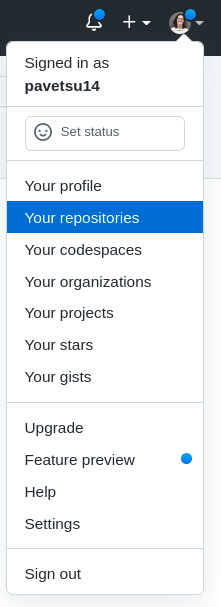
- If you do not yet have a GitHub account, please go and create one. It is completely free. Log in to your Github account and click on Your repositories in the upper right corner:
- Create a new repository by clicking the green New button:

Note that you can create this repository also under your organization if you wish:
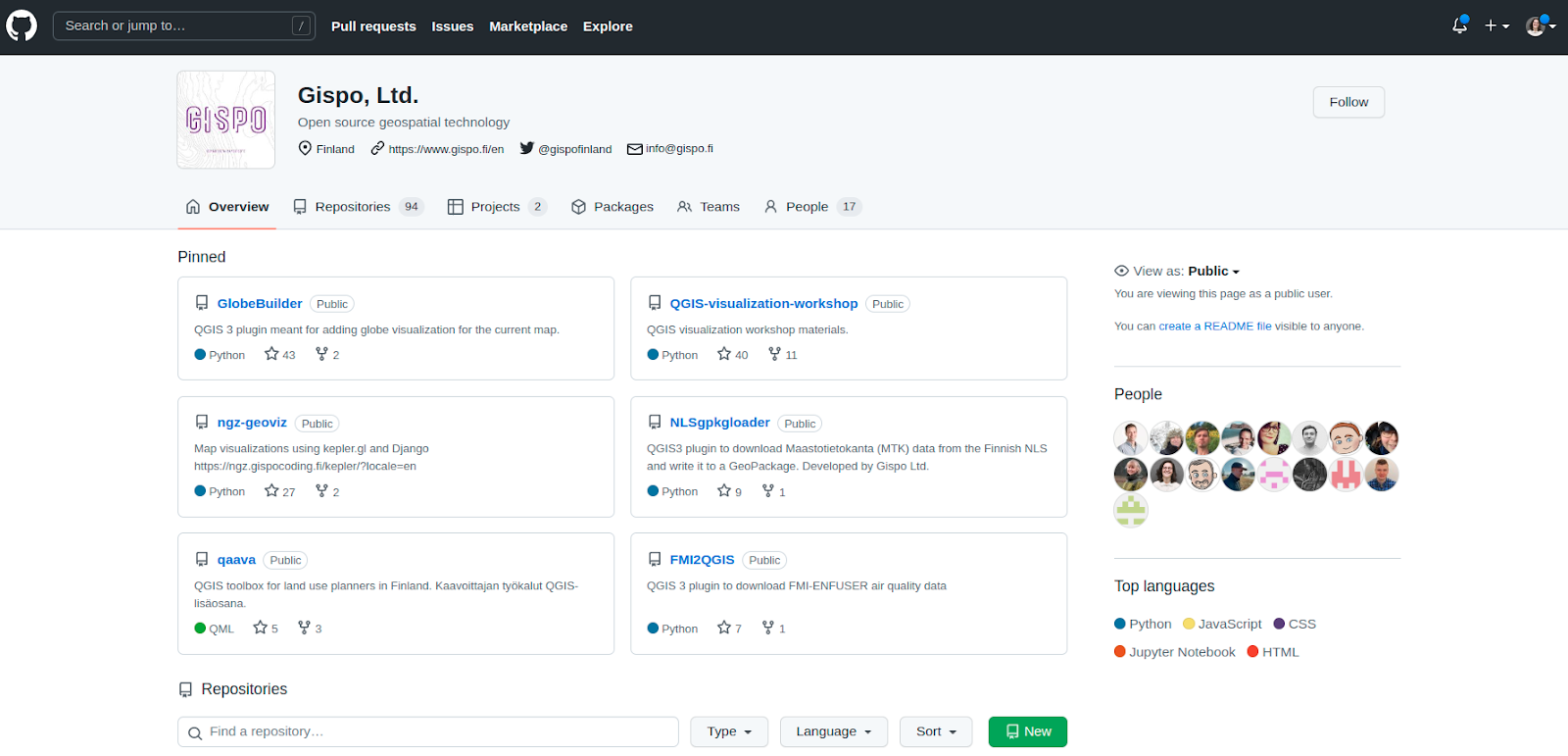
While creating a repository you need to
- Provide a name for the repository
- Select whether this repository is going to be public or private (using GitHub pages on a private repository requires Pro version of GitHub)
In addition to this obligatory piece of information it is strongly recommended also to
- Provide a description of the repository
- Choose a licence for the repository
- Tick Add README file box
- Navigate to Settings > Pages. In here, choose main and /root ja press Save. In addition to that, select an appropriate theme for your GitHub pages (I chose Architect theme, but whatever pleases you):
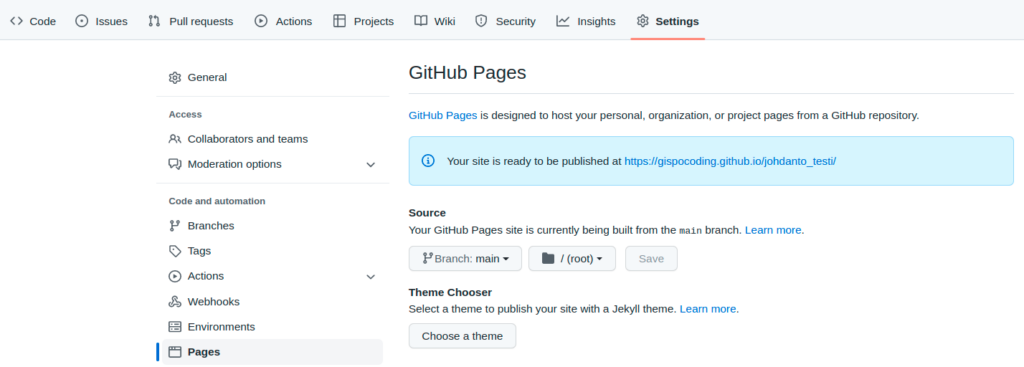
- Modify README.md file by replacing the template text with your own text. Down below you can see a screenshot of my README. Note that .md files have its own syntax.
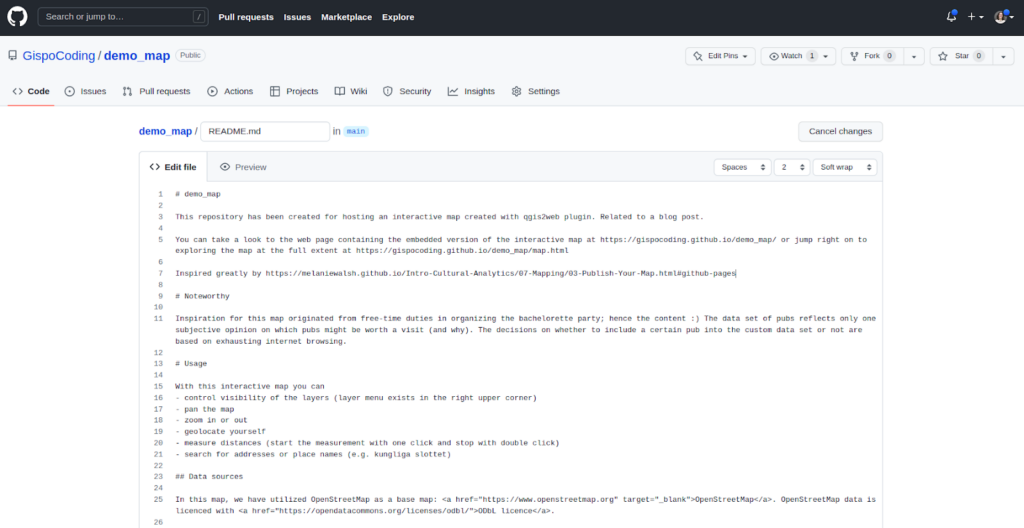
Commit your changes directly to the main branch:
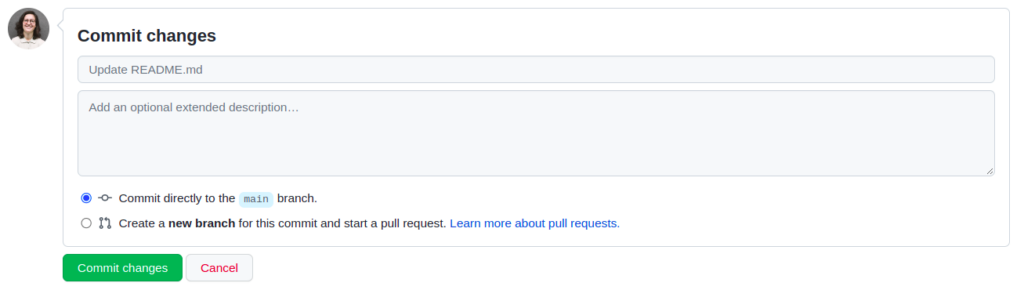
- Add files to the repository by clicking Add file > Upload files button

and dragging all files from the exported qgis2web folder into the uploading area:
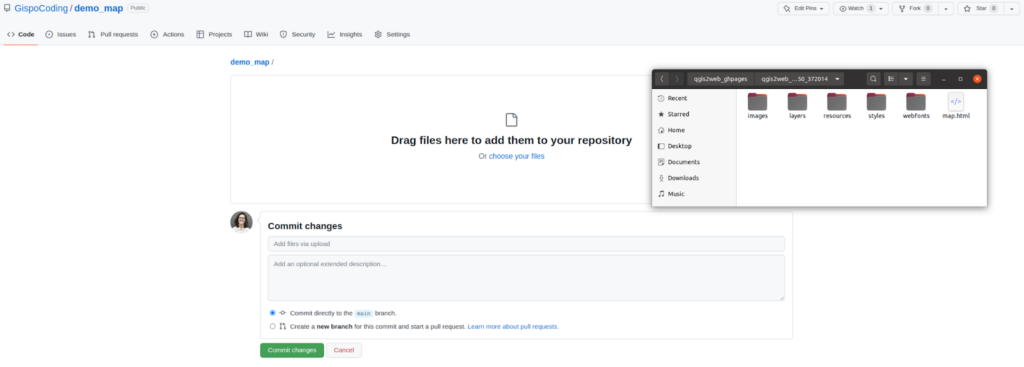
Note that you can drag and drop both individual files and complete folders!
Let the folder structure be as qgis2web plugin created it. You can again commit changes directly to the main.
- Rename index.html file into map.html by first opening the index.html file and then clicking on the pencil icon:
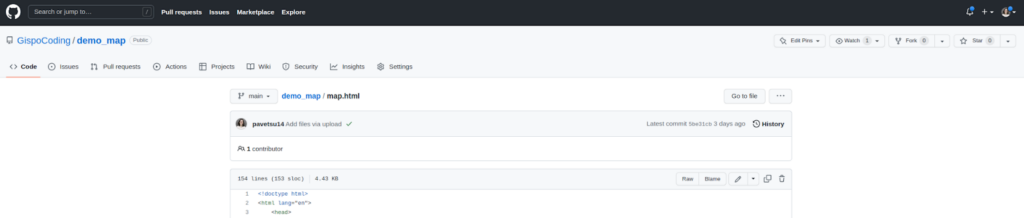
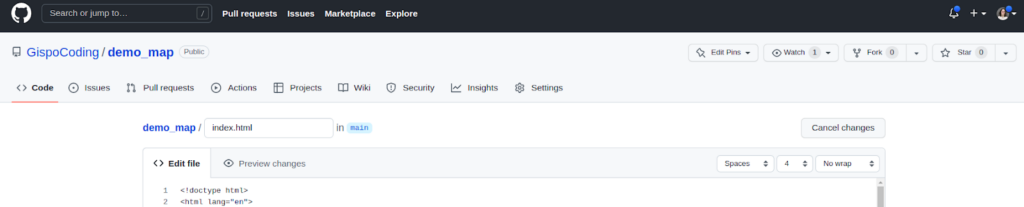
- Create a new file to the repository by clicking Add files > Create new file and setting its name to index.md. Below you can see a screenshot of my index.md. In this file you specify the content of the web page containing your interactive map.
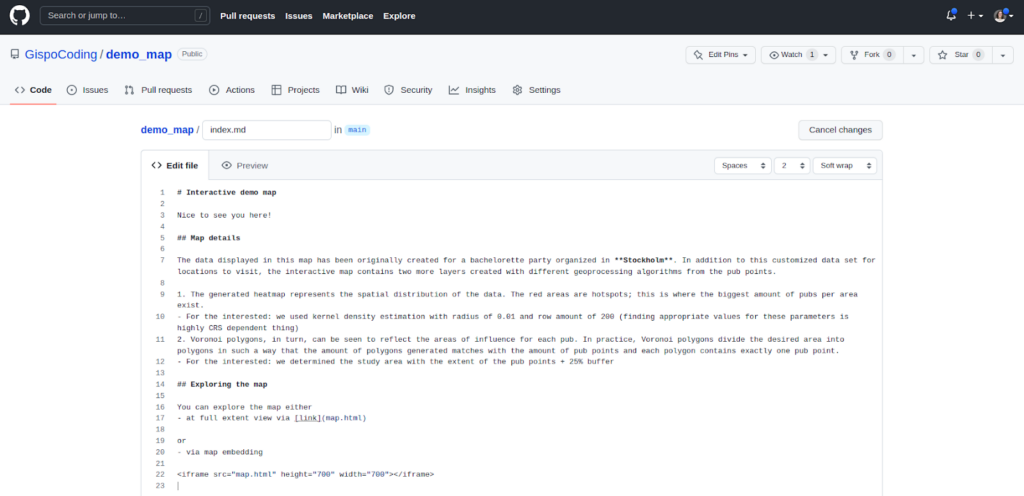
Commit to the main branch and test whether anything appears in https://<github_user_name>.github.io/<repository_name>/
It might take a couple of minutes to update the changes so do not get worried if the link does not work right away after committing your latest changes.
End result
Repository: https://github.com/GispoCoding/demo_map
- In here you can find the source code and more information about the functionalities provided in the interactive demo map
GitHub page: https://gispocoding.github.io/demo_map/
- In here you can find more information about the data provided in the demo map
Map in the full view extent:
https://gispocoding.github.io/demo_map/map.html
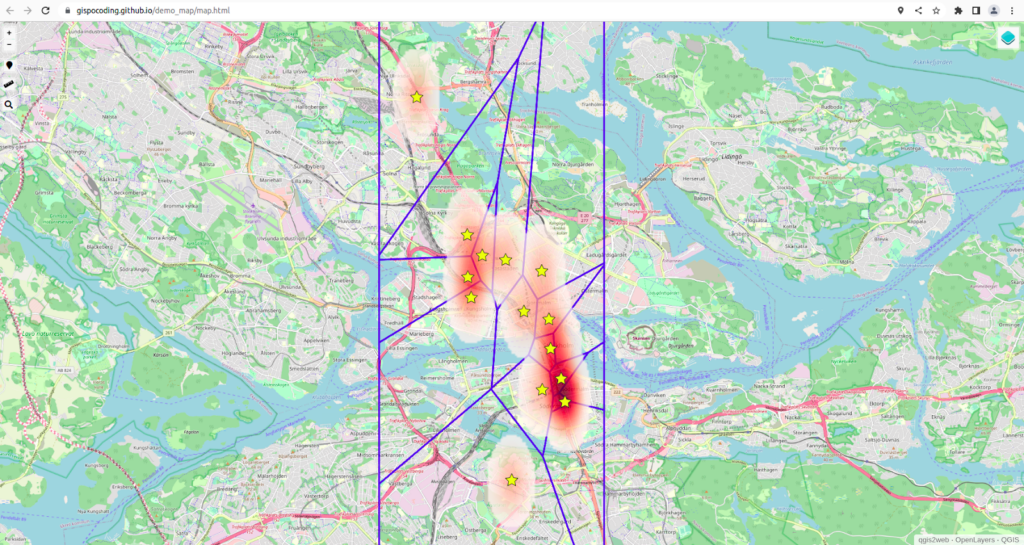
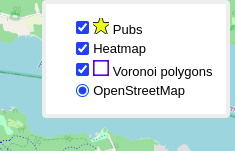
Note that on the upper right corner you have a layer menu available:
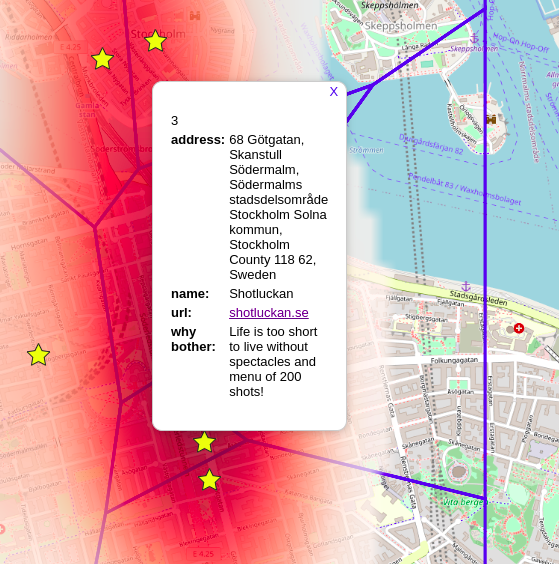
Note also that by clicking a star symbol a pop up window with that particular pub’s attribute data emerges:
Now you know everything you need to know in order to create an interactive map of your choice!
Disclaimer
Inspiration for this map originated from free-time duties in organizing the bachelorette party; hence the content. The data set of pubs reflects only one subjective opinion on which pubs might be worth a visit (and why). The decisions on whether to include a certain pub into the custom data set or not are based on exhausting internet browsing.
Global open source conference coming up in Florenze Italy. At 22.-28.8.2022 we gather around to meet each other again. Can’t wait to meet you all! Gispo will be attending with all its might!
We will be taking part in the following general tracks (the titles are hyperlinks, can be clicked):
- Using QField to manage traffic sign inventory, Jaakko
- Streamlining QGIS workflows with PostgreSQL editable views and triggers, Lauri
- Maintaining a national Aerial Image Registry with QGIS, Mikael
- Geospatial data science for planning education systems, Riku
- Calculating school catchment areas – an open source solution, Riku
In addition, the program includes numerous workshops, which we will participate in
Read more about the conference and its schedule here: https://2022.foss4g.org/
With over 2 million worldwide users, it is fair to say QGIS is the most popular open-source desktop GIS. The official QGIS plugin repository has currently over 800 plugins for a wide variety of use cases. Many users use features and functionalities provided by plugins daily, but few dare to dream of creating their own plugin, and those who do often struggle with getting started. While a basic knowledge of Python is required, plugin development does not necessarily need to be overly complicated.
This guide aims to de-mystify the process of getting started with developing your very first QGIS plugin. Even if you have developed plugins before, you may find something useful here. We have already made a guide to plugin development in a previous blog post. Most topics covered there are still relevant and valid, but a few things have changed since then, calling for a slightly updated guide. This guide applies for QGIS 3.24 and 3.22 LTR versions.
By the end of reading this post, you should have a working QGIS plugin and a development environment to continue working on it. This guide assumes you’re using Windows and Visual Studio Code as they are the most popular operating system and likely most popular code editor. However, we always advocate for FOSS, and it has to be noted many of the steps in this guide do not apply on Linux operating systems, where getting started with plugin development is generally less of a hassle than on Windows.
Creating a new plugin
Note: if you get lost or have difficulties following this guide or developing your plugin, make sure to read the need help-section at the end of this post! Before getting started, you need to install QGIS, we recommend using the LTR version. You also need to install git.
To get started, we recommend using our cookiecutter-qgis-plugin to create your new plugin. By using our tool you get a useful template that is proven to work so you can get started right away without having to write any so-called boilerplate code.

I would recommend creating a separate Python virtual environment to install cookiecutter and its dependencies. Using virtual environments is generally preferred over installing packages globally as isolating environments helps prevent many issues with varying package versions and dependencies.
Create a new folder and open the OSGeo4W shell (it comes with a QGIS installation). Navigate to the folder you just created (cd C:\path\to\project\folder), and enter the command:
%PYTHONHOME%/python.exe -m venv cookiecutter-venv
Running the command may take a few seconds, after which you should have a new directory called cookiecutter-venv. Next, activate the virtual environment with the command:
.\cookiecutter-venv\Scripts\activate
You should now see (cookiecutter-venv) in your command prompt. Now install cookiecutter and pip-tools inside the virtual environment with the commands:
python -m pip install -U pip
pip install cookiecutter pip-toolsNote: if you get an error saying “Can’t connect to HTTPS URL because the SSL module is not available.”, follow the steps in this StackOverflow answer. If you get an “Access is denied” error, simply try running the command again. If the problem persists, open a new OSGeo4W shell as an administrator and try again. Remember to reactivate the virtual environment first!
OSGeo4W Shell modifies the PATH variable. In practice, this means you likely get the following error when trying to run git commands in OSGeo4W Shell even if Git is installed:

To fix this, temporarily add git to PATH manually, before running the cookiecutter command:
set PATH=%PATH%;C:\Program Files\Git\cmd
cookiecutter https://github.com/GispoCoding/cookiecutter-qgis-plugin
If this is your first time running the cookiecutter-qgis-plugin wizard, you can simply hit enter to accept the default values. If you intend to keep using VS Code, you can answer yes to add_vscode_config. You now have a working QGIS plugin inside the my-qgis-plugin directory!
Note: if you still get an error saying “‘git’ is not installed”, make sure the PATH variable is set correctly (see above) and running the command git does not cause an error message.
Setting up the development environment
So far we have managed to create a new plugin based on the cookiecutter-qgis-plugin template. Now it’s time to set up the development environment so VS Code can provide useful autocompletions and does not constantly nag you about missing libraries.
In OSGeo4W Shell, navigate to the newly created plugin directory (my-qgis-plugin if you chose the default values) with cd. We are going to create and activate a brand new virtual environment called .venv that is used just for our plugin, so run the following commands:
deactivate
%PYTHONHOME%/python.exe -m venv --system-site-packages .venv
.\.venv\Scripts\activate
Note: we now have two separate virtual environments, the first one where we installed cookiecutter, and the second that we are going to use for plugin development. Make sure not to mix these up!
Using the flag --system-site-packages ensures the necessary PyQGIS libraries are installed to the new virtual environment. The cookiecutter template includes a requirements-dev.txt that includes some useful libraries and tools e.g. for writing unit tests with pytest. Install these by running the command:
pip install -r requirements-dev.txt
Note: if you get an error with permissions, simply try running the command again. If the problem persists, open OSGeo4W Shell again as an administrator, reactivate the .venv virtual environment and try again.
You can ensure the install was successful by running the command pip freeze. This prints a list of packages installed in the virtual environment, which should include e.g. pytest and pytest-qgis.
Finally it’s time to start VS Code and open our plugin folder (by default my-qgis-plugin). First let’s instruct VS Code to use the .venv virtual environment that we have created. Hit Ctrl+Shift+P, type in “Python select interpreter” and hit enter. Pick the option with the path .\venv\Scripts\python.exe and hit enter:

Use VS Code to create two new files. First, create a file in the .venv directory called qgis.pth. Create another file inside the .venv\Lib\site-packages directory called sitecustomize.py.

Open the new qgis.pth file and type in the path of your QGIS Python directory. This varies by system. Common locations include C:\OSGeo4W\apps\qgis-ltr\python and C:\Program Files\QGIS <version>\apps\qgis-ltr\python. Make sure you use a path that actually exists on your system! In my instance the correct path was C:\Program Files\QGIS 3.24.2\apps\qgis\python.
Note: at this point, it’s useful to make a note of the base path of your QGIS installation. In my case it is C:\Program Files\QGIS 3.24.2, i.e. the full path without \apps\qgis\python.
Edit the sitecustomize.py file created earlier and copy in the following lines (notice the use of / instead of \ in file paths):
import os

os.add_dll_directory("C:/Program Files/QGIS 3.24.2/bin")
os.add_dll_directory("C:/Program Files/QGIS 3.24.2/apps/qgis/bin")
os.add_dll_directory("C:/Program Files/QGIS 3.24.2/apps/Qt5/bin")
Replace C:/Program Files/QGIS 3.24.2 with the base path of your QGIS installation, e.g. C:/OSGeo4W or C:/Program Files/QGIS <version>. Simply look at what directories exist on your filesystem. Note that you may also need to change /apps/qgis/bin to /apps/qgis-ltr/bin.
Save your changes to both files and restart VS Code for good measure. Open the plugin.py file (by default inside the myqgisplugin directory). If everything went well, you should see no errors or squiggly lines at the top of the file that contains all of the imports:

If that’s the case, congratulations, you have set up a fully functional plugin development environment!
What next?
By default cookiecutter-qgis-plugin clones a directory called qgis_plugin_tools inside your plugin directory. QGIS plugin tools is a helpful library that contains many functionalities that are useful when developing plugins.
After setting up the development environment, one of the first things you should try is actually deploying your plugin code to QGIS and seeing it in action. While other tools and methods exist, QGIS Plugin tools has a useful PluginMaker tool to help with this process. In OSGeo4W Shell, navigate to the directory containing the files plugin.py and build.py (by default myqgisplugin) and run the command python build.py deploy.
Restart QGIS, open the Plugins > Manage and Install Plugins menu, and select the Installed tab. A new plugin should be in the list of installed plugins:

Note: if you don’t see the plugin, ensure you are using the QGIS profile named “default”.
Note that in the future it’s a good idea to always create and use a separate profile for each plugin you develop. You can define the profile that the plugin is deployed to in build.py. See the QGIS plugin tools documentation for more information.
Tick the checkbox next to the plugin to enable it. Open the QGIS Python interpreter from Plugins > Python console. Now click the MyQGISPlugin button in the Plugins menu and you should see the following statement in the Python console panel:
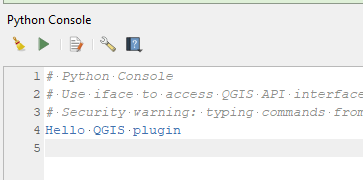
You can now start making changes to the code inside the run method in plugin.py. Remember to always deploy your changes using build.py and restart QGIS or you won’t see any effect! Restarting QGIS after each change gets tedious very fast, so we recommend installing the Plugin reloader plugin from the official plugin repository to reload changes without needing to restart.
Make sure to check out the PyQGIS Developer Cookbook for lots of useful and practical examples how to use PyQGIS, and the QGIS Plugin Tools documentation for information on what other useful functions it provides and how they are used.
Need help?
Are you lost and feel like you need advice on how to proceed? Feel free to reach out to us at info@gispo.fi. We can help you take your plugin development skills to the next level with various PyQGIS-related courses with live instruction either on-premises or remotely. If you get in over your head, we can also develop customized plugins on your behalf or provide specialized consultation for your team on all QGIS plugin development related topics.