

One more time! Let’s continue the raster series with calculating water basins in QGIS – because we all love rasters, why not have one more part to our beloved raster series? What is the raster series? The first part focused on what are rasters and in the second part we delved more into analysis tools focusing on terrain modelling. The third part continued the hut saga into raster calculator and its uses.
This time around we’ll combine a few analyses and the raster calculator to see how to calculate water basins with SAGA tools in QGIS. Nowadays these tools are not native in QGIS, but they can be activated as a plugin.
Preparing the data
You’ll need an elevation model from the area of interest, the smaller the pixel size the better as it affects the resolution and accuracy of the results. In the example I use a 2m elevation model from National Land Survey of Finland, downloaded from MapSite. As there might be some holes in the data let’s fix that by using Fill sinks (Wang & Liu) in Saga tools. This tool finds and fills surface depressions for example sinkholes and giant’s kettles to have a smooth, downward flowing surface for calculating the basins.
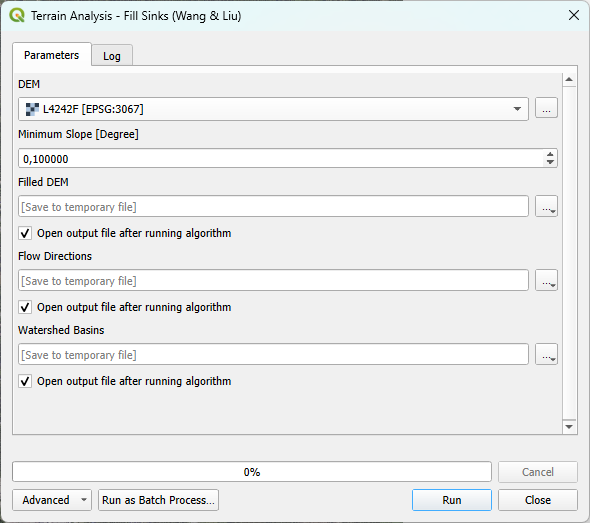
Calculating the order of streams
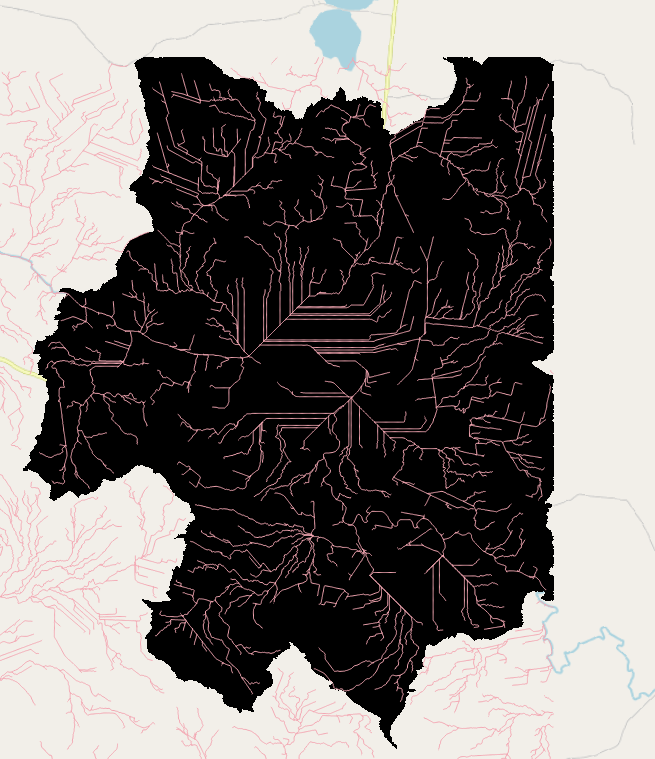
To calculate waterbasins we need to calculate Strahler order that defines the hierarchical order of streams based on their size. To check if the results are somewhat realistic you can use a satellite image or OpenStreetMap and compare if the calculated stream sizes seem to be correct. Below is a visualisation of the stream order and if we compare the calculated streams to OpenStreetMap below, the bigger stream seems to follow the digitised one. The smaller the pixel size in your original DEM, the more accurate the calculated streams are.
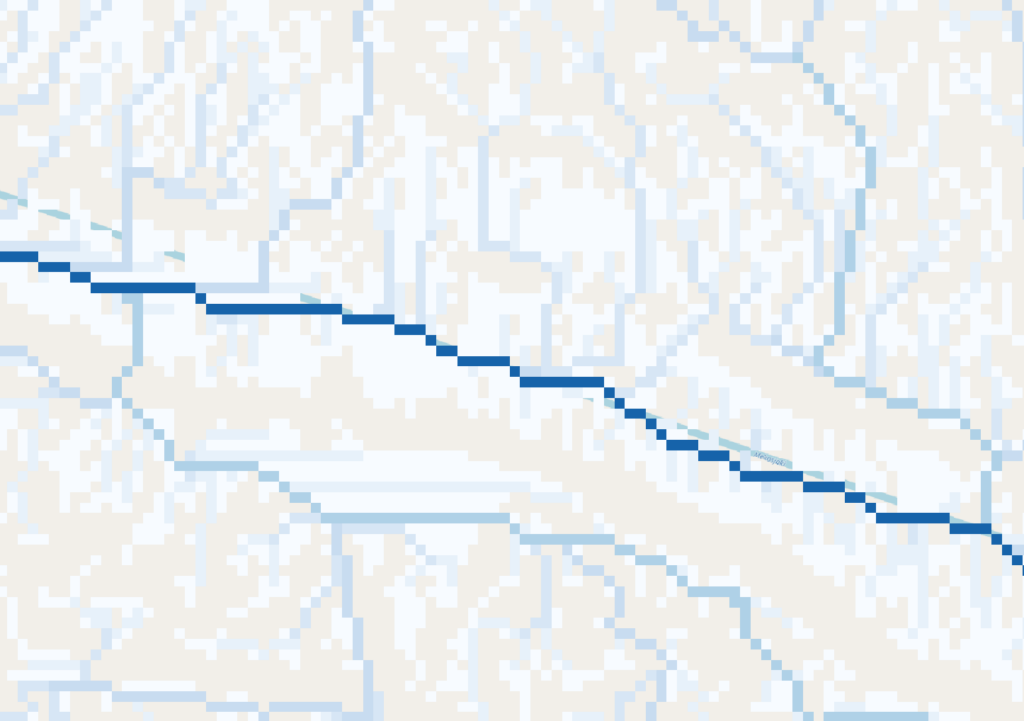
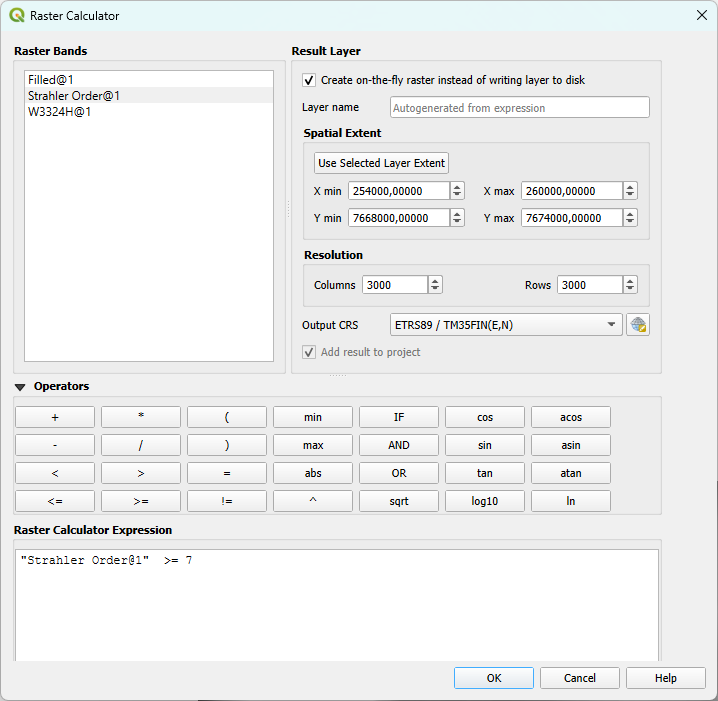
There are streams of different sizes and as we can see in the picture above, the biggest streams are the ones we want to use to calculate waterbasins. The different streams are identified with the raster values. As there are multiple streams in the calculated dataset, the smallest ones might not be correct or relevant so we can filter them out. And as we learned in the previous raster blog, the way to go is the raster calculator! You can test how many streams you want to use to calculate water basins, about half of the original amount gives a quite good accuracy with the water basin.
Finally seeing the water basins
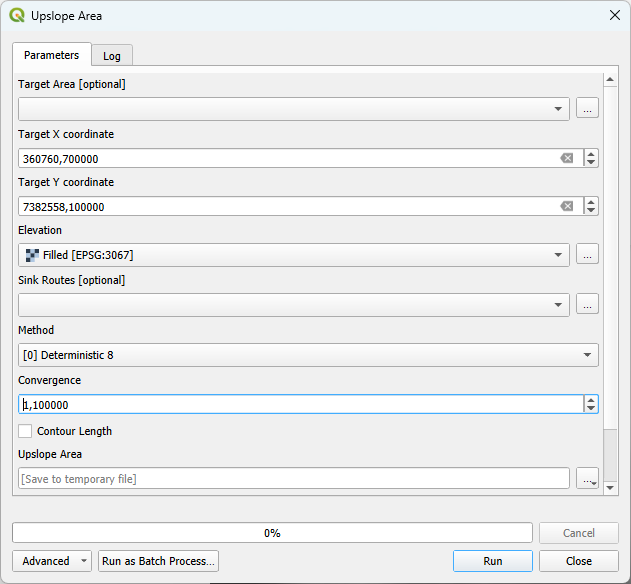
And finally we are ready to calculate the water basin itself! But first… We need to select a big stream to calculate the water basin to. For the analysis we’ll need coordinates. Pick a stream and gather coordinates for the target stream and copy the coordinates to a notepad to be used in the next step.
Open Upslope area -tool and paste the coordinates to X and Y targets and use the original filled DEM as elevation.
And to use the water basin a bit more easily we’ll vectorise it with (tool name?)
The vectorised basin might need a bit of cleaning but this is easy to do by deleting the small one-pixel areas that are not fully connected.
The final product is the vectorised water basin. Here the streams are visualised in color to show how the streams work in the water basin!
A spatial extension for PostgreSQL. End of blog post.
Hold your horses! While you could answer the title question with a single sentence, the answer might only raise more questions if you aren’t already “in the know.”
First things first. We need to clear up the concept of a database.
Database – collection of organized information
A database is a collection of organized information. In the past, information was organized physically in paper folders, card catalogs, clay tablets, and other things my children have never heard of. Today, we usually prefer digitally organized collections of information. That is what we call a database in this context.
Organized information, of course, refers to the fact that things are not scattered haphazardly. Instead for example, pictures of the city’s traffic signs taken in the field are saved in the same folder (either digitally or physically) and essential information of each picture has been recorded (location, color, height, meaning, name, etc.). This is how a database is compiled.
Relational database, tables and relations
There are different systems for organizing databases; this is actually what we refer to when we talk about, for example, PostgreSQL, Oracle, or MySQL. We usually call them relational databases, but their proper even though long and clunky name is Relational Database Management Systems, or RDBMS. As you can see, it is a system for managing relational databases.
But what is a relational database? What kind of relations can a database have any way? As you’ve probably already guessed, it’s not about romantic relationships, but something slightly less exciting.
A relational database stores data in tables (rows and columns ). It is between these tables that we find the relations. I told you it wasn’t that exciting…
But put aside your romantic ponderings for a moment. Let’s imagine we have a table for romance novels and a table for authors, we could then establish a relation between the novels and the authors. We’ll assume one author can write several books, and one book can have only one author, then the relation is a one-to-many relation.
To make it more clear, we’ve created a chart:
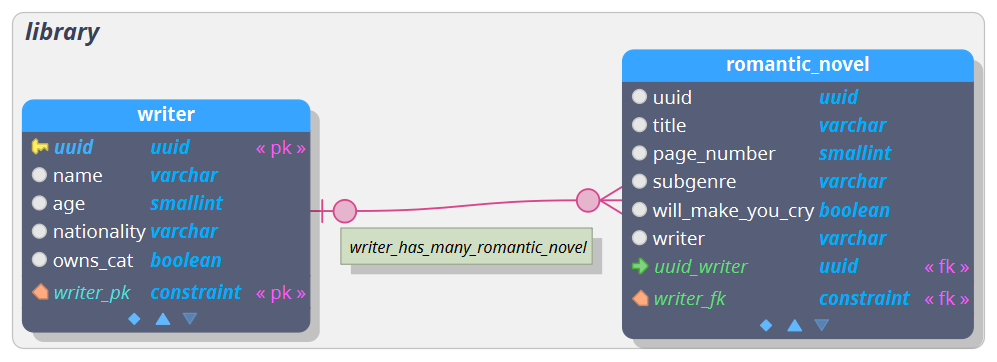
Now we’ve done it! We made a data model! We could use this data model to create database for our romantic library and store information about each book and author.
But we’re not here to talk about novels and relations. We’re here to talk about PostGIS.
PostgreSQL and the spatial extension PostGIS
Okay, so now we know what a relational database is. A popular “relational database system” is PostgreSQL.
PostgreSQL, often called just Postgres to avoid tripping over your tongue, is built on open source and actually turns 30 this year (2026)! It is an established player in the database market. PostgreSQL continues to be one of the most popular relational database systems in the world. Here at Gispo, we are very fond of PostgreSQL, primarily because it is open source and because PostgreSQL has a spatial extension called PostGIS.
Now we have almost reached the answer to the title question. PostGIS is an extension that you install on your PostgreSQL database. Without PostGIS, PostgreSQL is quite helpless when it comes to geographic data. PostGIS enables the smooth management and analysis of large amounts of geodata. You get access to, among other things, spatial formats and spatial analysis for geodata. If this piqued your interest, perhaps you should attend Gispo’s PostGIS course?
Let’s recap!
– What is PostGIS?
– PostGIS is a spatial extension for PostgreSQL
Bonus question:
– Who needs PostGIS?
– Organizations that want their geodata to be neat and organized and easily maintained and analyzed, and organisations that don’t want to pay license fees for their geodatabase.
If you are new to rasters, check out the previous parts of our Rasters in QGIS series: What are rasters? and Raster analysis with QGIS.
In the previous blog post we took a look at some digital elevation models (DEM) of northern Finland and analysed the terrain and slope in the Kilpisjärvi region. Now we’ll continue working with the same dataset, yet this time our aim is to decide a place for a new wilderness hut somewhere around Ailakkavaara fjell.
Now that you have the terrain and slope analysis ready, how to decide on a place? You could just visually see and compare what would be the best place to build the hut but there is one ace in your sleeve: the raster calculator!
The raster calculator is a nice little tool that has a variety of uses in QGIS: you can transform units, crop the existing raster, use expressions to select pixels or make new rasters… and the list goes on. The raster calculators can be found in different places: in the Processing toolbox, Raster tools menu or inside the GDAL or SAGA tools. Basically the raster calculators are all the same and do the same thing, but the syntax may be a bit different and the user interface can look a bit different.
In this blog, we’ll use the raster calculator from the Raster menu.
The raster calculator in action
What would we need to build a hut? At least a fairly large flat area and at least a very small slope. We also want the hut to have a window facing to the north because who wouldn’t want to see the Saana fjell first thing in the morning?
So we have two requirements in our search:
- Small slope
- North facing aspect
We’ll tackle the slope first. Open Raster calculator: click Raster → Raster calculator. On the left side of the raster calculator are listed all the layers that are open in QGIS. In the bottom of the calculator you can write the expression. Let’s say that we want to find a place with a slope less than 5 degrees.
The expression is:
“slope@1” <= 5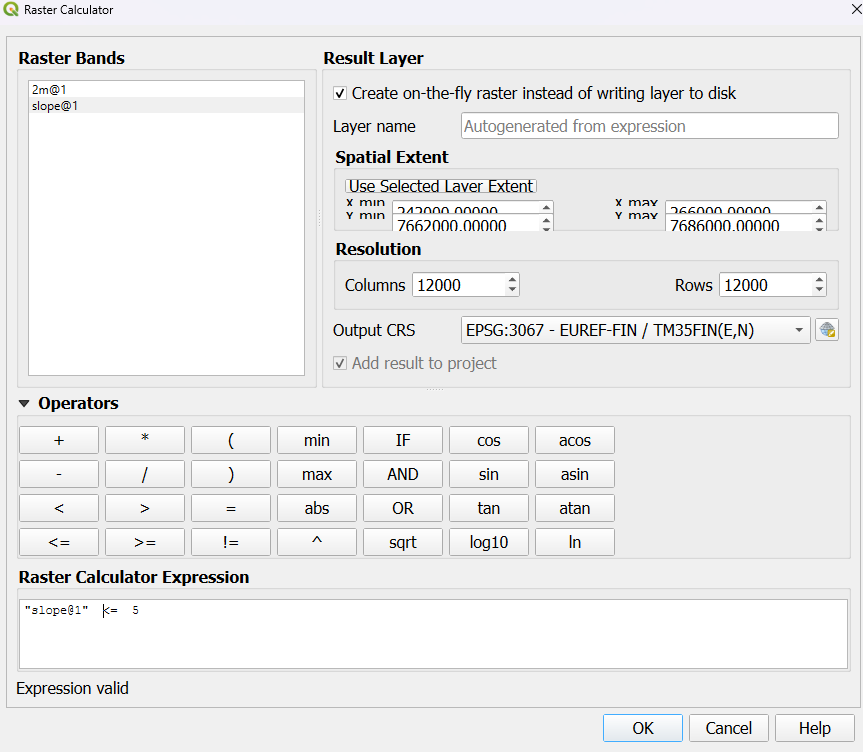
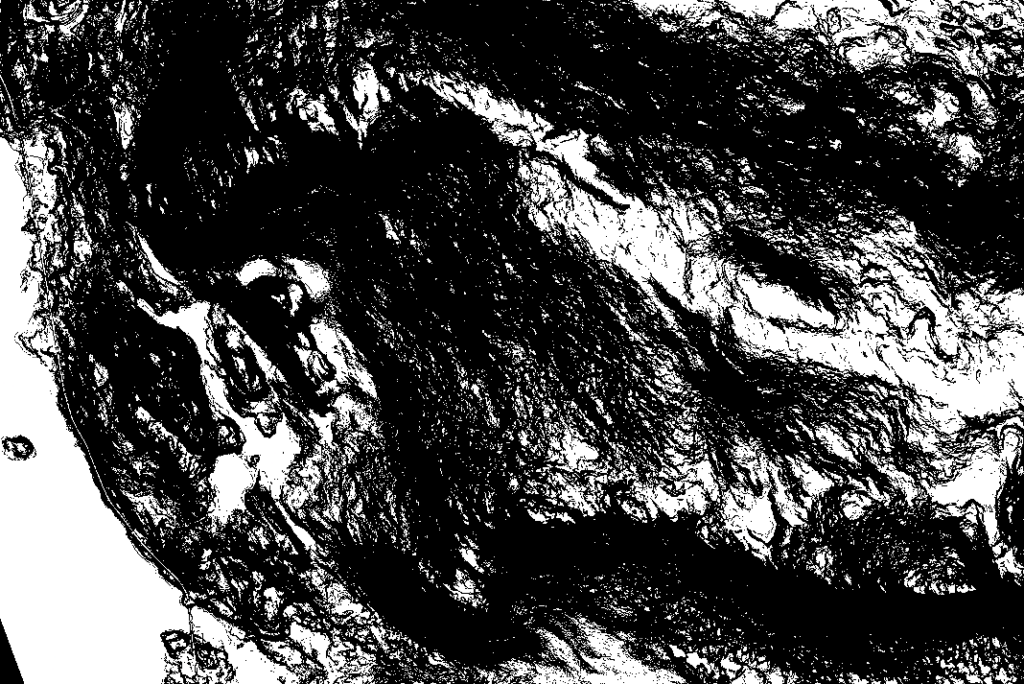
The result is quite intriguing but the white pixels are where the slope is 5 degrees or less.
The aspect we are looking for can be calculated the same way with the raster calculator. But with calculating the correct aspect we need to make the expression a bit different. The aspect values are between 0 and 360 and north is at 0. We’ll be fine with a location that has a northward aspect, so we can calculate the aspect to be less than 90 degrees but greater than 270 degrees.
In the raster calculator the expression is:
"Aspect@1" <= 90 OR "Aspect@1" >= 270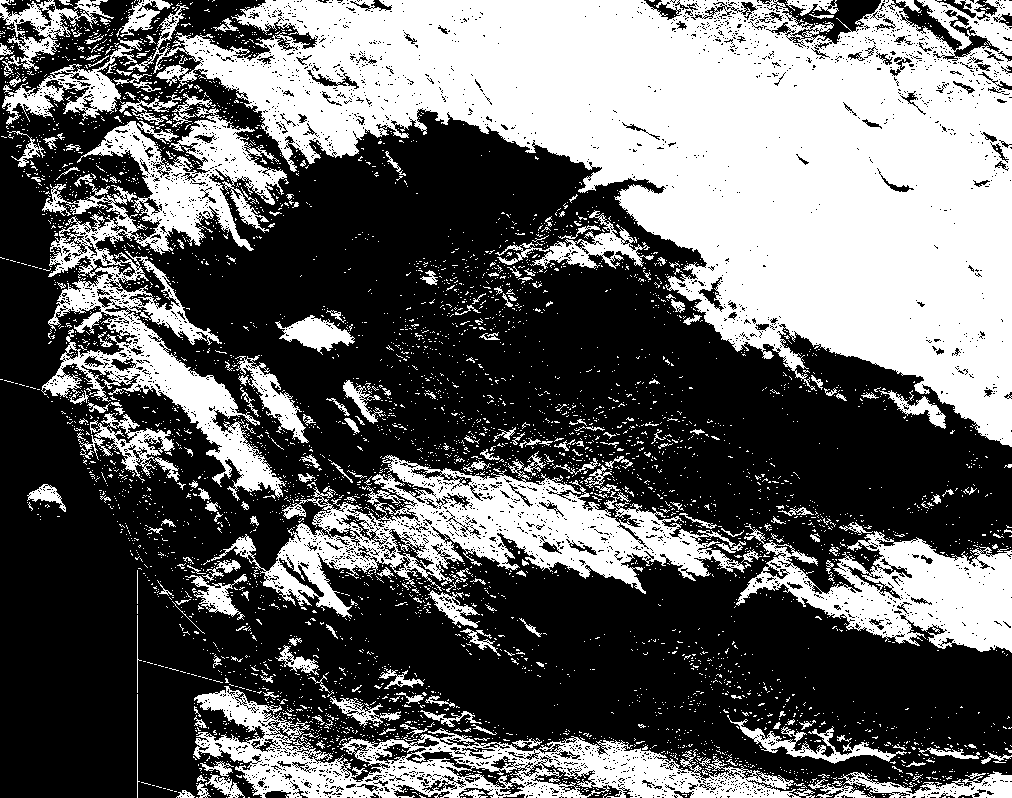
In here, too, the white pixels are where the slope is northwards.
The final thing is to combine these two new rasters and calculate where the potential sites are for our new wilderness hut. This can be calculated again with the raster calculator combining the two layers.
As previously mentioned, all the layers that are open in your QGIS are listed in the top left corner of the raster calculator. Here you can use the layers of “aspect_north” and “slope_5” to pick the pixels that have value “1” in both raster layers at the same time.
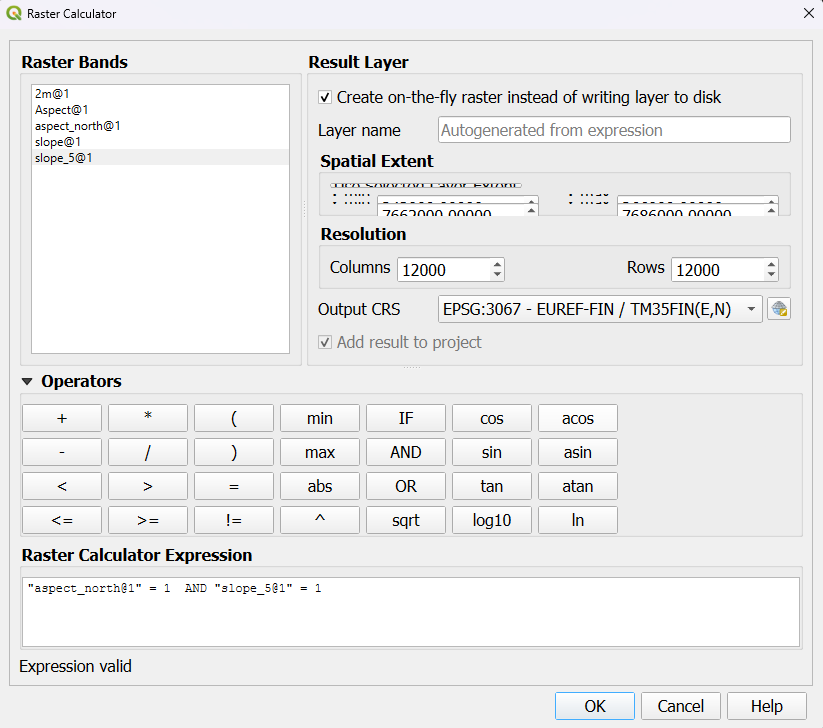
And to make reading the raster and finding the potential new sites a bit easier, you can invert the color ramp to have the pixels we are looking for to be black. Or if you want to add a basemap, change the layer render type to “Paletted/Unique values” and change the 0 pixel to transparent.
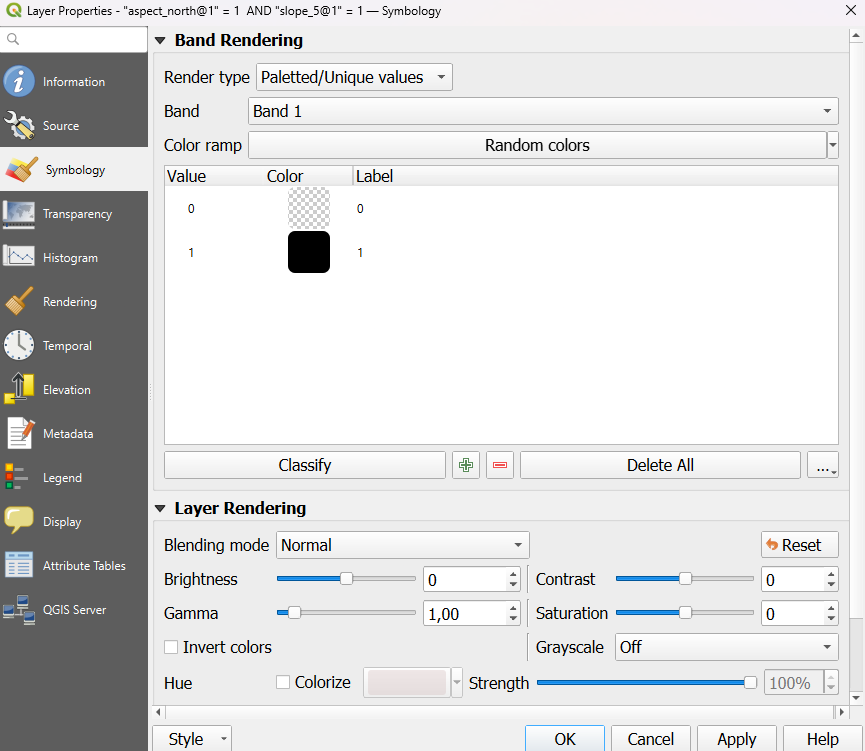
I added a base map from the National Land Survey of Finland to make reading the map a bit easier. An orthophoto would also be a good choice! From here you could just zoom in and find the best place to build that new hut!
Just keep in mind what size the pixels are in real life when deciding where to build the hut (be it a mansion or a small small hut). In my data the pixel size is 2 meters so I would look for a bigger cluster to have a proper flat area for the hut.
JNDI (Java Naming and Directory Interface) connections provide an excellent way to enhance communication between GeoServer and PostgreSQL. By enabling multiple data stores to share the same connection pool, database usage becomes more efficient and scalable.
Setting up a JNDI connection pool isn’t too complex. Especially if your GeoServer instance is running on Tomcat, you can easily find step-by-step guides for that setup. But what if you are using some other servlet container?
In the case of this blog post, the starting point isn’t the easiest. GeoServer was hastily installed using the platform-independent binary. It then became an important production server until you discovered that the connections to your database could no longer be handled without pooling. Does this mean you need to redesign your entire system and switch to Tomcat? The simple answer is no.
So, we start with GeoServer bundled inside Jetty, a setup that doesn’t include JNDI connection support out of the box. Depending on your configuration, your situation may differ, but it’s unlikely to be more complex. In our case, we use GeoServer 3.0 bundled with Jetty 12.1.3. (Yes, we know that 3.0 isn’t a stable version yet but soon it will be.)
1. Let’s add the necessary JAR files to our Jetty installation.
The files should be copied to the ‘/lib/ext/’ directory.
- jetty-jndi-12.1.3.jar
- jetty-plus-12.1.3.jar
The JNDI resources are part of the Jetty Plus module. The JAR files can be downloaded from Maven Central at https://repo1.maven.org/maven2/org/eclipse/jetty/.
- postgresql-42.7.9.jar
We also need a JDBC driver for PostgreSQL, which communicates with the database using the PostgreSQL native network protocol. We can download the JAR file from https://jdbc.postgresql.org/. The driver version must match the Java version in use.
- HikariCP-7.0.2.jar
The PostgreSQL JDBC driver itself does not support connection pooling. For pooling, we need an external library, such as HikariCP. HikariCP is said to be a “zero-overhead” production-ready JDBC connection pool. The HikariCP version has to match the Java version in use. The HikariCP JAR file can be downloaded from the Maven Central at https://repo1.maven.org/maven2/com/zaxxer/HikariCP/.
These JAR files need to be specified in the ‘start.ini’ file to ensure they are loaded when Jetty starts.
--lib=lib/ext/HikariCP-7.0.2.jar
--lib=lib/ext/jetty-jndi-12.1.3.jar
--lib=lib/ext/jetty-plus-12.1.3.jar
--lib=lib/ext/postgresql-42.7.9.jar
2. Defining the connection pool
We define the JNDI resource in ‘jetty.xml’. This allows the same configuration to be used across all applications running on this Jetty instance.
<New id="jdbcPostGIS" class="org.eclipse.jetty.plus.jndi.Resource">
    		<Arg>jdbc/gisdb</Arg>
    		<Arg>
        		<New class="com.zaxxer.hikari.HikariDataSource">
            	<Set name="jdbcUrl">jdbc:postgresql://localhost:5432/gis_database</Set>
    		<Set name="driverClassName">org.postgresql.Driver</Set>
            	<Set name="username">gis_database</Set>
            	<Set name="password">gistest</Set>
            	<Set name="maximumPoolSize">80</Set>
           		</New>
    		</Arg>
	</New>
The block creates a resource with two arguments. The first argument defines the name for the resource, which is the name the applications will use to look up this data source. We have chosen the name ‘jdbc/gisdb’. The second argument is a new instance of the ‘HikariDataSource’ class that gets the parameters needed for establishing the connection.
3. Restarting Jetty
4. Creating the data store in GeoServer
This final step isn’t related to Jetty. Now, we can create the data store in GeoServer just as we would if the connection pool had been defined in Tomcat.
We select ‘PostGIS (JNDI)’ from the data source list, and then fill out the form as follows.

Note that the ‘jndiReferenceName’ is the name we set as the first argument for the resource in step 2. In this example, it’s ‘jdbc/gisdb’. You can also specify the schema here.
That’s all that’s needed. We can now create layers from our newly created data source. Please note that this configuration has not been tested in production environments. Feel free to comment if you find any issues or know of a better configuration for PostgreSQL and JNDI in Jetty. If you are still using GeoServer 2, as you most likely do, a small extra trick may be needed. But that’s a different story. An update to GeoServer 3 is waiting anyway.
Variables. A word you might have heard back in math class. I’m here to tell you that the math teacher was right when they said: “One day, you’ll find this useful.” That day is today. Because today, we’re going to talk about variables. More specifically user variables in QGIS.
What is a Variable?
Short and sweet: it’s something that can change. Imagine you have a bowl of cinnamon buns. Then you eat all the buns and fill the bowl with cat food instead. The bowl is the same, but the content has changed. The bowl is the variable, while the cinnamon buns and the cat food are the values. Just like with variables in QGIS, you get very different results depending on the value of the variable. Well, you can imagine the difference when someone asks you to go get the bowl and they’re expecting cinnamon buns but get cat food…
Where are Variables in QGIS?
In QGIS, you can find variables in several different places. This is because there are different scopes that regard different variables. Below is a table of the various variable levels in QGIS:
| Scope | Description | Example Use Case |
| Global | Applies to the entire QGIS user profile, regardless of which project you open. | User name, operating system, or paths to external programs. |
| Project | Applies to all layers within that project. Saved in the specific .qgs or .qgz file. | Project title, contact person for the project, or project ID number. |
| Layer | Applies only to a specific layer. | Layer name, data source, or specific settings for just that layer. |
| Model | Applies only within a model (made in the Model Designer) | Project path for a model, a parameter that is used in a geoprocessing algorithm |
| Layout | Applies only to a specific layout. | Page size, orientation, or layout-specific metadata. |
| Layout Item | Applies only to a specific layout object. | An individual map frame, legend, or scale bar. |
The scopes are hierarchical. If you use the same variable name at, for example, the project and layer levels, the value at the layer level will be the one used in the end.
What Variable Types are found in QGIS?
In QGIS, there are built-in variables (system variables) and user-defined variables.
- Built-in variables are those already created by QGIS. You cannot change or delete these variables, but you can, of course, read their values. For example, there is a global variable called qgis_version that tells you which version of QGIS is being used. At the project level, there is the variable project_path, which tells you where on the hard drive the project file is located.
- User-defined variables are those you create yourself to store specific information relevant to your workflow. These are the ones that can really amp up your workflow. You give the variable a name and then you define the value of that variable.
How to add a variables in QGIS?
Depending on the wanted scope of the variable you intend to create, you’ll be creating them in different places. When viewing variables you’ll also see the built-in variables, which are always in italic. The variables are categorized by colour, so you’ll notice the different scopes.
Create a Global Variable
- Go to Settings -> Options -> Variables
- Press the green plus sign
- Write the name and value of the variable
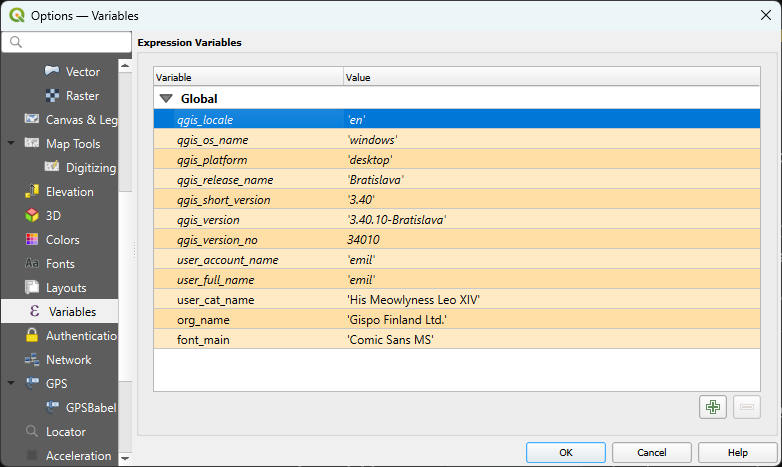
Create a Project Variable
- Go to Project -> Properties… -> Variables
- Press the green plus sign
- Write the name and value of the variable
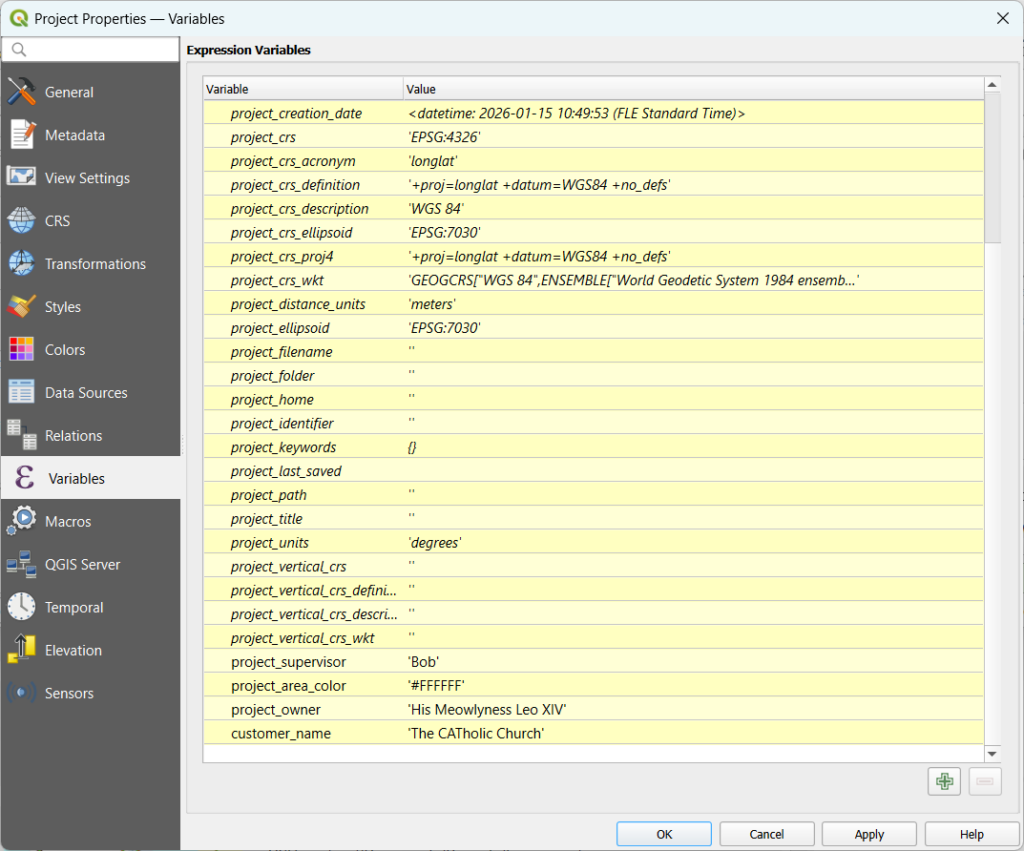
Create a Layer Variable
- Right click on the layer
- Choose Properties and go to the Variables tab
- Press the green plus sign
- Write the name and value of the variable
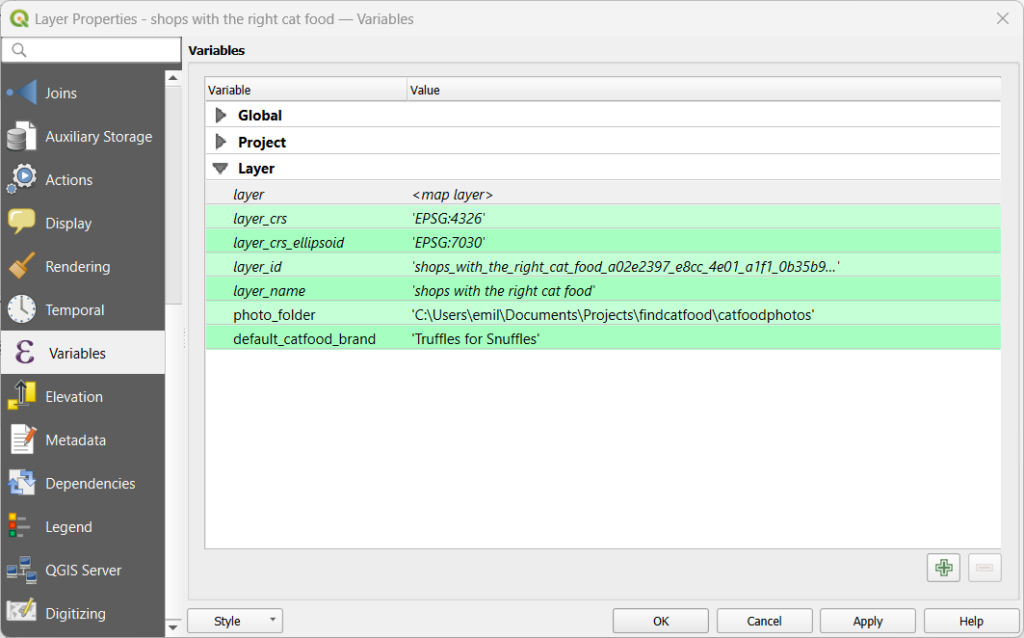
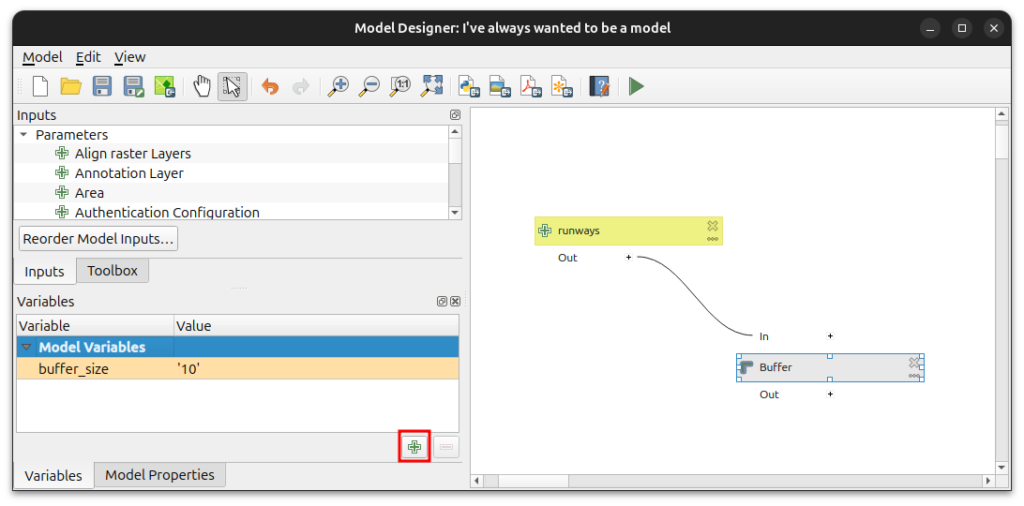
Create a Model Variable
For creating a variable within a QGIS model do the following.
- Open the Model Designer: Processing -> Model Designer…
- Create a model and save it
- Reopen the model
- Press the green plus sign on the Variables tab
Create a Layout Variable
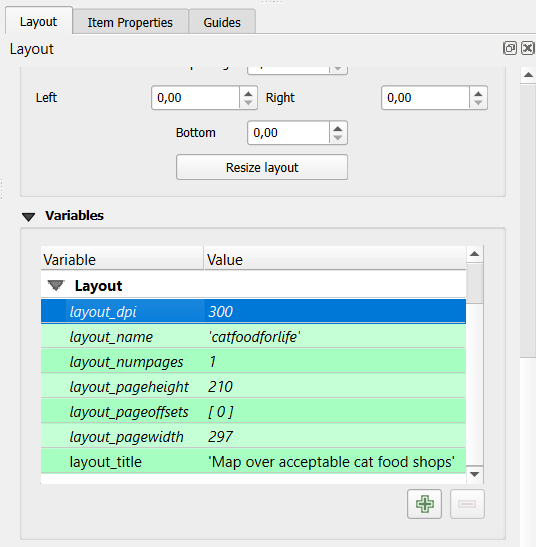
When creating a layout variable you’ll need to have the layout window open. The variables are found in a slightly different location.
- Go to Layout -> Layout Properties…
- On the right side panel you’ll now be on the Layout tab. Scroll down until you see Variables.
- Press the green plus sign
- Write the name and value of the variable
Create a Layout Item Variable
- Select the layout item (could be for example a map, scale bar or legend)
- On the Item Properties tab scroll down to Variables and the section called Layout item
- Press the green plus sign
- Write the name and value of the variable
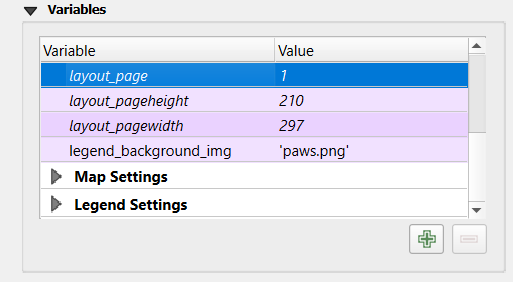
Depending on the layout item, you’ll notice that below the newly added variable in the list there might be “Map Settings”, “Legend Settings” or something else. These are built in variables for that specific type of layout item and these cannot be changed, however you can use them if you need them.
Why should I use user defined variables in QGIS?
Okay but why should I use variables, what are the benefits? When using variables you can speed up your work process. The main thing to keep in mind is do I need to reuse this thing over and over? If the answer is yes, then a variable might be a good idea. You have to decide the context the variable should be defined in. Is it a global, project or map variable you should create? Here are a few examples, but in reality you’ll have to come up with good use for variables yourself, because you know your workflows and environments. However, here follows a few ideas for user defined variables in QGIS.
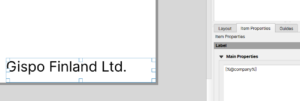
Let’s say you have a project where you’ll be making many maps. You can use variables when creating the layout. Perhaps you have a variable with your company name, and then you’ll add that to your map layout template. Every time you create a new map layout based on your template, you’ll have the company name in the same place.
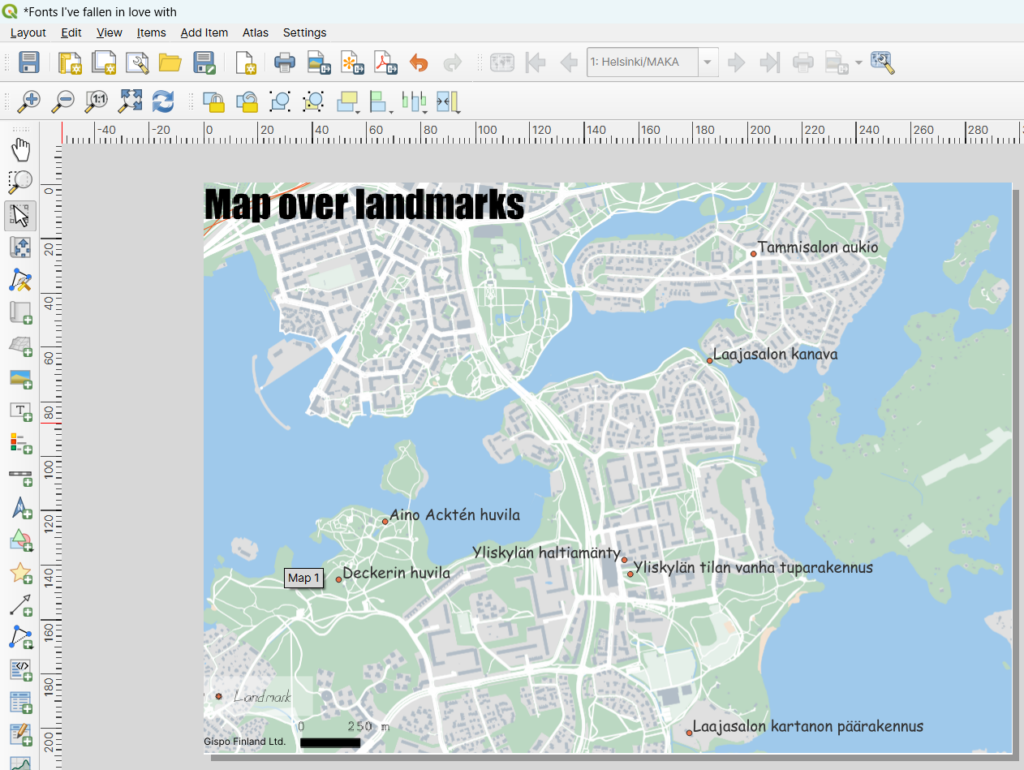
Perhaps you have a map with many layers with labels. Any serious map maker uses at least three working days for choosing the correct font (don’t mention this to my boss). When finally a perfect font is found, you’ll need to use it on several (often all) layers that have labels, in order to make it look consistent. After a working day (or two) you realise that actually the perfect font was not the one you thought it was and you’ll want to change it back to Helvetica or something . Now to do this for all the layers is tedious work. Instead you should use a project variable called “label_font” or something similar that has the value ‘Helvetica’. When setting the label fonts you’ll use the Data Defined Override button and choose the variable “label_font”.

You can do this with other fonts as well. Sometimes maps demand some texts here and there, perhaps listing the sources, map maker, company name, scale bar, legend and so on. Use a “default_font” variable and use that when setting the labels. A trained eye can spot different fonts from far away and making a person like that disappointed is not something to recommend.
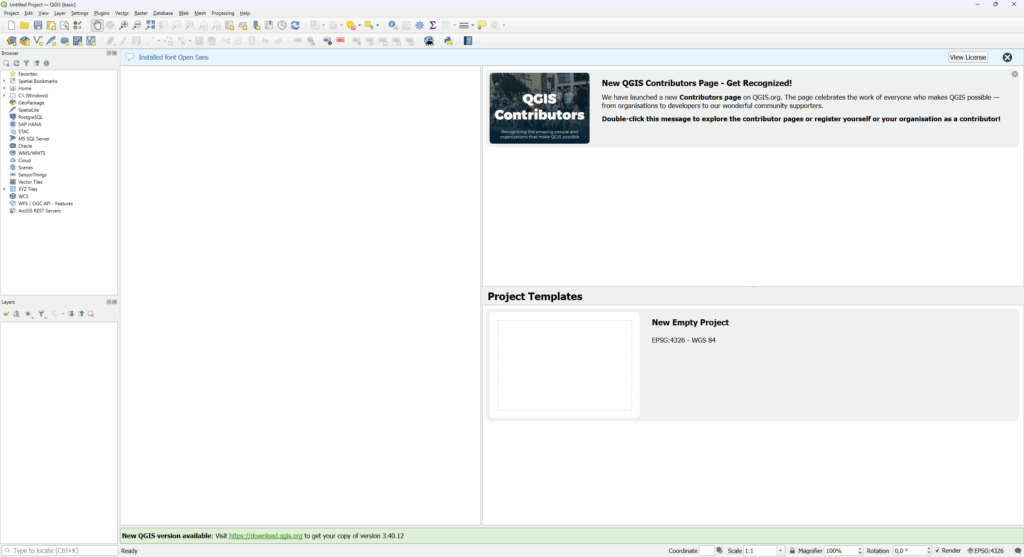
If you are using field apps like Mergin Maps and QField, then you’ll definitely have some use for variables. You can check out the documentation for Mergin Maps and QField for more information.
In the end you can do very powerful stuff with variables. What uses can you come up with?
Some organizations have begun to use Oskari in a container on a cloud platform. For example, the city of Tampere runs Oskari using a container technology in Amazon’s AWS service. The topic was discussed at the meeting of Oskari JDF in June and in this article we will cover the topic at a general level.
What are cloud platforms? What are containers?
The most well-known cloud services at the moment are probably Amazon’s AWS and Microsoft’s Azure. They host services set up by their customers and offer various additional services related to the hosting. Often the customer buys a dedicated server for their service, but it is also possible to put the service in a container that is set up on a shared server. Doing so the price of the service can be reduced.
When a service is hosted on a cloud platform, the organization is responsible for the software and its updates, while the cloud provider ensures the underlying hardware — such as servers and physical components — are functioning properly. If the organization faces problems with its own data center with Linux OS or the hardware, the organization is on its own.
Cloud migrations may be driven by the need to keep public and government-use data separate from each other. A very clear separation between the two use cases can be made by using a public cloud service for public-facing data and an on-premise service for internal data.
Another option is to maintain the services in the organization’s own data center. If the organization has a data center ready and empty servers there, the services can of course be set up there. In an organization’s own data center services are (probably) physically close and setting up a new server can involve manual labour with cables and computers, whereas with cloud platforms the same result can be achieved with a couple of clicks. This makes the cloud platforms a quick way to test the latest Oskari version, for example.
Container technology refers to packaging and isolating applications along with all their dependencies (libraries, configuration files etc.) into a single unit called a container. Tools like Docker and Podman help to create and run these containers.
Containers can make it easier to develop, test, and deploy software. Containers also provide a consistent way to package and share software. Containers can be easily run in the cloud, yet they can also be run on one’s own computer, making containers very portable.
Why run Oskari in a containerized image?
In Oskari, the benefits of using a containerized solution are similar to those in other software: using a container can make the developers’ work easier if, for example, the developing team has a shared container solution of a software that is used for local Oskari development and testing. Another standardized container can be used for production use and intended for a specific cloud platform, making the maintenance and setting up of map services easier.
Using a containerized version Oskari also tackles the issue where the development environment on a developer’s machine doesn’t match the server environment. Containers allow the same container to be run on a developer’s machine and deployed to the server, maintaining consistency across different environments.
Also, what makes containers attractive to some is the way the setting up of the software is done: the software can be downloaded as a single file and even a complex setup process can be made with a single command.
In short, containers can simplify various processes, including the setup, development, and maintenance of software. And to clarify: one can create different containers for the same software — one for local testing, one for production use. If consistency across environments is needed, the same container can be run locally and deployed to the server.
Even though the cloud platforms usually try to make hosting containers easy, using Oskari in a container does not necessarily mean that the service should be moved to the cloud platform. The container solution can still be beneficial.

Why run Oskari on a cloud platform?
In its simplest form, using Oskari in a cloud platform would mean hosting the service, for example, Microsoft’s Azure or Amazon’s AWS. The end user or the administrator of the service might not even notice the transition to the cloud platform. Oskari can be hosted on a cloud platform without being containerized.
When the service is used on a cloud platform, the additional tools of the platform become available to use. Different cloud platforms have different tools, such as bug reports that make it easier to find and fix bugs from the instance. If necessary, one can create different containers that include Oskari and Oskari-related services – or that have services provided by the cloud platform. These could include security tools, tools that restrict access to Oskari, and/or service monitoring.
In particular, the additional services offered by the platform provide several tools that make maintenance easier. For example, access management is easier, backups to the database and services can be quicker to implement and the available security tools simplify the monitoring of the security situation. Cloud services enable faster testing of application versions and platforms as setting up a new service requires mostly just clicks of the mouse in one’s web browser.
Clicking through menus in a web browser isn’t the only way to set up new services, though. Cloud platforms can also be controlled by using Infrastructure as Code tools like Terraform or cloud provider CLI tools to set up the desired environment.
The advantage of using the aforementioned kind of software is that one can write commands that tell the platform to create a server environment, install the containers selected, and configure other service-related settings. The same script (either unchanged or slightly modified) can then be used to set up the same service on another system. For example, if the service crashes, it can be shut down and quickly rebuilt using the script.
The script can also be stored in a version control system, allowing one to track changes and reproduce the setup easily. This is often simpler and more reliable than trying to track every step taken when setting up the service through web browser forms.
Further questions
If one plans to use Oskari on a cloud platform, several things have to be considered. How will the application’s internal network traffic be handled? What resources and additional services will be deployed from the cloud platform? Where will the containers be stored? If old versions are kept, for how long and where? Will backups be taken of the entire database cluster and how often?
Although security management has been made easier in many ways by the cloud platform tools, listing vulnerabilities in AWS, for example, can be challenging at times. If there are, say, five Oskari instances in the same container and each has two security issues, the overall situation might look worse than it actually is and getting a quick overview of the situation might be challenging.
The outlook for service usage and its costs can also affect the cloud migration. Cloud platforms have multiple different pricing models, one of which is the on-demand model where the costs of the service are determined by its usage. The final price is also affected by the additional services purchased and the type of server is used. With dozens of processors and memory units available, the total number of variables affecting the price is large. When the service is up and running, one actually sees the functionality of the selected solutions for the instance and if the setup has to be changed – which could affect the overall cost of the service. For this reason, it is difficult to estimate the final price in advance.
The use of containers and the transition to cloud platforms also require policies at the organizational level. Some want to move all their services there, some are in the piloting phase, and some may not have even thought about it.
It should also be remembered that the development and updates of Oskari itself have also facilitated the development and maintenance of the software in all areas – whether it runs in a container, on a cloud platform, or not.
This article was originally posted in Oskari.org. Juho Rekilä is communications coordinator for Oskari.
A few years have passed since taking a look at our beloved QGIS community so it is time to take another look back and see how the community has grown. The previous posts can be found here: 2021 version and 2023 version.
How many QGIS developers are there?
Open source softwares are dependent on the community to find and fix bugs and problems in the programs. The LTR version in QGIS is 3.40.12 and the latest release is 3.44.4. The release of new QGIS 4.0 is coming in February, exciting times ahead in the QGIS community!
There are quite a few more core contributors than before, as of November 2025 there are 579 contributors listed on QGIS GitHub pages! During the last month alone 24 different developers have pushed 475 commits to the master branch! The key players still are the same, most commits have been made by Nyall Dawson who has pushed over 200 commits in the last month. In the growing contributors list there are also our very own Juho and Ismo!
Juho has gotten on a roll and developed symbology, merge policies and comment toggling to name a few! We here at Gispo thank each and everyone who has committed their time and has been a part of developing our dear QGIS. <3
There are also donors and sustaining members that are contributing to QGIS. There are more than 100 sustaining members all around the world including companies and QGIS user groups and over 8000 donors supporting QGIS!
How many QGIS users are there?
There still isn’t a good way to determine how many people are using QGIS. Tracking downloads and installations isn’t possible due to the support of multiple operating systems and installation methods. And some (at least me) have multiple different QGIS versions downloaded on their computers. These always skew the real user count.
The best guess about the user count of QGIS is still calculating the number of requests to the QGIS News Feed in the start display. This way it is possible to transparently and openly gather information about QGIS users.
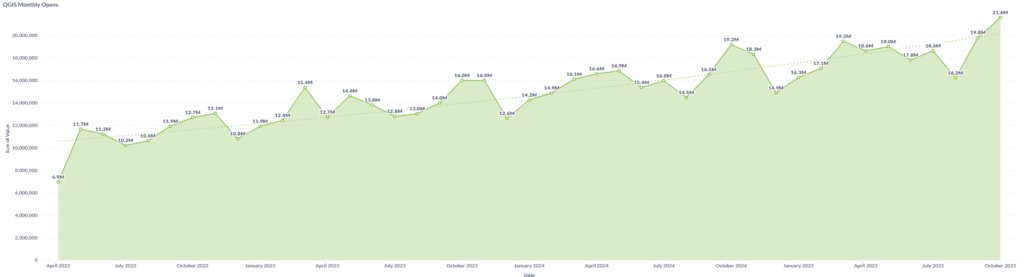
In the last 30 days (November 2025) QGIS has been opened 21,963,880 times! This is over double compared to our last overview in 2023. Yesterday alone, 12.11.2025, there were 972,302 opens of QGIS.
As one could presume the most used version is 3.40, the latest LTR version. Next in line there are 3.44 aka the latest release and 3.34 LTR version.
Over the years the use and the QGIS community has definitely been on the rise. Since the beginning of this year alone the number of monthly opens has grown significantly.
The QGIS dashboard is available here
Support, training & social media numbers
StackOverflow is still a great source of instructions and ideas from other users. There are currently over 1700 active questions with the QGIS and almost 500 questions are still unanswered. If you have free time on your hands and want to help a fellow QGIS user, head on there and help others!
There are 3.7k watchers for the tag in StackOverflow. New questions are asked more than once a day!
This might make QGIS sound rather problematic software but the reasoning might be that there are just different level users using the software. This can be seen from the questions asked, they vary from adding data to PyGIS and advanced algorithms. Also as an open source software there aren’t specified support pages for QGIS users so StackOverflow and other forums are a great way to get help. Also the QGIS community is very active and willing to research and answer questions!
People tend to start their professional journey with new software by taking a course where they learn how to do that. We at Gispo have given training to more than 1000 individuals in Finland and Sweden. There are different online courses dedicated to QGIS that have over 10 000 participants. Then there is the whole world of universities and educational institutions that teach QGIS on their GIS courses and thus account for thousands of new QGIS users every year.
But in this marvellous time of the internet, most venture to one place for information and new skills: YouTube.
There are hundreds of videos made by individuals and companies alike that give tips and tricks and whole lessons on QGIS. A video for beginners in 2025 has 430 000 views already. I think that is a quite good indicator: if you are not about to use QGIS you probably have no reason to watch the hour long tutorial and also it is highly unlikely that you end up watching it multiple times. There are multiple other older tutorial videos that have more than 1 million views.
Plus there are other communities in social media: QGIS Facebook page has 43 000 followers, user groups vary from 10 000 to 60 000 members and GIS community group has over 100 000 members. In r/QGIS subreddit there are 25 000 weekly visits and hundreds of open questions for the last few weeks alone.
QGIS community
There are caveats and uncertainties in trying to estimate how big is the QGIS community. This is only an estimate and based on best guesses of the writer.
There could be something to count to 500 000 active users on a weekly basis, maybe even more. These count for people in user groups, social media helpers and the basic users who use QGIS actively in their work (and why not in their free time).
There are definitely millions of users in total, perhaps on some level we might be getting closer to even 10 million users. But we have to keep in mind that not everyone uses the program daily or even monthly. But every little bit counts right?
Even in these past few years we think that QGIS has gotten so many more users. It is impossible to count all active users and developers and even harder to count how many use QGIS once in a blue moon. But seeing the numbers here we are happy that there are so many users and the community is happy to help everyone, despite how long they have used QGIS.
This article provides an overview on procuring Free and Open Source Software for Geospatial (FOSS4G). Procuring refers to purchasing work related to FOSS4G. In the process it’s not only important to ensure that the right supplier is chosen, but that contracts align with procurement needs and FOSS4G principles, and the final results support the objectives of the organisation.
FOSS4G projects follow open-source principles, necessitating specific considerations to support continuous development and sustainability. Engaging people with prior expertise on FOSS4G tools and related processes early in the procurement process can streamline operations and ensure the best use of available tools and expertise.
This blog post outlines three key procurement scenarios: acquiring a new FOSS4G tool (e.g., a custom tool for a specific use case), updating a software that is already in use, and customising an existing tool (such as GeoServer, QGIS or QField).
This blog article is by no means exhaustive, yet hopefully helpful. And while this is aimed to focus on FOSS4G, many principles presented here are not limited to it but apply to procuring other software, too.
Procuring a new tool
Be it standalone software, plugin or a service, it is important to define the organisation’s needs. These include not only use cases and objectives, but also required functionalities, possible hosting options and integration needs to other software or services.
Clear timelines and documentation expectations should be set from the beginning, even though defining a realistic timeline can be challenging as different work phases require different amounts of time. The success of the project may depend on the systems that the new tool has to integrate with.
Updates to existing applications
Understanding the current system version, past updates, and any customisations is essential. For software that has been set up “as is” (such as GeoServer) and has not been customised, the updating is usually quite straightforward and well documented when updating between consecutive versions. Longer gaps between updates require more effort.
For updating, ensuring that the service has proper documentation that’s been maintained constantly helps track changes and improvements over time. It may also guide through common pitfalls of the updating process of that specific service or even help to avoid them.
Highly customised applications may pose additional challenges, making well-maintained documentation even more crucial.
Customisations and new functionalities
Organisations should evaluate their current and future needs, determine whether the customisation is for internal use or broader contribution, and maintain comprehensive records for future reference.
Before developing new functionalities, it is beneficial to check for existing solutions (ie. going through has someone already done something that could be of use in your use case).
Collecting and prioritising ideas for development teams helps streamline the process: if you gather together all the ideas that you have and hand them over to the development team, they can see which are top of your priorities now and what kind of things to expect next – and also suggest to you which of your ideas could be fulfilled at the same time quite easily.
All new functionalities should be properly documented, and organisations are encouraged to contribute improvements back to open-source repositories for long-term sustainability.
Considerations before and after procurement
Before procurement, organisations should assess existing infrastructure and potential integration requirements. Hosting, security, and database needs should be carefully considered. For some FOSS4G tools hosting and database are not required yet for public map services they can be essential.
After procurement, assigning an administrator for the system ensures smooth operation. The admin should be in the know about the update needs and the possibilities of the newly implemented system. After the system is up and running it should be promoted within the organisation (and if it intended for public use, to the public / target group) to maximise its benefits and to make sure that it actually gets to benefit the end-users as intended.
One thing that should not be forgotten in the midst of procuring a FOSS4G tool is the support and training for the tool. You might need training in the use of that software / service, whether it is the training for the admin, the team that will be using it or if the key persons change over time and the knowledge has to be passed on to new people. Or then there’s a need for flexible support (for example, via e-mail) as “an insurance” that makes sure that in case of an unexpected error there’s someone to reach out to for help.
Documentation
We cannot overestimate the importance of documentation. Maintaining thorough documentation ensures smooth updates and maintenance. It should provide details about implemented customisations, locations of key files, and clear instructions for future developers or administrators. The documentation should be comprehensive enough for a person who hasn’t been in the original development team to continue the work.
Closing Thoughts
Effective procurement facilitates ease of use for administrators, developers, and end-users while supporting the long-term success of FOSS4G solutions. Even though this article gives many viewpoints and lists various things to consider, the most important thing is, after all, to procure solutions that answer your needs and make your work easier.
What is this post about?
Last year we at Gispo got to work with the National Land Survey of Finland on a project focused on QGIS Server. We learned a lot during said project, and this blog post aims to share some of that as a practical introduction to QGIS Server. Topics include: what is QGIS Server, why should you care about it, and how to publish maps with it. To provide an example, we set up QGIS Server to publish a WMS as well as a map atlas of print-ready maps. A small example project is included as a hands-on example.
Why consider QGIS Server?
QGIS Server publishes maps and geospatial data to the web via the standard OGC web services (WMS, WFS, OGC API for Features etc). While this alone is not particularly exciting, QGIS Server does have a couple of unique characteristics that differentiate it from any other server for geospatial data. The gist is that, as the name suggests, QGIS Server is highly integrated with QGIS. For example, you can configure and publish your web services within QGIS, directly from your QGIS projects. What is really cool – perhaps the single most important feature of QGIS Server – is that the integration with QGIS extends to styling the maps as well: Once published, your maps look identical to what they look like in your desktop QGIS.

Another unique characteristic of QGIS Server is its capability to serve QGIS print layouts. So, in addition to styling your layers with QGIS, you can use all the print-layout-specific features of QGIS as well: legends, map frames, or even publish a map atlas on the web.
Getting started with QGIS Server
There are many ways to get started with QGIS Server and, of course, what way is best depends heavily on context. In this post we go for a containerized approach. This is convenient as it means we can get a working server configuration up and running very quickly and without a ton of installations on our own system – a container engine, such as Podman or Docker, is all that is needed to get started (for a detailed description of the alternatives in setting up QGIS Server, the official documentation does a great job).
Let’s grab the QGIS Server image. Note to edit the version if needed: Since the project configuration happens through QGIS Desktop, it is best to match the versions of QGIS Desktop / Server when preparing projects.
docker pull qgis/qgis-server:3.40Also, while we use the official image here, it is worth noting that it is by no means the only container implementation – there are numerous different container images of QGIS server, all with varying software stacks and configurations.
Now, running the server becomes as as simple as:
docker run --rm qgis/qgis-server:3.40This obviously does not do much of anything yet: We have not given QGIS Server any QGIS projects to serve, nor have we exposed any ports to actually communicate with the server container.
Serving a project
Get your favourite QGIS project ready (any QGIS project will do). An example project is also included in the example repository.
As mentioned before, configuring a QGIS project to be served happens from your desktop QGIS. In the Server tab of your Project Properties you have the options that directly relate to configuring your services: from the general services capabilities that generate your GetCapabilities document to service-specific settings such as your WMS extent or published / excluded layers.
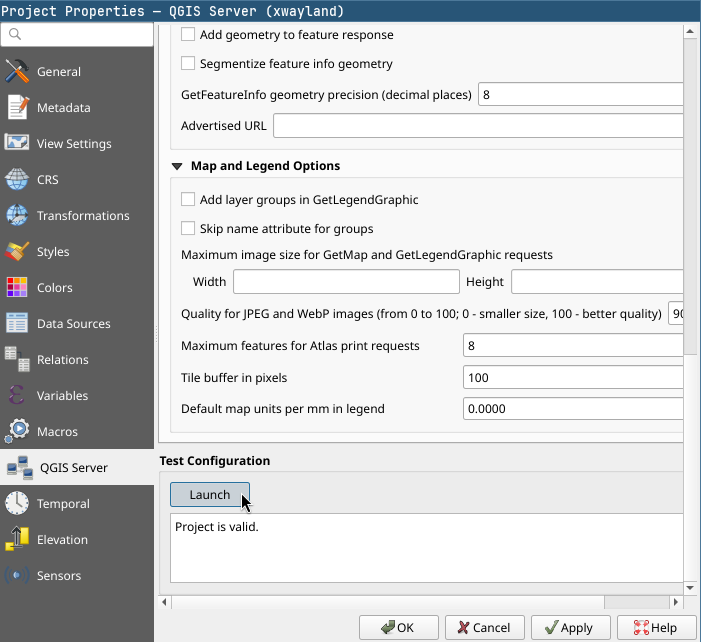
Now that we have a project ready to go, QGIS Server has to be able to access it (and its data). Since we are dealing with containers, we’ll need to mount a volume containing our QGIS project and its data into the container. We’ll also need a way for us to communicate with the server container, so a port on our host machine should be mapped to the container port where QGIS Server is listening.
As we start specifying more conditions for our container, it is best to move to using a compose.yml file for defining how we want our container to run. So, the above translated to a compose file:
services:

  qgis-server:
    image: qgis/qgis-server:3.40
    container_name: example-qgis-server
    ports:
      - 8080:80
    volumes:
      - ./data:/io/data
Now we can start the server with docker compose up -d. Our local project directory (./data) is mapped to /io/data in the container, where QGIS Server is configured to look for projects to serve. The default port of the server container is mapped to local port 8080 meaning we can access the server on localhost:8080.
Let’s try the WMS. The container implementation we are using expects our request urls to be prefixed with /ogc/<project-name> for QGIS Server to find the project. The example project is named example_project.qgs, so a valid request could be, for example:
localhost:8080/ogc/example_project?SERVICE=WMS&VERSION=1.3.0&REQUEST=GetCapabilitiesPublishing & configuring layers
By default, the layers in your QGIS project are the layers that are published by QGIS Server. How you style the layers in QGIS is, cartographically speaking, the layer configuration (the Server settings in project properties have the service-specific options). One other helpful thing when it comes to layer publishing is layer grouping. By grouping you can publish single layers that are made of many other layers – requests can just pass the layer group’s name to the LAYERS parameter of GetMap.
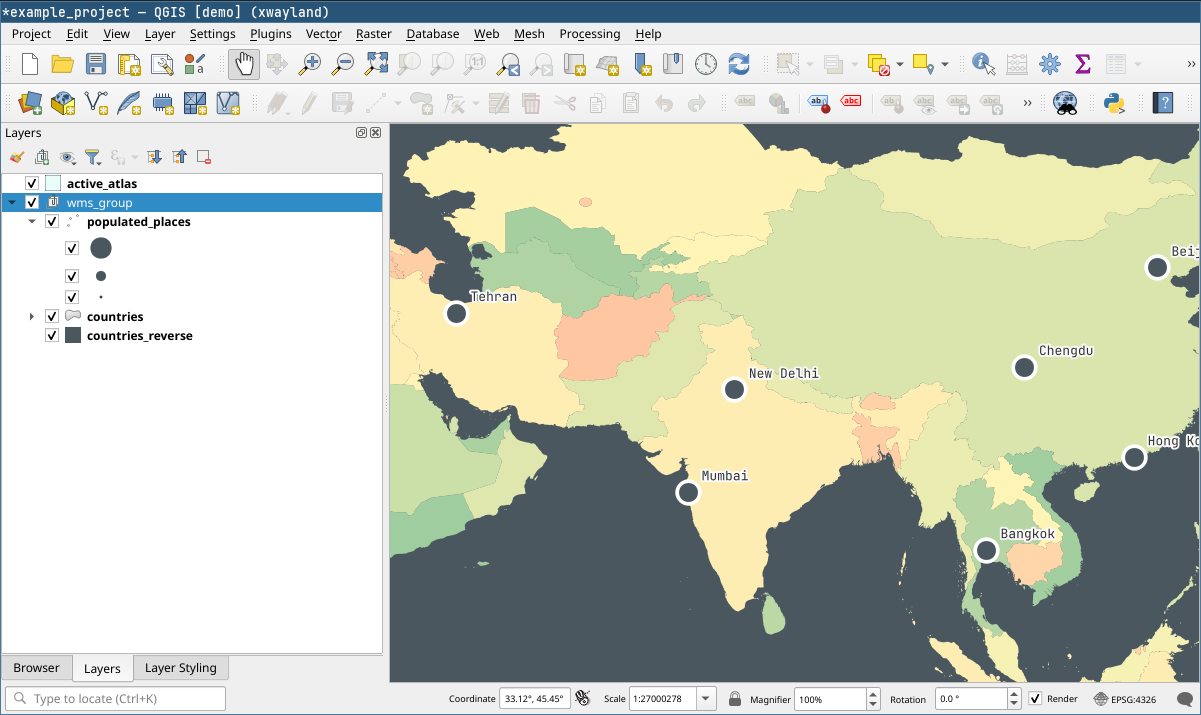
http://localhost:8080/ogc/example_project?SERVICE=WMS
&VERSION=1.3.0
&REQUEST=GetMap
&LAYERS=wms_group
&CRS=EPSG:4326
&WIDTH=1000
&HEIGHT=750
&BBOX=28,119,43,139
The example project has a layer group with three layers. We can request for all of them by specifying the group in the request.
On the topic of layer configuration it is also worth noting that QGIS can do a lot more than apply static styles. This has immense potential as we can define many aspects of the published maps to be dynamic. For example, in the example project the visibility of the populated places is controlled with a rule that shows different cities based on zoom level. This translates directly to how the layer works through the WMS: We see different cities depending on our zoom level just like in desktop QGIS.
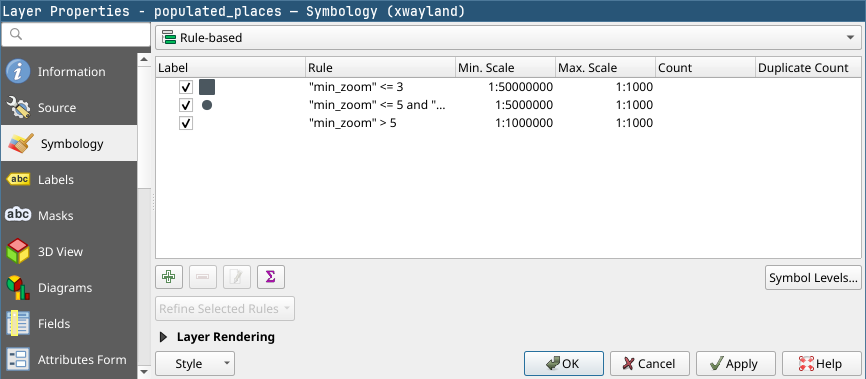
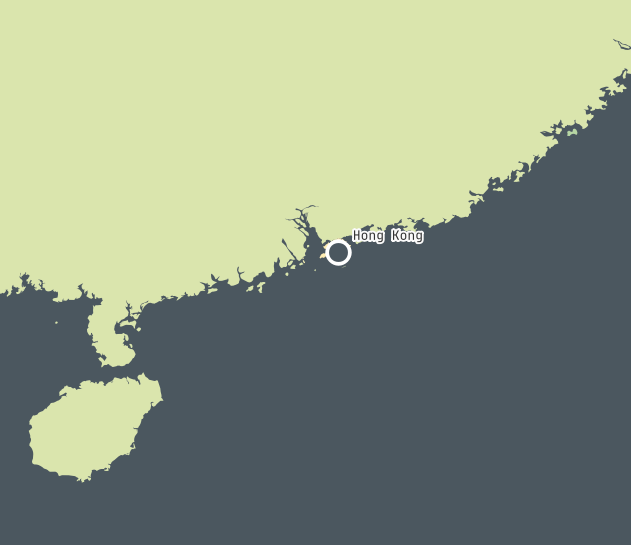
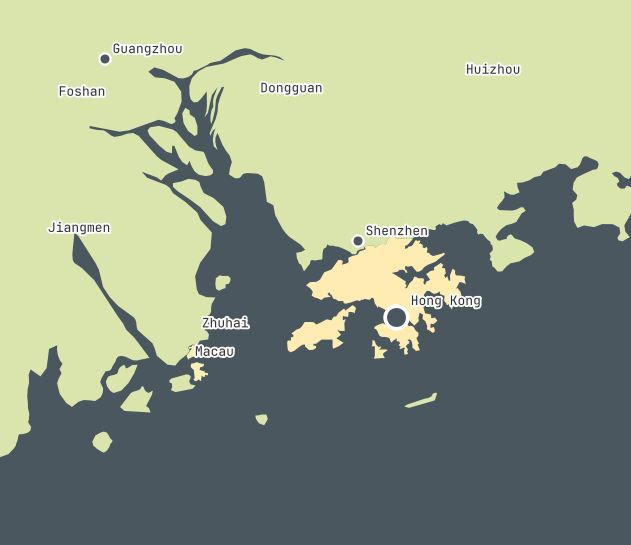
Layer symbology settings and two WMS responses at different scales. The published layers fully utilize QGIS for styling – for example when defining rule-based symbology.
Serving a map atlas
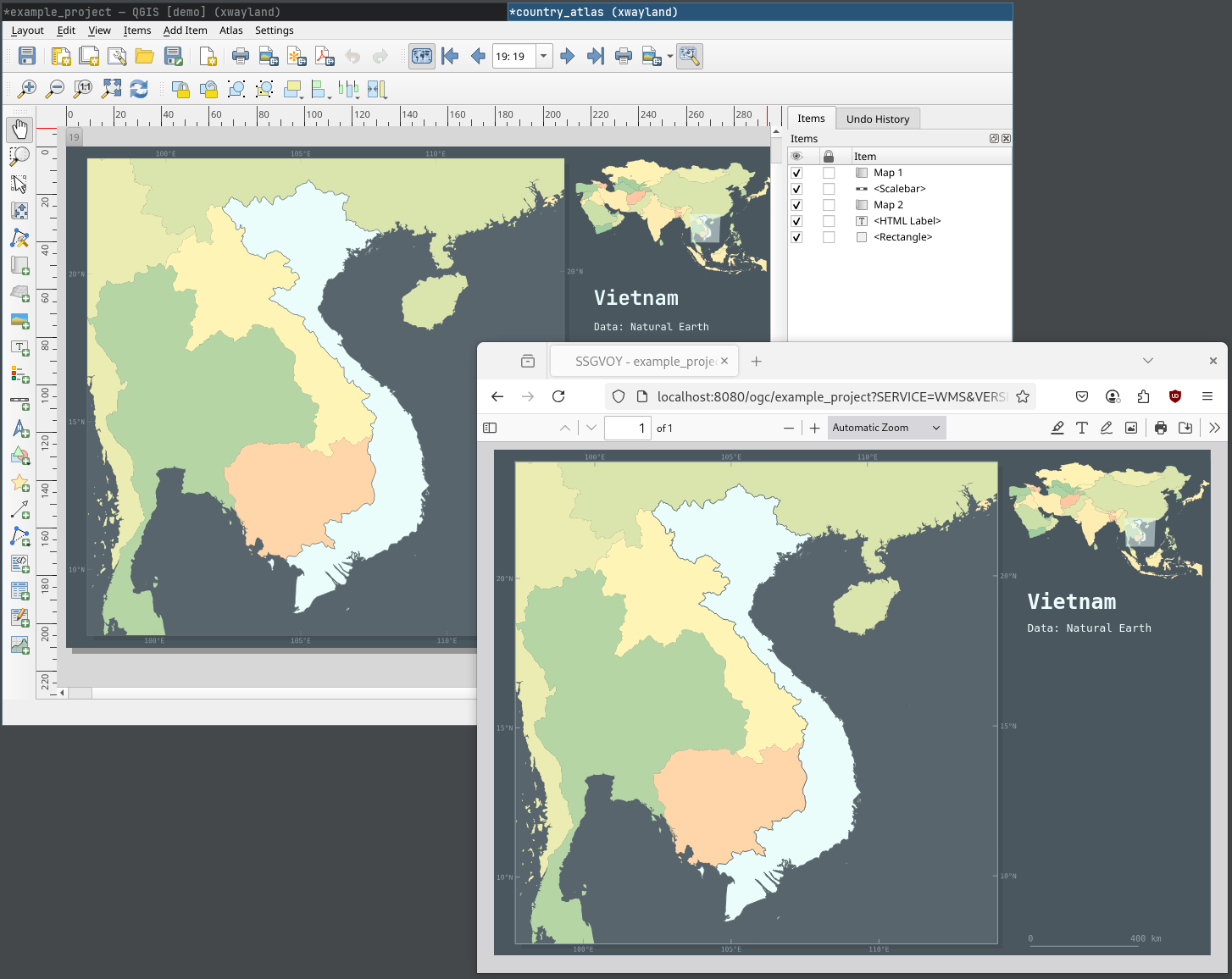
QGIS Server extends the WMS-specification with a GetPrint request. With GetPrint we can request print layouts from QGIS projects by specifying the desired print layout with the TEMPLATE parameter, and the response will be the entire layout instead of a single map image. Since a print layout can have multiple maps, the parameters of individual maps are controlled by prefixing them with the id of the map item, for example map0:EXTENT. All the GetPrint specifics are documented in more detail in the docs.
Where the capability to serve print layouts really shines is when it is combined with the atlas functionalities of the print layout. We can define a map atlas in QGIS, and then request parts of it from QGIS Server by using a GetPrint request together with the ATLAS_PK parameter. This parameter works with the coverage layer of the atlas, allowing us to specify which parts of the atlas we want to request based on the atlas page name.
For example, in the example project we have a print layout named country_atlas. It has a map atlas that uses the country layer as the atlas coverage, and the layer’s “fid” column as the atlas page name. Thus, a request for atlas pages 1 and 2 (so countries with fid 1 and 2) would look like:
http://localhost:8080/ogc/example_project?SERVICE=WMS
&VERSION=1.3.0
&REQUEST=GetPrint
&FORMAT=pdf
&TEMPLATE=country_atlas
&CRS=EPSG:4326
&ATLAS_PK=1,2
And our response:
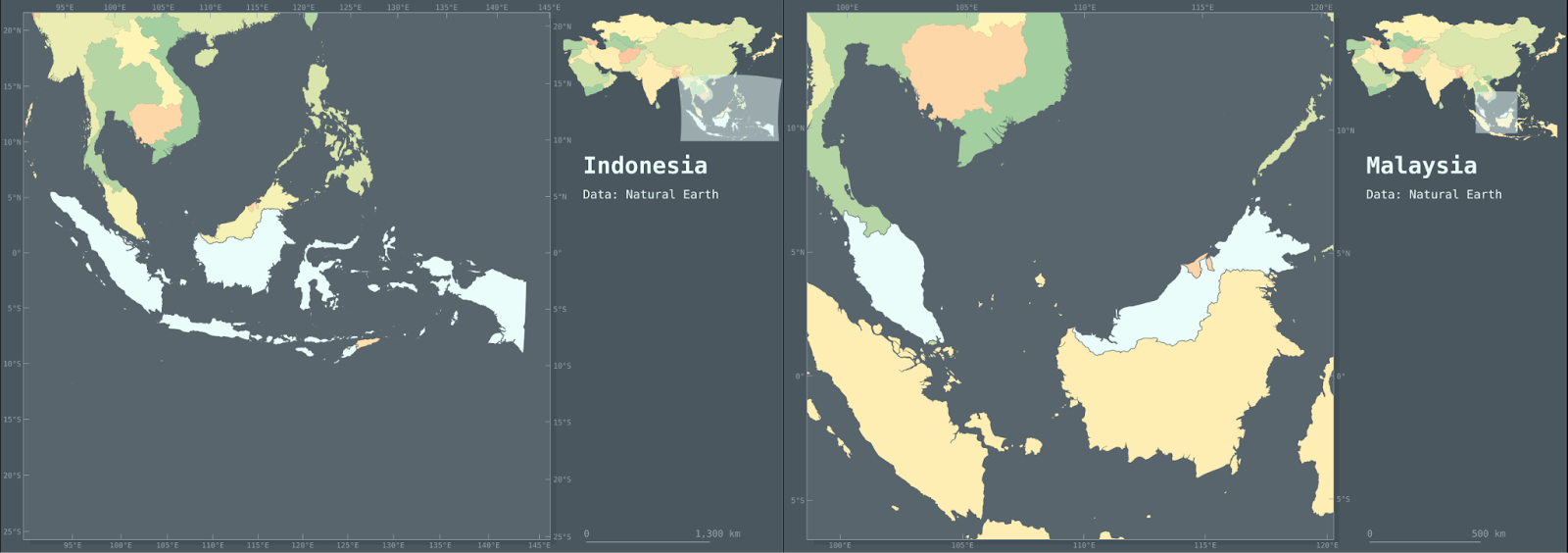
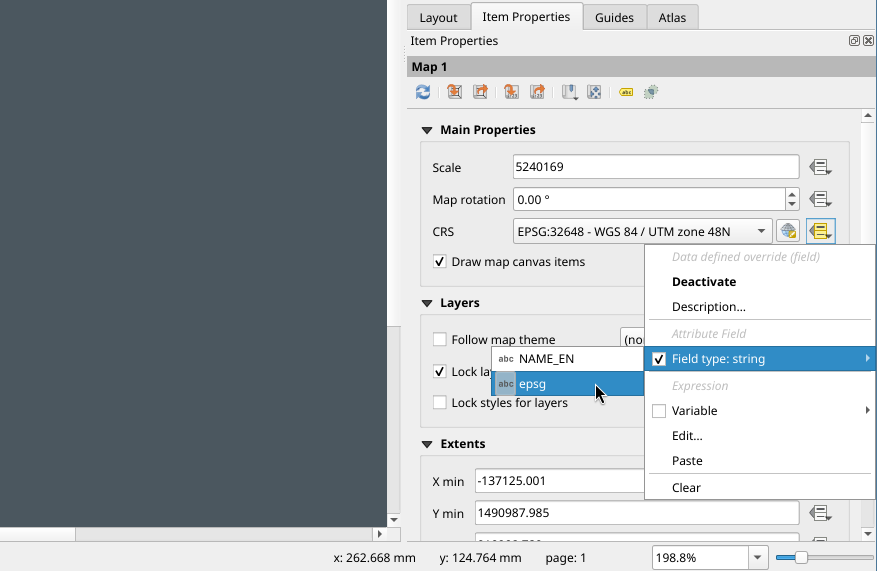
One final QGIS feature that has to be mentioned especially in the context of serving atlas maps is the ability to specify data defined overrides for nearly any parameter in the print layout. This means that we can manipulate the atlas pages with, for example, expressions or attribute values. In the context of atlas maps, overriding parameters using attribute values enables us to use the attributes of the coverage layer as values for the parameters. In the example country_atlas layout, we control the main map’s projection with the country layer’s “epsg” attribute. This attribute simply holds an epsg code for every country, and depending which country we request, the projection changes based on this code automatically. So, no matter what CRS we specify in the GetPrint request, we always get a map projected in a predetermined CRS for the specified country.
What’s next?
While this post already touched on some quite novel ways to craft map services, it really is just scratching the surface of what is possible with the tools presented. And, of course, QGIS Server integrates with tools other than QGIS as well: for example, we could use a PostGIS backend to store our data (or even QGIS projects) that we intend to draw into maps and serve with QGIS Server. Also, just like QGIS, QGIS Server supports plugins written in Python, meaning its capabilities can be extended even further relatively easily.
All in all, integrating QGIS with the capabilities of a map server enables a high degree of customizability and allows for functionalities that could benefit quite a few use cases. If you think yours is one of them, do reach out!
Gispo has been part of the EU’s EIS (Exploration Information System) Horizon project for the past couple of years. The project’s aim is to aid the EU’s efforts in the green transition by securing critical raw materials. The project consists of several work packages ranging from conducting research to raising awareness of the importance of minerals in the green transition. We at Gispo have been most involved in a work package that aims to develop innovative software for mineral prospectivity mapping (MPM). Aside from software development, a large part of the work package has been planning, comparing existing methodology, arranging workshops, and holding interviews. We have discussed the project in two of our previous blog posts: you can check them here and here. Now, as the project is approaching its end, it is time to look back at what we have achieved.
During the project, Gispo has been developing two software applications : EIS Toolkit and EIS QGIS Plugin, with our partners Geological Survey of Finland (GTK), Beak consultants GmbH, University of Turku, and French Geological Survey (BRGM). EIS Toolkit is a standalone Python library which brings together and implements relevant tools for mineral prospectivity mapping. It is the first free open source software of its kind. To make using EIS Toolkit as easy and efficient as possible, EIS QGIS Plugin was created to provide a graphical interface for each individual tool and to implement EIS Wizard that provides guided workflows for MPM. GTK has been the main responsible party for developing EIS Toolkit and EIS QGIS Plugin development has been led by Gispo.
EIS Toolkit
Let’s have a look at what the two software applications contain. EIS Toolkit has a number of tools used in MPM. The tools currently implemented in the toolkit are divided into nine categories: conversions, evaluation, exploratory analysis, prediction, raster processing, training data tools, transformations, utilities and vector processing. Most categories contain several tools, but let’s go through just a few here. The full list of implemented tools can be found here.
Conversion and transformation tools are quite straightforward. Conversion tools can be used, for example, for taking raster pixel values and putting them in a Pandas dataframe. With transformation tools, you can e.g. binarize or normalize raster data, or perform transformations on compositional data (CoDa transformations).
Exploratory analysis tools are for exploring data using various plots, statistics and data transformation methods. These tools include algorithms such as K-means clustering, principal component analysis (PCA), and Local Morans’ I. All basic distribution and relational plots are included along with some more specialized plots like parallel coordinates plot.
Raster processing tools are for manipulating and preprocessing raster data. Using them, one can for example clip raster extents using polygons, snap rasters to grids and create distance rasters. With vector processing tools similar preprocessing tasks can be performed such as calculating distances from raster cells to the nearest geometries, performing IDW or kriging interpolation, and rasterizing vector data.
An important part of MPM is predicting the mineral deposit locations. The modeling module of EIS Toolkit focuses on ML models. The supervised methods include gradient boosting, logistic regression, random forest and multilayer perceptron. In addition to these tools, EIS Toolkit has fuzzy overlay and weights of evidence. For evaluating the performance of the ML models, EIS Toolkit contains tools for calculating different metrics, such as precision and recall, and visualization such as for plotting confusion matrix or prediction area curve.
The tools mentioned above form only a small part of all the tools included in EIS Toolkit. The toolkit is built to be modular and can be extended with new tools in the future.
EIS Toolkit is a Python package and as such, it can be used in Python scripts as a library. Since the beginning of development, convenience of use has been a priority. All of the tools are categorized, documented with docstrings and have a thought-through number of parameters, which should make the toolkit approachable. To get started with EIS Toolkit, we suggest creating an empty Python virtual environment with a compatible Python version and installing EIS Toolkit there.
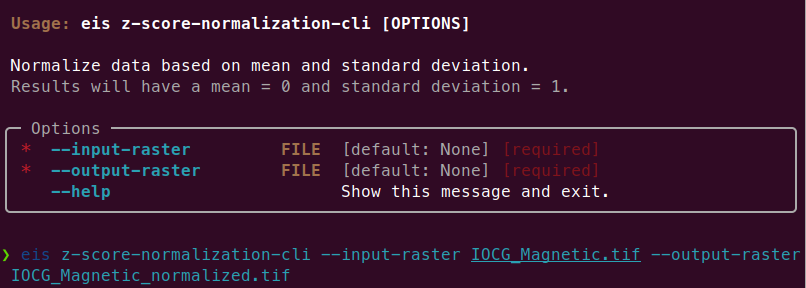
Since EIS Toolkit has a large number of dependencies, conflicts with the dependencies of other Python software are very likely to occur. This is why EIS Toolkit has an additional CLI API that is primarily intended for integrations with other software (such as QGIS). Using the CLI API, each tool can be accessed in a well-defined way by other programs that execute EIS Toolkit as an isolated Python process. The CLI API can be used directly in a traditional geoprocessing fashion too, but so far the focus has not been to make it a convenient interface for people.
EIS QGIS Plugin
Next, let’s look at the EIS QGIS Plugin. It consists of two parts: EIS QGIS processing algorithms and EIS Wizard. The processing algorithms can be accessed from QGIS Processing Toolbox.
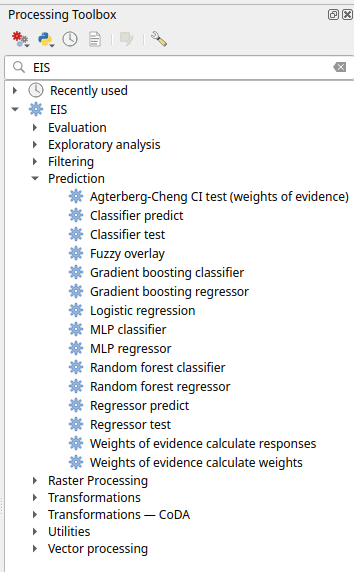
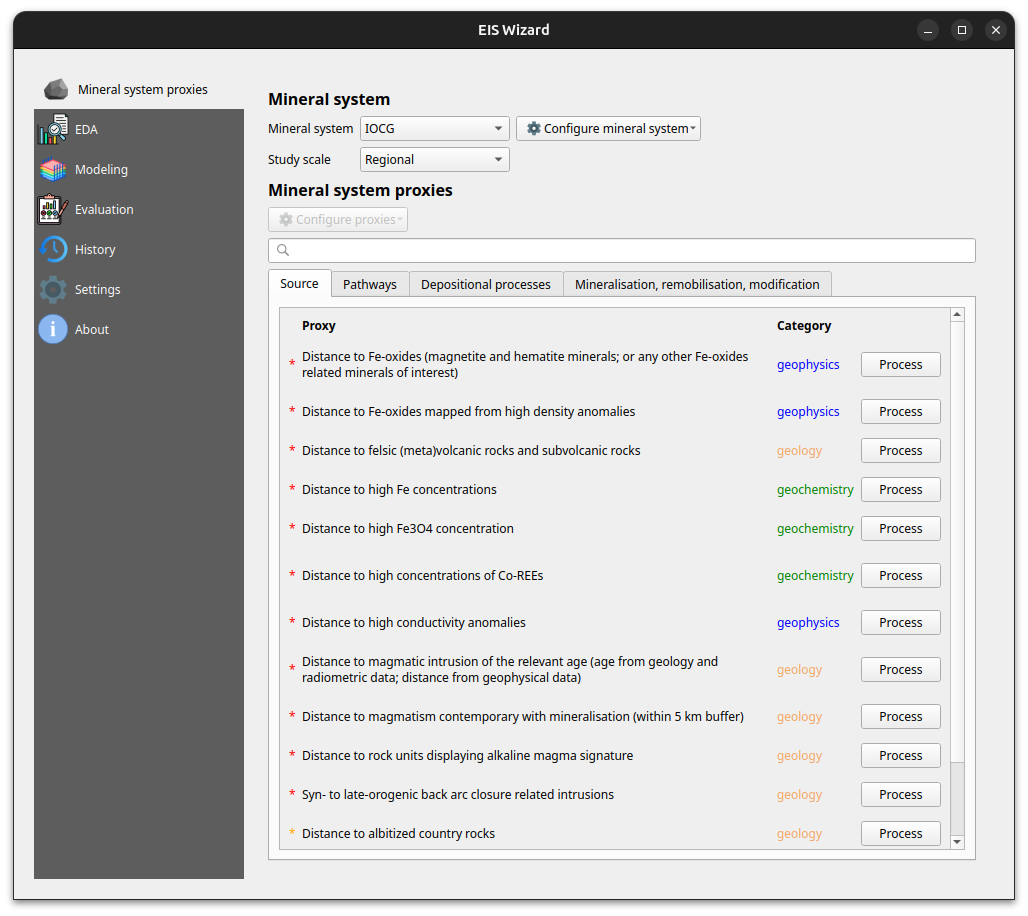
A more guided way to use the plugin is via EIS Wizard. It is a GUI ( graphical user interface) designed to perform MPM workflows in a structured way. EIS wizard consists of pages that are designed to be walked through from top to bottom in general, but in a non-restrictive way that allows switching pages whenever the user wishes so. The pages of EIS Wizard are Mineral system proxies, EDA, Modeling, Evaluation, History, Settings and About
On the Mineral system proxies page users can process their measurement data so that it can be fed into the prediction models. Users can use the provided default IOCG (iron oxide copper gold) mineral system proxies or create their own mineral systems with custom proxies. These custom mineral systems can be exported and imported as JSON files, making it possible to build a shared mineral system library in the future. Each proxy is associated with a workflow with one or more processing steps. The available processing steps are:
- Distance to features
- Distance to anomaly
- Interpolate
- Binarize
- Proximity to anomaly
- Proximity to features.
The output of a workflow is a proxy raster that contains some information that is believed to correlate with mineral deposit locations. The raw measurement data is processed to proxy form to filter out irrelevant pieces/noise, normalize data ranges and to facilitate a mineral system -driven approach for the modeling process among some other reasons.
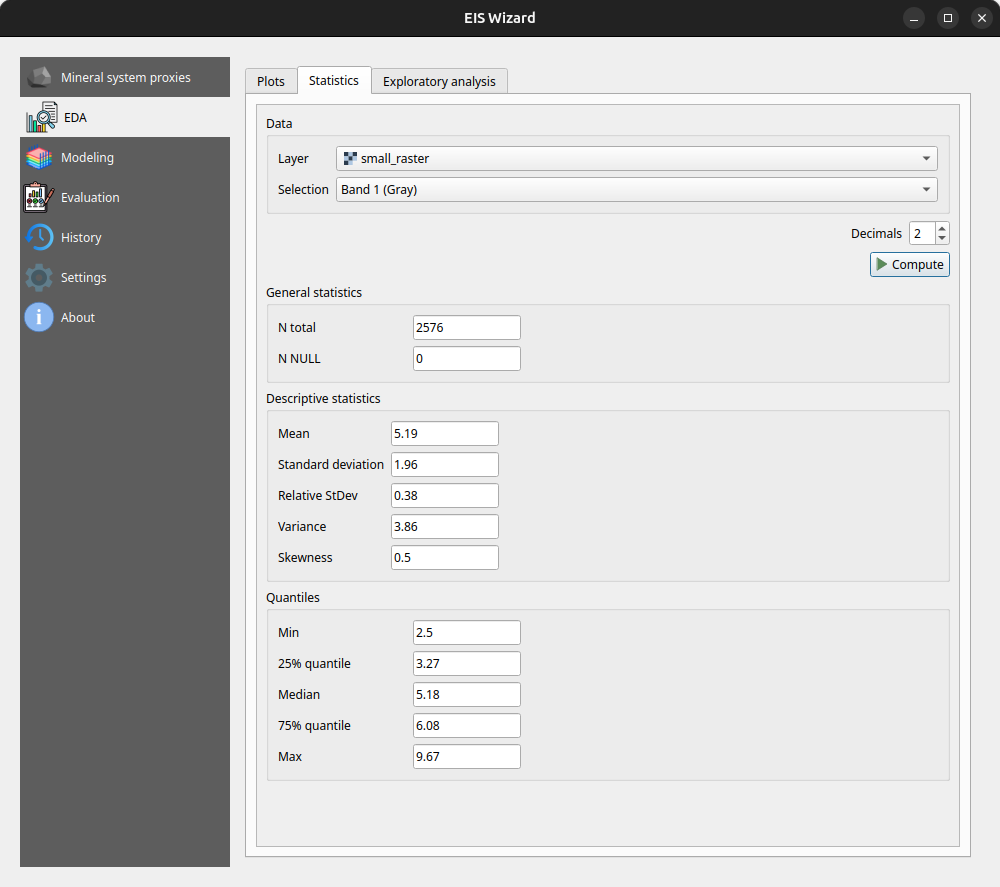
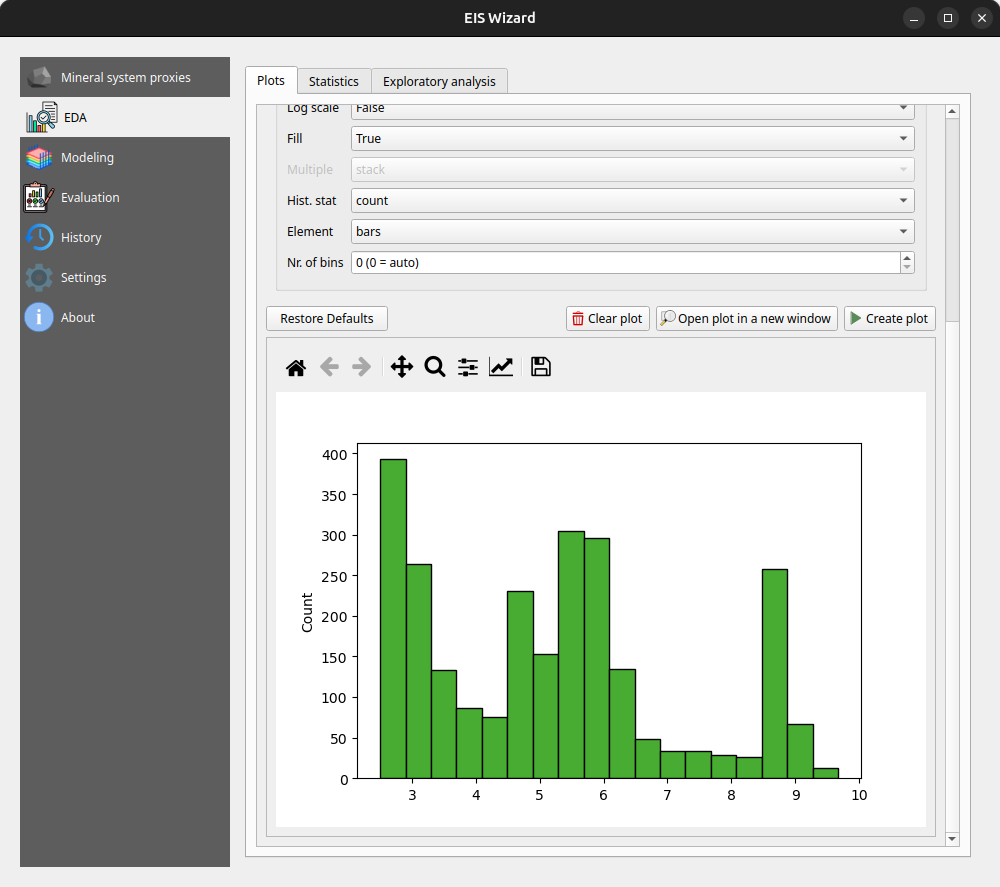
At any time, users can inspect their data in the EDA page: EIS Wizard enables creating plots for vector and raster data. Users can also compute different statistics from their data or use the exploratory analysis tools.
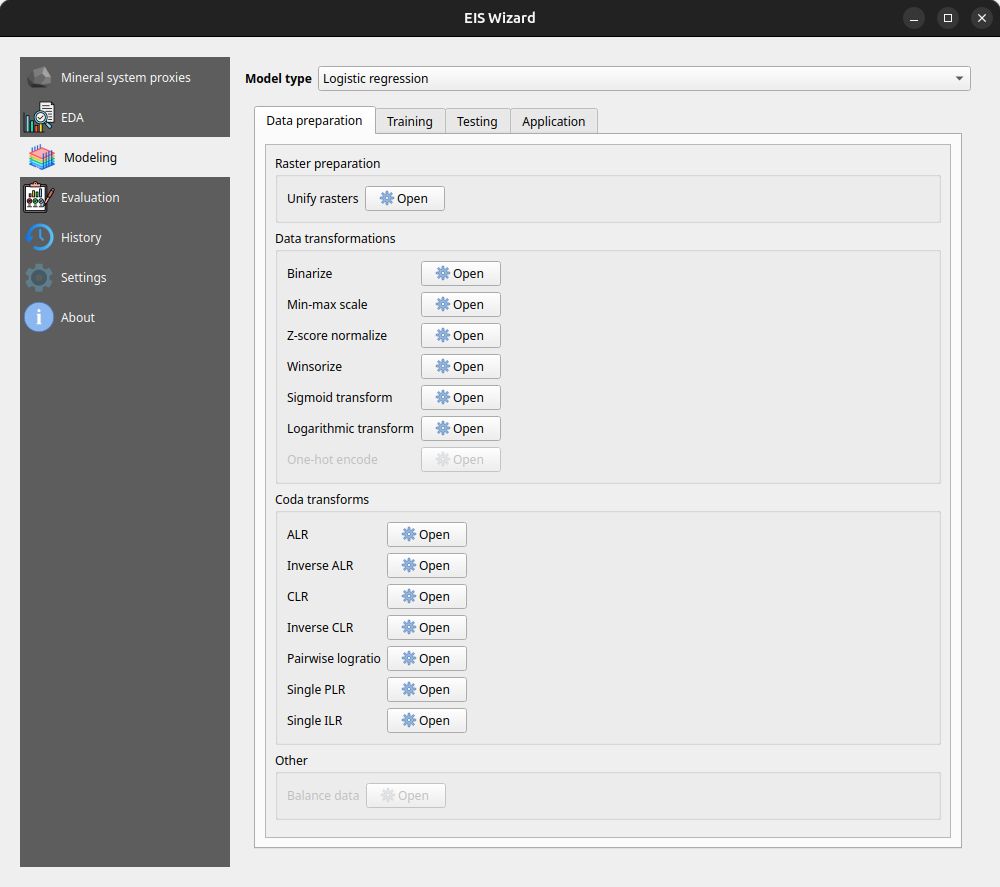
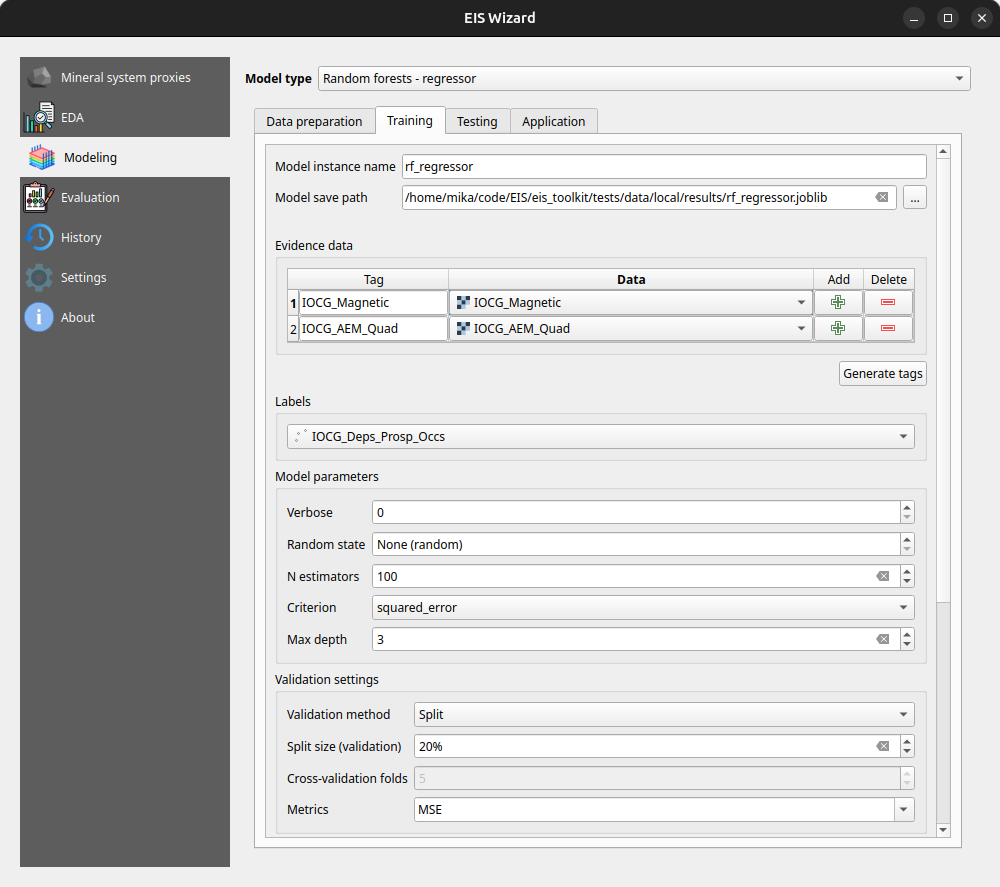
In the Modeling page, users can apply ML and data-driven models on their data. The page consists of a model selection dropdown menu and tabs for different steps in the modeling process. For supervised ML models the tabs are data preparation, training, testing and application. In the data preparation tab, users can prepare their data with several transformation tools before moving on to training the selected model with the data. After training and testing the model, it can be applied to classification/regression tasks on new, unseen data to make the actual predictions. Fuzzy overlay and weights of evidence don’t follow the same train-test-predict workflow and therefore have their own sets of tabs.
In the Evaluation page, users can evaluate their model by computing several metrics such as accuracy, precision, recall and F1 score. Users can also plot, for example, a confusion matrix or a ROC curve to evaluate the prediction results.
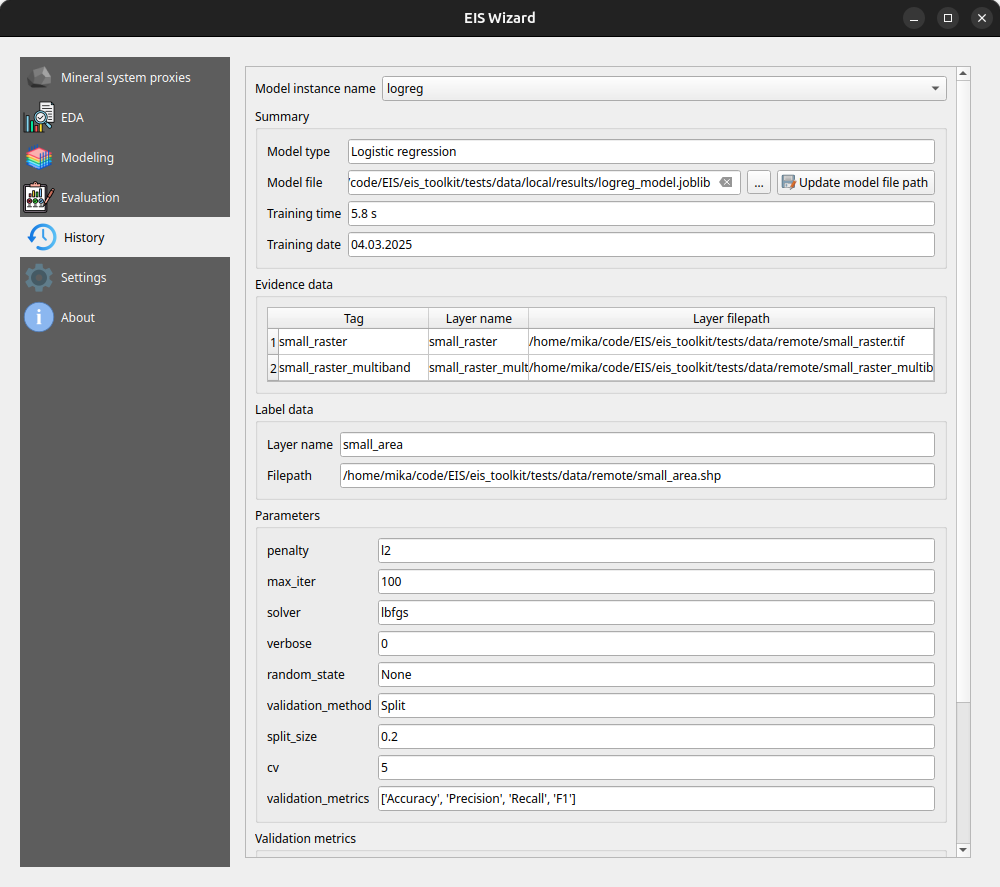
On the History page, users can view information about previously trained models whereas on the Settings page, EIS Toolkit configuration is set and various customizations to the user experience can be made. For a more thorough overview of EIS QGIS Plugin, please visit its wiki page.
Retrospective
The project has been largely successful in terms of the software work package. We implemented a wide range of tools, with EIS Toolkit reaching its full release in May 2024 and EIS QGIS Plugin last November. Since then, both software applications have received new features and undergone minor improvements.
However, not all planned features were implemented. The originally intended support for mineral systems beyond IOCG is missing, mainly due to dependencies on other work packages. To address this, we have provided users with the option to define custom mineral systems.
Overall, we are pleased with the project’s results and the potential impact of these tools. EIS Toolkit brings together relevant tools for MPM like no other free software before, while EIS QGIS Plugin offers a user-friendly interface for navigating each step of the MPM workflow in QGIS. As open source software, they are freely accessible without licensing costs. We look forward to seeing them adopted by geologists and mining professionals. If you feel that some tool that is important for your workflow is missing, or you need help with using either software, don’t hesitate to reach out.
This article was written by Mika Sorvoja.