Raster calculator in QGIS
If you are new to rasters, check out the previous parts of our Rasters in QGIS series: What are rasters? and Raster analysis with QGIS.
In the previous blog post we took a look at some digital elevation models (DEM) of northern Finland and analysed the terrain and slope in the Kilpisjärvi region. Now we’ll continue working with the same dataset, yet this time our aim is to decide a place for a new wilderness hut somewhere around Ailakkavaara fjell.
Now that you have the terrain and slope analysis ready, how to decide on a place? You could just visually see and compare what would be the best place to build the hut but there is one ace in your sleeve: the raster calculator!
The raster calculator is a nice little tool that has a variety of uses in QGIS: you can transform units, crop the existing raster, use expressions to select pixels or make new rasters… and the list goes on. The raster calculators can be found in different places: in the Processing toolbox, Raster tools menu or inside the GDAL or SAGA tools. Basically the raster calculators are all the same and do the same thing, but the syntax may be a bit different and the user interface can look a bit different.
In this blog, we’ll use the raster calculator from the Raster menu.
The raster calculator in action
What would we need to build a hut? At least a fairly large flat area and at least a very small slope. We also want the hut to have a window facing to the north because who wouldn’t want to see the Saana fjell first thing in the morning?
So we have two requirements in our search:
- Small slope
- North facing aspect
We’ll tackle the slope first. Open Raster calculator: click Raster → Raster calculator. On the left side of the raster calculator are listed all the layers that are open in QGIS. In the bottom of the calculator you can write the expression. Let’s say that we want to find a place with a slope less than 5 degrees.
The expression is:
“slope@1” <= 5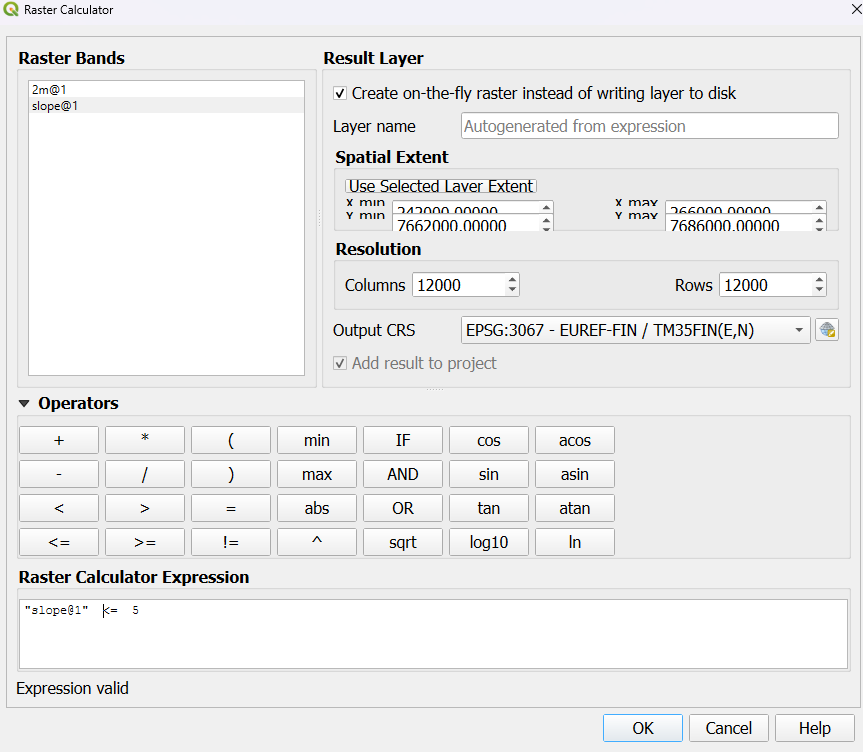
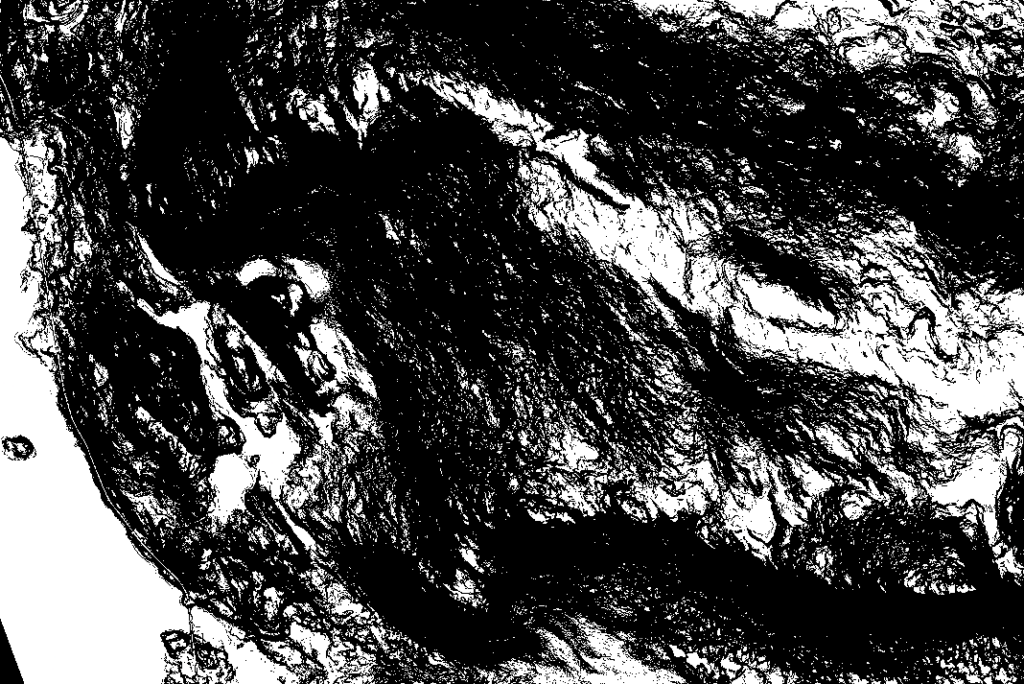
The result is quite intriguing but the white pixels are where the slope is 5 degrees or less.
The aspect we are looking for can be calculated the same way with the raster calculator. But with calculating the correct aspect we need to make the expression a bit different. The aspect values are between 0 and 360 and north is at 0. We’ll be fine with a location that has a northward aspect, so we can calculate the aspect to be less than 90 degrees but greater than 270 degrees.
In the raster calculator the expression is:
"Aspect@1" <= 90 OR "Aspect@1" >= 270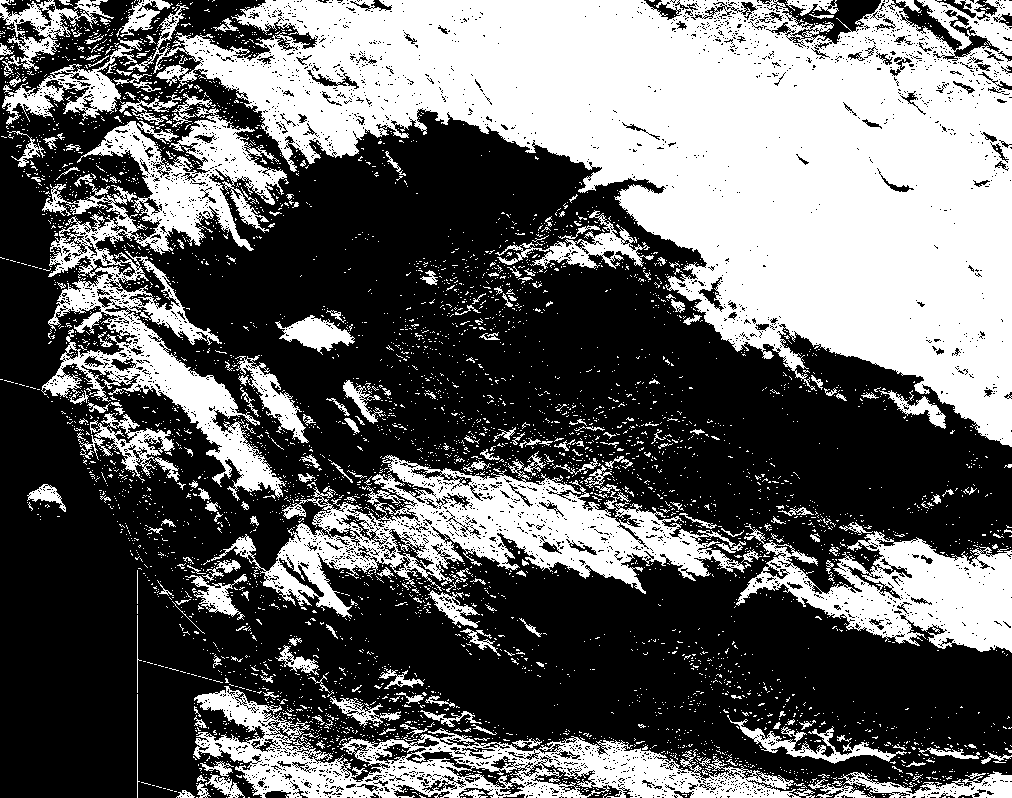
In here, too, the white pixels are where the slope is northwards.
The final thing is to combine these two new rasters and calculate where the potential sites are for our new wilderness hut. This can be calculated again with the raster calculator combining the two layers.
As previously mentioned, all the layers that are open in your QGIS are listed in the top left corner of the raster calculator. Here you can use the layers of “aspect_north” and “slope_5” to pick the pixels that have value “1” in both raster layers at the same time.
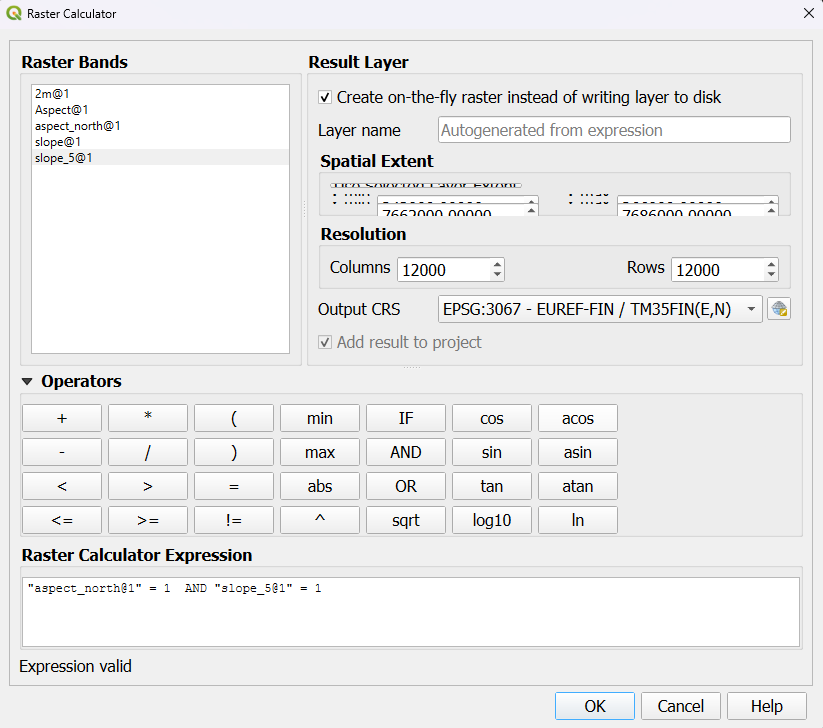
And to make reading the raster and finding the potential new sites a bit easier, you can invert the color ramp to have the pixels we are looking for to be black. Or if you want to add a basemap, change the layer render type to “Paletted/Unique values” and change the 0 pixel to transparent.
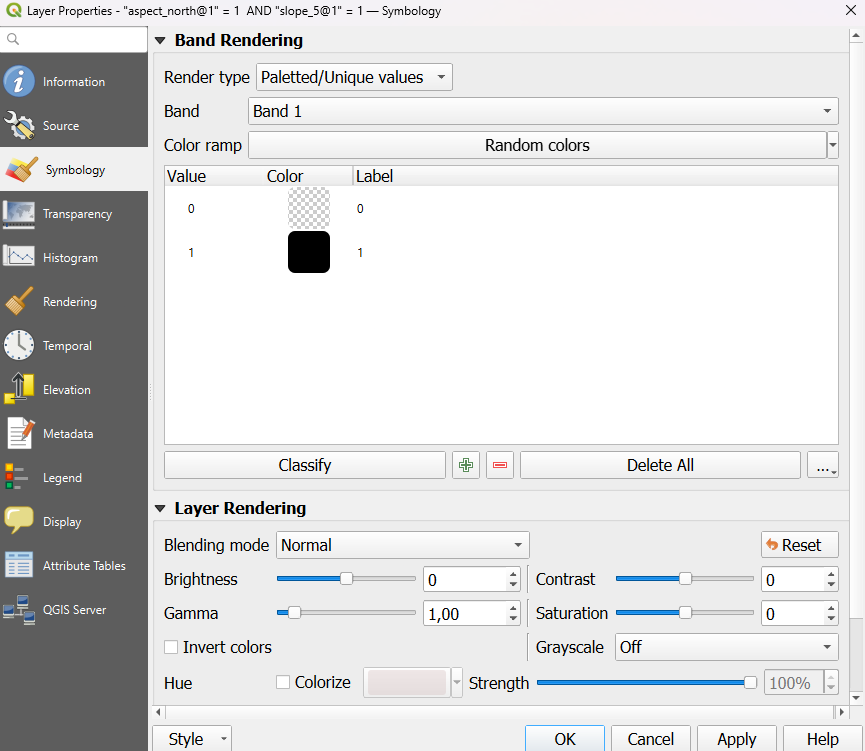
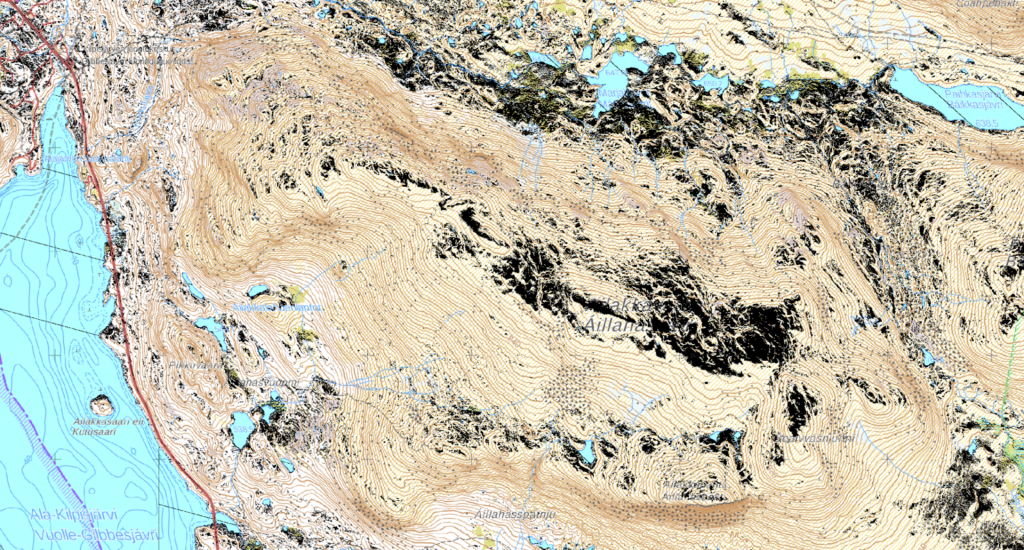
I added a base map from the National Land Survey of Finland to make reading the map a bit easier. An orthophoto would also be a good choice! From here you could just zoom in and find the best place to build that new hut!
Just keep in mind what size the pixels are in real life when deciding where to build the hut (be it a mansion or a small small hut). In my data the pixel size is 2 meters so I would look for a bigger cluster to have a proper flat area for the hut.