

Hello GIS and geospatial data enthusiasts and professionals! If you’re passionate about this field, the upcoming FOSS4G-NA Baltimore 2023 conference is an event you won’t want to miss. FOSS4G events are important meet-ups where industry experts get together to share ideas, talk about new tools, and discuss what’s next. Whether you’re a seasoned professional or new to GIS and geospatial sciences, FOSS4G offers unique opportunities to enhance your skills and network with like-minded individuals. With the conference just around the corner, get ready for a diverse range of workshops, talks, and networking opportunities, ensuring something for everyone.
The Evolving Thematics of FOSS4G: Baltimore vs. Kosovo
The thematic focus of FOSS4G events can differ based on different reasons, the presence of core developers and their affiliated companies in specific regions is one of them. For example, the global event in Kosovo earlier this year had a greater emphasis on QGIS and the mobile GIS applications based on QGIS, namely QField and Mergin Maps, likely due to a higher concentration of European developers and companies specializing in this area. Looking ahead to the upcoming FOSS4G-NA Baltimore 2023, it appears that the focus is shifting towards topics like PostGIS and cloud-native workflows even before the conference kicks off. At Gispo Ltd., we closely follow these areas of focus to offer our clients the most relevant and cutting-edge solutions.
Empowering the Community: Delivering Value Through Workshops and Talks
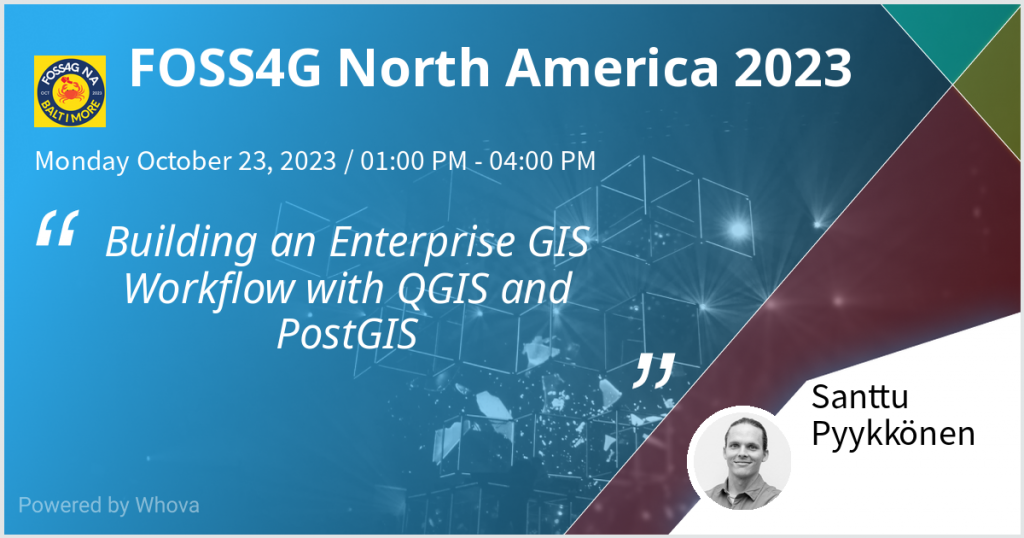
The FOSS4G-NA Baltimore 2023 conference is a focal point for knowledge sharing and community building in the field of GIS and geospatial sciences. To contribute to this collective experience, we’re leading a three-hour workshop on Monday from 1 to 4 pm, titled “Building an Enterprise GIS Workflow with QGIS and PostGIS.” The workshop is designed to provide attendees with valuable skills for managing geospatial data efficiently.
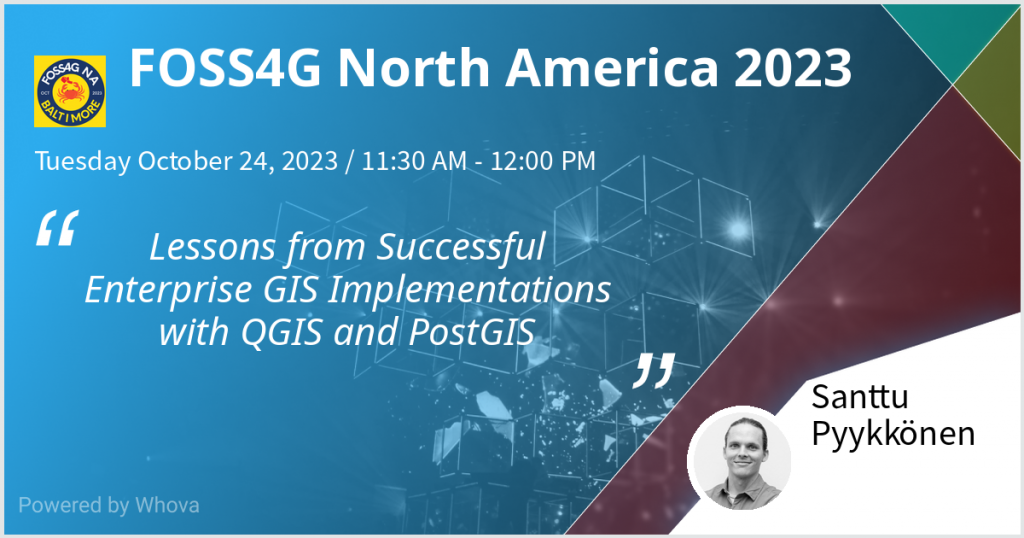
Additionally, we’re eager to be presenting a General Track talk on Tuesday from 11:30 am to 12:00 pm. The talk, “Lessons from Successful Enterprise GIS Implementations with QGIS and PostGIS,” aims to offer insights and practical advice for effective GIS data management, enriched by real-world examples.
Conclusion: Meet Us at Hilton Baltimore Inner Harbor
From the evolving thematics that distinguish FOSS4G events to the rise of new technologies and methods, it’s clear that we are in the midst of an exciting period of innovation and growth in the geospatial domain.
At Gispo Ltd. we commit to being at the forefront of this evolution. We enhance our clients’ processes by helping them via consulting, training, and support services that span the wide array of open source geospatial tools. Santtu will be joining from our side and we encourage you to join him for these sessions and to engage in meaningful conversations that could shape the future of your GIS projects. Whether you’re an industry veteran, an emerging professional, or simply curious about the possibilities that open-source geospatial technologies can offer, let’s connect. We’re open to collaborations, learning exchanges, and simply building community.
If you have any questions or would like to know more about what Gispo Ltd. can offer, feel free to reach out to us. You can connect directly with Santtu at santtu@gispo.fi.
See you in Baltimore!
The EIS project we wrote about in a previous blog post has been running for over a year and it’s time to look back at what we have accomplished in the first third of the project. If you are new to the project I recommend reading the previous article before continuing on reading this.
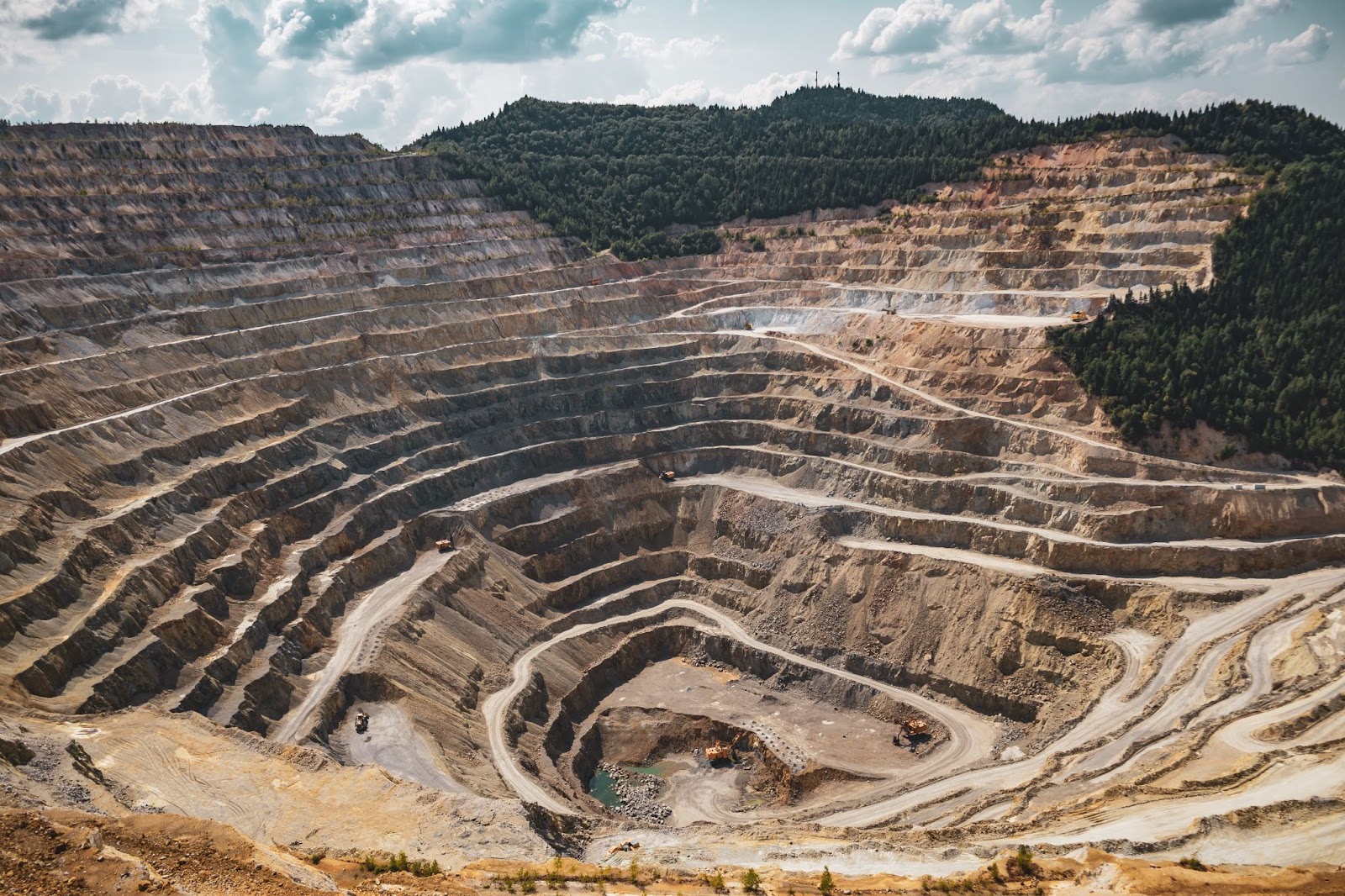
The role of Gispo in this project is to facilitate the software development of EIS Toolbox and EIS QGIS Plugin (previously called EIS QGIS Wizard) and to take part in the development work. The main focus during the first year of the project has been analysing the workflow related to mineral exploration and designing the EIS Toolbox -Python library and the EIS QGIS Plugin. We have conducted end-user interviews documenting the different tasks and steps of their workflow to design a user interface that is both intuitive and easy to use. We have seen demos and studied software currently used for mineral exploration and tried to incorporate the best parts of them into the design of EIS QGIS Plugin. Furthermore, we have arranged workshops together with project partners detailing the workflow to be used in the QGIS EIS Plugin.
We have put a lot of emphasis on designing a good user experience that would be as intuitive as possible and guide the end user in different steps of the workflow. In most cases the workflow is not linear but more of an iterative one. EIS QGIS plugin offers a graphic interface for EIS toolbox and supports the user during the different stages of the work. EIS toolbox can also be used as an independent library or as a part of another application.
The user will likely do some pre-processing for their data and a series of Exploratory Data Analysis methods might be used to refine the used input data and parameters to be used in further steps. In this kind of non-linear workflow it’s important to have clear indication which steps have been completed successfully, which might be run again and which steps are still to be done.
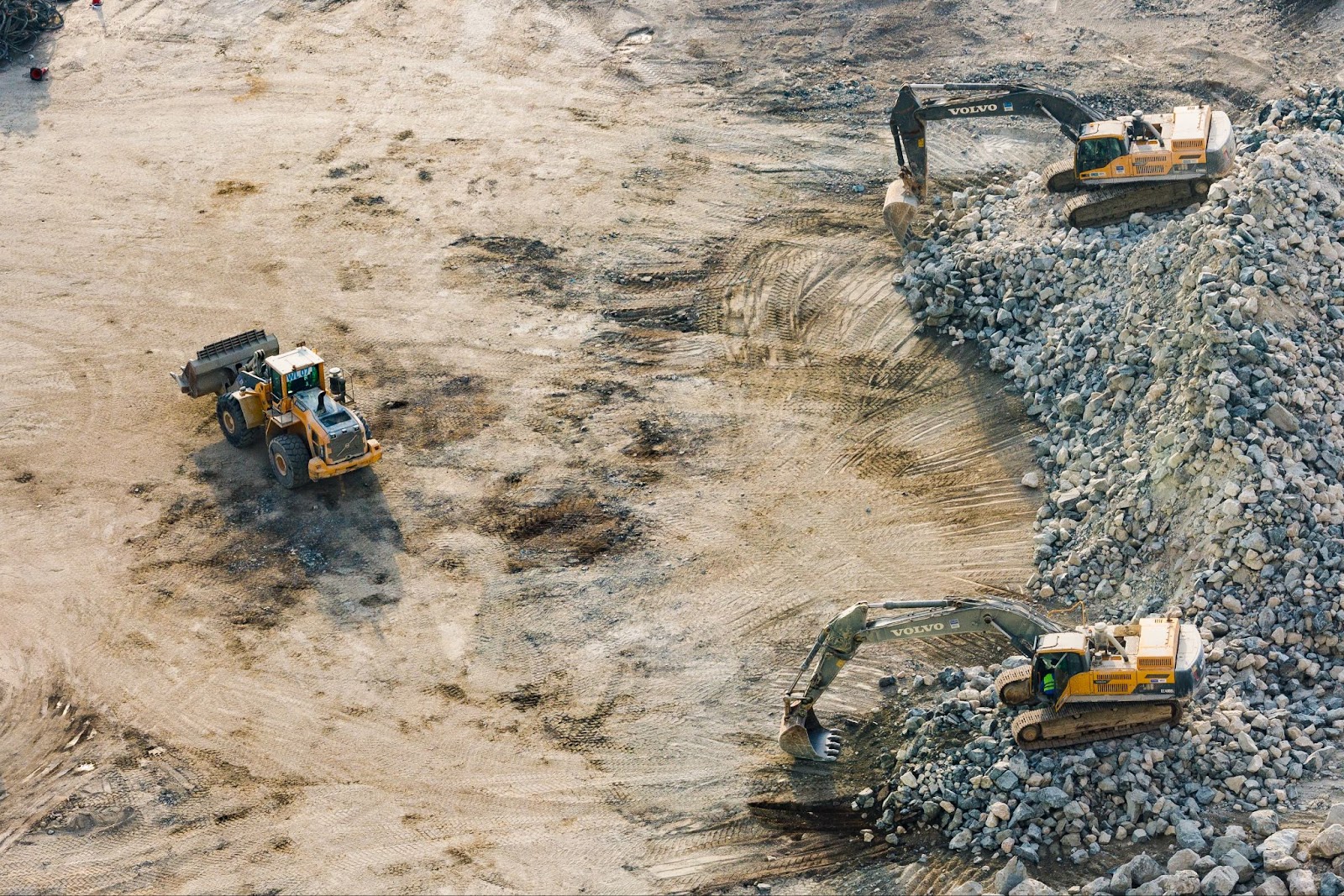
Beta release coming up
The next milestone for the EIS project will be the beta release of EIS Toolbox. It is planned for release in November and will contain the most vital parts of the library. The goal is to enable going through each step of the workflow although not all analysis and processing functionality will be feature complete in the first release. After the beta release the development continues with finalizing the functionality and testing with a wider audience. The final release is due in 2024.

Gispo is a partner in Location innovation Hub (LIH) that is coordinated by the Finnish Geospatial Research Institute. LIH is “a centre of excellence in location information” and offers a wide spectrum of different services to help companies (and public sector) grow their business with location information. The goal is to increase the use of location information in different sectors of society.
Within the framework of LIH, we can offer spatial information-related consultation, analysis work or visualization work to companies or public actors free of charge. The services offered within LIH would normally cost around 1000-1500€. We can teach you what spatial information is and how to use it, help you with a specific issue in your GIS processes or just come up with a beautiful interactive map for your organisation’s website. Or if your organization hasn’t yet unlocked your geospatial potential, we can organize a remote workshop for you! If any one of these options sounds interesting to you, contact us with this form and get free consultation from us!
Note, that to be eligible for using LIH services, the degree of digitalization of your company needs to be reviewed. This is done in a Digital Maturity Assessment (DMA) together with the LIH office. The LIH office will arrange a suitable time with you. In some cases the evaluation can go very quickly, but we suggest you allow at least a few hours for the assessment. DMA is used to evaluate the coverage and effectiveness of LIH services at the EU level. DMA has to be done two more times at a later phase, but then the data is only updated in subsequent rounds, so the process will be faster.
In addition, we will also inform Business Finland about the recipient of the LIH service, and for that we will be needing some information about your organization. We will request for that info from you after you have contacted us.
Have you ever tried the 3D tools of QGIS? They are very useful and versatile, and in this article we are going to dive into the world of those tools. We’re going to open 3D data with QGIS and I will guide you through the built-in 3D tools of QGIS and teach you how to use them.
The process
To try out the 3D tools we need some 3D data. I used open 3D data from the National Land Survey of Finland. Yes, it’s open data! The National Land Survey of Finland offers a lot of open data on its open data download service (link here). There you can find 3D data, elevation models, orthophotos, topographic maps etc.! I downloaded a two-metre digital elevation model (DEM) and 3D building data for this introduction. The selected area was the district of Kalasatama in Helsinki.
After creating a new QGIS project and adding data, it’s time to open the door to the 3D world of QGIS! Before we start to go through the tools, we need to slightly change the settings of the 3D building data to include the heights of the buildings there. This way, the buildings correspond to their actual heights on the map in relation to the scale.
This is done by opening the properties of the 3D building data. Then we choose the “3D view” option from there and as a symbol we keep the single symbol option. In “Extrusion”, the variable to be installed in a column indicating the height of the buildings, in this case MeasuredHeight column (drop-down menu → Edit → add a column indicating the height of the buildings to the expression from the “Fields and Values” drop-down menu). This way, the 3D buildings on the map correspond to the actual height of the buildings. Here is a gif on how to do it below!

3D view
Then we delve into the 3D features of QGIS through the configuration menu. This menu contains all the main functions of this full 3D view. The first thing to do is open the 3D view itself and you can open it by pressing “View” → “3D Map Views” → “New 3D Map View” from the top menu. Now you can see the 3D view opened in a separate window, but the 2D view still remains in the background.
You can open the configuration menu by clicking the tool icon on the 3D view selection ribbon, which opens a drop-down menu. At the end of the drop-down menu you will see the option “Configure…” and here it is!
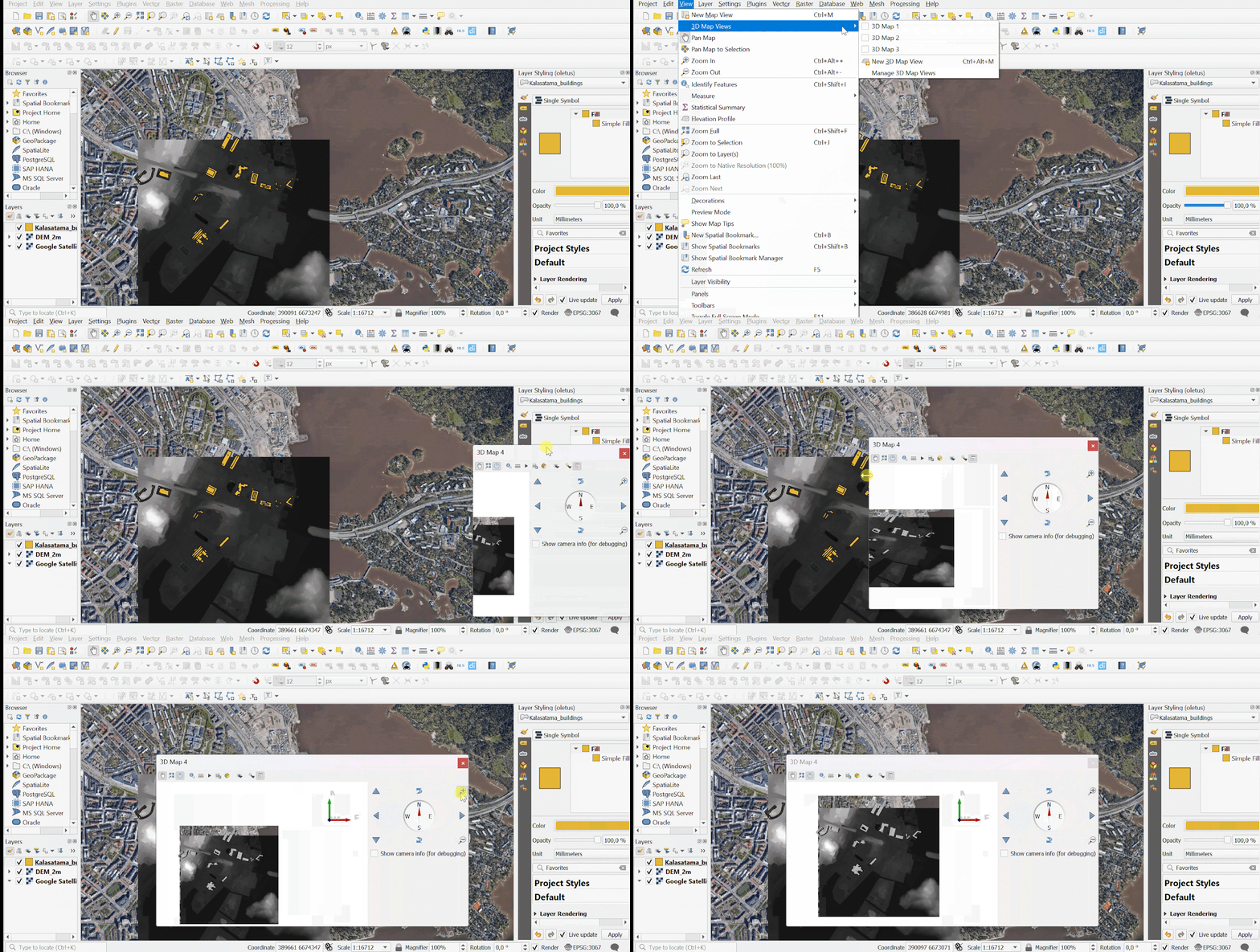
Configuration menu
The configuration menu has a tool for every 3D purpose you could need! On the left side is the configuration main menu, where you will find five main categories:
- Terrain
- Lights
- Shadow
- Camera & Skybox
- Advanced
These category names are very concise and descriptive of the tools they contain. Next you can see how to open this configuration menu in QGIS. Luckily it is very easy to find.
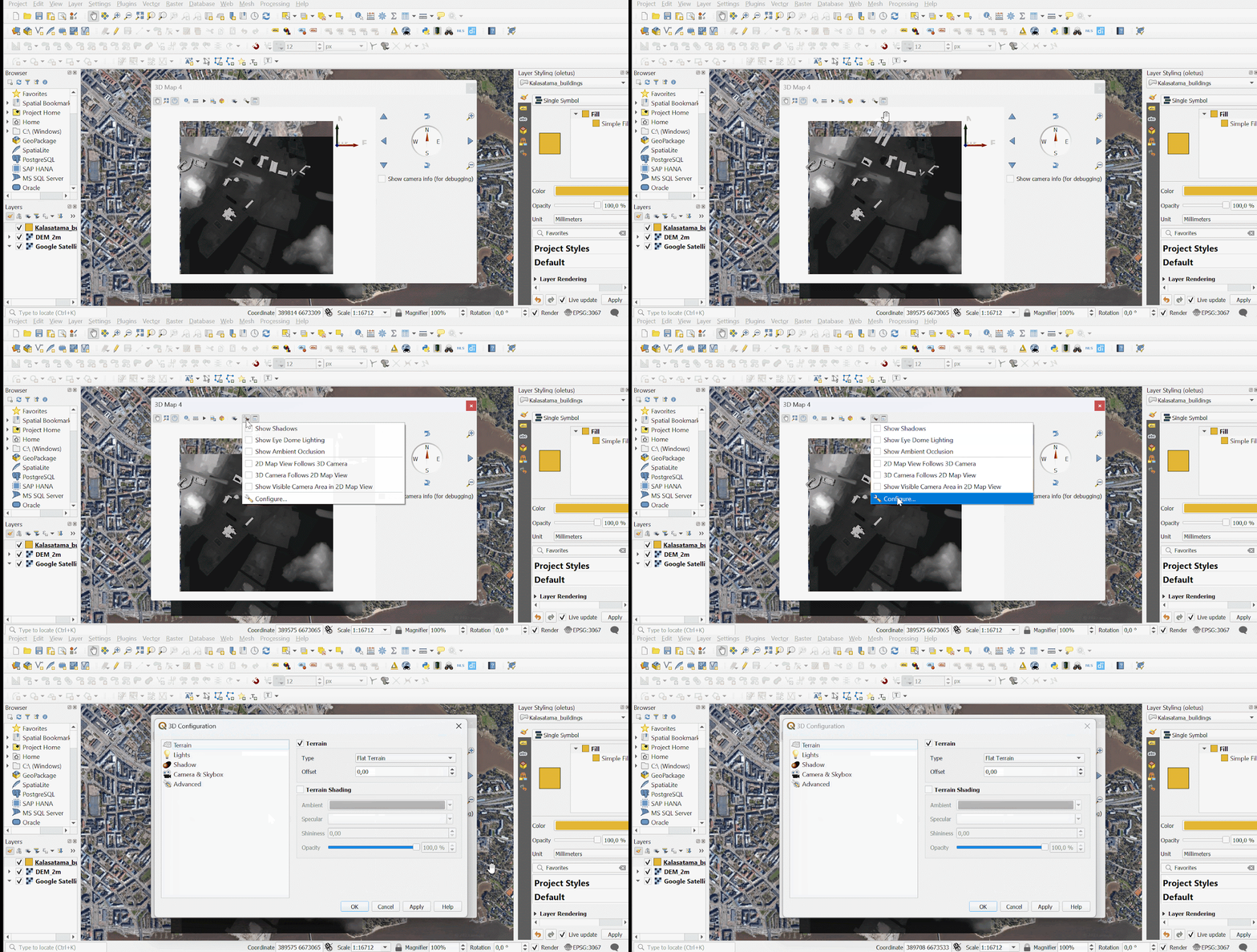
Terrain
Let’s take a look at these versatile configure functions, one by one! First up is the Terrain tool.
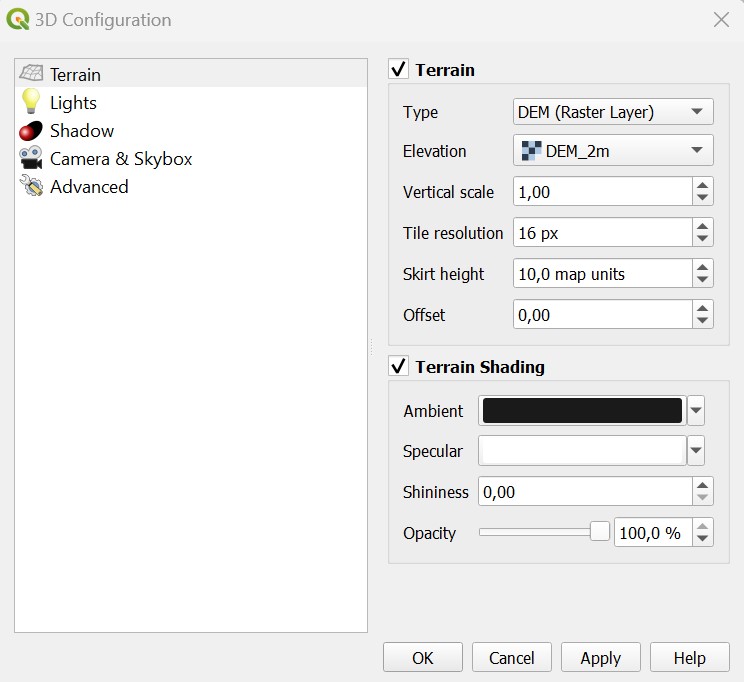
So, it looks interesting right? In the picture I have ticked the checkboxes in both sub-functions (Terrain and Terrain Shading), but if I uncheck the ‘Terrain’ box, all that is left are the buildings and the terrain disappears under them. This is useful when you want to focus on the buildings alone – for example when measuring their heights. ‘Terrain shading’ tool is used to adjust the brightness of the terrain. The ‘Ambient’ setting changes the brightness colour to e.g. green. The ‘Specular’ setting can adjust the highlight colour to e.g. blue (to highlight the roofs of buildings). The ‘Opacity’ slider is used to adjust the opacity of the shading.
Let’s take a closer look at the ‘Terrain’ sub-function. As we can see, it is possible to choose different types of types for terrain. In the image above, you can see that I have DEM selected as the type of terrain, but you can also choose flat terrain, a terrain from an online source (for example from Mapzen) or mesh types. So, it’s up to you! It is also important to select the right elevation if you want to use DEM as the type of terrain (for example I used DEM 2 metres). This setting therefore determines the elevation model to be used. All in all, this DEM tool contains a lot of settings that allow you to fine-tune the DEM level below.
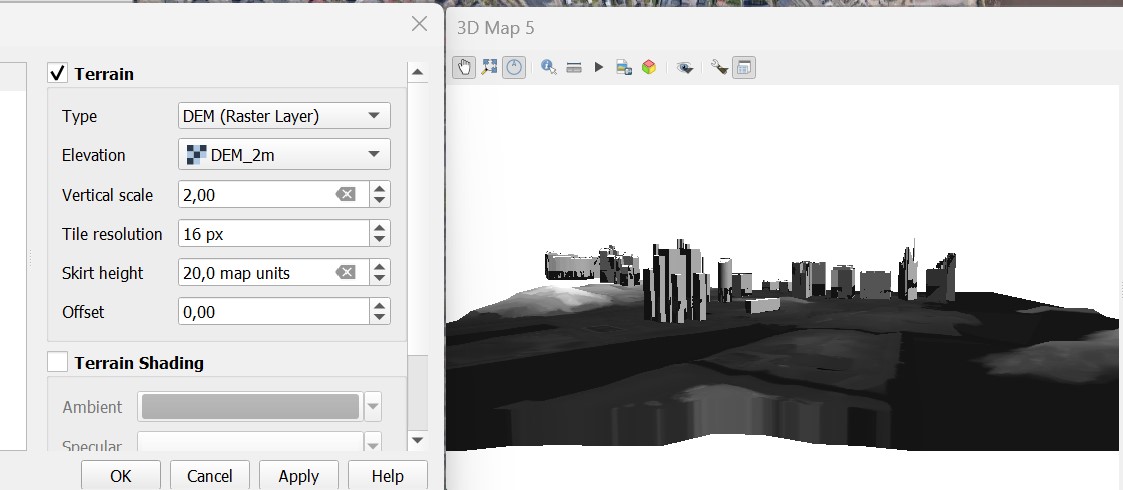
‘Vertical scale’ setting emphasises the height shapes of the DEM layer, so the larger the number the more pronounced the height differences in the DEM layer. ‘Tile resolution’ setting adjusts the sharpness of the layer (the larger the number here, the sharper the DEM layer becomes). ‘Skirt height’ adjusts the thickness of the edge of the DEM layer, and ‘Offset’ moves the view up and down (the layer moves higher when the number here is larger). So as we can see here, this whole ‘Terrain’ function is very useful and versatile! And just wait, we have many more 3D functions to learn!
Lights
This setting allows you to control from which angle and with what intensity the light hits the buildings and also to change the colour of the light from the default white (for example to yellow). It is also possible to add lights in either point light or directional light form. Adjusting lights is a very useful and important setting when viewing 3D buildings as it can be used to enhance and customise the visibility.
But hold on a second, what does the point light and directional light mean? Well, they are different types of light of course! Here’s an example below of how to add a new light source, for example point light.

Pretty simple right? But what are the actual differences between these two light types? They appear and are positioned slightly differently in the 3D view, depending on the settings you put on them. Below are two example images, one using point light and the other using directional light with the same intensity.

Aas we can see, the lights hit the buildings slightly differently and in different places. I would say that the directional light is more holistic and stronger. Point light, as its name suggests, focuses only on certain areas. But of course you can customize these lights and see what suits you and your data the best!
Shadow
This feature is very useful when you want to look at how shadows form on buildings and make more detailed analyses. This tool is also very easy to use!
First, you need to choose the light source for the shadow by using the dropdown menu from the ‘Directional light’ option. Note that you can only use directional light type for shadows! The ‘Shadow rendering maximum distance’ setting ensures that shadows are not created on objects too far away. The larger the number is in this setting, the fewer shadows appear to occur. The ‘Shadow bias’ setting avoids the self-shading effects that would make some areas darker than others because of the size of the map, so the lower the value of this setting the better. ‘Shadow map resolution’ setting allows you to adjust the resolution of the shadows to make them sharper. Note that this might reduce performance!
Camera & Skybox
When we want to view and analyse objects in 3D, adjusting the camera settings is crucial to get the most out of the 3D tool! There are many interesting camera settings, so let’s take a closer look at these as well!
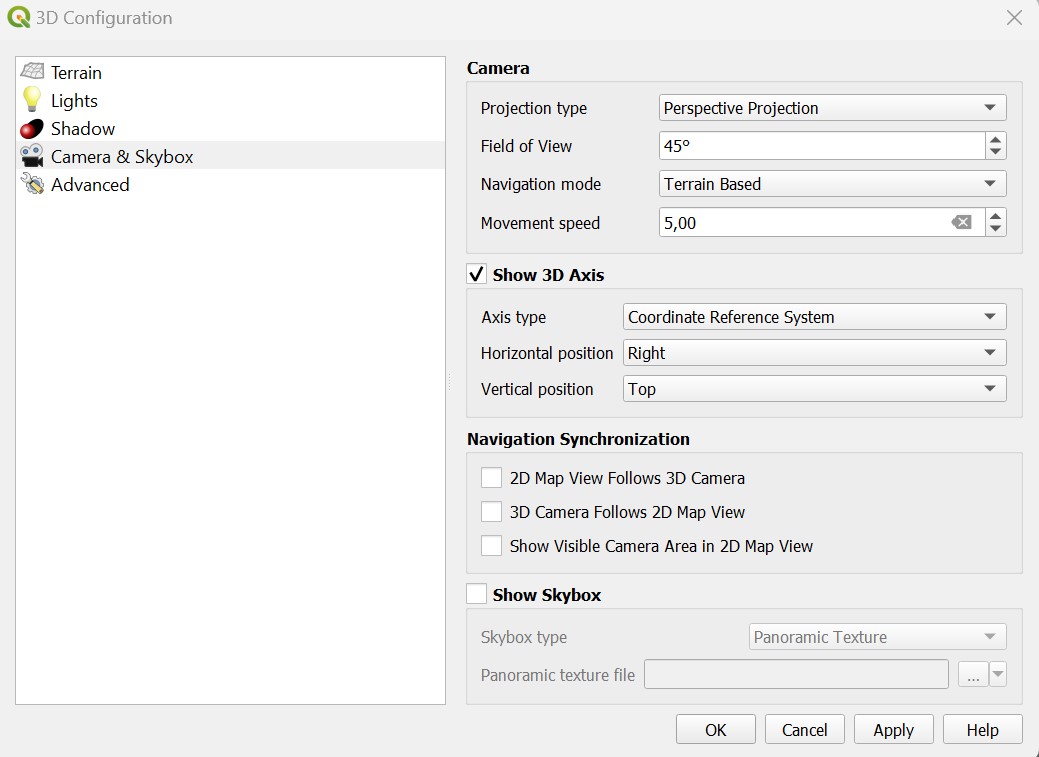
You can customize the camera just the way you like. Let me introduce these various settings a bit, starting with the ‘Camera’ section:
In the ‘Projection type’ drop-down menu there are two options: perspective or orthogonal which allow you to view 3D buildings from different angles depending on your need. If you change the projection type, you have to take into account the possible change of lights and shadows!
The ‘Field of View’ has its own setting both in this configuration window and next to the 3D view itself, where it also has its own handy slider. You can also choose your own navigation mode. It can be conveniently switched to terrain based or walk mode (this means that the view is from ground level and the environment can be viewed but not zoomed in). The terrain based mode is more versatile but the walk mode is more suitable when you want to view directly from the ground. Of course it depends on your own preferences!
You may have noticed the axis in the top right corner of the 3D map view in previous images. QGIS lets you hide this axis with just one click, but you can also change its position and shape to a cube!
Under ‘Navigation synchronization’ section you can choose whether you want the 2D map view displayed in the main QGIS window to follow the open 3D map view or vice versa, the 3D view to follow the 2D view. Navigation synchronization makes it easier if you want to view/analyse both map layers at the same time. In this section, you can also choose whether you want the 3D map camera view area to be highlighted in the background 2D map view, so that the 3D area appears as a blue square on the 2D map. This allows you to see exactly where the 3D view borders. These options can also be selected directly by pressing the tool icon in the 3D map view from the top menu. There is also a shortcut button for the “show shadows”, “show eye dome lightning” and “show ambient occlusion” functions.
The ‘Show skybox’ feature allows you to place, for example, a picture of the blue sky in the background of the 3D view! You can insert your own .jpeg file. There are two skybox types that you can choose. With the Panoramic texture option, the same sky object is displayed in 360 degrees and with the distinct faces option you can set a different image for each of the six sides of the box.
Advanced
And finally, you can easily polish your 3D view with ‘Advanced’ tools! The advanced options are very versatile and you can add new dimensions to your data.

As you can see, there are many different kinds of tools to make your 3D view as optimal as possible! Let me introduce you to some of these tools that I found the most handy.
We can start with basic advanced settings which you can see first in that list. The ‘Map tile resolution’ allows you to adjust the resolution of the map tiles to your liking, the higher the number, the more detailed the map tiles are.
The ‘Max screen error’ setting determines how fast the 3D view uses higher resolution map tiles. The lower the number is in this setting, the more detail the view will show.
‘Ambient occlusion’ is an effect that can increase shading in areas that are not as exposed to ambient light. The effect affects the entire view and can be used in conjunction with eye dome lighting. This effect allows you to control the radius (how many map units the effect is applied to), the intensity (how strong the effect is, the higher the number the darker) and the occlusion threshold (the lower the percentage point the darker this control makes the view, calculating how many neighbouring points need to be occluded to see the effect).
Apart from these there are much more advanced settings to come! In these settings there are also additional options to choose from, for example to show labels (city districts), to display map tiles and even to display frame rate data! QGIS displays the frame rate in frames per seconds and this number appears in the top right corner of the 3D view. So there are numerous functions to customize your own 3D view and get additional information to suit your needs!
Toolbar tools in the 3D view

When you open the 3D view in QGIS you will find the toolbar shown in the picture above. Here are many other additional 3D tools for you to use in your analysis! These also contain very useful shortcuts. I will go through these in order from left to right.
That white hand icon represents the “Camera control” tool so with this tool selected, the 3D map view can be scrolled. Next to that you can see the little magnifying glass icon. Press this button to zoom the 3D map view so that the background map/other data in the QGIS 2D map view/working mode is also visible, i.e. the tool zooms to the whole map view. Next to this zooming tool is the “Toggle On-Screen Navigation” tool. It closes and displays the navigation tool, from which you can adjust the map view.You can see this navigation tool on the right side of the 3D view when this button is activated. Then we have the “Identify” tool. Clicking on an item the “Layer Styles” panel opens next to the 2D map window, showing the clicked item’s details in the attribute table.
Next to that you can see this ruler icon which represents the “Measurement line”. You can measure the horizontal length of two points you create, e.g. the width of a building or a certain distance on the ground. Press “New” and press the start point at the point you want and the end point at the point you want. Information about the horizontal, vertical and 3D distance between the points will appear in the tool table. From the “Map Units” drop-down menu, you can select the desired unit of measurement, e.g. metres, centimetres or kilometres. Here is a gif to make it a bit easier to understand!

Pretty amazing, right? But there is much more! That little triangle icon is an animation tool! You can create your own animation in 3D view. Add a new keyframe using the green “+” button, select the duration in seconds and press OK. You can delete a keyframe by pressing the keyframe drop-down menu to select the desired keyframe and press the red “-” sign. Below is an example of an animation created with this tool.

Of course, there is a button where you can save the view as an image! The 3D view can be saved as a jpg file in a location of your choice by pressing “Save as image…”. Now you might be thinking: how can I export this 3D view? Well, there is a tool for that purpose too and you can find it next to this image saving tool (the coloured cube icon). This tool saves the 3D view itself as a file that can be opened in e.g. windows 3D builder. It creates 3D object and MTL file, so it can be opened with Blender for example. Good tool if you need further processing!
We are almost there! Only three tools left from this toolbar. Third tool from the right (that icon with an eye on it) is for setting the view theme. This function allows displaying different levels in the map view, which are from ready-made map themes. Next to this tool is the configuration menu which I introduced earlier. So, the last tool in this toolbar is “Dock 3D Map View”. This is selected by default, in which case the 3D view is displayed normally, but when this option is clicked off, the 3D map layer disappears and only the navigation buttons are visible in 3D view!
But who would use these tools and what for?
Then who could get the most from QGIS? Well, I would say everyone who needs a versatile GIS program for analyzing, visualizing and viewing spatial data! But of course there are usually different professional groups and organizations who have to take the most from open spatial data! These user groups might be for example city planners, architects, traffic planners, researchers…
Possible cases can be for example landscape analysis, modeling of new residential areas and placing buildings optimally in the environment. You can also create fly-by animations for others to visualize new projects. QGIS can also be useful when doing environmental impact assessment.On behalf of professional use, one big positive feature is also that you can create, for example, a building directly in the database and view it directly in QGIS. So, it can be concluded that with QGIS you can do same things as with commercial software. You could say that QGIS is suitable for nearly everyone and in every need…
If this article got you interested and excited about 3D data and you want to know more about possibilities of QGIS, drop us a message at info@gispo.fi !
This article was done as a part of our work for Location Innovation Hub (LIH). Read more about LIH and Gispo’s part in it here.
This article is written by Anni Jusslin
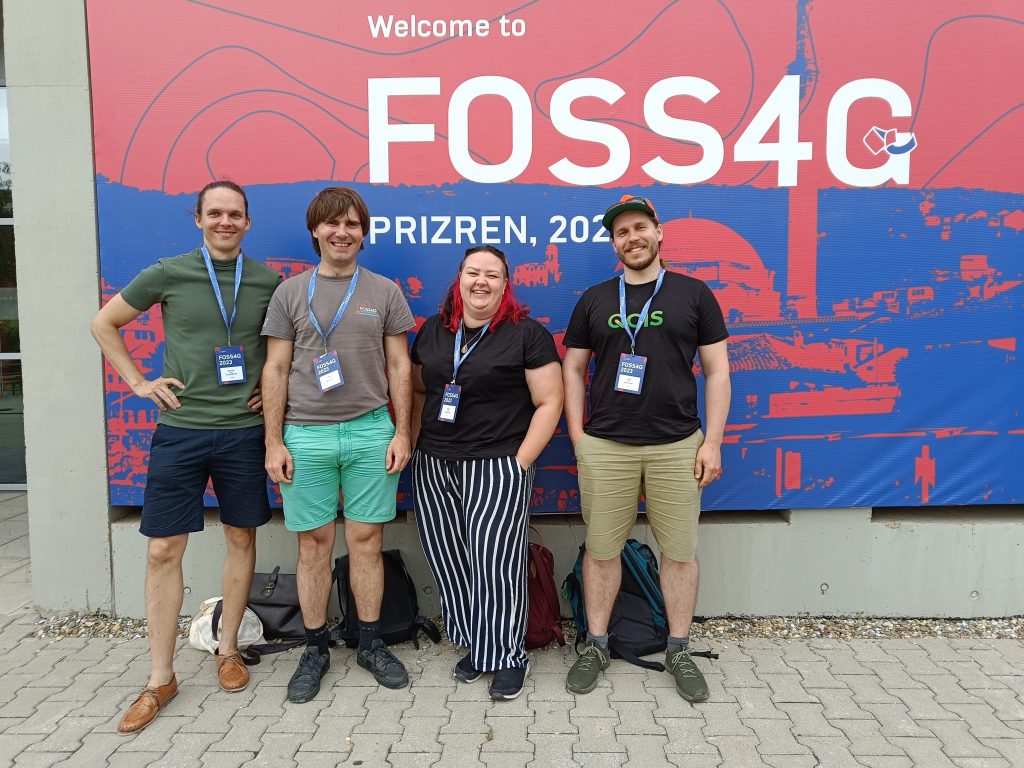
We joined the ranks of open source geospatial leaders from around the world at the FOSS4G 2023 Prizren, Kosovo, representing Gispo Ltd and participating in the always enriching conversations on open source geospatial software projects. We saw amazing and innovative talks and keynotes and loved to see how the community is always interested in developing their tools and sharing their work!
Now that a few weeks have gone by and we have had the time to reflect everything we experienced and learned we can look back at the astonishing week we had in Kosovo! Check out what we were thinking before leaving to the conference from here.
Elisa and Ville were first-timers in the conference and were amazed how welcoming and inspiring everything and everyone was! The community spirit did a lasting impression on all of us. There were hundreds of speakers from all around the world, with topics ranging from state of software to education and specific use cases. We got to learn about the newest updates in QGIS from Marco Bernasocchi and hear about how to use specific algorithms and workflows to deal with problems in hydrology, education, mapping and (almost) everything in between! If you are interested in seeing all the presentations in the conference, click here.
Our team provided four General Track presentations and a workshop, each highlighting a distinct aspect to using open source geospatial technologies. Ville presented an initiative in Finland that used QGIS to transition from custom data models to a national data model for zoning and municipal plans. Elisa discussed the expanding use of open source geospatial software in Finnish government agencies, as well as the resulting demand for tailored training programs. Timo shared suggestions on how to use Oskari to create mobile-friendly maps, while Santtu shared advice and insights on managing enterprise GIS workflows with QGIS and PostGIS. If some of these peak your interest, please check out the presentations from the hyperlinks. We would also all be glad to talk more about these subjects!
QGIS: Transitioning from a Tool to a Comprehensive Platform
The undeniable rise of QGIS – not only as a tool, but as a comprehensive platform affecting the geospatial sector – was one of the important takeaways from FOSS4G 2023. It’s no news that QGIS has come a long way and has been around for a long time, but its adaptability and breadth of applications were a common theme throughout the presentations, emphasizing QGIS’s evolution from a simple desktop program to a platform that serves several domains. The progress of QGIS was highlighted at a keynote presentation “The Importance of Seeding” by Marco Bernasocchi, the chair of the QGIS Board and Project Steering Group. Bernasocchi’s involvement with QGIS started 12 years ago, when “he planted his seed” in the community. His inspirational story highlighted the incredible journey of QGIS throughout the years.
Evolving Trends in Data Formats and Open Source Projects
The FOSS4G 2023 Conference went deeply into the worlds of low-level data formats and data standards, providing a window into the geospatial technology sector’s core foundation. For instance, cloud native data formats became a hot topic of conversation. These formats enable more effective storage, retrieval, and on-the-fly processing, transforming how we handle and manipulate geographic data. This transition to cloud-based data management not only demonstrates the speed with which the open source geospatial software community has embraced new technologies, but it also highlights the rising significance of cloud computing in managing the scale required to handle the enormous volumes of data.

Then what is the take home message from this conference?
We got to meet amazing contributors and had deep talks about different software and how to use them in different cases. We all learned something new and I for one am trying to implement all the new ideas in my own work one by one. We got some interesting new acquaintances and hopefully we can grow out collaborations in the future.
And all this took place in a beautiful landscape!
We hope to see you all in the next FOSS4G.
All that buzz about open data! The public sector organisations are obliged to publish a lot of their data, so sure there is a lot of it out there – but what and where? I have found that too often data is hard to find, and when you find something, it is in a complicated format, scattered in numerous places or it is of poor quality in one or the other way.
None of that really hurts if you don’t need the data. But if you have a point to make, good data offers you great possibilities to do it in a powerful way.
When it comes to public financing, people are often interested in how much it benefits their own life in one way or another: how much is invested in my neighbourhood or region, or in the service sectors that concern me? These are good examples of information that sits well on maps. Maps are an unbeatable tool to illustrate regional division of phenomena or – why not also – money flows.
In this article I want to share a case example of how public open data is turned into a set of maps for different use cases using free tools.
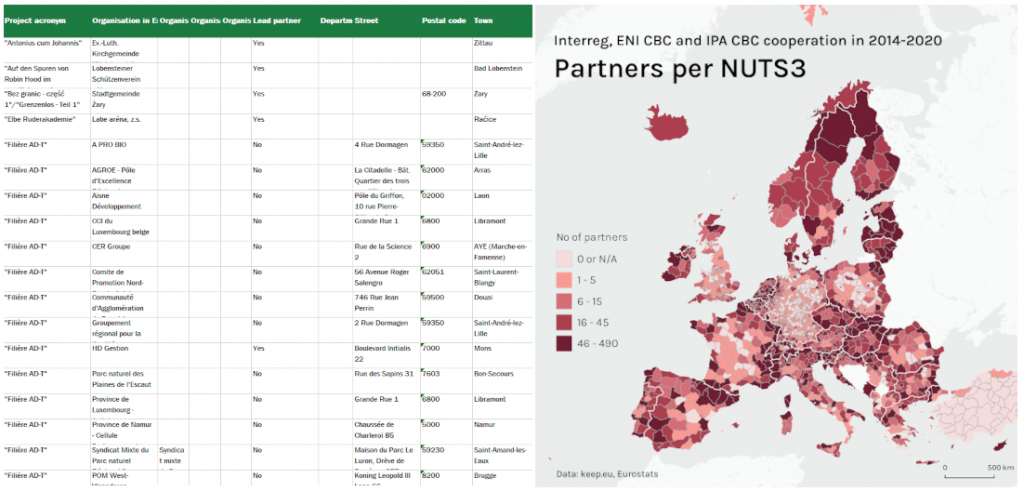
A map can breathe life into tabular data when regional information is at play.
EU financing put on maps
The European Union aims at making sure that no region is left behind in Europe (if you want to read more, google EU Cohesion Policy). Different financial instruments are used to support European regions in a variety of ways. One of the instruments is called Interreg which aims at building cooperation between European regions to tackle common challenges together.
Like for any EU financing, oh yes, data for Interreg is there. For any EU support mechanism it is possible to find out who received financing, for what, where, when and how much. Some of it is in different web services presented in statistical graphs, info sheets and what not. Sometimes also maps are used. But quite often the selected formats or the described data sets are not exactly what I am looking for. And fair enough, it is nearly impossible to provide online tools that would allow the user to tailor every possible chart or map of their dreams easily and in the exact format they happen to like or need. However, the big bulk of the data is usually available in raw format which can be downloaded and freely used.
To make use of such data, you need to know what you want to tell with it and how you want to lay it out (a graph, a map or something else). In case you want to make a map you will need some mapping skills and a tool to do it. And now we are getting to the core of the business – how to make a map out of some publicly available data!
Table rows become intriguing maps
In this exercise I downloaded all Interreg project data from the 2014-2020 financing period that is available in the public keep.eu database. My idea was to make three different map visualisations from this data: I wanted to show the activity level of the regions by showing the number of projects and partners in each region, as well as how much of this specific type of EU financing* has been paid to the partners in each region. The idea seemed clear but the data was not ready to be used in its original shape, which is quite often the case.
The data can be downloaded from keep.eu in Excel format. The xlsx file has a tab for all projects and another tab for all partners that took part in the projects. No data was readily listed per region, and therefore some data aggregation needed to be done.
I wanted to upload a clean csv file into QGIS (the free software where the maps were to be made). For this end, I did the data handling with some Python code and the very handy Pandas library. Other option would have been to handle the data in Excel, and actually also QGIS would offer tools for it. But I wanted to have a script that I could easily reuse with updated source data if needed. The script now reads the xlsx, does its tricks and, in the blink of an eye, returns the needed csv – very handy!
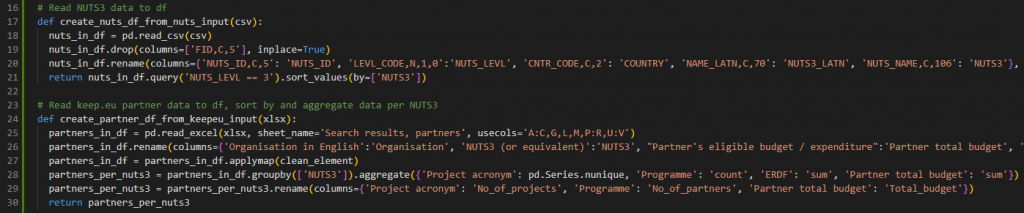
Some of the Python code that sorts the data from .xslx and writes it into a csv file.
Now I had created the data per region but I still needed the region borders to create a regional map. Luckily, Eurostat offers the European statistical regions as a Shapefile, which is just what I needed.
Once the csv is ready and the regions are available, the work was almost done. In QGIS I simply started a new project and imported both the shapefile and the csv into it and linked the two datasets using the “NUTS ID” information available in both (connecting data sets always requires this “key” which can sometimes be tricky to create/find). After that I simply made three layers, one for each of my planned maps, and visualised the wanted data so that each region gets a colour shade based on the value it holds (these maps are known as choropleth maps). Selecting colours for a map was possibly one of the trickiest things in the whole process, so the importance nor the difficulty of this phase is not to be under-estimated.
Finally, I added a simple basemap on its own layer on the “bottom” of my map using the QGIS QMS plugin to make the continents visible.
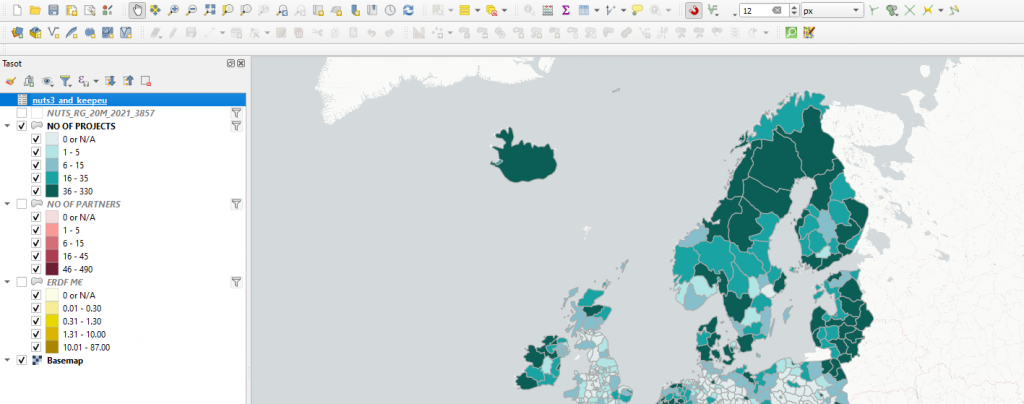
The layers in the QGIS project look like this.
How to publish?
Once the maps are ready in QGIS, the final question is how to make them available for users. Still maps are useful when there is a wish or need to present information in a very specific way or format. However, people tend to appreciate, and nowadays even expect, a possibility to find exactly the information they are interested in instead of generic overviews.
This time I first made some still map images that could be used in social media as examples. For this I used the layout tool in QGIS. With the layout tool one can fairly easily create map layouts with title, legend, scale bar and other graphic elements. My still maps offer overviews of phenomena but if the user wants to get the more exact figures for his or her own region, it is not possible. Designing a still map can be considered an especially challenging task because the map creator makes all decisions and the map user can’t make any.
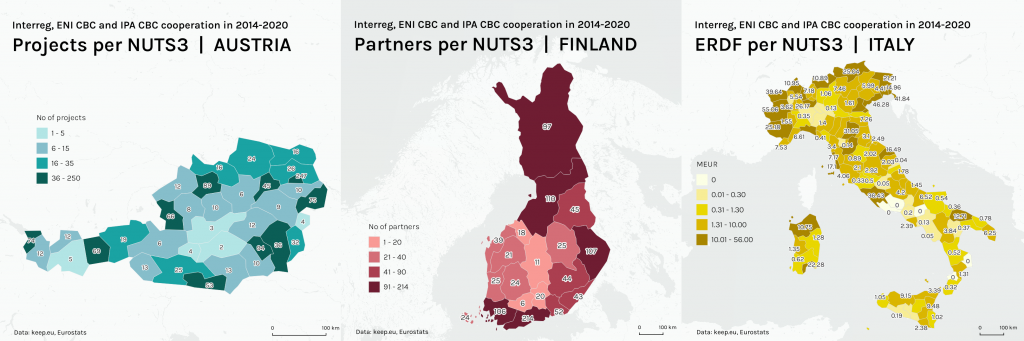
Examples of still maps created in QGIS layout. Country-specific maps can be created by filtering data on the layers.
In order to make the big amount of data behind the maps more available for the user, I decided to add some interaction on my maps by creating an online version with the qgis2web plugin of QGIS. When the interactive map opens in the browser, the user can select one of the three maps they want to view. On these maps the user can zoom into the map for more precise view and see all data (no of projects, no of partners and no of euros) for a given region at once in a popup that appears on the region when the user moves a mouse on it. On the interactive version of the maps the user can get both, generic overviews as well as the more exact figures for any single NUTS region.
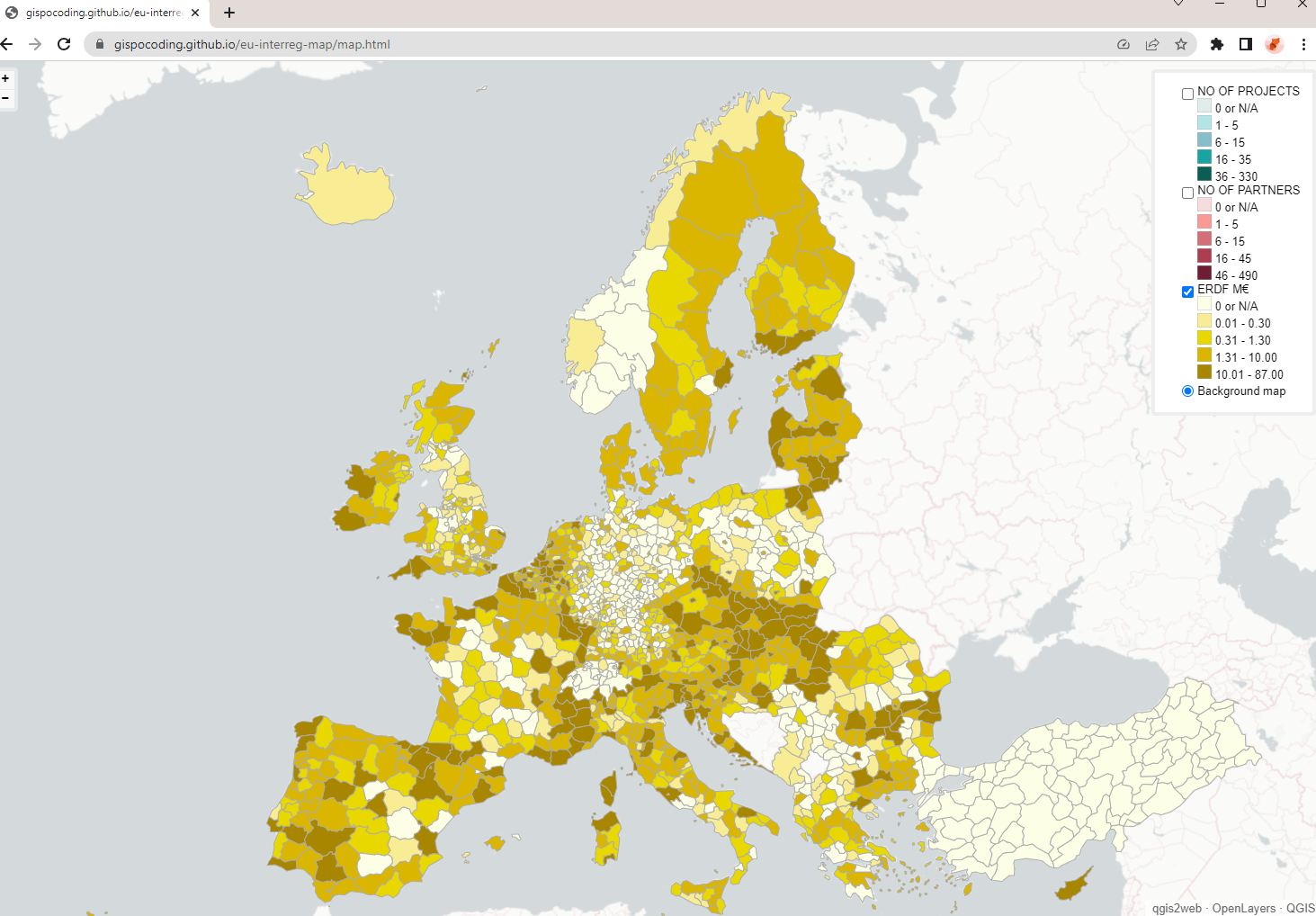
The interactive webmap created by the qgis2web on OpenLayers opens up fullscreen in the browser. If you want to try it out yourself, follow the link a bit further down.
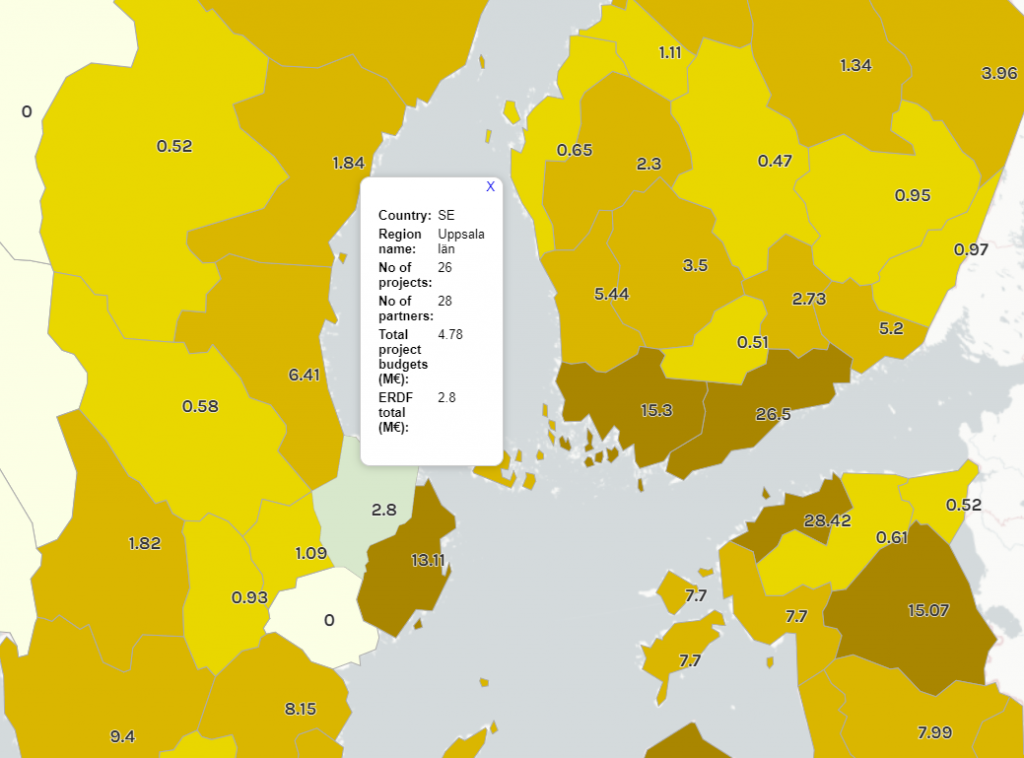
By zooming in to the web map the user can see more information for each region (here the ERDF budget).
By hovering the mouse over a region, all data for that region becomes visible in a popup window.
You can find the webmap and try it out yourself . For more information about it, see the GitHub page where the project is published.
What to take home from all this
Making maps is great fun. But it is also a challenging task that requires good data and a lot of different choices and decisions to be made (e.g. content, geographic extent, type of map, used colours and format of publishing, to name but a few). Most important is to know what is the expected use of your map, i.e. what you want to communicate with it. A good plan and quality data that supports the plan will already take you far. QGIS is a free and open tool, and if you need help with building your map maker skills, don’t hesitate a second to be in touch with Gispo (you can also check our training catalogue). We’ll be happy to share more of our knowledge on the topic!
This article is written by Linda Talve.
We took a look at the size of the QGIS community a few years ago in here: https://www.gispo.fi/en/blog/how-big-is-the-qgis-community/
With the newest QGIS 3.30 release we decided to update our look on the QGIS community. How big is it now?
How many QGIS developers are there?
Open source softwares are dependent on the community to find and fix bugs and problems in the programs. As of now (June 2023) there are 488 core contributors listed on QGIS GitHub pages. During the last month 29 developers have pushed 406 commits to the master branch! There are a few key players that have been committing their time to QIS development, the most hardworking is still Nyall Dawson who has 173 commits in GitHub in the last month!
There are also donors and sustaining members that are contributing to QGIS. There are more than 100 sustaining members all around the world, including companies and QGIS user groups and over 8,000 donors supporting QGIS!
How many QGIS users are there?
There still isn’t a good way to determine how many people are using QGIS. Tracking downloads and installations isn’t possible due to the support of multiple operating systems and installation methods. And some (at least me) have multiple different QGIS versions downloaded on their computers. These always skew the real user count.
Since our last overview, QGIS has found a way to track the number of users to some extent by counting how many requests to the QGIS News Feed are made and from what version of QGIS. This way they can transparently and openly gather information about their users. The news feed pops up when you open your QGIS. You can disable this in options but it really gives useful data to QGIS developers and sponsors!

In the last 30 days (May 2023) QGIS has been opened 13,629,896 times!
They also gather data about which QGIS versions and operating systems are in use, this way the QGIS community can prioritise what to develop further.
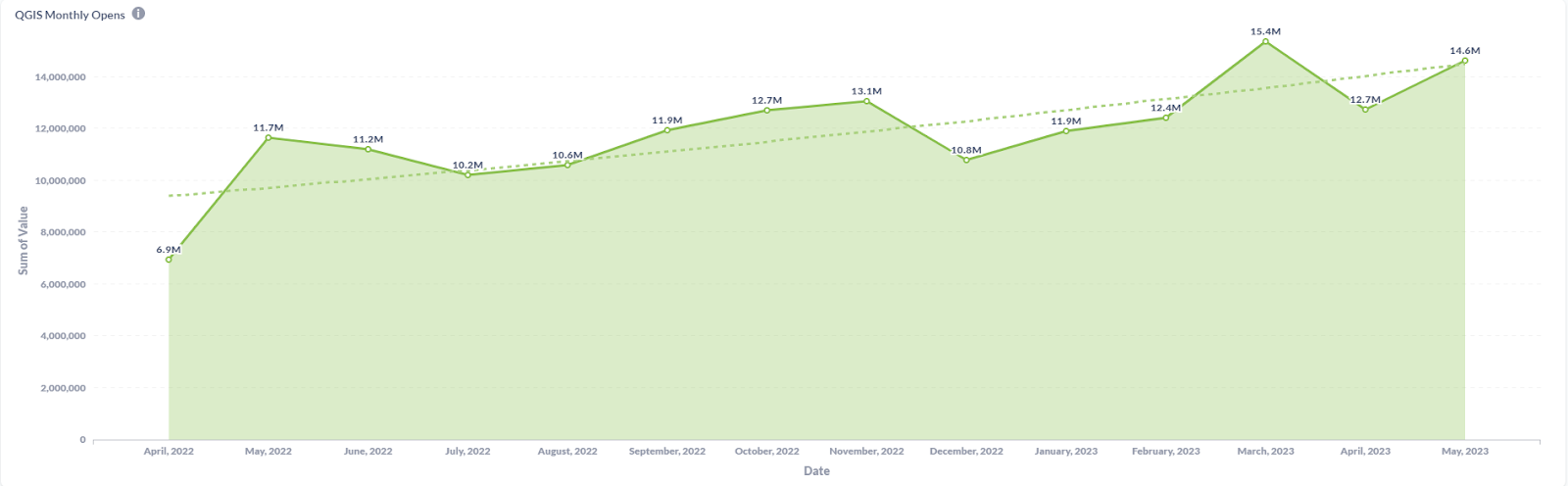
Looking through the dashboard it is clear that the use of QGIS is growing! Here is one graph that shows how monthly QGIS opens have been growing in one year. From April 2022 to April 2023 the sum of openings has nearly doubled!
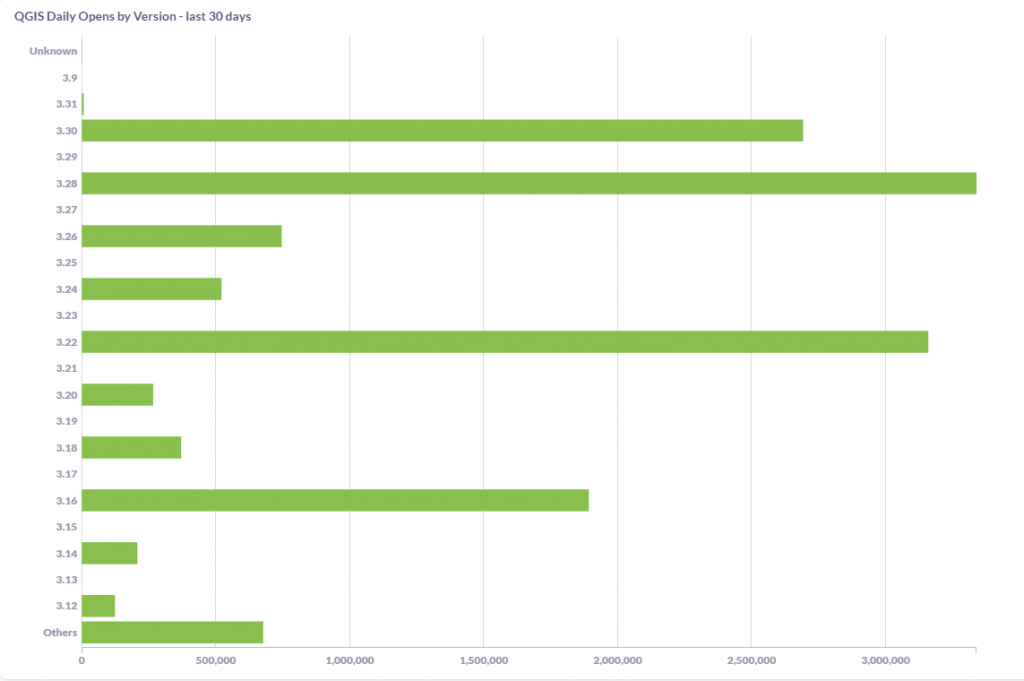
In this dashboard we can also take a look at what is the most commonly opened QGIS version in the last 30 days. According to this graph many have already changed to the newest 3.30 QGIS release but the most commonly used are the long term releases, LTR 3.28 being first and LTR 3.22 the second most opened version.
The QGIS dashboard is available here
Support, training & social media numbers
StackExchange is still a great source of instructions and ideas from other users. There are currently 39,000 active questions with the QGIS tag in StackExchange and almost 1000 questions are still unanswered. There are 1.3k watchers for the tag in StackExchange and 3.3k in StackOverflow. New questions are asked more than once a day! Compared to the next biggest tag in Stack Exchange “arcgis-desktop” has 50% less questions and only a few hundred followers.
This might make QGIS sound to be more prone to problems but one could also reason that there are users with different skill levels using the software. This can be seen from the questions asked, they vary from adding data to QGIS to advanced algorithms and PyGIS. Also as an open source software, specified support pages for QGIS users do not exist so StackExchange is a great way to get help. Also the QGIS community is very active and willing to research and answer questions! In addition there are some companies that offer QGIS support (like us! Contact us if you need support with QGIS!)
There are a lot of other places to search information from. If you want to learn the basics without searching for the odd tips and tricks, a course might be your thing. We at Gispo offer different level courses to fit your QGIS needs, online and in person. Of course there is a lot of different online courses available from LinkedIn to Udemy. Also there is a lot of course materials in YouTube for beginners starting from downloading the software to making layouts of maps. There are a few that are very popular and have almost 1 million views. There are also videos on different analyses and tips that are doing well in that area and new ones are uploaded every week!
Conclusions
QGIS has grown quite extensively since it’s initial release in 2002 as Quantum GIS and the roll is not stopping anytime soon. In Finland many governmental organisations are making the big switch to open source software and are in need of training and support. Globally QGIS is used in big and small companies, from higher education to governments and non-profit organisations. There are also some QGIS user stories highlighting how companies have used QGIS in their projects. You can read more in here.
Since our last peek into QGIS community the worth of QGIS project has grown more than 3.5 million USD making it worth 57.5 million USD! This is only looking at the source lines of code, but still quite a number!
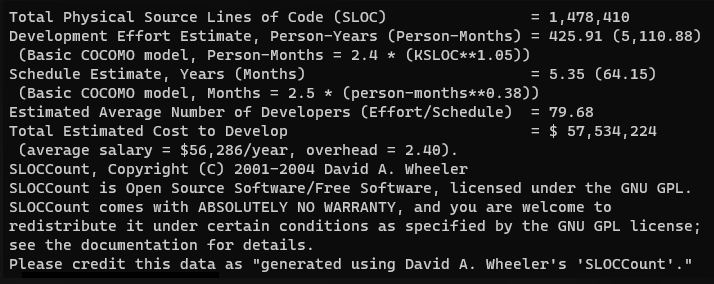
These are just a few points derived from different sources. All in all since our last post about the community two years ago many figures have gone up, a lot. The software is being developed continuously by the amazing developer team thanks to funders and of course all the users that report bugs and problems!
QGIS is used worldwide in education, research, planning and business. According to the QGIS dashboard there are definitely millions of users, some of course more active than others.
Few thousand people are concerned with development of QGIS, including core developers, user groups, and others who might write reports, documentation and provide training. These people are daily users who rely on QGIS in their work.
The power of QGIS is in the community. And there is always room for more in the happy community!
We are pleased to announce our presence in the FOSS4G Prizren 2023 (Free and Open Source Software for Geospatial) conference! As industry experts in our sector, we appreciate the value of being on the cutting edge of knowledge and technical expertise.
While it’s difficult to pinpoint the exact central theme or the “red thread” of this year’s conference, we’re eagerly anticipating the exciting key insights and takeaways that will unfold. Some of us are first-timers in FOSS4G conferences! Elisa is going to the conference for the first time and is very exited to get to know other FOSS4G enthusiasts, network and listen to wide variety of different speeches! Stay tuned as we delve into the highlights and discoveries of this year’s FOSS4G!
Sneak peek of our talks
Our team of experts will be presenting four talks during the General Track. Each session will delve into a different aspect of our field, offering insights and takeaways for the FOSS4G-audience. Here’s a sneak peek at our presentations:
Land of 60000 zoning plans – QGIS to the rescue
Ville will showcase a pilot project in Finland aiming to create a national interoperable data model for zoning and city plans, transitioning from proprietary data to an open-source national database using QGIS for fixing errors and exploring automation processes, with potential for replication in other countries.
Training the future with FOSS4G
Elisa highlights the increasing adoption of free open-source software in Finnish governmental institutions and the growing demand for customized training programs catering to a wide range of skill levels.
Oskari Embedded Maps and integrations with RPC API
Timo will share us insights on how one could use Oskari for creating mobile-friendly maps that can be embedded on websites or used as standalone services. He will focus on the capabilities of the RPC API (of Oskari).
Lessons from Successful Enterprise GIS Implementations with QGIS and PostGIS
Santtu’s talk offers practical tips for managing an enterprise GIS workflow with QGIS and PostGIS, showcasing real-world examples and highlighting the benefits of a centralized spatial database.
Santtu will be delivering a workshop before the actual conference program on “Building an Enterprise GIS Workflow with QGIS and PostGIS”. In this workshop, attendees will have the opportunity to explore the creation of an enterprise GIS workflow using QGIS and PostGIS. Through hands-on activities, participants will discover the advantages of leveraging spatial databases and learn how to effectively set up QGIS projects for seamless GIS data management.
Join us in Kosovo! It’s an important event to acquire vital insights, network with industry professionals, and explore the future of geospatial software technology.
Remember to follow us on Twitter!
Visualising traffic is a tricky yet important task in city planning. City of Helsinki was interested in where traffic occurs and in what magnitudes. As there can be vast amounts of traffic data available for a city and the data is geolocated, map visualisations give an intuitive and powerful way to look at the data. Intersections are particularly interesting places to examine since that’s where the most traffic usually occurs. We had a vision of what we wanted: Have traffic flows represented as directional arrows with meaningful colour- and width-coding. In this post, I will introduce a POC-spirited intersection traffic visualisation QGIS plugin we created for the city of Helsinki for this task.
Turning traffic would be represented with a curved arrow that would trail close to the intersection centre. We considered utilising road geometry data to create visualisations trailing accurately the roads, but ended up deciding that it was unnecessary and would potentially have even less illustrative power than freely created curved arrows. With the goal in mind, we dove into inspecting the data we had in our hands.
Combining the data
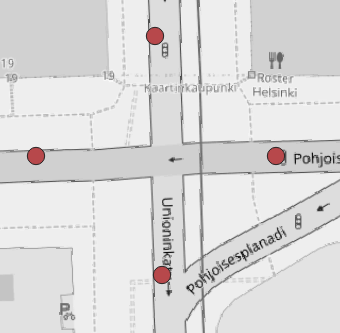
As a starting point we had two datasets: One vector point file showing roughly the intersection branch locations and another vector point file with the traffic data (where the points were located approximately at the intersection centre). We had traffic data for multiple days and individual hours in addition to sums for a given day, but decided that we would not focus our efforts on creating any interface for time selection and that the plugin would simply aggregate all data for each location. It would be up to the user to filter their data before running the plugin.
What we wanted was a dataset where one line or curve feature would have the traffic data from branch A to branch B. Fortunately, the datasets had two fields serving as links for combining: intersection ID and intersection branch ID. With intersection ID we could find the correct set of branch geometries for each traffic data point, and with intersection branch ID we could then find the specific branch point locations for each individual traffic data point.
Here are the processing steps for those interested in details:
- Find all unique intersections from traffic data
- For each intersection one at a time…
- Select features from both datasets that belong to the intersection
- Calculate an approximate intersection centre point from the branch location points
- For each traffic data feature in the current intersection one at a time…
- Find branch location points that correspond to the centre and end points for the traffic data feature
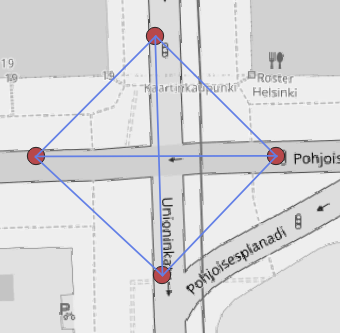
- Calculate the middle point between the start and end points of the previous step
After this, we had one dataset with line features consisting of three points, with traffic data attached. This was what we had wanted but not yet very illustrative.
Adjusting the geometries
Even with styling, our new geometry layer wasn’t very good yet – the traffic lines from A to B and from B to A were on top of each other and the lines for turns did not have any illustrative curvature. The next step was to make adjustments for the produced geometries. With trial and error, we ended up with some constant values by which we moved the lines either away or towards the intersection centre to avoid overlap and represent right-hand traffic.
Another geometry adjustment was to move the middle point of the line representing turning traffic towards the intersection centre. As we were anyway not aiming to accurately follow the road geometries, we decided that moving the centre point of the line half way towards the centre of the intersection already added a fair amount of illustrative power to the visualisation.
Lastly, we discarded the idea of using straight lines and chose to use CompoundCurve line type in QGIS. We simply used the start, middle and end points we calculated earlier and created the curved geometry from them.
From geometries to visualisation
Now that we had the geometries with traffic data as an attribute, the last task was to come up with illustrative styles. We had already thought in the beginning of the project that line width and colour are the two most intuitive styling options we want to utilise. Ultimately, it was quite simple to apply the styling since we had only one important variable to show: the amount of traffic. However, in testing we noticed that putting a colour or width scale for the whole dataset was not always very helpful when inspecting some smaller areas, and therefore we created two extra styles where the scaling was created separately for each intersection. The four different QGIS visualisation styles we created are:
- Colours-global: This style colour-codes the traffic lines globally; the minimum and maximum are taken from the whole dataset. Red represents a high amount of traffic and blue less traffic. The widths of the traffic lines do not change. This style works well if one wants to compare several intersections with each other and not obstruct any background details by widening the lines.
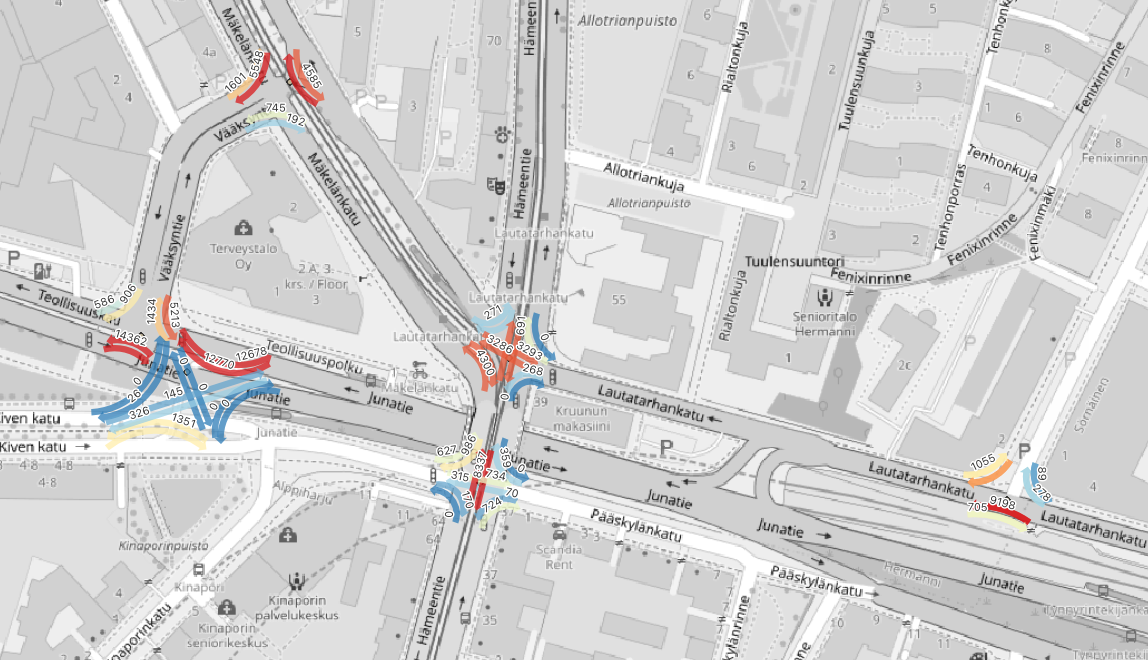
- Colours-local: Here the traffic lines are colour-coded for each intersection separately. This means that different intersections are not directly comparable with each other, as the same colour can signify different traffic amounts. However, in this style it is easier to distinguish variability within each one intersection, and so it fits when intersections are inspected one at a time. Red represents a high amount of traffic and blue less traffic. Here the line widths remain constant as in the other colour-coded style.
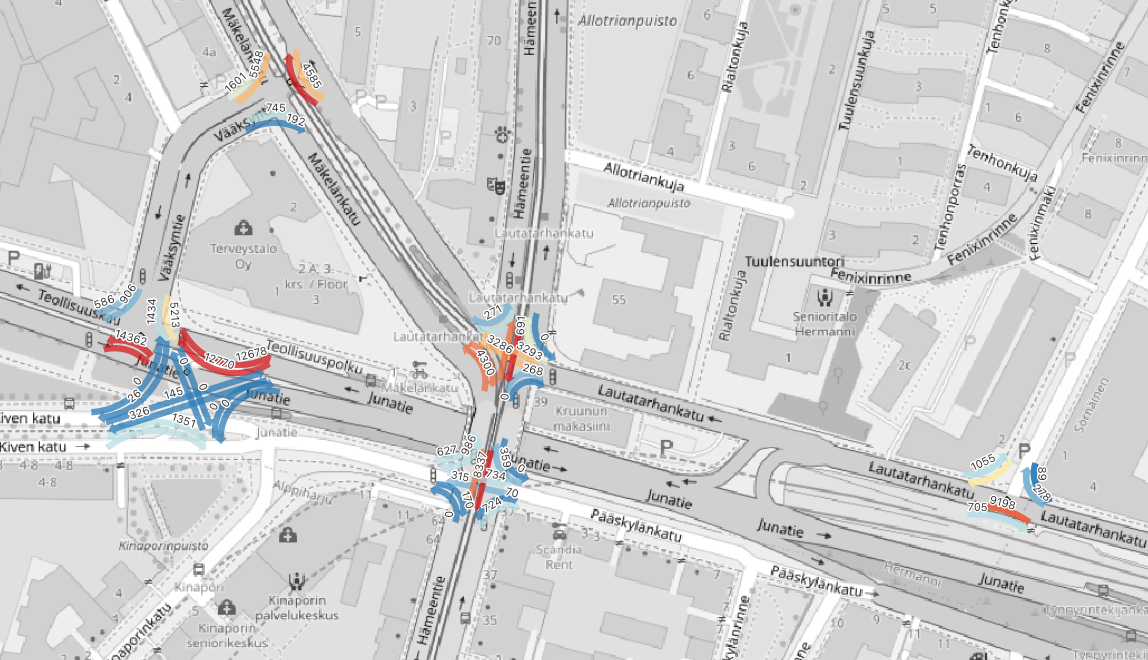
- Sizes-global: In this style, the line widths show the amount of traffic. The size scaling is linear with minimum and maximum from the whole dataset (although 0 traffic is still represented with a very narrow line!). Line colour represents the entry direction to the intersection. Sizes are a very intuitive and powerful visual element for the human eye and consequently for many the size scaling style is their preferred style to easily compare traffic flows.
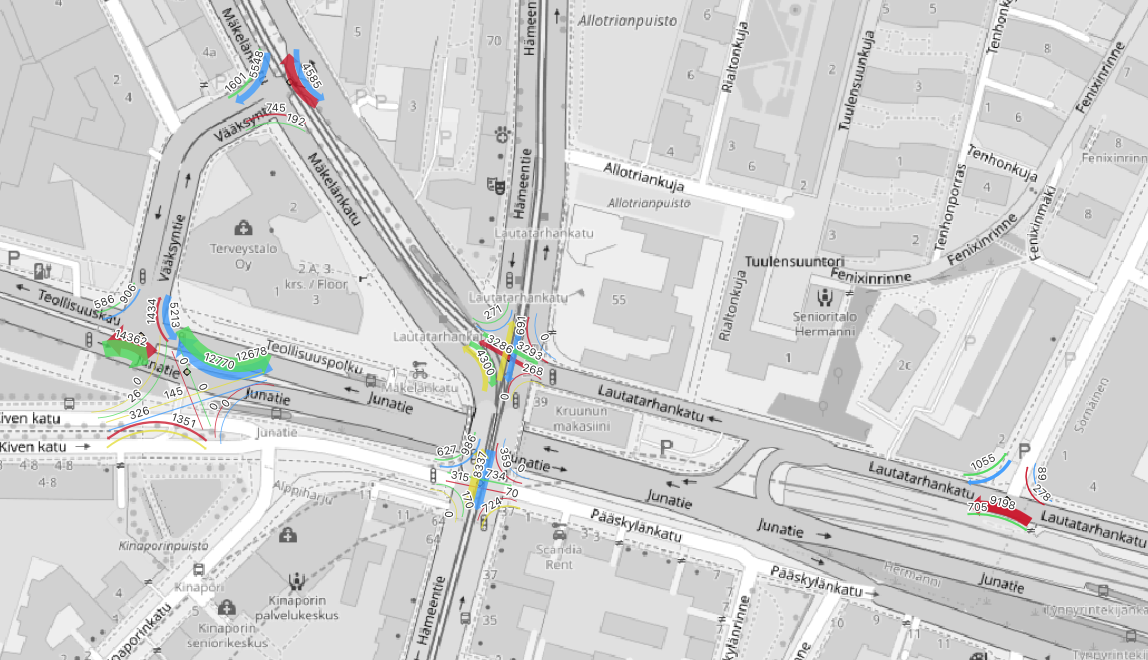
- Sizes-local: As you might have guessed already, the only difference with this style and the previous one is that now the line widths are scaled within each intersection, not with the whole dataset. This style can be better for inspecting intersections one at a time since the visual differences are clearer within an intersection.

Afterthoughts
At the end of the project we were quite happy with the results. We had different visualization styles for different needs, and we had reached our goal without having to resort to any road geometry dataset. As the project’s aim was to demonstrate and test ways to visualize traffic data, the created workflow and QGIS plugin are applicable for the specific datasets we used.
Almost one year into my entry to the FOSS4G world I got to participate in the QGIS User Conference and Contributor Meeting in ‘s-Hertogenbosch, The Netherlands, last week. All of this sounded quite abstract to me before my departure. Not least the strange name of the town.
OK, well, it is quite apparent that the User Conference is a get-together of QGIS users. And that the QGIS Contributor Meeting is a meeting of people contributing to the QGIS open source project. But what was revealed to me during the days spent in these events was both a wide range of things people actually do using QGIS, as well as the many ways I or you or anyone can actually make a contribution to the project.
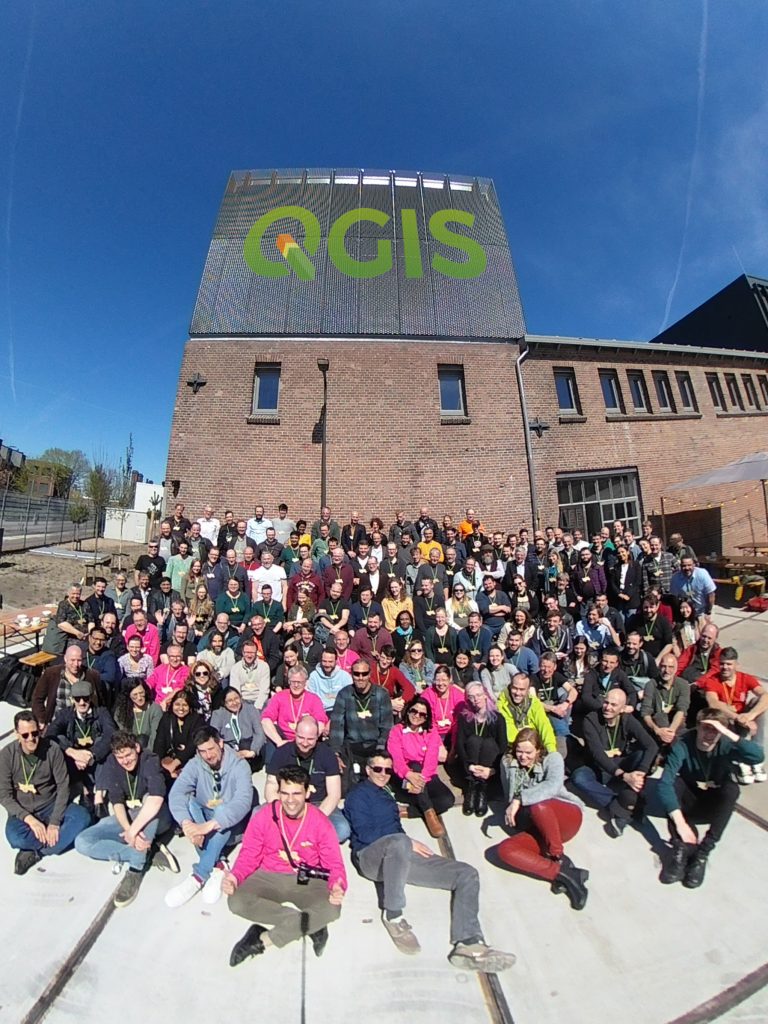
But! What finally made the biggest impression on me was the amazing (yes, just used that word and I really mean it) spirit in the group of over 200 people from all over the world. After three years of no community get-togethers there were many new people (like myself), but looking at the crowd you could really not tell most people were meeting each other here for the very first time.
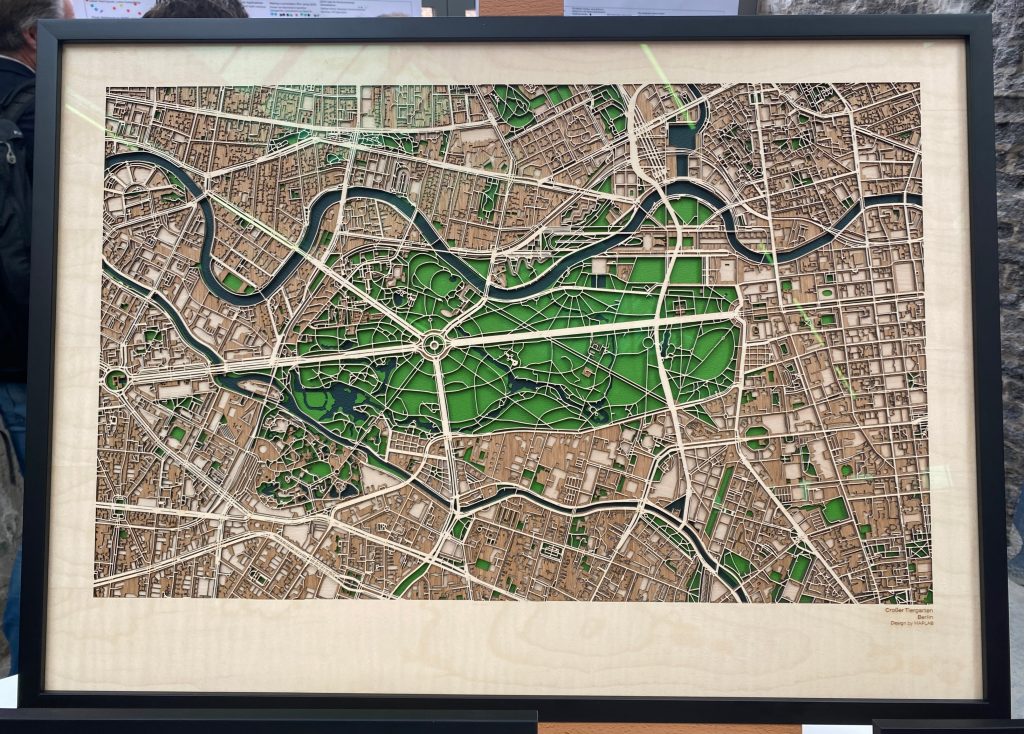
The User Conference programme forced me to make a selection of parallel tracks of presentations of QGIS projects, methods and tools. A couple of more in-depth hands-on workshops were available but as I wanted to sniff around, I opted for the presentations. As in any conference, they varied in their scope and techical level. With some of the presentations I was left to silently admire the scientists of different fields for their skill on e.g. spectrometry or hydrology. Some presentations – while all admirable – were easier to follow. I heard e.g. how to automate the creation of infographics, how to publish online maps using QGIS Server, some QGIS visualisation tricks, how changing legislative districts can be managed by QGIS and as a cherry on top: how to create very neat city maps on hardwood with the help of QGIS.
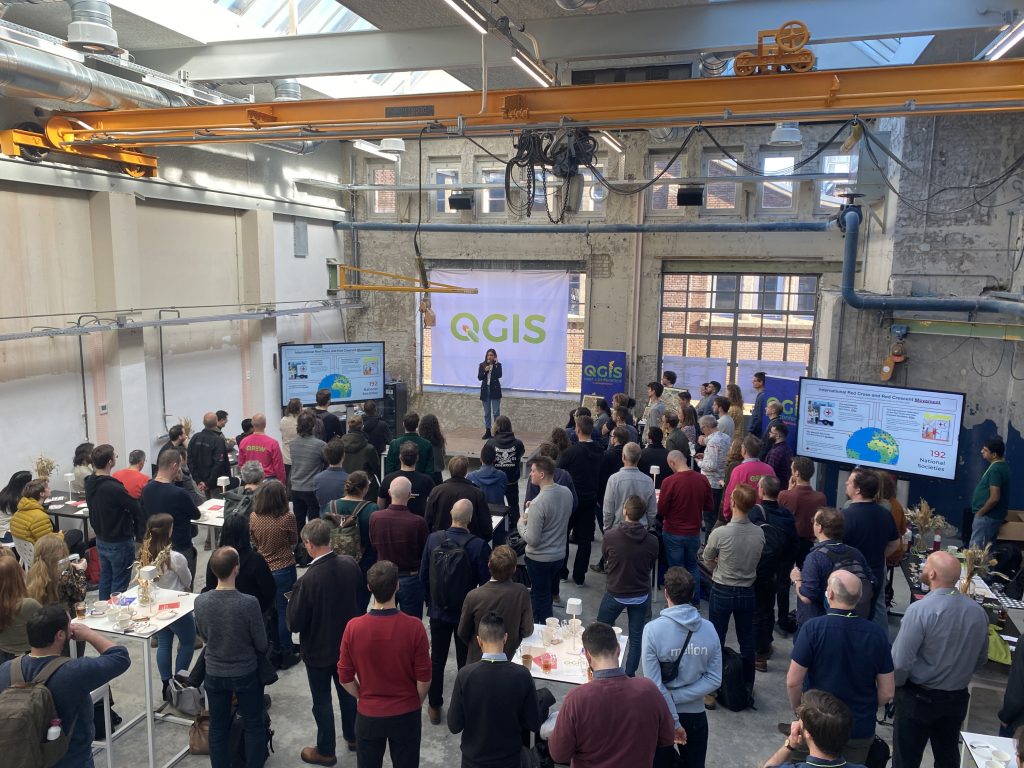
The Contributor Meeting (already 25th in history – QGIS is no baby!) started with an “Onboarding Day” where experienced QGIS contributors took us newbies by the hand and showed us how one can start to make a difference and contribute to QGIS. Although I am interested in writing code, the good news still is, that writing code is NOT necessarily needed for contributing to QGIS. It is not even where the contributions are most needed! We learned how to write or improve documentation (in practise this means user instructions and this is where the biggest need is!) and how to translate QGIS from English to other languages on the Transifex platform. This said, I am not implying that translating to e.g. Finnish is so much easier than writing code, but it is there for anyone to try.
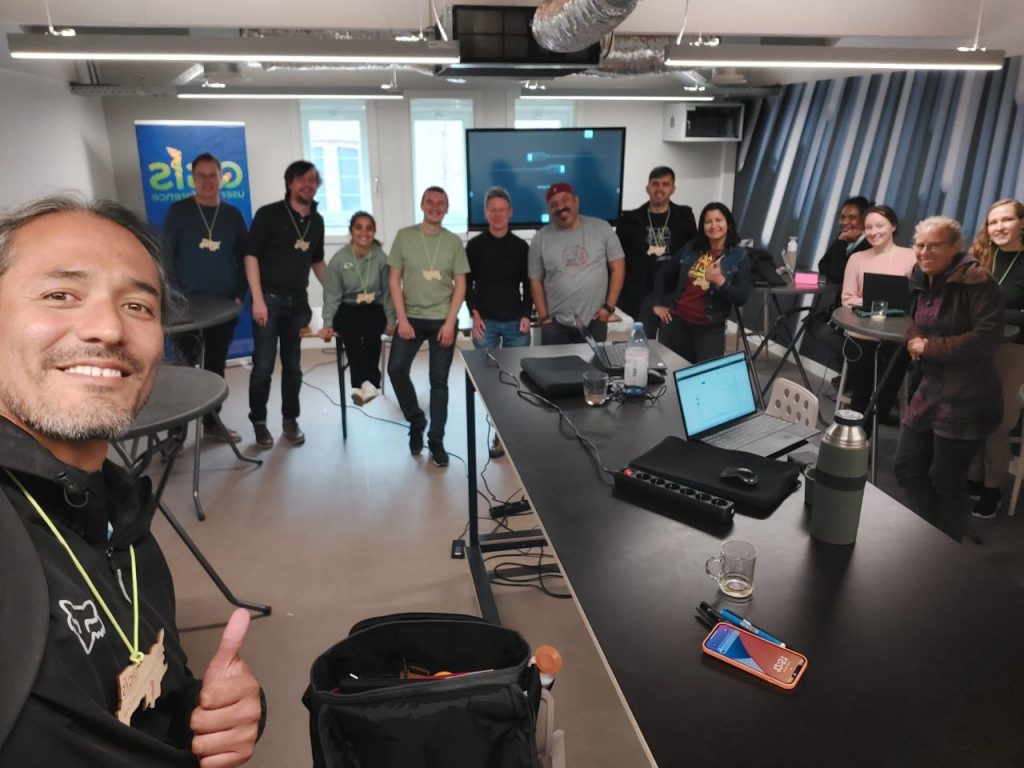
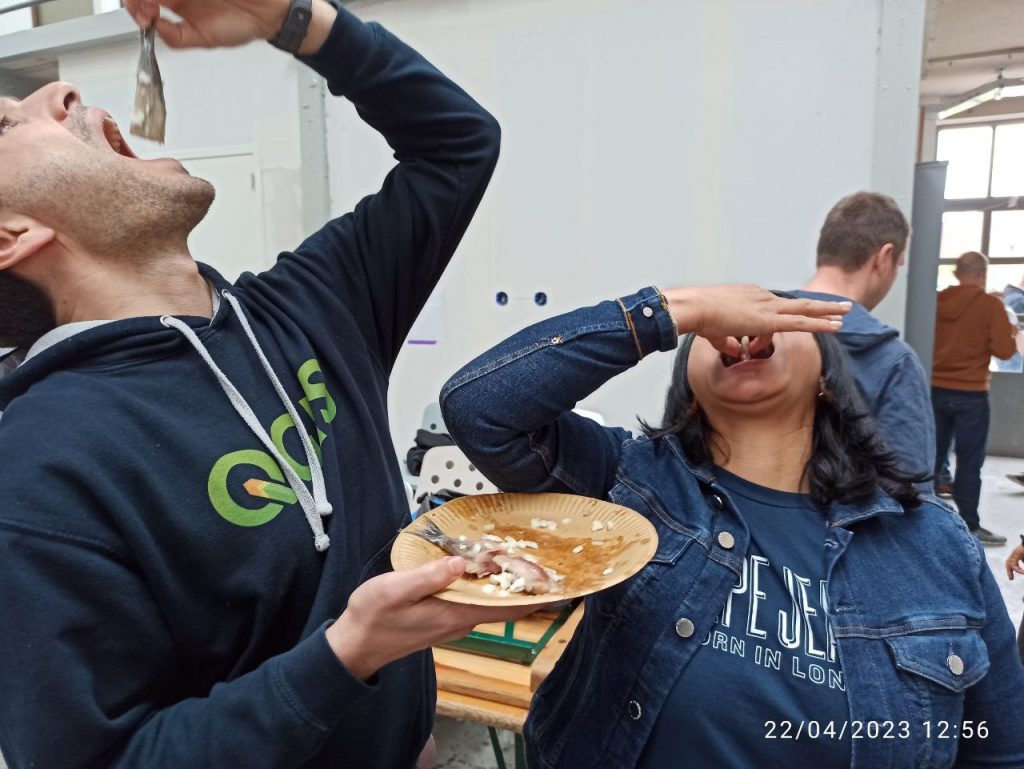
All in all, the week was a very nice introduction to the world of QGIS and its people. I had heard it before: it feels like a family. And it did! Unfortunately I can’t share all the 100+ photos shared in the conference Telegram group during the week, but here is one just to show that it was not only presentations nor staring at the screen. QGIS is a fun project and the best thing is that really anyone can join it!
If you want to contribute to QGIS, you can…
- Write documentation: Users need instructions and you can help to make them better. You can write new articles, update existing ones, or translate the documentation into your language. Read more here.
- Translate QGIS: QGIS is available in many different languages. You can help by translating the software into your language or by reviewing existing translations. Found a missing or bad translation in your QGIS – read about how to fix it.
- Report bugs: QGIS like any software has bugs in it. To get rid of them, the developers need to know about them. One way to contribute is to report a bug you found to the QGIS development team. If you report well, a developer somewhere in the world will pick your bug and fix it!
- Write code: If you have programming skills, you can contribute to QGIS by writing code. The QGIS code is hosted on GitHub, and there are many small and bigger issues and features waiting to be implemented.
- Donate: Finally, money is needed also in open source projects. QGIS is a non-profit organization, and donations are used to fund development, infrastructure, and community events. You can make a donation here.
- Join the community in one of the future events. Warmly recommended! On top of the links shared above, Twitter is also good place to follow what’s bubbling in the QGIS community.
This article is written by Linda Talve.