

Plugins give a boost to your work
Plugins are available for many purposes in QGIS and can add many new levels to your work! Plugins are additional functions developed for QGIS and they are developed by individual developers or, for example, by an independent company. Plugins can be used to extract building data from a specific area, to create interactive maps or to create an elevation model into a slope profile. Now we will look at some of the QGIS plugins favoured by Gispo workers and their various use cases. The main reason why we introduce these specific QGIS plugins is that we work especially in the Finnish geospatial data field. Can you find your favourite among the list?
DigitransitGeocoding
This plugin is intended for geocoding Finnish addresses and locations in the QGIS project. Geocoding allows you to conveniently search for different addresses and places in QGIS just by typing the name of the address or place you are looking for in the search field! To use this plugin, all you need is an API key, which can be easily obtained from https://portal-api.digitransit.fi/. To use the plugin, you need to create a global variable DIGITRANSIT_API_KEY in QGIS and set the API key to its value. More detailed instructions on how to create an API key can be found on the Gispo blog (written in Finnish). For example, in the image below, all roads in Finland with the name Mannerheimintie have been retrieved.
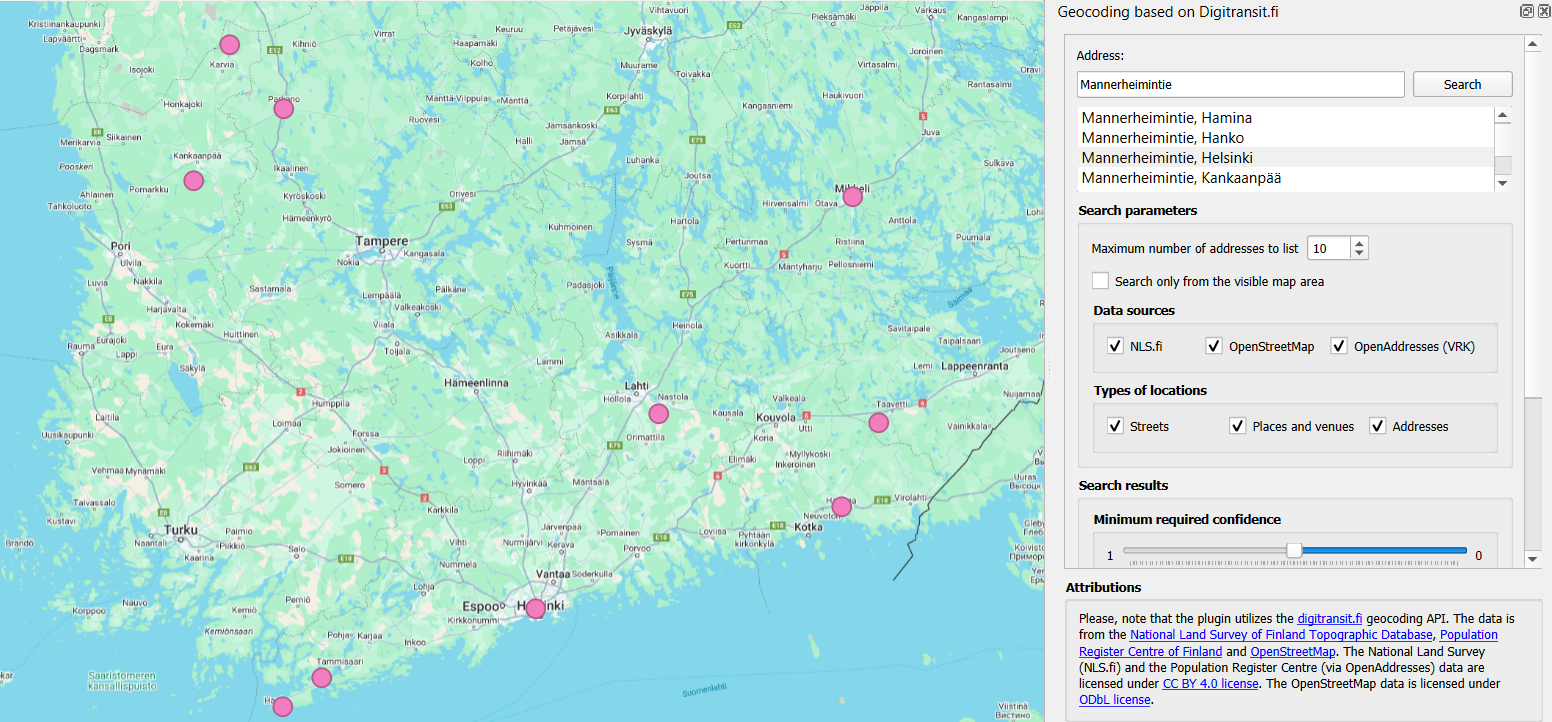
The address was retrieved with the DigitransitGeocoding plugin. The plugin creates a point layer of the address, making it easy to detect and visualize the address location.
Qgis2web
The Qgis2web plugin allows you to export your QGIS project as an OpenLayers or Leaflet web map directly into your browser. This plugin copies as many parts of the project as it can, including layers, scopes and different styles. The plugin also takes into account possible style classifications and grading when including styles. This plugin easily transfers your project to the browser, where it becomes a handy interactive map!

Interactive map of the noise pollution caused by the railway in the Helsinki city centre, transferred from the QGIS project to the browser using qgis2web plugin.
MapSwipeTool
This plugin allows you to compare two map layers. The map layers are superimposed on each other, allowing you to compare land use changes over different years from aerial photos, or the effects of flooding in a particular area before and after! The comparison is made by sliding the line in the middle of each map layer to the right and left, so that one map layer is always compared with another in the same area and the differences are quickly visible. This plugin is also useful for comparing georeferenced data, for example!

Comparison of aerial images of Helsinki in 2014 and 2023 using MapSwipeTool plugin.
Profile tool
The Profile tool plugin allows you to draw a slope profile from your own elevation model in a QGIS project. A line is drawn on the graph to represent the height variations of the elevation model. As you move the mouse over the slope profile, you can see in real time where each degree of elevation is in the elevation model. A handy plugin to get all the information out of elevation models, for example for use in watershed analyses! The diagram can be saved as svg, png, csv or pdf files.
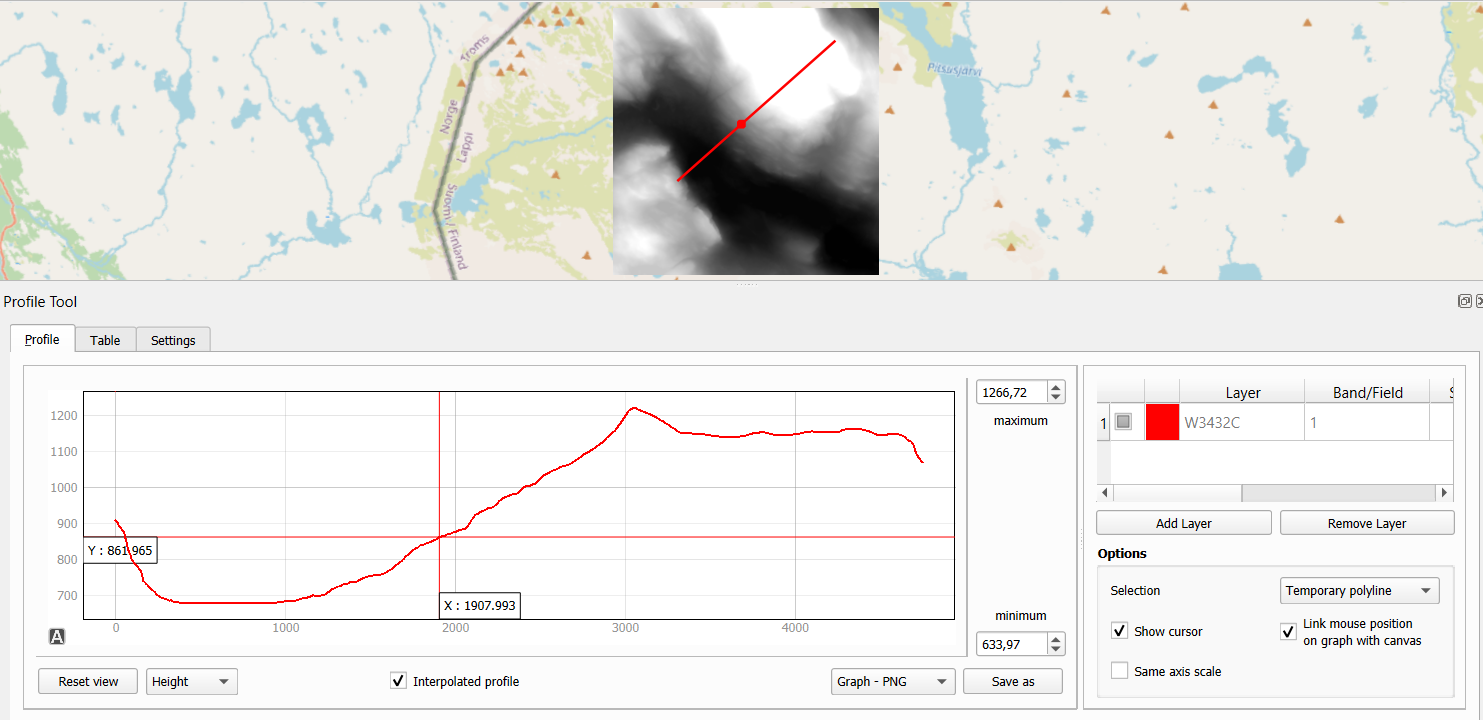
Examining elevation differences in the Lapland area using the Profile Tool plugin.
QNEAT3
With QNEAT3 you can easily perform a variety of geospatial analyses on your road network data. Whether you want to calculate the shortest route from point A to point B or create an interpolated surface from the distance between two points, this plugin has the tools to solve your toughest spatial data problems! The plugin includes tools for calculating the fastest or shortest route, as well as various Iso-Area analysis tools for creating point clouds and interpolation layers from road network data, for example.
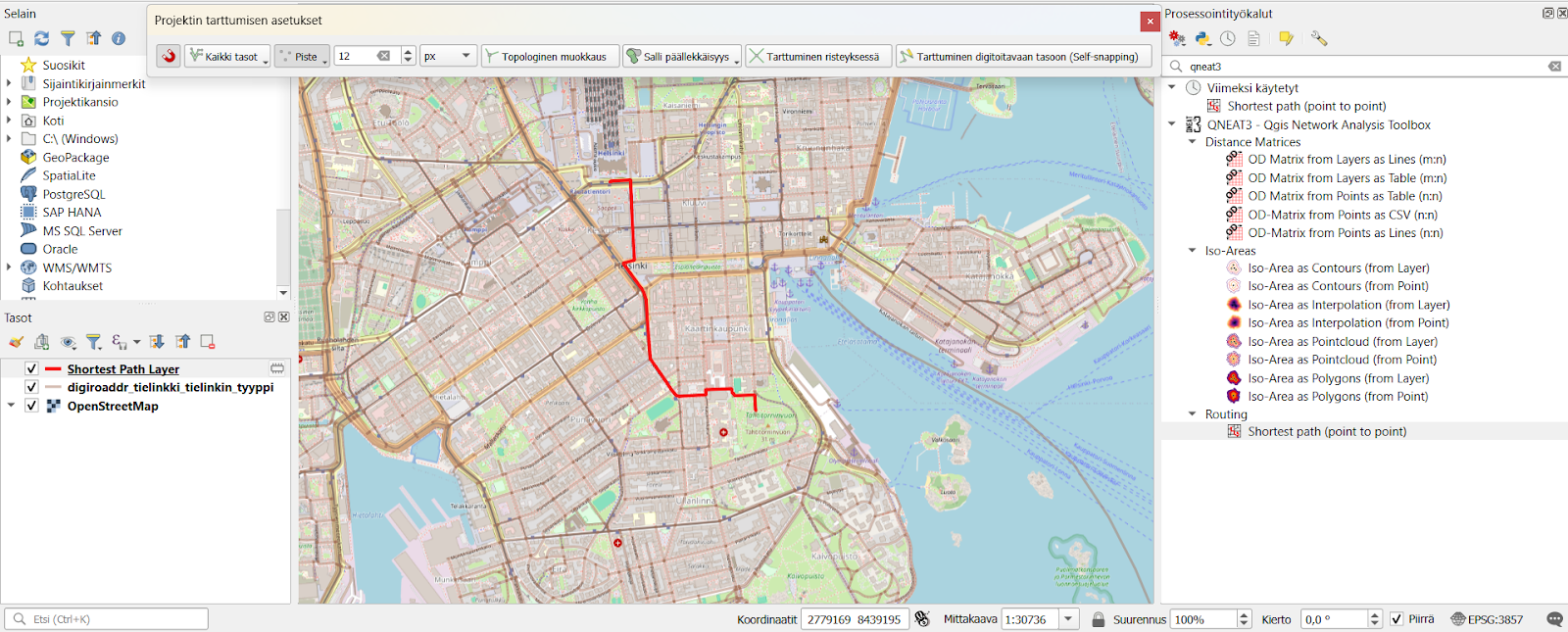
The fastest route from Helsinki Central Station to Tähtitorninmäki calculated with QNEAT3 plugin.
Psst! You should click the snapping tool active in the QGIS project to grab the road network layer. This will allow the plugin to calculate the route, for example, even in a situation where the starting point is in a forest far from the road network.
QuickMapServices
Still missing a suitable background map for your QGIS project? The QuickMapServices plugin is made just for this purpose! This plugin offers a comprehensive range of different background maps for your QGIS project. Whether you want a background map to match the background of your generated elevation model, or even a background for your spatial analysis to distinguish city roads and buildings. In this plugin you will find, for example, OpenStreetMap cycle route maps, City of Turku maps, Landsat satellite images and various Google maps. QuickMapServices plugin allows any individual or organisation to submit their own maps for publication via their website. Remember, however, that the license of the published material must be public if the map is to be included in this plugin!
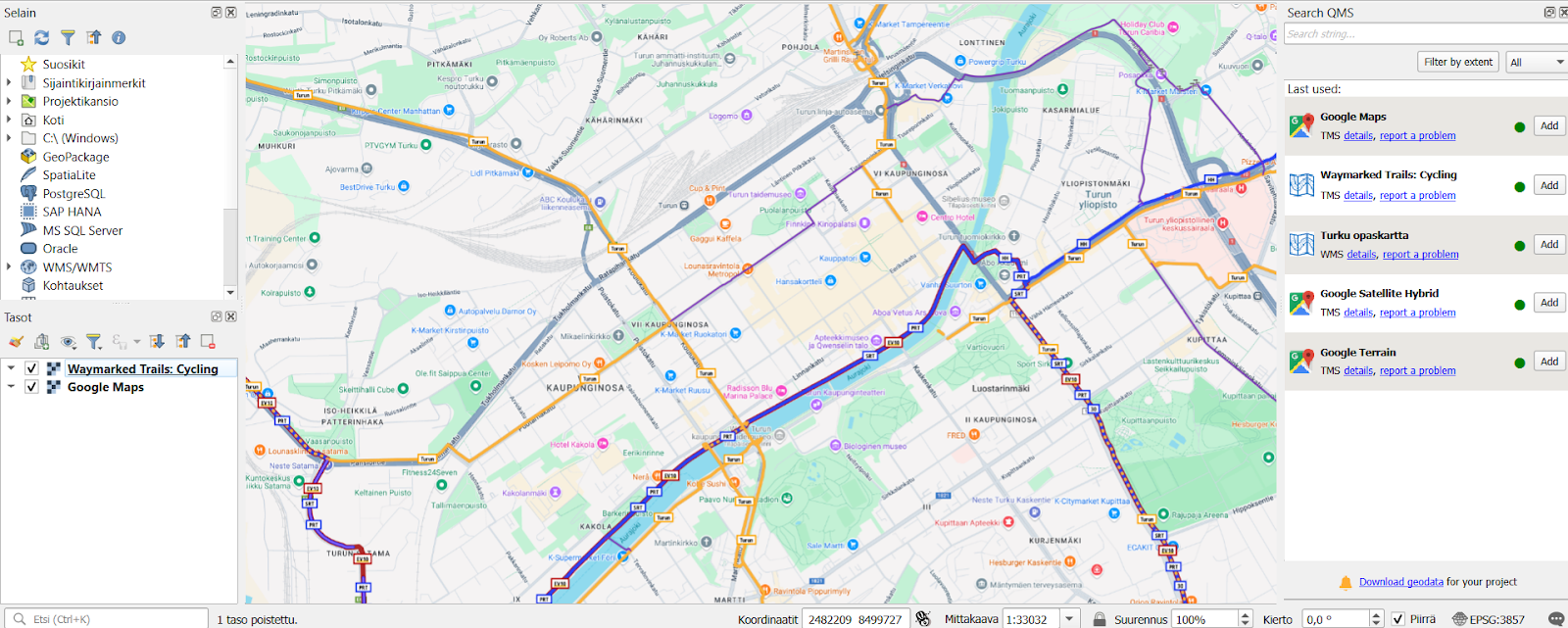
Map of cycling routes opened via QuickMapServices plugin and Google Maps map in the QGIS project.
Plugins for every need
Plugins are available for many different needs and can be used for a wide range of different spatial data problems. Plugins are also being updated and developed in QGIS and this development can be done openly by many different actors and organisations. Gispo offers a wide range of courses on how to use QGIS plugins, as well as a dedicated course on plugin development! There are already a huge number of plugins available for QGIS, so it’s definitely worth getting more familiar with the handy features of plugins and actively following their development. So don’t hesitate to try them out!
This article is written by Anni Jusslin
Three LiDARs have been monitoring traffic around Esplanadi in Helsinki from November 2023 to August 2024. The data was collected by Flow Analytics and it can be downloaded here: https://flow-portal.com/ (requires registration). After the data collection, all that was missing was a tool to analyze all this data.
We had the pleasure to work a project with Forum Virium Helsinki, the aim was to develop a tool capable of analyzing the data collected by the LiDARs and to conduct a small analysis on this experimental data. The end users of this tool would be the traffic researchers of the city of Helsinki. As LiDARs allow collection of more data than more traditional traffic counting methods, their use can be expected to increase.
We decided to implement the tool as a QGIS plugin which was named FVH-3T (Forum Virium Helsinki – Traffic Trajectory Toolkit). The plugin consists of two buttons and three QGIS processing algorithms. Its use is very simple: first, the user imports a traffic point layer into QGIS and creates an empty gate and area layer using the buttons in the Plugins toolbar. Next, the user draws gates and areas in locations where they wish to study traffic.
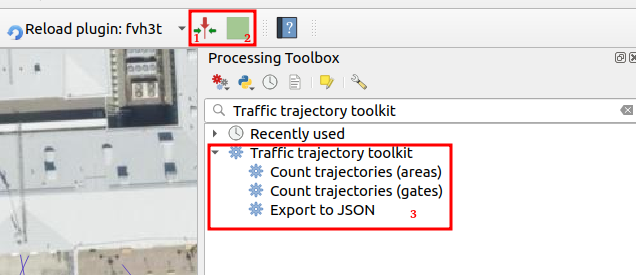
When the gates and areas are drawn, it is time to run a processing algorithm. There are three of them in the FVH-3T plugin: The first two are for the actual traffic census while the third one is for exporting the results computed by the gates into JSON-format. Before running either of the two “Count trajectories” processing algorithms, the user can set a desired timeframe for the calculations as well as the class of traveler. Running the processing algorithm creates trajectories from the point data and calculates some movement statistics both for them and the user-drawn gates/areas. Both processing algorithms can either be run as a single process, or split the studied timeframe into several smaller intervals ussing the QGIS batch processing interface.
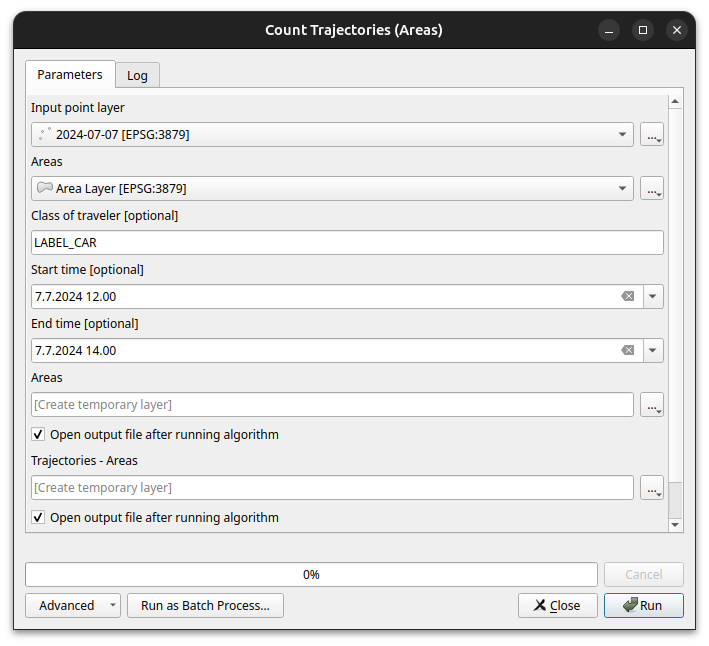
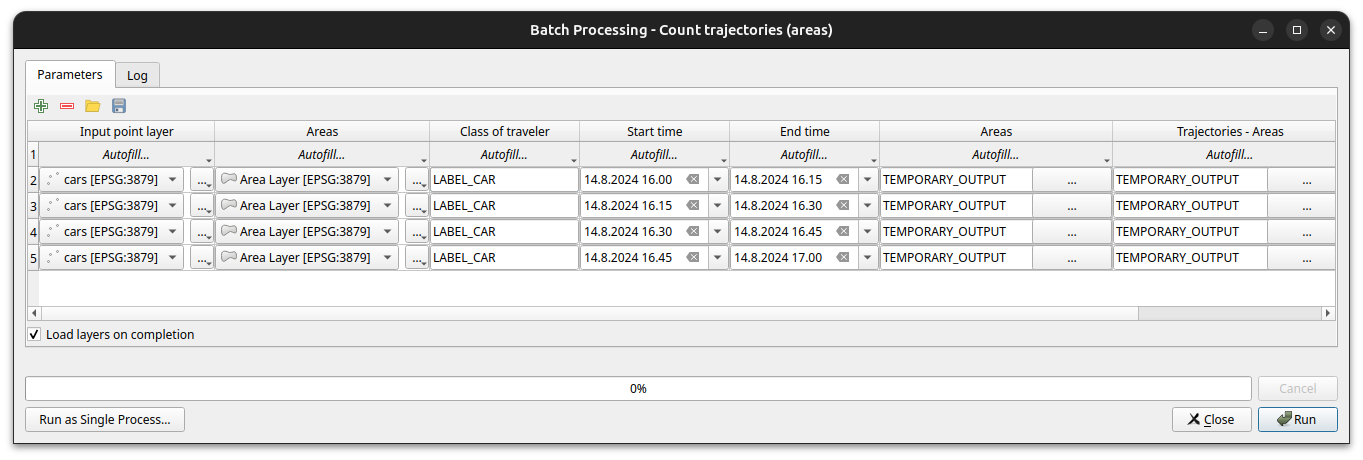
As stated above, running the processing algorithm draws trajectories from the point data. When running the “Count trajectories (areas)”, trajectories are generated only for points inside the user-drawn areas while when running the “Count trajectories (gates)”, trajectories are created for all points in the set timeframe.
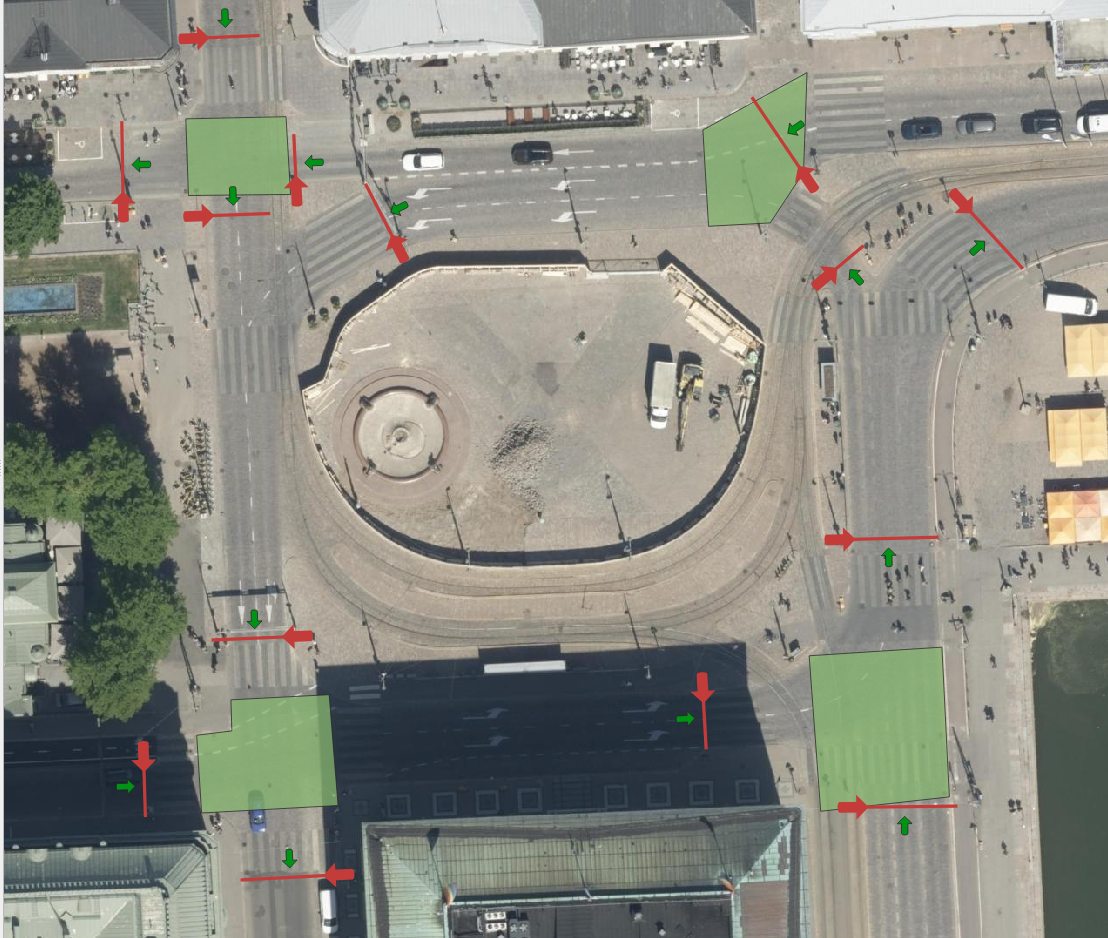
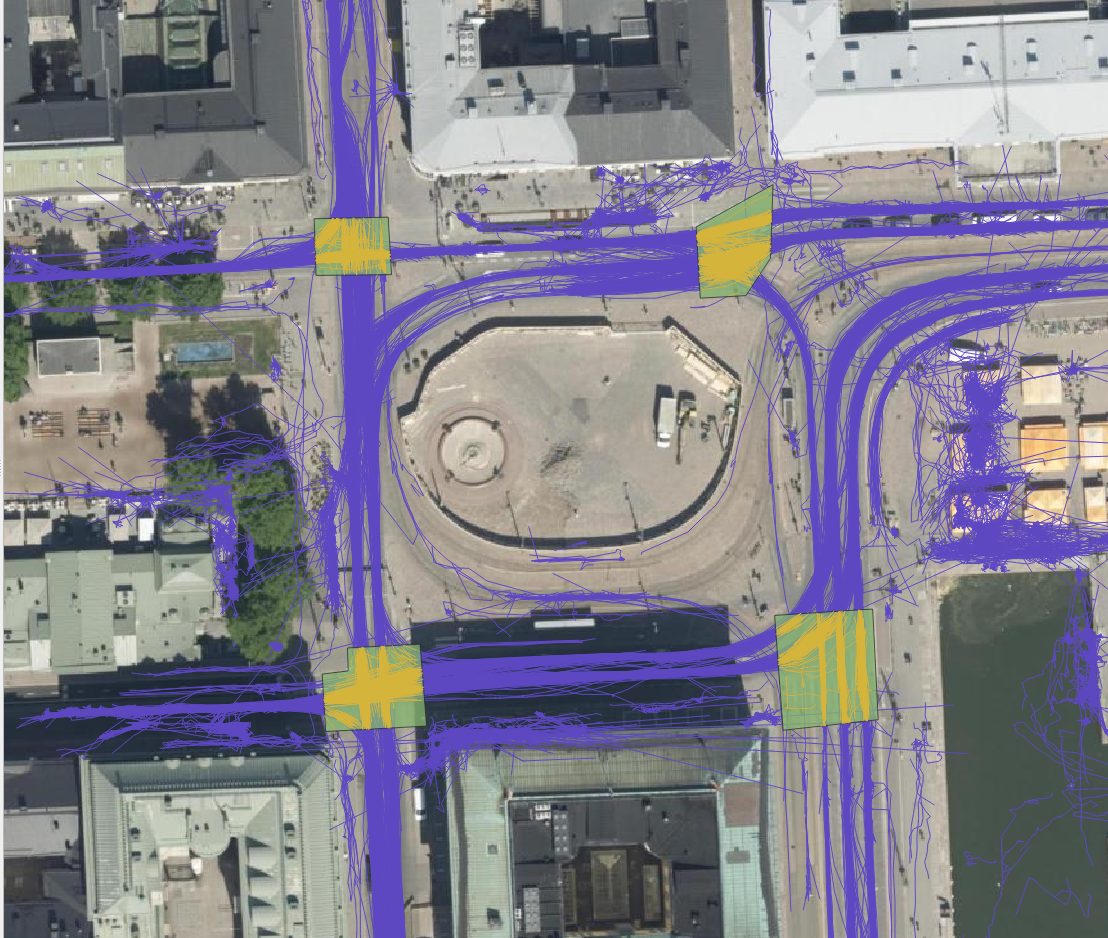
For each trajectory, length, duration, and average and maximum speeds are computed. For each area drawn by the user, the number of trajectories that it intersects are counted as well as their average speed. This allows, for example, to study congestion at intersections. For each gate, the number of intersecting trajectories per direction and the average instantaneous speed and acceleration of the intersecting trajectories are calculated. Gates are thus used to analyse traffic census. They can also be used to analyse pedestrian crossings.
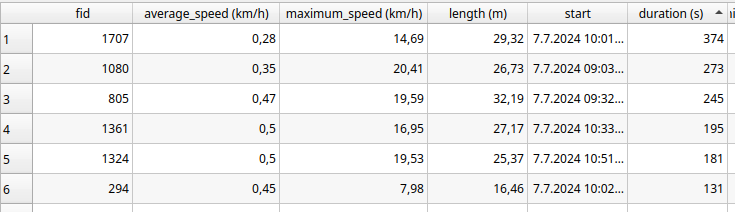

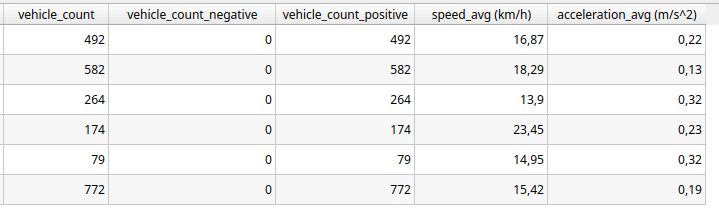
The FVH-3T QGIS plugin can be used for analysing traffic flow on the general level as well as for more detailed study of individual travellers. Trajectories can be used, for example, to study how diligently pedestrians use crossings or whether many cross the driveways at the wrong place. Similarly, it can be studied whether cyclists use the cycle lanes intended for them, do they follow the intended direction of cycle lanes or do they find other paths. Gates can be used to study traffic volumes, speeds and accelerations at desired locations, and whether some cars or cyclists go in the wrong directions. With areas it is possible to analyse, for example, how badly intersections get congested.
In our small analysis, we discovered, for example, that car volumes were on average the highest on Fridays and lowest on Sundays during the observation period. In contrast, we did not observe any particular day of the week when average speeds at intersections were significantly higher or lower than average, but we did find some specific dates when the average speed in intersection(s) was lower than usual. These were usually days, when there were a lot of pedestrians in the area. For example, the 15th of August was one of these slower days, and on that date the Night of Arts brought several concerts to the area.
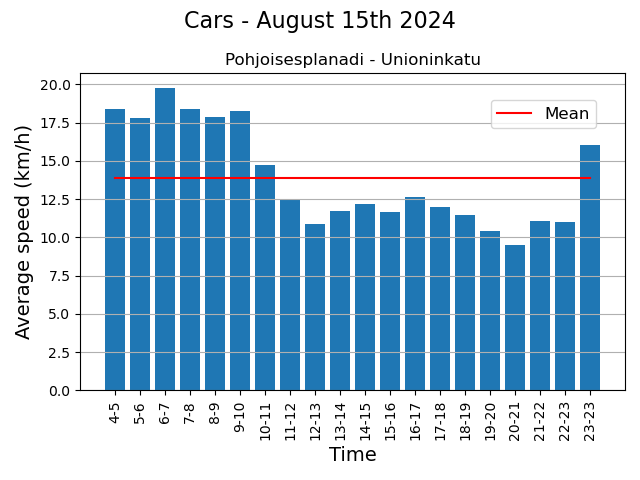
These eventful days also showed that the LiDARs were able to monitor individual pedestrians in the crowd. Regarding the pedestrian movements, we found, for example, that although the majority use crossings conscientiously, it is still quite common to cross the driveway at the wrong place. Similarly, although the cycle lanes in the Esplanadi area are in active use, some cyclists use the pedestrian lanes.
The project was interesting, not the least because we got develop a tool and the to try out the tool in practice, and also to learn the basics of traffic analysis. One of the greatest benefits of the tool is that the researcher can draw the areas and gates to those locations they are interested in and in the scale they are interested in.
This article was written by Mika Sorvoja.
As some of you might already know QField is a fieldwork app that’s compatible with QGIS. The application can be used to collect data from the field (outside the warm indoors office) meaning digitizing new features to layers, updating attributes of existing ones, altering the already digitized geometries or deleting earlier features. These all are very basic processes and features that many GIS experts know and use on a daily basis, yet many do the process of creating new features manually every single time.
In this article we will introduce you to forms – a feature that requires a bit of your time when setting up the QField project, but saves a lot of time in the field. The tips here are aimed at QField users, but QGIS users who digitize a lot, will benefit from these features too.
What are the benefits?
Setting up forms makes it possible to fill in attributes with automatic values and using constraints that make sure that the data you fill in or edit is of a certain quality. Properly defined forms speed up data collection. The setting up forms is done in QGIS before the project transferred to QField and needs to be done only once for the whole project (unless you want to fiddle with it afterwards).
Some examples: a surveyor that wanders around the city collecting survey points and wants to automatically capture not only the location but also the timestamp (“it was 5:17:01 PM exactly when I saw a rabbit in this location”).
Another example could be when an inspector performs inspections and fills out inspection forms, their workflow would be more fluent if the inspector’s name and the date of inspection would be filled in automatically (“A newly planted rosebush, seen on March 15. by inspector Clouseau”).
Or if there is a group of people doing the fieldwork, instead of using free text fields where anyone can write whatever they like, the form can use drop down lists with fixed values (the value of the field is always “birch” or “spruce” instead of “spurce”, “spryce” or “bruce”).
A minor disclaimer before we dive into the forms any further: QField forms are similar to forms in QGIS but not exactly the same. Most of the same features are supported in QField, and those few that are not, are not there (yet) partly because the mobile interface imposes certain limitations.
What are automatic values?
Automatic values are values that are automatically given to certain fields according to specific criteria or rule(s). These are particularly useful for ensuring that certain fields are consistently and correctly filled out, without requiring manual input. The automatic values save time when collecting new features and reduce the workload of the collectors of the data.
Automatic value configurations are done in QGIS before exporting the project to QField. Open your QGIS project and navigate to the attribute table of the layer you want to configure. Right-click on the layer and go to Properties > Attribute forms.
One of the most used automatic values are timestamps. It will ensure that you automatically capture the time and date when a record is created or modified. Function for that is now().
You can set the format of the timestamp with the format_date function. For instance: format_date(now(),’dd.MM.yyyy’) returns the current date in the way we are used to here in Finland.
You can set other automatic values as well, for example:
- User Information: Automatically populate fields with information about the user who is making the change, such as their name or device ID. Functions:
- @cloud_username (returns the QField cloud username)
- @cloud_useremail (returns the QField cloud email),
- @user_account_name (returns current user’s operating system account name.),
- @user_full_name (returns current user’s operating system user name (if available))
- Location Data: Automatically capture the current GPS coordinates when a new record is added.
- @position_coordinate (returns a point with the coordinate in WGS84)
- All position functions can be found here
- To transform the coordinates received x(transform(@position_coordinate, ‘EPSG:3067’, @project_crs )), y(transform(@position_coordinate, ‘EPSG:3067’, @project_crs ))
- Incremental IDs: Automatically generate IDs for new records incrementally.
- @id – (automatically generate IDs for new records incrementally)
- Other useful:
- length($geometry) (returns Insert the length of the digitized line)
- $area (returns the area of the current feature)
- @qgis_os_name (returns current operating system name, e.g., ‘windows” or ‘android’)
- @qgis_platform -(returns current qgis platform, e.g. ‘desktop’)
- @qgis_version (returns current qgis version e.g. ‘3.34.5-Prizren’)
What are constraints?
Constraints are rules or conditions that are applied to data fields to ensure data integrity and accuracy during data entry or editing. Constraints help prevent invalid or incorrect data from being added to your GIS datasets.
Constraining the values you can make sure that the quality of the collected data is homogeneous and thus the data can be reused and refined. This is particularly important when the data is collected by various people. By limiting the values, for example, to a drop-down list you can make sure that each value is written correctly, can be compared to other values, and the likelihood of errors in data entry is significantly reduced compared to manually entering the information.
QGIS offers several types of constraints that can be set up through the field properties of a layer.
There are at least five different types of constraints:
- Expression-Based Constraints:
- Purpose: Apply custom rules to a field using QGIS’s expression engine.
- Example: You might require that ‘Area’ field must always be greater than zero.
- Setup: Define the constraint using expressions like Area > 0.
- Field Length Constraints:
- Purpose: Limit the number of characters allowed in a text field.
- Example: Restrict a ‘Zip Code’ field to exactly 5 digits.
- Range Constraints:
- Purpose: Restrict numeric or date fields to a specific range.
- Example: Ensure that a ‘Temperature’ field only accepts values between -50 and 50.
- Unique Constraints:
- Purpose: Ensure that each value in a specified field is unique across all records in the layer.
- Example: In a parcel dataset, each parcel ID must be unique.
- Not Null Constraints:
- Purpose: Ensure that a field is not left empty during data entry.
- Example: A field for ‘Survey Date’ in an inspection record should not be left blank.
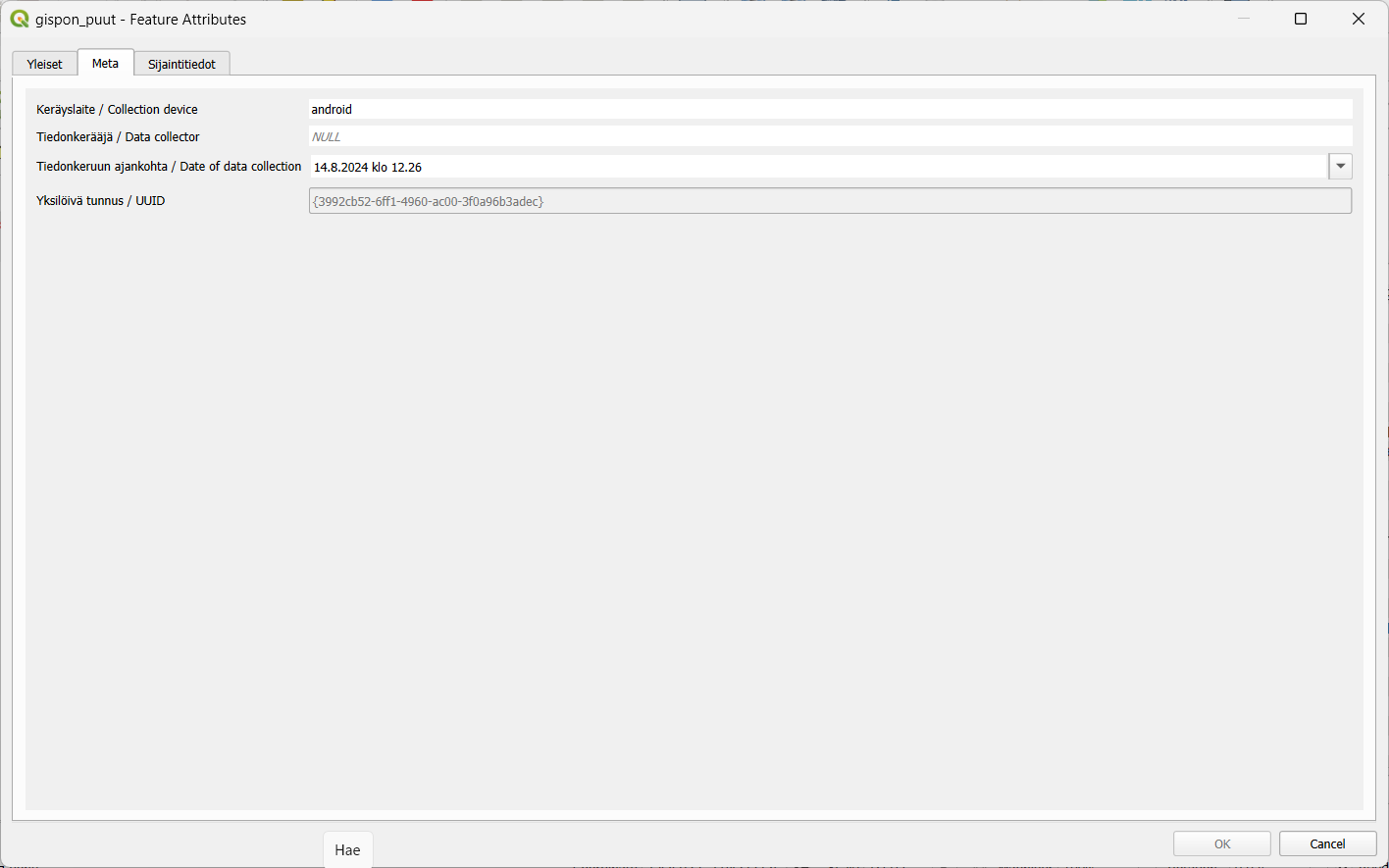
So, next time you set up your QField project remember to keep in touch with automatic values and constraints!
Most QGIS plugins are written in Python. The QGIS Python API is powerful and the possibilities for creating plugins are extensive. There is however another, less well-known and used option — C++ plugins. Some of you might have used one without realizing it, the Geometry Checker and OfflineEditing are included in QGIS installations as core plugins and are written in C++.
So, let’s explore this world of C++ plugins and see how they work, how they differ from Python plugins and what are their advantages and disadvantages.
Short prologue on some programming concepts
Here I am going to explain some basic things about programming, hopefully in a way that is not too technical, just so we’re on the same page going forward.
If you have experience in programming you might want to skip to the section titled How C++ plugins work
What is programming anyway?
So, to start all the way from the basics, what even is programming? A program can be defined as a sequence of instructions for your computer to execute. Computers deal with numbers in the binary system so a program is basically a bunch of ones and zeroes that sit on your computer’s hard drive and can then be executed after which (typically) your operating system mediates the running of your program.
Programming then is the process of writing a program. So how does one do that? Do you just manually enter those ones and zeroes somewhere? That would seem difficult, right? Well, this is what programming initially was, people wrote code in raw binary. This binary format of code that can be executed by a computer is called machine code. Writing programs this way is obviously cumbersome and rarely done nowadays.
This is where programming languages come in. They are a way for people to use an agreed-upon notation to write programs in a format that is easier for humans to understand. However code written in a programming language really on its own is really just a bunch of text files that your computer cannot really do anything with. You still need a way to get the code into a format that can actually be executed by your machine.
Compiled and interpreted languages
To achieve this there are two different approaches, compiled and interpreted programming languages. C++ is a compiled language. This means that you use a type of program (called a compiler) to compile your C++ code into machine code. As a result you get an executable binary file or a library (more on this later). Windows users might be familiar with the .exe file extension, which denotes that a file is executable. On Linux and MacOS executables don’t have a file extension.
In contrast Python is an interpreted language which means that you have a type of program called an interpreter that in simple terms goes through your source code and executes it line by line. The way compilers and interpreters work is of course a lot more complicated and varied, but this is the rough distinction between the two.
Shared libraries
A library is a different format of compiled machine code which, unlike executables, cannot be executed on its own. In C++ there are two types of libraries, static and shared although here shared libraries are mostly relevant. You might’ve come across them already, on Windows they’re known as .dll (Dynamically Linked Library) files. Common file extensions for shared libraries on other operating systems are .so (e.g. Linux and MacOS) and .dylib (MacOS) files.
Once you have compiled a shared library you can link an executable program against this library. This means that you can use code from the library in your program. The code is loaded as needed by the executable program. Parenthetically if you’ve ever experienced some issue with missing DLL files, this is why — many programs expect a shared library to exist at some location.
How C++ plugins work
As we’ve learned Python code is executed by an interpreter, which is part of the QGIS installation (on Windows and MacOS). When installing a Python plugin its source code is copied to your QGIS profile’s folder and then used by the interpreter.
As for C++ plugins there is no such interpreter and the code has to be compiled into machine code. Based on the last section the solution hopefully becomes clear — you have to compile your plugin as a shared library. The library can then be loaded by QGIS and its code executed as intended.
You can either copy this shared library to an operating system specific folder that QGIS looks in, or you can tell QGIS to look in some other folder of your choosing. In Settings > Options > System you have a section called Plugin Paths where you can add a folder containing your shared library. After this the plugin should show up in the QGIS plugin manager and can be activated.
Why use C++ and why not?
Now that we know the basic idea behind C++ plugins, let’s talk about the reasons you might want to make one instead of a Python plugin and vice versa. C++ as a programming language can be quite divisive as I suppose many other (if not all) languages. Personally I really like C++ but even still I think it has to be acknowledged right off the bat that Python plugins have a lot of advantages over C++ plugins.
The case for Python plugins
Python plugins are going to be more stable and you can expect the same plugin code to work more or less the same across different QGIS versions. This is not the case with C++ and a plugin compiled using a specific QGIS version’s development libraries is unlikely to work with other versions.
There’s also the issue of compatibility between operating systems. Python code will be handled by an interpreter that will execute the code properly in the given environment. In order to provide a C++ plugin for different platforms you need to compile the plugin targeting each platform separately in addition to potentially having to provide versions of your plugin for different QGIS versions.
So a C++ plugin will require more work keeping up with different platforms and versions. Of course these processes can (and should) be automated which helps and also it’s not as if you are required to support every operating system and QGIS version. Overall maintaining plugin builds still likely requires more effort, especially to begin with.
Another advantage for Python here is installation, you can distribute a Python plugin from the OSGeo plugin repository and most users will be familiar with the installation process. Not that installing C++ plugins is extremely difficult, but it can be less convenient.
Generally speaking it’s likely that you’re going to have an easier time writing Python plugins as there is more documentation about it and more people doing (and therefore discussing) it. Python is a more approachable language and therefore probably easier to start with. Also depending on the type of plugin you’re writing some of Python’s features may be more convenient for the task.
The case for C++ plugins
The biggest reason to go with C++ is performance. Interpreted languages like Python generally speaking are slower (although the gap has been closing). There are ways to improve Python’s performance but C++ is still likely to be faster (obviously assuming you’re actually writing performant code). So this is the main reason you’d want to choose C++ over Python. If your plugin needs to do a lot of work and do it fast C++ will likely have the advantage.
If the point is to just get a plugin out and high performance is not a requirement then you probably should just go with Python. However if you’re more interested in the subject and have a personal preference for C++ it might be more motivating to choose it. As QGIS is written in C++ writing a plugin in the same language using its libraries might also be a stepping stone to get into contributing to QGIS itself.
Let’s say you need a performance-intensive plugin that you know would be mainly used in some organization where everyone is required to use one operating system and QGIS is updated with each LTR version, which would eliminate a lot of the effort of maintaining different builds of your plugin. I think a case like this would be quite well suited for a C++ plugin.
Conclusions
I hope this has been an interesting introduction to this subject and I hope you understand how plugins work within QGIS a bit better now!
Did you get interested in developing a C++ plugin? Covering the specifics of that is a bit outside the scope of this post, but I would recommend looking at this excellent example plugin on GitHub. It has great information to help you get started. To be clear, we’re not involved in the repository in any way — I just came across it while researching the subject and found it very helpful!
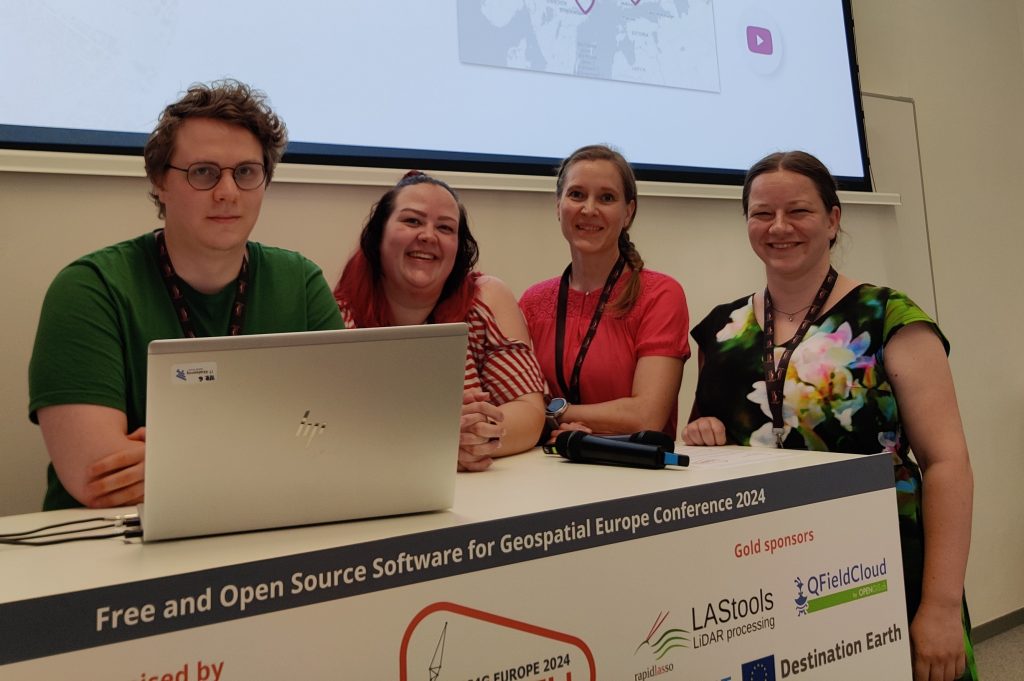
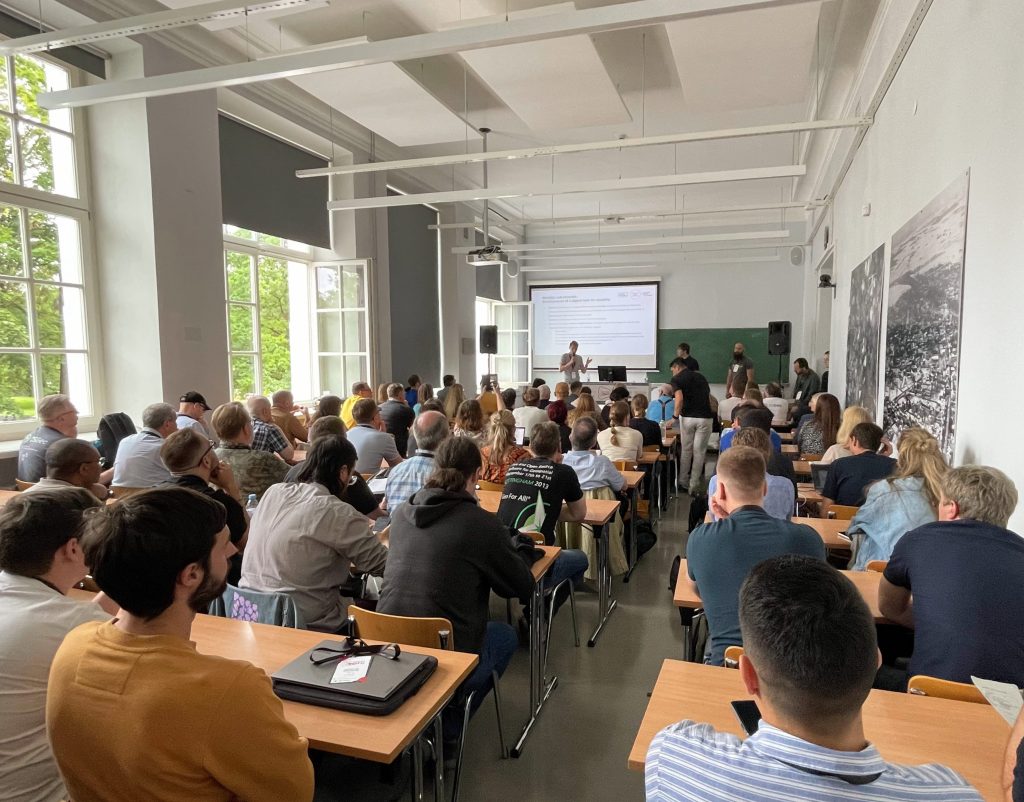
In the darkening autumn days it is fun to take a moment and remember the warm and sunny (partly also rainy) days of summer. In July GIS experts, software developers and all sorts of geospatial professionals traveled to Tartu, Estonia to attend this year’s FOSS4G Europe. FOSS4G of course refers here to Free and Open Source Software for Geospatial – meaning that the event was for everyone interested in such tools.

Gispo joined in with a team of 11. The event started with workshops where the participants had a chance to learn and try out new things in various geospatial technologies. This time our team was on the participant side but hopefully in the future Gispo will be holding a workshop at the FOSS4G event!
These events are excellent for learning about new technologies and features. We participated in numerous workshops, seminars and meet-ups. The topics of the conference had a wide range: we learnt plenty of new things about Maplibre, pygeoapi, G3W-Suite, GDAL, vector mosaicking with GeoServer, spatial cataloging and publishing with pygeometa and mdme, QGIS based topographic data management … and that’s just the first day!
One of the highlights was the news that it’s now possible to create plugins for QField (QGIS application for mobile devices). Our Juho got so excited about this possibility that he wanted to try it out straight away – thus becoming one of the early developers of QField Plugins! From the evening program the band Zetod definitely deserves a mention!
We took notes of the talks and presentations we heard and as one can imagine, this resulted in a whopping 53 page document. One might point out that the talks were also recorded and are available also afterwards. This is true but it doesn’t make the notes redundant. It is also fascinating to compare what a fellow gispolite took away from a session oneself attended as well.
This was not the first nor the last time we participated in a FOSS4G conference. As always, the atmosphere was friendly and warm and we had a great time. Our warmest thank yous to the organizing committee and all the friends old and new we met there. See you in the next one!
Recordings
Talking of the recordings, they have been released on Youtube. Our team gave seven presentations and to make it easy for you, here’s the list with links to the recordings with a small abstract:
Building Enterprise GIS with FOSS4G
Pekka Sarkola, founder of Gispo, gives a presentation that is targeted to ICT and GIS experts to better understand how to build Enterprise GIS with FOSS4G. Enterprise GIS is an organisation-wide collection of interoperable GIS softwares to manage and process geospatial information.
Enterprise GIS will follow basic principles of enterprise architecture. Enterprise GIS architecture is based on three layers: User Interface, Application Server and Data Storage layers. In this talk, he gives best practices to define and design Enterprise GIS architecture.
Planning for rainy days: optimizing school calendars with precipitation data and QGIS
According to a study in 2022, learning outcomes in Sub-Saharan Africa are negatively affected by rainy days mainly through the mechanism of teacher abstention. School calendars are largely shared within and across countries without taking local climatic conditions into account. This effectively means that the total number of school days in an academic year may differ according to different districts or other administrative levels.
The objective of this collaboration between Unesco IIEP and Gispo was to design a process that would enable any policy-maker in the world to look for patterns in periods of heavier precipitation in their country and to propose updated school calendars accordingly. As a result a QGIS Plugin was created to analyze precipitation data and produce school calendars.
Learning path with FOSS4G
There are multiple different ways to learn and teach the use of FOSS4G software. How to combine different platforms smoothly and how to get the most out of them is the problem new users are usually dealing with. One way to structure the learning is introducing learning paths to articulate the learning goals and the most useful path to navigate different learning modules and courses.
Complexity of Land use planning – simplicity from FOSS4G
There is an ambitious scheme in Finland to gather all the land use plans from municipalities and regions together in a harmonised manner in an open API service. This is a huge opportunity for FOSS4G since there are no tools available in any software to do this.
In this talk we shall briefly go through the current situation in Finland in land use planning. We focus on how to use PostGIS and QGIS in land use planning and bring simplicity to the complex database models. We present two use cases: Regional land use plan which can be done using QGIS attribute forms, and another for detailed zoning and land use plans, which require QGIS plugin development
Exploring the use of 3D tiles in QGIS – case Helsinki
The QGIS version 3.34 introduced support for Cesium 3D tiles. At the same time there is a growing number of 3D data published as 3D tiles. This is also true for the city of Helsinki, Finland, that has published diverse datasets as open data, including textured and untextured buildings, terrain data, and photogrammetry-derived mesh models.
We at Gispo conducted a pilot project that aimed to develop QGIS-based workflows for Helsinki to enhance the use of 3D data and 3D data production processes. In this pilot we integrated 3D tile datasets into QGIS and thoroughly tested out the new 3D tile features.
Managing airport data with Open Source Software
Nowadays the importance of geospatial data is growing for airport operators to efficiently manage airports inside and outside. In this presentation, we will show how FOSS4G software is used today to manage geospatial airport data and what are near-future challenges, like Foreign Object Debris (FOD), aerodrome mapping database (AMDB) and Obstacle management.
Before entering the aircraft, passengers like to easily check-in, pass security checks and then use various services, like restaurants, shopping, restrooms and other services. Airport outdoor and indoor maps are key tools for passengers to travel from outside the airport to the gate of the aircraft. We will show how to maintain a PostGIS database with QGIS, how to share necessary information with Geoserver and how maps are delivered to passengers to different devices.
Airport operators are mandated to collect, maintain and deliver aeronautical data of the airport. Aeronautical data is a key part of the creation of aeronautical information products which include both digital data sets and a standardised presentation in paper and electronic media. We will show how airport operator will collect and maintain aeronautical data in PostGIS database with QGIS.
How to set up a QGIS plugin project and development environment in minutes
Creating a new QGIS plugin and setting up a working development environment from scratch can be daunting, especially for beginners or occasional developers. In this talk, I present a templating tool that simplifies and streamlines the plugin development process. The tool is based on Cookiecutter, a well-known command-line utility that generates projects from templates. The template (https://github.com/GispoCoding/cookiecutter-qgis-plugin) we at Gispo developed:
- is highly customizable and follows the best practices for QGIS plugin development
- includes features such as testing, documentation, internationalization, packaging, continuous integration and development environment creation
- allows anyone to quickly start a new plugin project in minutes with minimal effort and consistent structure
Lauri demonstrates how to use the tool, how to modify the template options, and how to publish the plugin to the QGIS plugin repository. I also share some tips and tricks for developing and maintaining QGIS plugins. This talk targets anyone who is interested in creating or improving QGIS plugins, regardless of their experience or expertise.
In an era where data quality is paramount, the strategic management of geospatial data is a cornerstone in environmental data management. Accurate, coherent, and high-integrity data isn’t just a technical requirement—it’s the lifeblood of cities and other entities dedicated to protecting our natural world. To have ”Big data” means nothing, it’s all about having the right data.
In the pursuit of these objectives, minimizing manual labor in data entry and management is essential. It frees up valuable time for subject matter experts (environmentalists & co.), allowing them to focus on analysis and decision-making rather than data administration tasks. By streamlining the processes that handle complex environmental datasets, we can unlock new efficiencies and insights, driving forward the mission of nature conservation with precision and agility.
Now, let’s dive into the main value of this article. By implementing the OGC-based WFS-T protocol in your Enterprise GIS environment, you can facilitate secure GIS data editing by external stakeholders and others. The combination of PostgreSQL and GeoServer provides robust security management, while QGIS offers a user-friendly way to collect data for the end-users.
In this blog post, I’ll introduce an Enterprise GIS workflow we developed for the City of Tampere. I’ll focus on the practical steps and key technologies that facilitated smooth integration of the workflow. I’ll try to cover essential technological concepts to provide a clear and helpful guide, potentially aiding you to adopt a similar strategy in your own workflows.
Context: Geospatial Data Management for Nature Protection
When I first began working on this project with the City of Tampere, I was immediately drawn into a complex tapestry of environmental datasets, each characterized by a diverse array of field names and content. Understanding the nuances of these datasets presented its own set of challenges. Bit by bit I developed a deep appreciation for the critical role this data plays in the city’s environmental conservation efforts. It became clear that these aren’t just arbitrary sets of numbers and coordinates; they are the vital underpinnings supporting Tampere’s goals for nature protection.

So, basically our goal was to enable the city a process through which they could gather this data from the nature protection consultants in a secure manner.
In a process like this, it’s crucial to begin by asking ‘Why’ questions—many of them. By attentively listening to the city officials and understanding their business processes, we gained a comprehensive view of the various factors critical for managing this data.
This is where Gispo’s expertise and experience truly shine. Our customers often have headaches around different geospatial data management issues, and we try to help them as much as we can.
The Power Trio: PostgreSQL, GeoServer, QGIS
The City of Tampere extensively utilizes the Power Trio PostgreSQL/PostGIS, GeoServer, and QGIS, forming the core of their geospatial data management system. PostgreSQL, with its PostGIS extension (for spatial functionalities), provided the centralized database management system, ideal for storing and querying complex spatial data whereas GeoServer serves for serving this geospatial data securily over the web with the OGC-based standardized web feature services, enabling the city’s environmental consultants to access and interact with the data remotely. Its compatibility with various data formats and standards, coupled with its robust security features, ensures that data is not only accessible but also protected. Meanwhile, QGIS offers an intuitive interface for data creation, data validation and data visualization (as always!). By customizing and configuring these open source tools, we were able to develop a solution that aligned with Tampere’s operational requirements.

QGIS Forms: Streamlining Data Entry
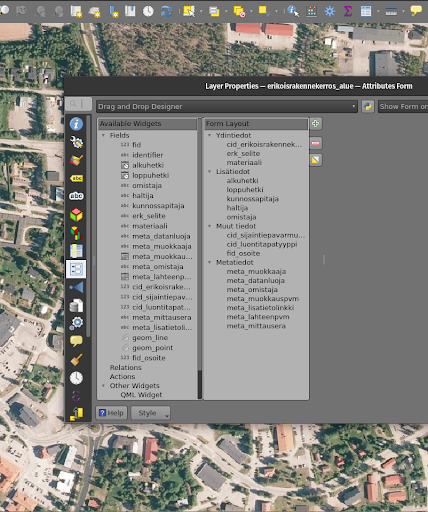
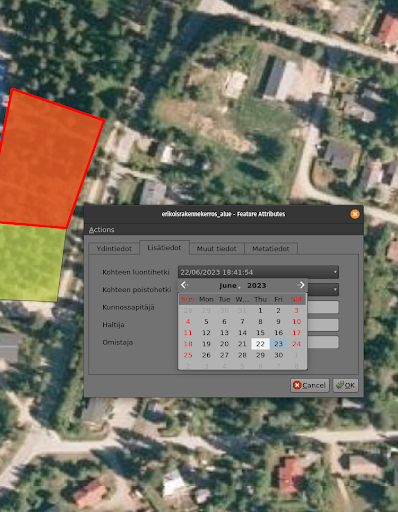
The key to simplifying data entry in our geospatial workflow is the use of QGIS Forms. This feature in QGIS allows for user-friendly pop-up windows to edit attribute information for geospatial features, such as selecting a building type when creating building features on a map. With QGIS forms we could enable e.g. drop-down lists, and calendar views for the users.
These forms are automatically created based on the specific data types defined in the database-level. The customization of these QGIS Forms is further enhanced through the use of QGIS’s “Drag-and-Drop Designer”. This feature allows for a high degree of flexibility, enabling us to add tabs and other components to the pop-up window that opens up to the user when she/he is creating data.
 |  |
Securing The Data with PostgreSQL and GeoServer
Given the sensitive nature of the data and the involvement of numerous external data creators, we had to design a workflow that ensures each consultant’s data remains confidential. This required implementing ‘Row Level Security’ in PostgreSQL, along with user management at both the database (PostgreSQL) and application server (GeoServer) levels. Row Level Security allows us to control write-and-read permissions at the row level, enabling us to maintain a single table for all data storage. This approach simplified data management compared to using multiple tables.

Final words and future Steps
We frequently collaborate with customers who need to securely and efficiently integrate geospatial data from various sources into their complex enterprise IT systems. Whether it’s environmental data, municipal infrastructure, or wind turbines, at Gispo, we’re fortunate to work across a diverse range of fields and sectors.
If you are lucky enough to embark on a similar journey, here’s what we suggest:
- Start by working backwards from your end-user—make sure you fully undestand their needs.
- Grasp the IT requirements and limitations so that you can design the right IT solution.
- Go for it! With each iteration, you’ll get closer to meeting all the user needs (at least the important ones).
The open source geospatial technologies have once again proven their value for the City of Tampere.
Thank you for your time. I hope we’ve offered some valuable insights for your upcoming Enterprise GIS projects. If you have any questions or need further guidance, don’t hesitate to reach out. We’re here to help you navigate the complexities and make your next project a success.
What’s this blog post about?
The beginning of summer 2024 was particularly stormy in Northern Europe. For example, Finland saw over three times the average amount of lightning strikes in May, and just the first days of June had more lightning observations than the entire month’s average total (read more in Finnish).

In this blog post I build a small web map application for interactively visualizing and animating the thunderous early summer in Northern Europe. The text is an overview of what implementing such a visualization might look like using the deck.gl visualization framework. You can use the map here (do note that some older or less performant devices might not support the map application).

If data visualization, web mapping or web development in general interests you, keep reading! If not, feel free to just play around with the map!
What’s deck.gl?
Deck.gl is an open source framework for building data visualizations for the web. Its main focus is combining high interactivity with the performance needed to enable responsive visual exploration of large datasets. While not strictly limited to map-based presentations, visualizing geospatial data is perhaps its most prominent use case.
Building an interactive web map
In the following I’ll go over the main parts of the map application. While there are some simplified code snippets below, you can refer to the source code of the map for the details and a working application. For example, all styling is intentionally left out here to keep this post shorter.
Accompanying technologies
In addition to deck.gl, I use a few other tools and libraries. Here are the most important ones:
- React: React is a common choice for implementing general-purpose UI components and managing application state. Integration with React is also a design priority of deck.gl, which makes this a robust choice when your map application gets more complex.
- Vite: Vite provides an effortless project setup and, as the name suggests, speedy builds.
- Material UI: Material UI has ready-to-use templates and styling for React components. This saves a potentially massive share of development time and boilerplate code.
- Maplibre / react-map-gl: I use Maplibre with react-map-gl to provide a basemap for the visualization.
The data
The lightning data shown on the map is the Finnish Meteorological Institute’s open data. To create the dataset used in this particular visualization, I downloaded every lightning observation (location, time, peak electrical current) from late May to early June. The resulting dataset has 1 245 392 lightning observations.
To provide a way for the map application to access the data, I simply used a public GitHub repository to host a CSV file containing the dataset (Do note that this is a bad idea for any larger files).
Project setup
Vite’s React + Typescript template is a straightforward option to set up the initial project scaffolding. Vite has excellent documentation on the topic, but in this case everything boils down to:
npm create vite@latest
After answering some prompts you have a functional React app with Typescript and some useful scripts all configured.
If using Maplibre, one potentially needed trick is to alias Mapbox to Maplibre, as some tools might mysteriously expect Mapbox to be present. You can do this in Vite’s configuration file:
import { defineConfig } from "vite";
...
export default defineConfig({
  ...
  resolve: {
    alias: {
      "mapbox-gl": "maplibre-gl",
    },
  },
});
A skeleton of the map application
Loading data
To access the dataset I simply use the fetch API to get the data, and then the loaders.gl library to efficiently parse the resulting (quite large) CSV into an array. To make things more explicit, I also define a type for the data.
import { parse } from "@loaders.gl/core";
import { CSVLoader } from "@loaders.gl/csv";
import type LightningObservation from "./types";

DATA_URL =

const loadData = async () => {
  const data = await parse(fetch(DATA_URL), CSVLoader);
  return data.data as LightningObservation[];
};
...
type LightningObservation = {
  latitude: number;
  longitude: number;
  peak_current: number;
  time: number;
};
...
App component
As I am using React, I structure the code into components. In the top level component (App) I load the data, and pass it down to the MapComponent. Note that the data is managed with React’s useState and useEffect hooks.
import { useState, useEffect } from "react";
import MapComponent from "./components/Map";
import loader from "./loader";
import type LightningObservation from "./types";
const App = () => {
const [data, setData] = useState(null);
useEffect(() => {
loader.loadData().then((data) => setData(data));
}, []);
return (
Map component
The Map component (named MapComponent to avoid confusion with react-map-gl’s Map) defines the layer responsible for presenting the lightnings, and returns a DeckGL component that presents the layer. Deck.gl has quite a few options when it comes to layers for visualizing all kinds of datasets, but in this case I went for a simple ScatterPlotLayer to present each observation as a dot on the map.
Of course, each layer type has lots of options to further spice up the visualization. Here I set the radius of each dot based on the peak current of said lightning strike. Note that this, like many things in deck.gl, is done by simply passing a function. This allows for great flexibility: in theory, there are no limits to how simple or complex the functions controlling various aspects of a layer can be. Static values can of course be used just as well (like the getFillColor below).
import { DeckGL, ScatterplotLayer } from "deck.gl";
import Map from "react-map-gl/maplibre";
import { BASEMAP } from "@deck.gl/carto";

import type { MapViewState } from "deck.gl";
import type LightningObservation from "../types";
...

const MapComponent = ({ data }: { data: LightningObservation[] | null }) => {
  ...
  const layers = [
    new ScatterplotLayer({
      id: "ScatterplotLayer",
      data: data,
      getPosition: (d: LightningObservation) => [d.longitude, d.latitude],
      getRadius: (d: LightningObservation) => d.peak_current,
      getFillColor: [225, 210, 255, 180],
      radiusScale: 10,
    }),
  ];

  const INITIAL_VIEW_STATE: MapViewState = {
    longitude: 20,
    latitude: 60,
    zoom: 5,
  };

  return (
    <>


      ...

  );
};
...
Adding interactivity
The above components make for a map with all the lightnings rendered. However, zooming and panning are the only ways to interact with the map. Let’s add the capabilities for filtering and animating the lightning strikes and for customizing the visualization.
Filtering data
Deck.gl’s DataFilterExtension provides highly efficient filtering capabilities to layers. To filter the lightnings based on observation time I added the extension to the layer, and defined an array (filterRange) to hold the min / max values to filter by. To prepare for everything being interactive, the array is a state variable that starts out as null, waiting to be defined by user input. The purpose of the getTimeRange function is to make sure that the filter always has a min / max value to go by, defaulting to the bounds of the observation times.
const getTimeRange = (data): ... => {
...
};
const MapComponent ... => {
const [_filterRange, setFilterRange] = useState<
[start: number, end: number] | null
>(null);
const timeRange = useMemo(() => getTimeRange(data), [data]);
const filterRange = _filterRange || timeRange;
...
const dataFilter = new DataFilterExtension({
filterSize: 1,
});
const layers = [
filterRange &&
new ScatterplotLayer({
...
getFilterValue: (d: LightningObservation) => d.time,
filterRange: [filterRange[0], filterRange[1]],
extensions: [dataFilter],
}),
];
...
return (
...
...
...
{timeRange && filterRange && (
Now we just need a UI component to change the filterRange array. The one below is a slider made using material UI.
import { Slider, Box, ... } from "@mui/material";
import formatTimeStamp from "../format-timestamp";

const FilterSlider = ({
  min,
  max,
  filterRange,
  setFilterRange,
}: { ... }) => {
  ...
  const handleSliderChange = (_: Event, newRange: number | number[]) => {
    setFilterRange(newRange as number[]);
  };

  return (

      ...


  );
};
...
Animating the map
Now that we have the slider, animating the map is quite straightforward. The trick is to animate the slider: the map will then react to the filterRange changing and update too. The animation itself runs inside a useEffect hook.
Note the use of request / cancelAnimationFrame to produce the animation (instead of using timeouts or intervals, for example). Among other things, this makes sure the animation matches with the display refresh rate. You can read more on the topic for example here.
import { useState, useEffect } from "react";
import { Slider, Box, Button } from "@mui/material";
import { PlayArrow, Pause } from "@mui/icons-material";
...
const FilterSlider = ({ ... animationSpeed }: { ... }) => {
const [isPlaying, setIsPlaying] = useState(false);
const isPlayEnabled = filterRange[0] > min || filterRange[1] < max;
useEffect((): any => {
let animation: number;
if (isPlaying) {
animation = requestAnimationFrame(() => {
const span = filterRange[1] - filterRange[0];
let nextValueMin = filterRange[0] + animationSpeed;
let nextValueMax = nextValueMin + span;
if (nextValueMax >= max) {
nextValueMin = min;
nextValueMax = nextValueMin + span;
}
setFilterRange([nextValueMin, nextValueMax]);
});
}
return () => animation && cancelAnimationFrame(animation);
});
...
return (
);
};
...
One thing to note when it comes to these types of controlled animations is that different animations might not play nicely with each other: In this case, if material UI tries to apply its own transitions on every change of the slider, while the slider is already changing constantly, the animation will look wonky at best and completely stop working at worst. You can fix this particular issue by defining your own theme for material UI, for example:
import { createTheme } from "@mui/material/styles";

const myTheme = createTheme({
  transitions: {
    create: () => "none",
  },
});
...
Even more interactivity
To recap: You can use your own functions in controlling the visualization (and of course the entire application), and you can expose different parts of it to be interactively controlled (for example by defining them as state variables if using React). As a result, the control you have over creating not just a visualization, but also the surrounding interface is quite limitless.
In the example map the user can control the animation speed, and the size multiplier of the dots on the map. This is, again, achieved with the same pattern as above: define state, use it in controlling the visualization, and add UI components for controlling the state. The relevant state variables in the MapComponent are animationSpeed and radiusScale, and the UI for interacting with them could be something like this:
...
import { Slider, ... } from "@mui/material";
...

const InfoPanel = ({
  ...
  animationSpeed,
  setAnimationSpeed,
  radiusScale,
  setRadiusScale,
}: { ... }) => {
  ...
  return (
    ...

          setAnimationSpeed(value as number)
        }
      />

          setRadiusScale(value as number)
        }
      />
    ...
  );
};
...
Those were the main functionalities of the map explained! Again, you can find the application code here in case you want to dig deeper or even experiment yourself.
Conclusion
While the question of what data is “big” and what is not is a topic entirely of its own, there certainly is value in interactive exploration when it comes to reasoning with most information. Deck.gl provides one option to enable such exploration with large geospatial data, all from the comfort of your web browser. This is certainly valuable as both the datasets and the requirements placed on visualizing them keep growing, and more often than not the expectation for software is to be accessed on the web.
Helpful resources
- deck.gl has extensive and well written documentation, and an example gallery with all the examples you could wish for
- React docs are always helpful
- Vite is also very well documented. For example, how the live version of this map is deployed is directly from their examples.
QGIS is great. We say it a lot in this blog, but sometimes I like to call a friend for help, when I can’t find the right tool in the toolbox. That friend is called SAGA GIS.
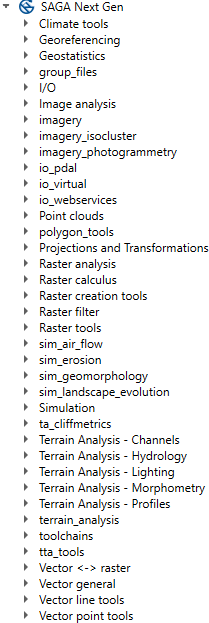
Short information break: SAGA GIS is an Open Source project originating from German scientists that created the software roughly 20 years ago. The name stands for System for Automated Geoscientific Analyses. SAGA offers a lot of different GIS tools and is widely used, also outside the scientific community. There are a lot of tools SAGA provides and you can get an overview from looking at the SAGA menu in QGIS.
QGIS has for a long time been supporting using SAGA tools within QGIS. This is actually how I’ve come into contact with SAGA and it has all been quite easy. I just use the tools directly from the Processing toolbox (Ctrl + Alt + T if you were not familiar with it yet).
However, as of QGIS 3.30 version SAGA is no longer automatically integrated as a core plugin into QGIS, so you can’t find the tools directly in your Processing toolbox.
Why? One of the reasons SAGA was dropped from QGIS was that at least in the past SAGA’s APIs would change between every version – even minor patch releases. Keeping up with the updates in QGIS became messy.
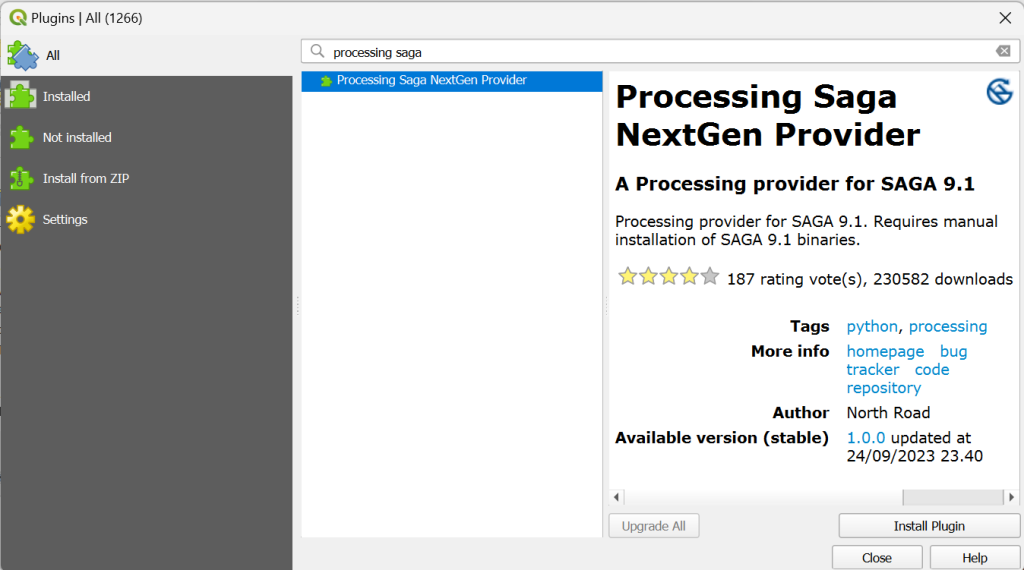
Luckily, there’s a solution. It’s a plugin called Processing Saga NextGen Provider. This plugin allows you to get back SAGA tools in QGIS. The plugin supports only a single fixed version of SAGA and has some other developments compared to the old version.
Let’s go through the steps to make it work in your QGIS.
First, go to your plugins (Plugins -> Manage and install Plugins…) and search for “Processing Saga NextGen Provider”. Choose it from the plugin list and press the “Install Plugin” button.
Easy. Well, actually, you’re not done yet. This is the trickier part but I’m sure you can do this.
Next up we need to install something called SAGA binaries. These are pre-compiled executable files for the software. If you have SAGA installed already on your computer, you could try to connect to that installation. I don’t, so I’m going to download the binaries separately. You can find the binaries here.
I noticed from the plugin repository that the latest support is SAGA version 9.2.0 (even though my plugin window in QGIS says 9.1). I’m going to take a risk and download the 9.2.0 version. On the download page I choose the file “saga-9.2.0_x64.zip”. Make sure you are downloading the correct file (not the setup file!). After the download, extract the Zip to a folder where you can find them easily.
Go back to QGIS and open up Settings -> Options -> Processing. Under Providers, you should see SAGANG and under that SAGA folder. This is where you should insert the path to your SAGA binaries. In my case the path would be C:/Users/emil/Documents/saga-9.2.0_x64/saga-9.2.0_x64
Note! At least on Windows extracting the Zip file generates two folders of the same name inside each other. Choose the latter to make sure the SAGA plugin works. In my case, I double-clicked the saga-9.2.0_x64 folder to open it and then chose the another saga-9.2.0_x64 folder that was inside.

After pressing OK you should see a SAGA Next Gen menu in your Processing toolbox. Underneath you’ll find the SAGA tools at your service! Yay! The friendship between QGIS and SAGA is restored!
If you run into problems, there are a few things to consider:
- Check the SAGA folder path: are the executable files inside this folder?
- Check that the Zip file has been extracted and that your SAGA folder path is not pointing to the Zip.
- Check the SAGA version you downloaded. If 9.2.0 is not working, perhaps another version will.
- Restart QGIS. This solves most of my problems.
- If you have problems with the plugin, you can add an issue to Github or contact us on info@gispo.fi We’re happy to help on problems related to Open Source GIS – such as QGIS plugins like SAGA NextGen Provider. Feel free to be in touch!

We are part of a major geospatial digitisation project in Europe called Location innovation Hub (LIH). It is one of four Finnish EDIH projects and aims to provide help in GIS-related issues for 200 organisations EU/EFTA wide. There are 8 partners diligently working on providing all sorts of geospatial services for free for their customers. Gispo had originally a goal of 28 clients to serve but we were a bit eager and set the bar slightly higher and now the goal is 43.
Every new LIH client gets a free consultation session and the amount will be decided separately. At Gispo the usual consultation has been from 2-3 hours to 2 days tops (so around 500€-2000€/client). The costs are paid by the EU and Business Finland and the partners, so for the client the consultation is totally free. Interested? You can find more details about how the LIH consultations work and the contact form for consultation here.
Why free?
The idea is to boost public sector, entrepreneurs and startups to gain new insight on geospatial information and tools. In my opinion we are entering the golden era of a full blown GIS usage: we have the data, we have the tools, we have the knowledge – now it is time to start using and creating new innovations and thus changing the world.
There is no catch – or of course there is – we are hoping these free consultations will start a longer client journey with us in the near future and hopefully spread the word on open source geospatial tools.
And this is what we are seeing:
Advising the client for just a couple of hours can be a huge marketing asset for the new businesses and can significantly affect the organisation’s way of doing things.They might not know about the possibilities of GIS, what data there is or how to use it.
The client’s personnel can be from totally different fields and GIS stuff is not usually very familiar to them. The clients’ backgrounds have been varying thus far from tourism to nature conservation or from renewable energy to application development. So just a little nudge from GIS specialists can have a tremendous impact.
We have been consulting now around 15 different LIH-clients and many more are lining up for the free (I would say outstanding) consultations. No client need has been the same so the consultations have also been very challenging for us – in a good way.
Some happy customers
Many of Gispo’s LIH-clients have wanted a small QGIS workshop just to get some ideas on what you can do with QGIS and GIS in general. The “LIH-card” can be used also in our regular open courses – it is up to the client to select what is the best way to use this benefit.
Location is everything
Here is a simple example of what location (and information about location) means to the world not used to GIS. We created a simple QGIS project with basic information like roads, aerial images, buildings, services from OpenStreetMap etc. and the client almost cried of delight when she saw her operation area for the first time on a map. For us this was a really simple task, but for her it provided a possibility to view information geographically and finally create decisions based on maps.
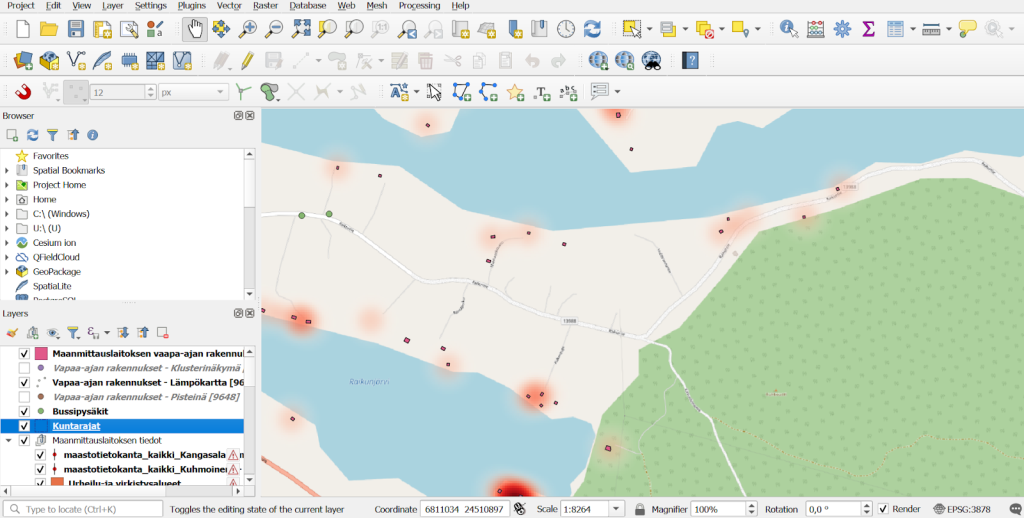
QGIS project with essential geospatial information collected together for the LIH-customer.
Another location-is-everything-type of consulting was done for a real estate company that was interested in comparing several locations based on their accessibility to public transport. Through a consultation with LIH, we were able to determine the travel distances and times from various points in Espoo using public transport. The attached maps illustrate the accessibility of the Ainoa Commercial Center in Tapiola. As you can see, the recent extension of the subway (Metro) towards Espoo has significantly improved the region’s accessibility.
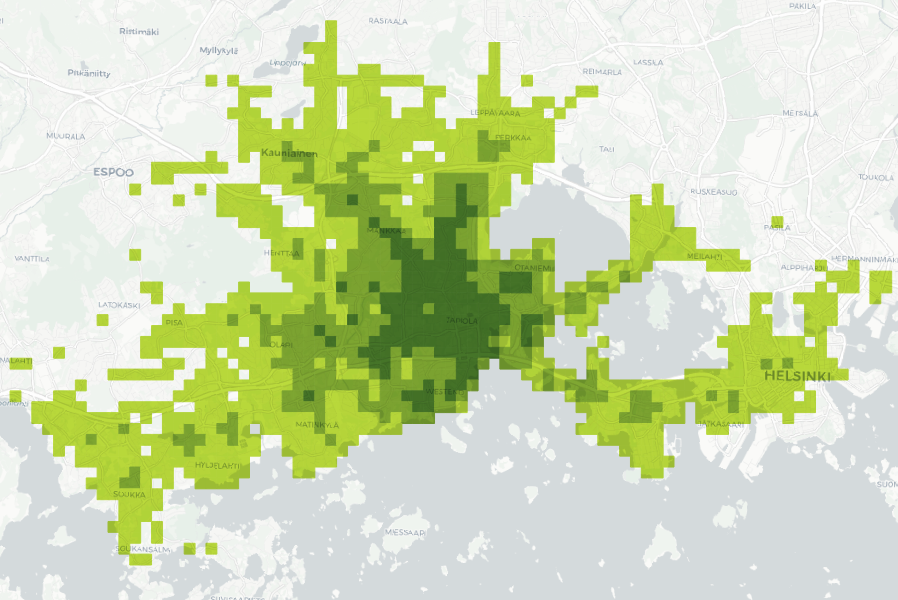
Public transport accessibility to Ainoa (Tapiola, Espoo) by travel time zones (under 20, 20–25, 25–35 min). Data: University of Helsinki (2023).
Consulting startups to grow their business
Geospatial data is nowadays an integral part of many services and it is utilised often in very innovative ways by startup companies. The startups might have a solution already available and they have been solving many GIS-related problems along the way. But as being “outsiders” to the geospatial industry these companies are usually very interested to hear about the different standard tools and methods available to enhance their solutions. LIH-consultation might help them understand how things could be made more efficient and how to scale up and future-proof their technological and architectural decisions.
UpCharge is a cool power bank sharing tech company and they wanted to learn more about utilising and incorporating spatial data into planning where power banks are needed. Being able to visualise the collected data about when, where and how long a power bank has been used is extremely useful when planning new locations for the stations. With Kepler.gl we were able to create an insightful interactive map with multiple useful layers such as heat maps describing where pickups and drop offs were most frequent and animations of the movement of the power banks based on the start and end location. Pauli Mankinen, one of the co-founders was happy about the results: “We have gained valuable insights into the use of geospatial data in our customer segment, which has helped our sales efforts”.
Workshops to gain more insight on open source GIS
Some of the LIH-customers have requested training instead of data-analysis or consultation. We usually have longer training sessions available for QGIS, PostGIS or GeoServer to gain more understanding about a certain tool, but these smaller workshops are also useful if you want to learn new things fast and gain a glimpse on what you can do with a certain tool.
Some of the employees of the City of Turku have been using commercial MapInfo software software and are now looking to replace it with QGIS. They were interested in learning what possibilities open source tool QGIS (that we at Gispo love) has to offer. As a LIH consultation we organised a 3 hour workshop where we introduced QGIS with its basic functionalities to the participants, who had varying experience in GIS and QGIS. They described what they needed to do with GIS software and our trainer showed them different tools and workflows. In the end of the workshop they discovered that everything that they had been doing with MapInfo could be done in QGIS. Of course the logic of certain operations might vary from one tool to another, for example how to create thematic maps or join two databases.
Elisa Mikkilä, the GIS coordinator at the City of Turku: “The workshop was very helpful in introducing QGIS to our MapInfo users, and everybody participated in the exercises enthusiastically.”
A one person nature surveying company reached out to us and we organised a 6 hour online workshop as a LIH consultation. The workshop was split into QGIS and QField sessions, both of which were 3 hours long. The content was highly customised based on the client’s materials and the processes. The main focus was on what kind of data the nature surveyors typically work with and how to efficiently utilise both QField and QGIS in the workflow. These kinds of workshops are very rewarding for both the client and us, because we are all the time working with real-world problems and learning from each other.
The Finnish Association for Nature Conservation (FANC) was interested in how they can benefit from spatial data, solve problems with it and utilise different GIS softwares like QGIS. With this goal in mind, two webinars were hosted with three speakers in total, one of which was from Gispo. The first webinar focused on the basics of spatial data while the second webinar included information about the data available via NLS and the basics of QGIS, which was our part. We went through the benefits of using QGIS instead of a web browser based map service and shared some useful links and instructions for starting to work with QGIS. Nature conservation has a high potential for benefiting the understanding and use of spatial data, and we were very pleased to have been part of this process.
Gispo has coordinated the Oskari developer community since the beginning of this year.
For those of you who are not familiar with Oskari, here’s the thing in a nutshell: Oskari is an open source web map service where you can view, visualise and analyse different map layers that can come from various APIs. The best example for this is Paikkatietoikkuna (from which Oskari project started!) where the end-user can browse maps and various other data maintained by various different organisations. The user can also make upload their own datasets and share the maps as an iFrame to their website. And like always, behind such a great open source project is a community that develops it and meets regularly either live or via Teams, to discuss ideas, bugs, roadmap etc. and also organized an annual Oskari Community Day.
The Oskari Community Day 2024 brought together about 20 participants in Helsinki in mid May. There were a couple of familiar faces from Oskari’s Joint Development Forum and the National Land Survey among the participants, but also some new people showed up at the event. Making people join in and make new contacts is the most rewarding part of coordinating networks, so we were very happy about this!
Let us share a bit of the content of the Community Day now.
What’s new in Oskari?
Sami Mäkinen from the National Land Survey presented new features and fixes implemented during the past year, namely Oskari 2.12 and 2.13. The latest release focuses on improving user experience on mobile devices. Small details make a big difference! E.g. on smaller screens Oskari now hides certain functionalities by default and gives more space for the map view. Sami also answered and commented on participants’ more technical questions and took us on a quick tour around Oskari’s GitHub. In case you didn’t make it to the event or missed it the first time around: if you want to find Oskari release notes for front-end, look here, release notes for server side here – or if you’re looking for the guide on how to update Oskari, see here.
Oskari helping out at a sorting station
Henna-Kaisa Stjernberg from Helsinki Region Environmental Services (HSY) presented the SeutuMassa tool and other Oskari map services of HSY. SeutuMassa is a soil management tool that was made because there was a need to present and organise the objects of the Ämmässuo waste sorting station on a map. Now the data that was earlier collected to an Excel file can be used in a web-based map application. This way it is easier to see e.g. the mass and location of the materials. This is also valuable for the monitoring of the environmental permit.
Data is updated the same way as in normal Oskari web service but now it is also possible with the built-in content editor. The employees of Ämmässuo waste station also create their own layers by drawing features on a map based on the aerial imagery of the area. The map service allows for accounting of the material and can be used for finding the places where there is surplus of the material.

Instructions for procuring Oskari-based map services
During spring there had been discussions in the Joint Development Forum about procuring Oskari and the members called for guidelines on procuring. Oskari communications coordinator Juho Rekilä from Gispo gave a small introduction to the topic and presented some examples of what to take into consideration before procuring Oskari. Three different scenarios were introduced: procuring a new Oskari instance (in a situation where the organisation doesn’t have an existing Oskari map service), procuring an update to an existing Oskari instance (from version x to the latest version) and procuring configurations to an existing Oskari instance (new functionalities or tailoring).
There was a lively discussion on the topic and the ideas and thoughts were collected for future use. The Instructions for procuring Oskari document will be on the new Oskari website in autumn 2024. The instructions will hopefully make the procuring process a bit easier and help the procurers to think about their needs and what is required from the consultants.
Accessibility of map services
After the workshop and coffee break we had an accessibility specialist Juha Sylberg from the Finnish Federation of the Visually Impaired to talk about how the visually impaired use map services. Accessibility has been a hot topic this spring in Oskari’s Joint Development Forum and it was great to have Juha share his insights. He talked about how visually impaired and blind people navigate to different places and what kinds of services (such as mobile applications) they use instead of the usual map services.
New Oskari website coming up
Finally, Sini Pöytäniemi closed the event by presenting the upcoming Oskari website. The new website will have a completely new design and all the relevant information will be easily accessible. The work on the website has been ongoing for some time, and the new site will be launched in early autumn. An extra effort has been made to make the documentation more approachable, better organised and more comprehensive. Also the overall user experience of the website has been improved to make it intuitive to use.
It was rewarding to see so many enthusiastic Oskari fans in the event! Also at Gispo we’re always happy to help anyone with Oskari-related questions. Don’t hesitate to ask for more information if you got interested in either Oskari itself or in the work of the Oskari community!