

Every now and then, we get to collaborate with IIEP, UNESCO’s International Institute for Educational Planning. This time we were introduced to the effects of rainfall on learning outcomes and school attendance in Sub-Saharan Africa.
Overview of the project
The heavy rains affect school goers in many ways. One might not be able to get to the school, or the school building might suffer from flooding, or the rain might cause so much noise it is impossible to teach and learn inside. The background research is available here.
The school calendars are largely shared within and across countries, and might have very little variations since colonial times. So no wonder the school calendars don’t take local conditions into account. However, considering local conditions like the weather or agricultural cycle in planning the school calendars could help increase the attendance rate during the school year and thus result in better learning outcomes.
Our friends at IIEP-UNESCO are running a project that aims to provide policy advice to governments in educational planning and to support the implementation of locally adjusted school calendars. We were happy to join in as we were tasked to find ways to analyze precipitation data in order to find time periods uninterrupted by heavy rain, and thus more suitable for the school calendar.
The school calendar plugin
We created algorithms in the QGIS Processing framework for processing the precipitation data and visualizing the results. As an end result a total of four processing algorithms were packaged together to create a QGIS plugin to accomplish the following:
- to download precipitation data from Google Earth Engine
- to calculate the daily means for precipitation
- to find time periods uninterrupted by heavy rainfalls
- to visualize the precipitation data and time periods as a calendar heatmap

Precipitation data download
The obvious first step is downloading the data. The plugin uses precipitation data gathered by the Global Precipitation Measurement (GPM) international satellite mission and distributed by Google Earth Engine (GEE). The download needs to be done only once, as long as the data is downloaded from a larger area you are interested in (the whole of Africa in our case). Then the analysis can be run as many times as needed for subsections of the larger area and with different parameters. The data is reduced from half-hourly or hourly data to a daily sum in GEE and one raster is downloaded for each day in the given time period.
Daily mean analysis
After the data is downloaded the next step is to select what area you want to use. The algorithm allows you to use any polygon layer to select the area you want to analyze, and thus makes it possible to analyze e.g. any administrative borders. The algorithm calculates the daily mean of precipitation in the given area. If the data is from several years, one might be interested in looking into each year separately or looking into an average year in order to avoid making long term decisions based on fluctuations of a single year. As a result this second algorithm creates two output layers – one for daily means and one for average year daily means.
Uninterrupted period analysis
Now that the data is downloaded and prepared it is time for the actual task in hand: to look for the optimal uninterrupted time frame for the school calendar. As an input layer for this third algorithm either output layer from the previous algorithm can be used. There are several parameters to set as per your preferences (what the threshold is for too much rain and whether you want to allow a certain number of days to exceed this threshold without breaking the time period). As an output, a new layer is created where the start and end date of each uninterrupted period are saved as attributes.

Create calendar heatmap
Finally, we can visualize the results. The fourth algorithm takes in output layers from the previous two algorithms (you can also visualize just the mean precipitation without the uninterrupted period) and creates a calendar heatmap. The calendar view shows clearly the patterns of rainy days in the chosen area, and visualizes the uninterrupted period suitable for a school year on top of that.

Flexible and efficient tool!
The tool is rather flexible as it is possible to choose whatever area you want or need for the analysis, and set parameters to your liking as well. It is also efficient in handling data. It also supports running a batch process allowing for efficient inspection of several areas or parameters at the same time.
We hope this tool will help create school calendars that are more accommodating to local climatic factors.
Do you want to hear more about this project? We will be presenting at FOSS4G Europe in Tartu in July!
Not all map services that use or serve APIs necessarily report when those APIs are not functioning. It might take days or weeks to hear about the issues from the service’s users, and to determine the cause you might need to manually sift through error reports and logs. When there are dozens or even hundreds of APIs, these issues can accumulate quickly. Ideally, the owner of the API would know about problems before the users do and act accordingly. In this article, we introduce two solutions that make the work of those serving geospatial data APIs easier.
Grafana – Almost Everything for Almost Everyone
Grafana is a multi-platform open-source web application. The basic principle is simple: it queries a database and from the results it plots charts as an interactive visualization on a web application. Users can either utilize Grafana’s ready-made queries or write their own. The data and visualizations provided by Grafana can be viewed in a web browser. Visualization options include various types of charts such as line, bar, and pie charts.
The primary Grafana program within the ecosystem is used for visualizing data, but other components are also included like the Prometheus database, where data is stored and queried by Grafana. In Prometheus the retention period for data can be defined. Other databases can also be used. Additionally, Grafana includes various backend functionalities for a wide range of needs, including those beyond geospatial data services.
Setting up Grafana and Prometheus can be done conveniently with container solutions like Docker. For those familiar with the subject matter, the setup can be quite quick. However, as always, the more complex the task, the more time it takes. Nevertheless, Grafana can be used to monitor pretty much anything, and setting up and using more advanced tools (such as Elastic Stack) is even more complex.
Container Monitoring and Server Cost Savings
Why should anyone be interested in Grafana? If, for example, there are multiple servers in use and you want to know if each one is necessary, Grafana can show their load and determine if some servers are idle. Removing even a few unnecessary instances can result in significant cost savings.
The software can also monitor service availability: if, for example, no data is received from a server for a minute, Grafana can alert the user via email, port, or web address as specified by the user. This enables quick reaction if a server is down or stuck for any reason. Users can also set up alerts for other threshold violations.
We have used Grafana in our client projects. Recently, one of our clients had containers on a server from which they wanted data. For this purpose, we used a combination of Grafana, Prometheus and C-advisor. First, we set up the C-advisor program on the server, which monitored the containers and published the data to a desired port like a web server. Prometheus then read this port at regular intervals – in this case once every 15 seconds. Grafana read the data from Prometheus’ database and plotted curves based on the queries. Eventually, Grafana displayed many parameters for each container – from memory consumption to processing time.

Why Grafana?
Of course, Grafana is not the only software that can perform these processes. In theory, Microsoft’s PowerBI could be used to read from C-advisor. The data provided by C-advisor is ultimately just names and numbers, such as “C-usage 2.3,” where the numeric value varies over different time intervals.
Compared to PowerBI and other software, Grafana’s advantage is that it is open-source (AGPL3.0 licence) and does not require any monthly fees (although there is also a hosted, monthly charged version available). It can be run on your own instance, and installation is quite straightforward.
Another significant advantage is that if the containers or other objects being monitored are behind a firewall where external access is not possible, Grafana can be placed in the same instance. This way, everything remains secure, and no changes need to be made to the firewall for data transfer.
Although we use Grafana for processes related to geospatial data, the software can be connected to almost anything that provides some numerical output. Grafana demo page allows you to explore its functionalities, such as tracking logins, payment amounts, and other variables over different time periods.
Grafana demo can be found here: https://play.grafana.org/
GeoHealthCheck – Simple Monitoring for Geospatial services
GeoHealthCheck is a browser-based software that monitors API services intended for serving geospatial data. Like Grafana, GeoHealthCheck monitors service availability, draws diagrams, and checks how quickly the service responds to various queries. The software is remarkably easy to set up and can be described roughly as a one-trick-pony: it does one thing and shows the results in one way.
Users can define how thoroughly the software examines the API. Geospatial data services have their own logic, and GeoHealthCheck can be used, for example, to check the GetCapabilities document from a WFS API and a few layers or features from there. Queries made to the API are displayed under the “Probes” section on the site, and the history section shows the latest errors. The site also provides a full report of the queries.

Just a Server and a Little Effort
While Grafana requires a lot of technical knowledge about the services being monitored (such as which port is open to the server, etc.), GeoHealthCheck only needs the address of the desired API service.
Setting up the software requires a server and a bit of effort – and may we emphasize: not a huge effort, just a bit. As the software is lightweight and does not require much, it can work on various different platforms.
GeoHealthCheck is best set up on a server using container deployment, which has been made relatively straightforward for the user. The most adept users can run the software in a container on their own machine. After this, the APIs to be monitored can either be entered manually or, if there are many APIs, imported as JSON file.
The software also allows for the creation of different users and granting them rights to monitor service status. This allows a whole team to use the same GeoHealthCheck instance for service monitoring. (Another option would be to set up a separate instance of the software for each user.) User management enables restricting the visibility of services so that some information can be displayed publicly, some only to logged-in users, or even different services to different users.
As a side note, allowing registration requires some tweaking because then a machine capable of sending emails must be available to send confirmation emails. However, using such a machine is sensible anyway, as GeoHealthCheck can then send alert messages directly to email. Otherwise, alerts can be set to be sent to, for example, a desired website.
Like Grafana, GeoHealthCheck is open-source and allows for custom extensions. The software is constantly being developed, and although it already works well, it is not yet perfect. For example, if a user wants to change their password in a situation where the software does not have a machine capable of sending emails, they have to deal with unnecessarily difficult JSON operations. Fixing issues like this and minor development are things that we at Gispo do for our clients.

Easy Benefits
The benefits of the software are clear: the status of APIs can be easily seen, and if problems arise, alerts can be received in the desired manner. Reports can be exported as CSV, JSON, or PNG files. Testing existing APIs and monitoring their availability is easy. The software also allows for live testing, which is helpful when making adjustments to an API, updating GeoServer, or releasing a new API.
Thanks to alerts, problems can be responded to more quickly, and the amount of manual work required to troubleshoot decreases when errors don’t need to be manually extracted from the GetCapabilities report but are neatly displayed in the browser interface. Naturally, the more APIs are available, the more beneficial the software becomes.
The advantage of GeoHealthCheck lies in its simplicity and clarity, as well as its easily understandable user interface. If you need to monitor the things GeoHealthCheck offers, there’s no need to unnecessarily complicate matters by setting up Grafana to do the same. GeoHealthCheck is specifically designed for spatial data use, but it can also monitor regular websites.
GeoHealthCheck’s demo can be found here: https://demo.geohealthcheck.org/
If you are new to rasters, check out our first part of the raster series about what rasters are in here.
As stated in the previous blog post, rasters are usually a bit harder to manage than vectors. There are different types of rasters you could use: there are different aerial images (satellite, plane, drone etc.), surface models for example digital elevation models (DEM) or digital surface models (DSM) that tell the elevation of the pixel above sea level. Or you could use just a plain old image taken with any camera.
In this example I downloaded 11 digital elevation models (DEM) from Paituli which is a download service that provides data from for example National Land Survey of Finland, University of Helsinki and Finnish Meteorological Institute. These elevation models are from the National Land Survey and they are in 2 x 2 m scale. This means that the pixel size in these models is 2m x 2m.
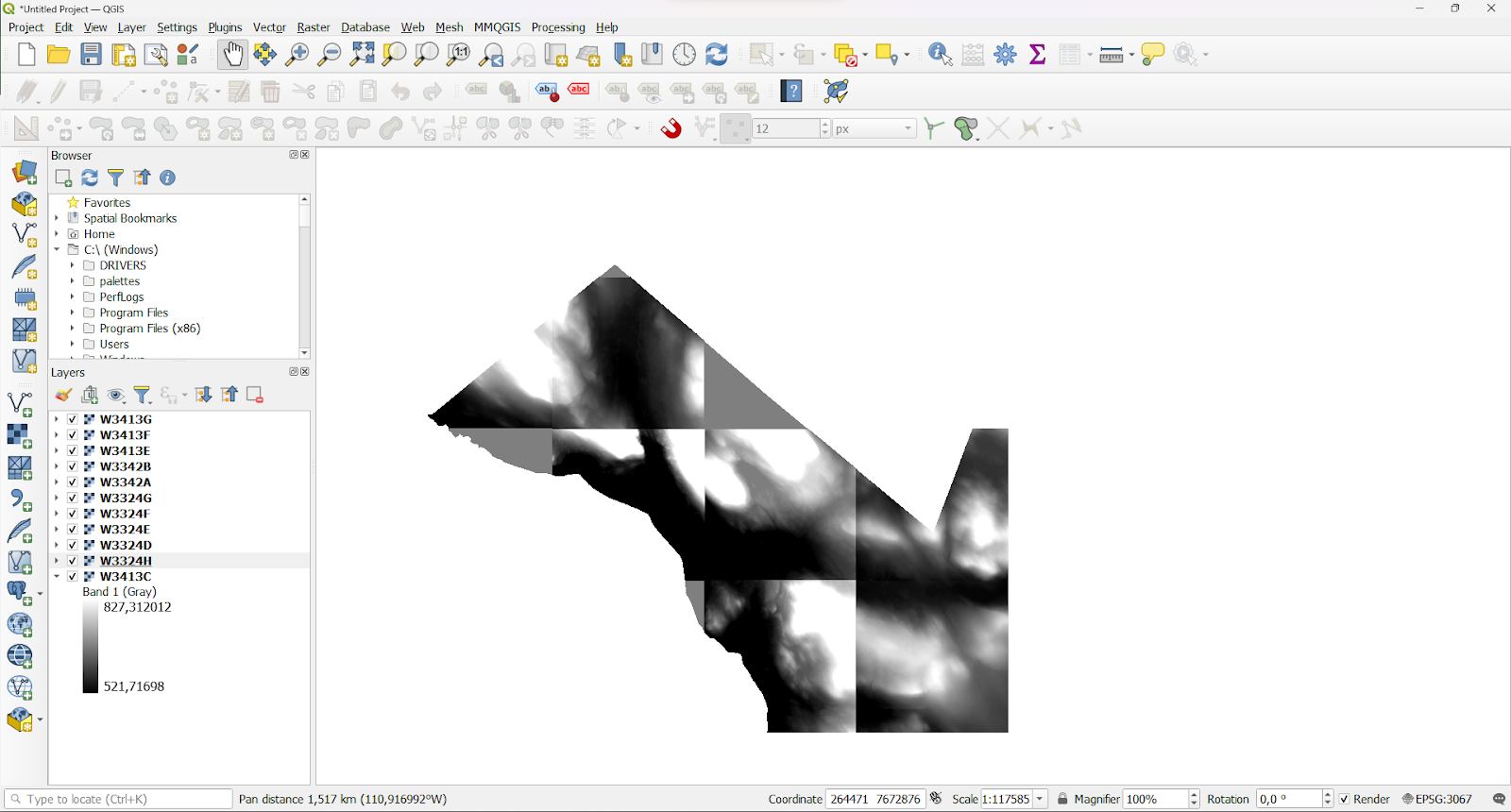
DEM tells the elevation of the area above the mean sea level. In these only bare ground is represented. In DSM all the objects on the surface of Earth, trees and buildings, are represented.
Merging rasters
In Finland surface models usually come in some kind of grid. Newer models are usually in TM35 map sheet division that is based on ETRS-TM35FIN coordinate reference system. Older ones before 2007 are in map division that is based on the KKS coordinate reference system. If you need to view a bigger area than just the one map sheet, you can merge the DEMs together very easily in QGIS!
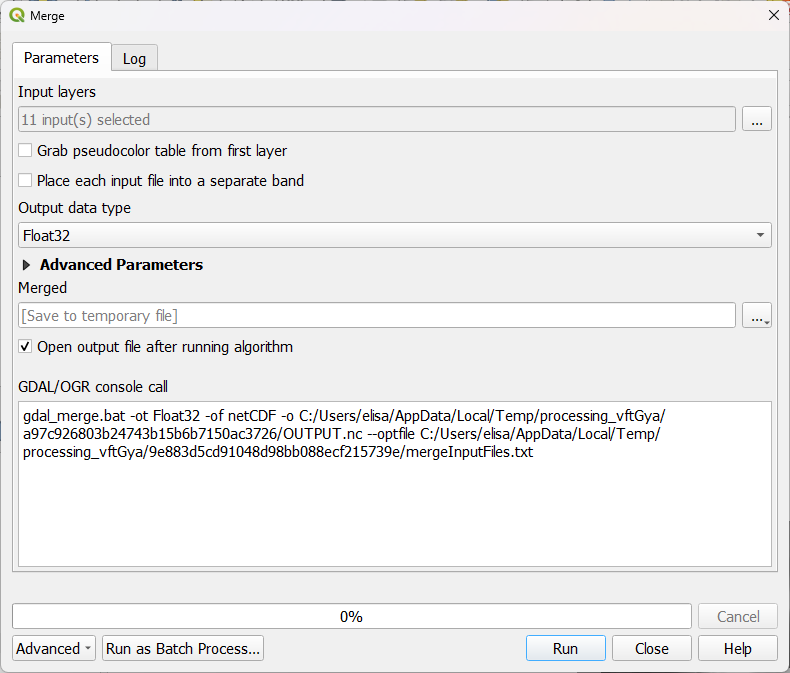
Open Raster -> Miscellaneous -> Merge. In the new window select all your individual rasters as input and run the algorithm.
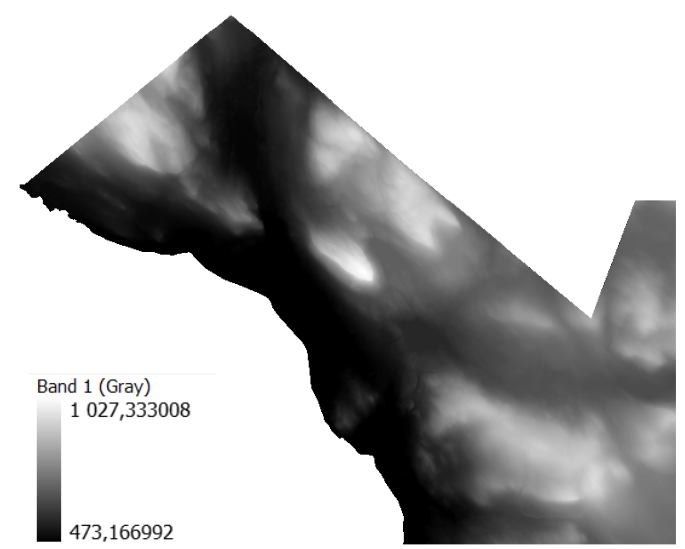
As a result you get one raster with the highest and the lowest elevation values in one like this:
Visualising the raster
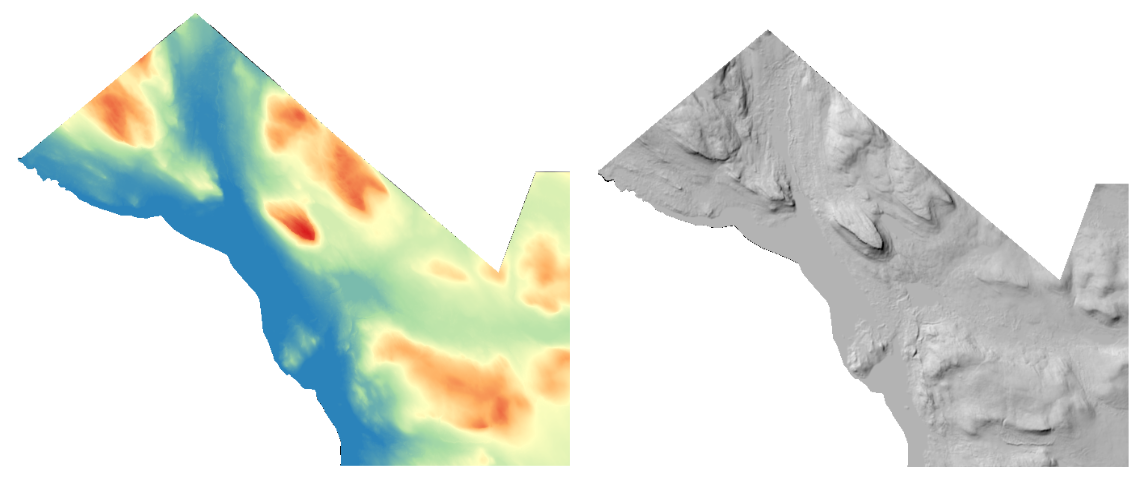
In the merged raster layer the highest point is the top of the Saana fjeld and the lowest is the lake Kilpisjärvi. To see the elevation distribution a bit better let’s change the visualisation. From layer properties change the symbology to Singleband pseudocolor. Here you can edit the colours and classify values for the visualisation. Hillshade is also a great option, if you want to view the elevation in different areas.
QGIS tools for rasters
Aside from visualisation techniques QGIS offers a wide range of algorithms to analyse your dataset. These can be found from the raster menu or from the Processing toolbox. The latter might offer a bit more tools. Let’s take a look at a few of the algorithms and why to use them!
Firstly hillshade. I know, I know this is also a visualisation technique but I promise this one looks way better. If you are looking closely at the visualisation hillshade it makes these small squares that are seen quite easily (the left picture below) as opposed to the hillshade made with the algorithm that is a better quality and looks way better zoomed in.
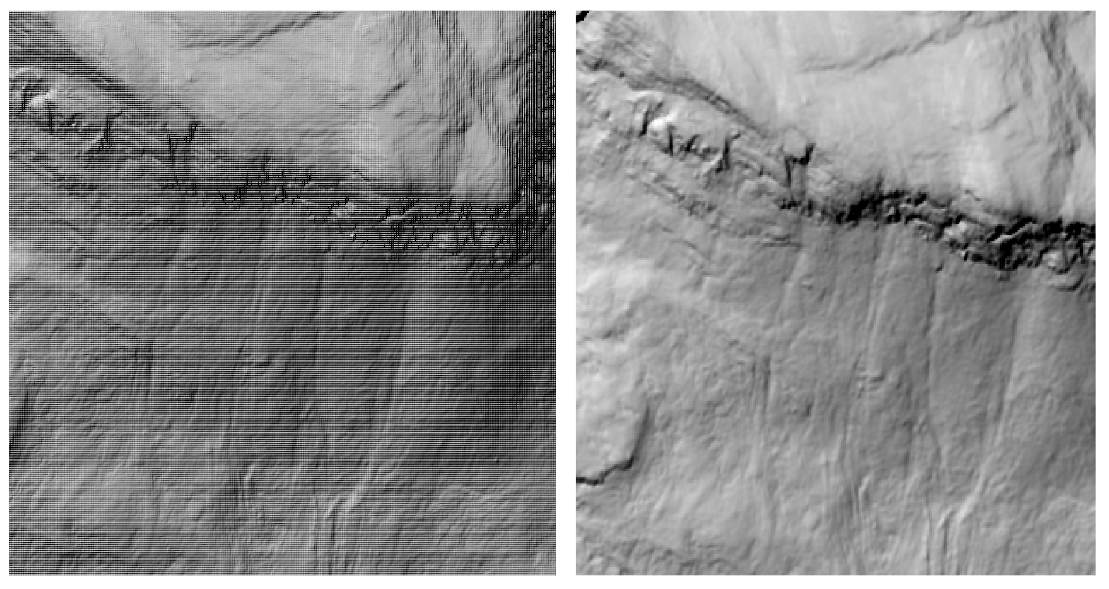
If you want to make a nice looking map, move the original visualised DEM on top of your newly calculated hillshade layer, change the symbology back to singleband pseudocolor and set the transparency to 40 %.
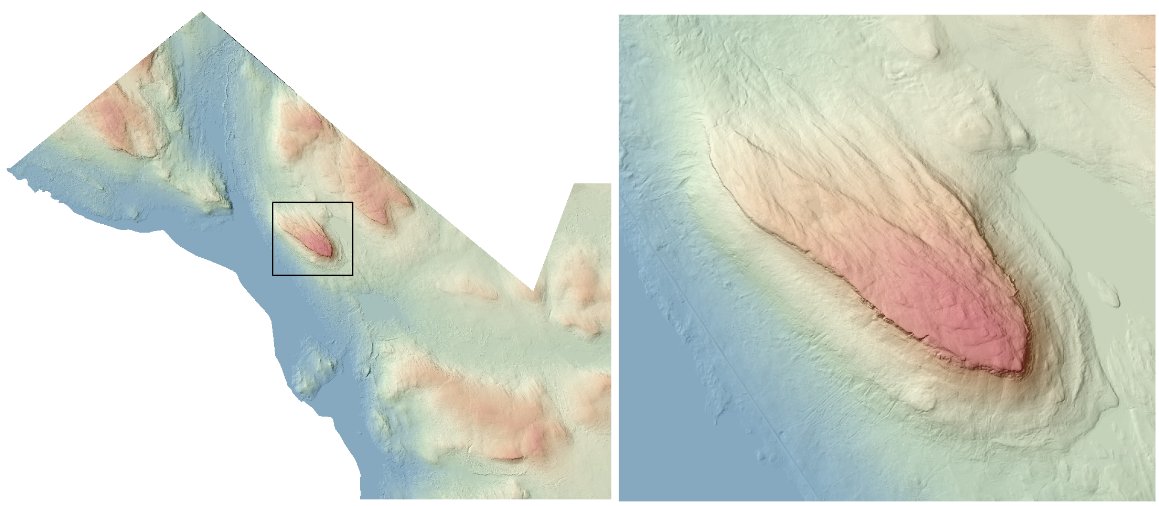
In hillshade you can change the azimuth and vertical angle of the sun. For example if you need to see how the terrain looks when the sun is shining from east at 90 degrees, this is where you can experiment. More on calculating hillshade in the QGIS documentation.
Some other algorithms that might prove to be useful when analysing terrain or for example trying to find a suitable place for a new wilderness hut could be slope and aspect.
Slope calculates the steepness of the terrain. For the wilderness hut you would need a relatively flat ground. The whiter the pixel, the steeper the terrain. Here are examples from Saana fjeld on the left and Ailakkavaara fjeld on the right.
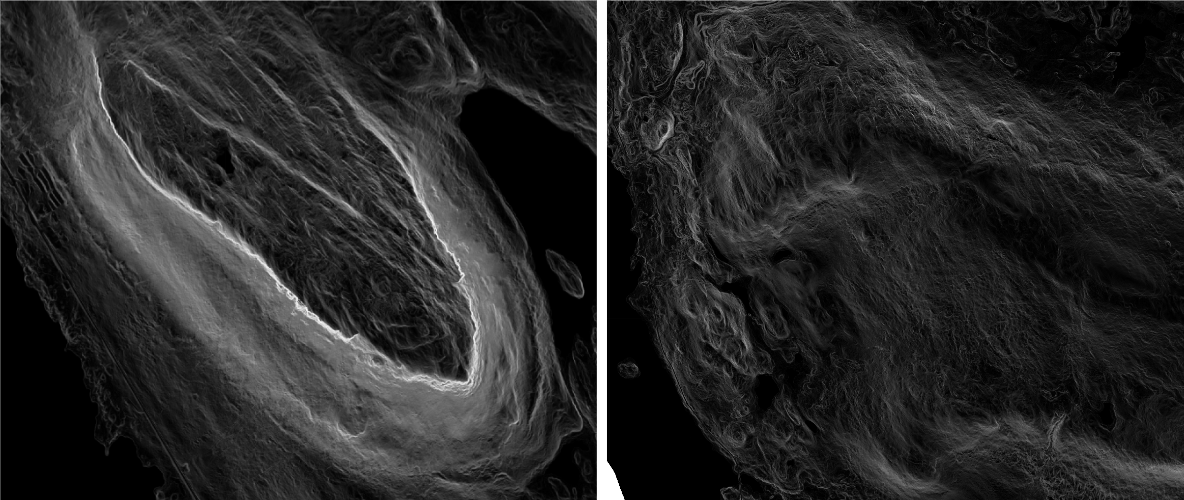
With a quick glance it would seem that Ailakkavaara could be more suitable for our wilderness hut. The last thing to consider is what kind of view our hut could have. With the aspect algorithm you can calculate the compass direction of your slopes.
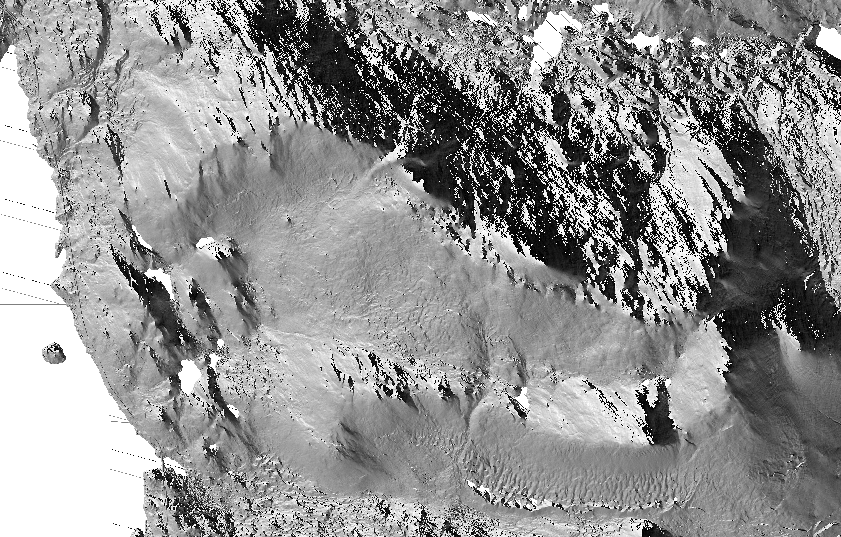
Here is a snippet of the data from Ailakkavaara fjeld. Let’s say we would want a north facing slope next to our hut to see the Saana fjeld when you get up in the morning. Here when the aspect is 0 the slope faces north. If 90 degrees the slope faces east etc. Seems that there are a few different potential places for our wilderness hut. But how to calculate the best spots with QGIS?
Tune in with our next part of working with rasters, there you’ll learn about raster calculator and its uses!
Okay okay, the comparison between GeoPackage and PostGIS might be seen as a bit odd, since GeoPackage is a data format, whereas PostGIS is an extension of a relational database. However, you might run into an occasion where you need to consider whether to save your spatial thingy as a GeoPackage or to save it in a PostGIS database? Let’s explore when one might excel over the other.
GeoPackage is great. It’s a neat format for storing spatial data, as one (1) file. If we go technical, it’s actually a SQLite database container with a set of conventions, set by The GeoPackage Encoding Standard, defined by the Open Geospatial Consortium (OGC). Woah, that was a lot of words. Anyway, one brilliance of the GeoPackage is the container, since it allows you to use it directly. No need to set anything up, and still, it works very much like a database. You can, for instance, use SQL to query the GeoPackage. Just like you do with a relational database.
PostGIS is a spatial extension of the relational database management system PostgreSQL. So PostgreSQL handles the non-spatial things, whereas PostGIS enables you to work with spatial features. You can have a (spatial) database set up locally, but the real benefits usually come in when it’s set up on a remote server. Then you (and your team) can work with the data from anywhere, together.
The choice between GeoPackage or PostGIS depends on a number of things. Here are a few things to consider.
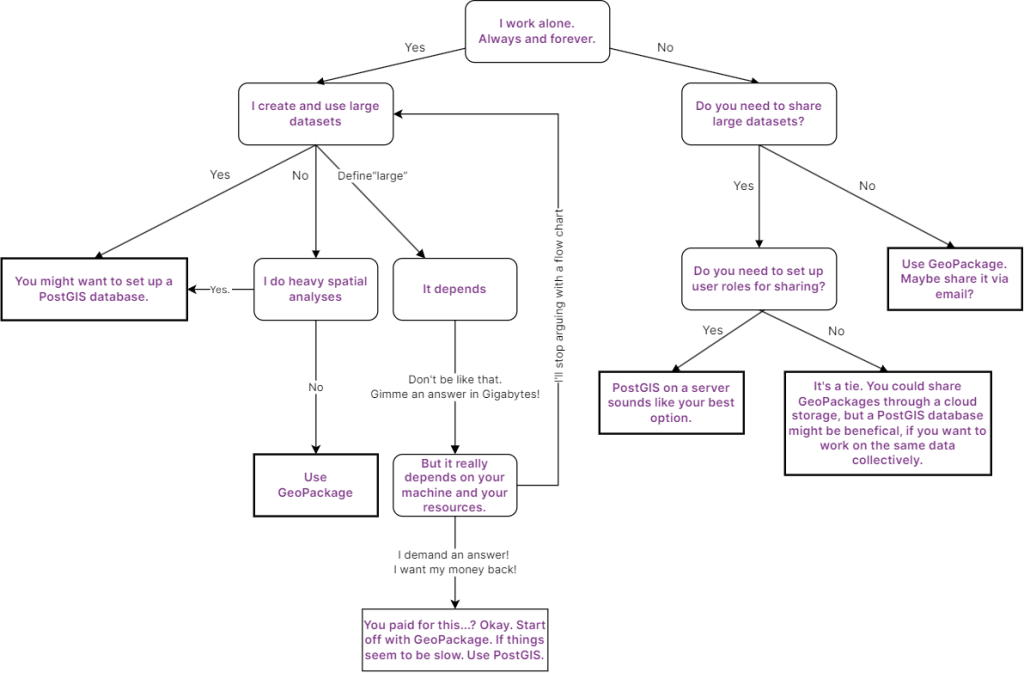
Working locally
If you are mostly working on your local machine with data that runs smoothly, then your first choice would be GeoPackage. If you need to share the data, ask yourself, is it small enough to fit in an email? Do you need to send data back and forth between people or is it mostly just you sending data to Dave about squirrel habitats? If there’s no real collaboration needed, use GeoPackage.
Working together
If you are working on something together with others, PostGIS might be the way to go. With PostGIS you have the opportunity to create roles and restrictions for different users, so that you can prevent your careless friend Dave from deleting all your squirrel habitat data. You’ll also be completely sure that everyone has the same data (and not Dave’s personal version of the data, that also contains an extra point where his favorite pizza place is located).
Working with a lot of stuff
If you have a lot of layers, let’s say you have many layers of squirrel habitats, then PostGIS sounds like a deal. When you are using PostGIS it’s easy to handle every layer in a similar manner. You can perform the same operations for multiple layers and automate all kinds of things. You could of course work with a very big GeoPackage, but at some point you might want to switch to PostGIS. It is, after all, designed for working with massive amounts of data.
Another awesome thing about PostGIS is the support of indices. There’s plenty to choose from, and you can for example use a clustered GiST (Generalized Search Tree) index to speed up your queries.
Working with complex analyses
Need to do some complex analyses on a huge dataset of all the world’s squirrel habitats? Then you should probably do it in PostGIS. It will probably be faster and more efficient. PostGIS can take advantage of parallel processing to speed up spatial queries even more!
Working with styles
Do you have some cool squirrel-shaped symbols for your layer symbology? But when you send it to Dave, he just sees some boring round points. Well, you need to save the symbology as well. This can easily be done with a GeoPackage, whereas PostGIS doesn’t really care about your rodent-related symbols.
Working with spatial and non-spatial
If spatial data is just one piece of your data puzzle, then you’ll be happy to know that with PostGIS, you can have all your non-spatial data stored right beside your spatial data, since it’s already a PostgreSQL database.
Working on a mobile device
If you are working with spatial data on a mobile device, it’s good to know that GeoPackage actually was developed with mobile use in mind. So if you are developing this crazy popular squirrel habitat map app, let’s call it FluffyTailFinder, then you might want to have your data stored in a GeoPackage.
So to sum up, without any odd references to squirrels, GeoPackage and PostGIS are both things you might need to consider when working with spatial data. Depending on your needs, you might need one or the other, or perhaps both.

Test your knowledge:
Where can one save rodent-related symbols together with data?
While working it is important to have your workspace organised. Most start with the basic ergonomics, the chair, the desk, the display(s) and the keyboard. Setting up your tools where you can conveniently reach them makes working more efficient and comfortable. This applies to desktop software as well, customising the view to your preferences is like setting up your office.
In QGIS you have roughly two methods to control your workspace: the user profile and the project
User profile
The term user profile might give the impression that each profile is user specific, and it is rather tempting to name the profile with the name of the person using the profile. In reality the user profile has more to do with the profile or role in which you are using QGIS.
For example if you educate others in use of QGIS you might have a training user profile where you have the very basic default settings and tools, or if you digitise and edit a lot of data you might have a separate user profile where you have all the digitising toolbars and specific plugins at hand, or you might have projects in different areas, and want to have profiles with area specific settings like CRS, measuring units and date and time format.
So what are the things you can personalise and set up in a user profile? The QGIS user manual gives the following rather extensive list.
- all the global settings, including locale, projections, authentication settings, colour palettes, shortcuts…
- GUI (graphical user interface) configurations and customization
- grid files and other proj helper files installed for datum transformation
- installed plugins and their configurations
- project templates and history of saved project with their image preview
- processing settings, logs, scripts, models.
Do you have to create different profiles?
No, if you are happy with one set-up, you are using the default profile and all your changes are saved in it, then there is no need for multiple profiles. But if you have different workflows, you want to show demos, or want to test different settings, then making different profiles might be beneficial for you! A new profile is also a good trick to see if there are some problems with your current profile because creating a new profile is sort of a clean canvas.

If you have some specific needs for a specific project there is also a possibility to customise your QGIS project instead of the whole profile.
The project
Project in QGIS is what some other softwares might call workspace. It is the state of your QGIS session according to QGIS documentation. QGIS can work on one project at a time, therefore every time you click a new project QGIS prompts you to save the project that you were working on and opens a new one. There is a very easy go around to this one project at a time: just open more than one session in QGIS, maybe one for each user profile.
The User manual offers quite an extensive list of information stored in a project file:
- Layers added
- Which layers can be queried
- Layer properties, including symbolization and styles
- Layer notes
- 2D and 3D map views
- Projection for each map view
- Last viewed extent for each map
- Print layouts
- Print layout elements with settings
- Print layout atlas settings
- Digitising settings
- Table Relations
- Project Macros
- Project default styles
- Plugins settings
- QGIS Server settings from the OWS settings tab in the Project properties
- Queries stored in the DB Manager
If the user profile is the set up of your desk; placing pencils and notebooks you often use in place they are easily accessed, then the project is the information on which notebook and which page you were on last time you worked, and what was the colour of your changeable notebook cover.
All your visualisations are stored in the project. All colour and symbol choices as well as the order of layers and what layers are visible at the time. You can also store project-specific colour palettes.
Can I share user profiles and projects?
QGIS does not have a tool to import or export user profiles. If you wish to share a user profile with other users you’ll need to head to file management and do it manually. All the information for user profiles is stored in your home directory (for example in Windows the default is the AppData folder). Each user profile has a folder that you can copy and send to other users. The other user just has to place the profile folder in the corresponding folder in their computer. Note that you can open the profile folder under the Settings menu in User profiles > Open Active Profile Folder.
Project on the other hand is more easily transferable. The sender needs to send all the files used in the project for the project to open correctly along with all the data used in it. However, you might encounter problems with data sources, when receiving a project file from someone else. The Handle Unavailable Layers dialog in QGIS helps you to deal with these problems. Or you might even want to fix the file paths directly in the project file. Project file is in xml format so it is possible to edit the file directly if you know what you are doing.
Project file can also be saved in a PostgreSQL database or GeoPackage. It is rather convenient to save the data and project in one GeoPackage, especially if you are forwarding your work to someone else.
If the data is in PostgreSQL database it makes sense to have the project file there as well, again project and data in one place prevents problems with file paths.
What does your QGIS look like?
Now and again we get the question of how to use WFS data in QGIS. Here we want to provide an easy all-in-one guidance on the topic for those who are not yet familiar with WFS.
In the article you will find the following:
- What is Web Feature Service (WFS)
- How to connect to WFS from QGIS
- How to make SQL queries to WFS to filter data
- How to add a layer from WFS
- How to save data from WFS locally
What is WFS?
Very simply put Web Feature Service (WFS) is an interface for sharing geographical features over the internet. WFS is a platform-independent format, meaning that it can be used with a wide variety of different software.
The basic WFS allows one to query features and retrieve them from the source, i.e. ask what features exist and load the desired features for one’s own use. With a WFS-T (Transactional Web Feature Service) the user can additionally create, delete and update original features in the source.
Geographical features can be, for instance, lines or polygons together with their related information (e.g. coordinates and different type attributes). Geographical features allow for versatile editing and spatial analysis. This is a notable difference between WFS and services made for transferring map images, like tiled maps or Web Map Service (WMS).
To read more about the WFS as an international standard, visit the OGC website.
How to connect to WFS from QGIS
To open a connection to a WFS server, open a new project and click the “Open Data Source Manager” button 
If you want to add a layer to an existing project, go to Layer > Add Layer > Add WFS layer.
In the window that opens fill in the “Name” (something useful for you to remember what the connection is about) and the “URL” for the WFS server. If no authentication is needed, click “OK”.
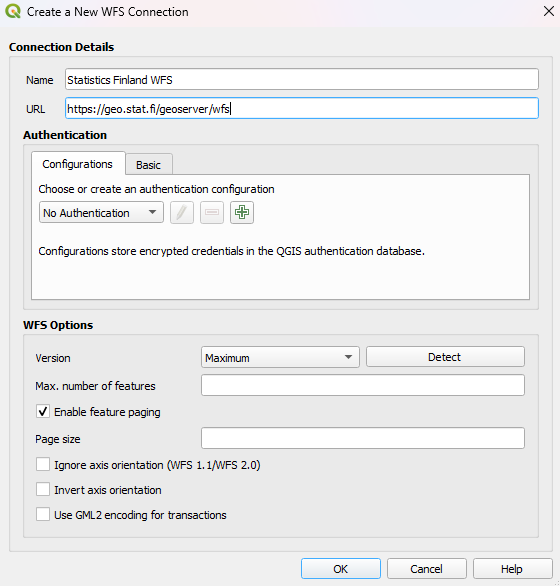
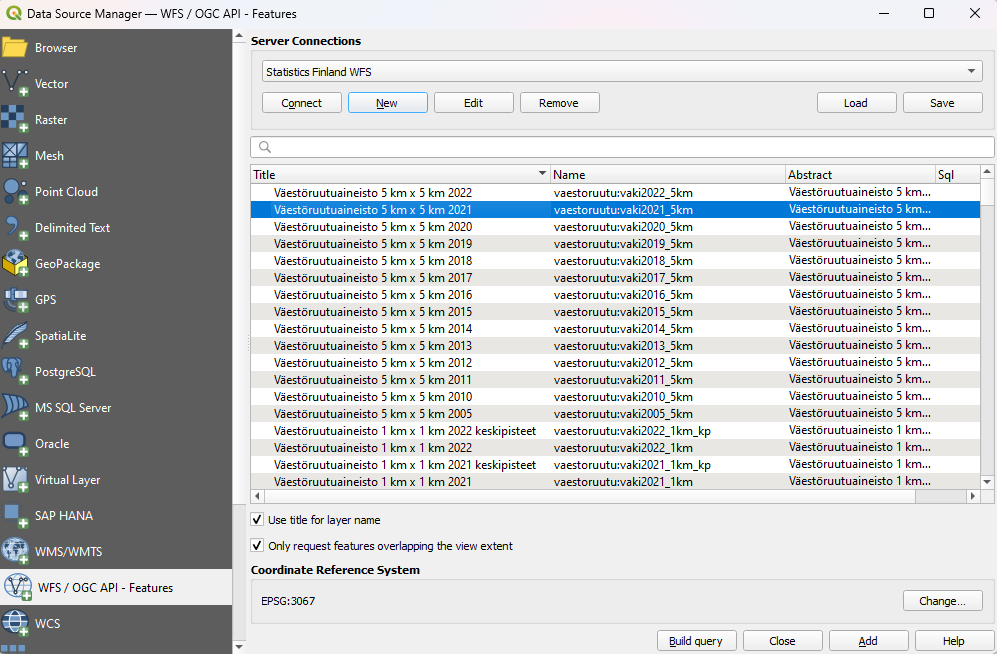
The available datasets should appear as a list. Now you can select the dataset you want to add to your project and click “Add”.
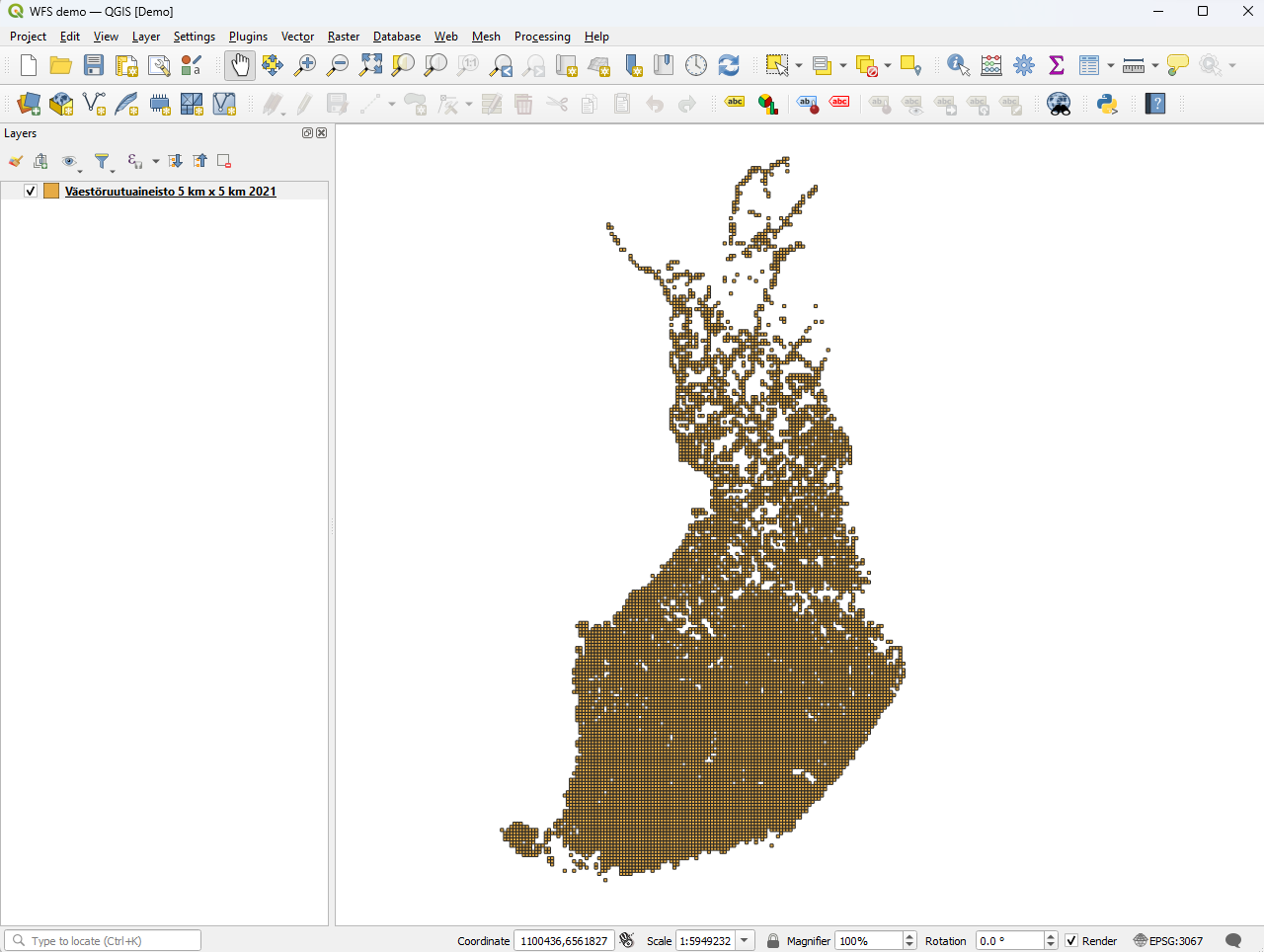
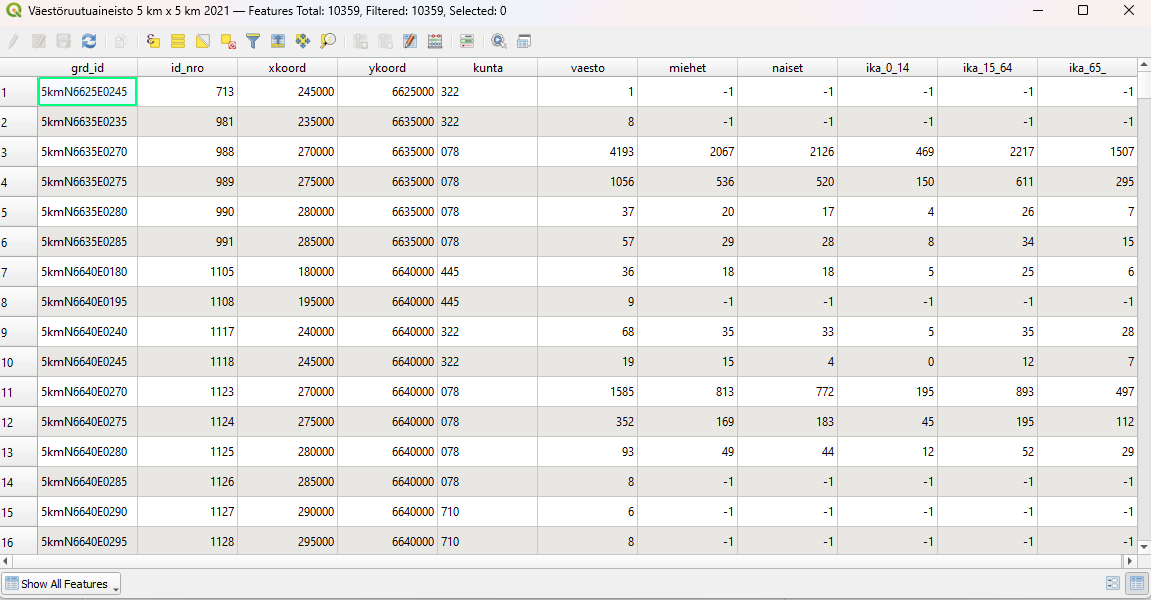
In this example, we added a population grid dataset for Finland in 2021, which now appears as a layer in the QGIS project.
By looking at the attribute table of the layer, we see that each 5×5 km cell has its own row with data included: coordinates, municipality code (kunta), population (vaesto), men (miehet), women (naiset) and population according to age groups (ika). This is the magic of WFS: so much data available for every feature!
Querying WFS with SQL from QGIS
Sometimes the datasets are very large and you only need certain parts of them. In these cases you can make a query to the WFS data already before loading it. This can save time and, later if you want to save the data locally, also disk capacity.
Let’s say that – in the Finnish population dataset – we are only interested to know where the hotspots of the population over 65 years of age are. We define a hotspot to be where there are over 1000 elderly people living in a 5×5 km statistical square. To do this, we select the dataset we’re interested to filter (query) and click on “Build query”.
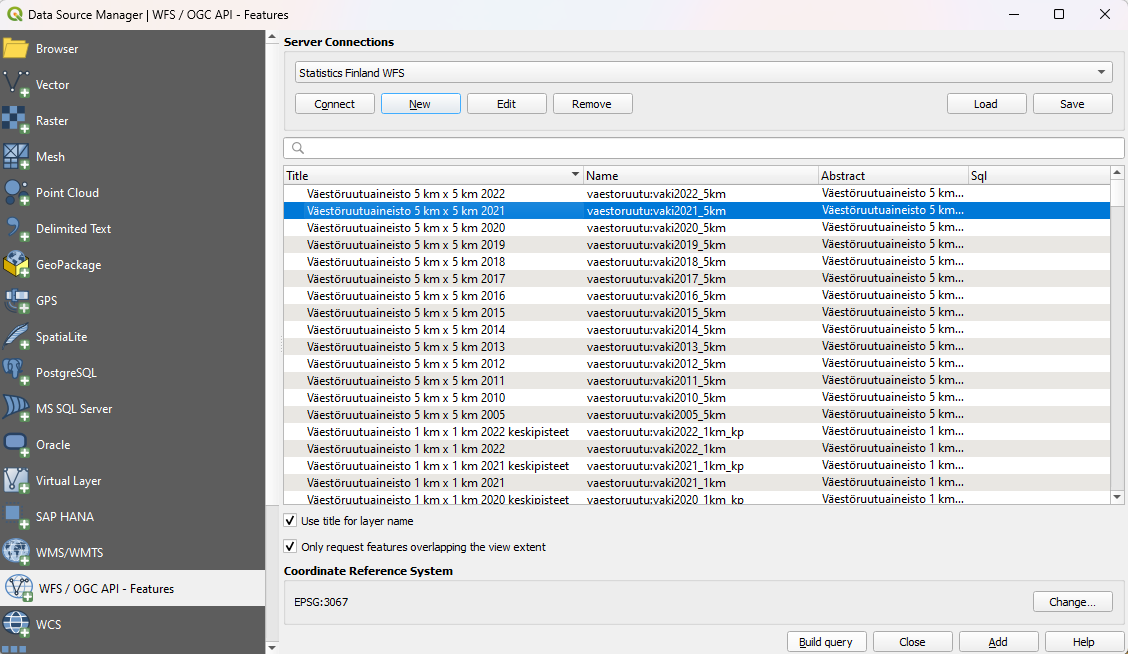
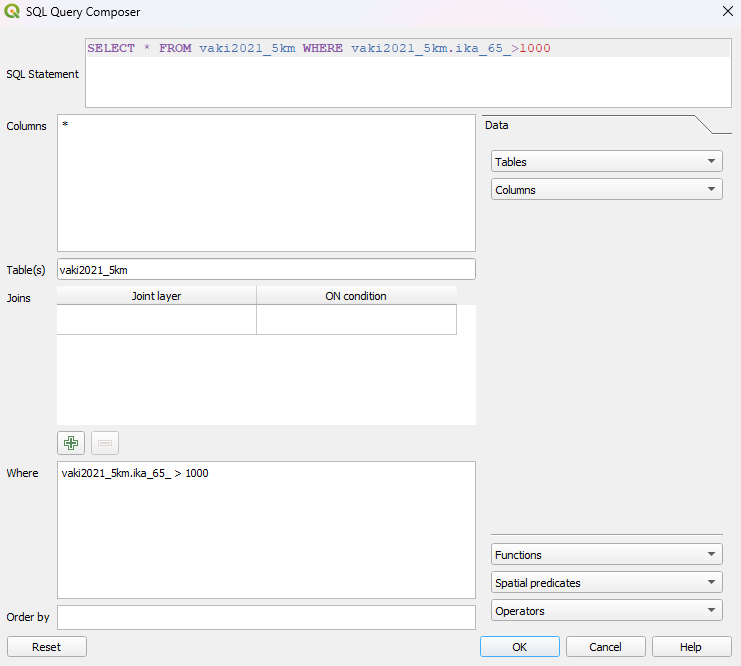
The SQL Query Composer opens and we can use it to filter the data according to our preference. The composer helps by providing e.g. the available columns in the datasets. It is also possible to make joins of different datasets using the composer. However, building a query does require a bit of SQL knowhow.
In our example we select all columns (SELECT *) from table vaki2021_5km and include rows fulfilling the condition that (WHERE) the population over 65 years is greater than 1000 (ika_65 > 1000). When we click OK, a new layer appears in the project with only the wanted data included.
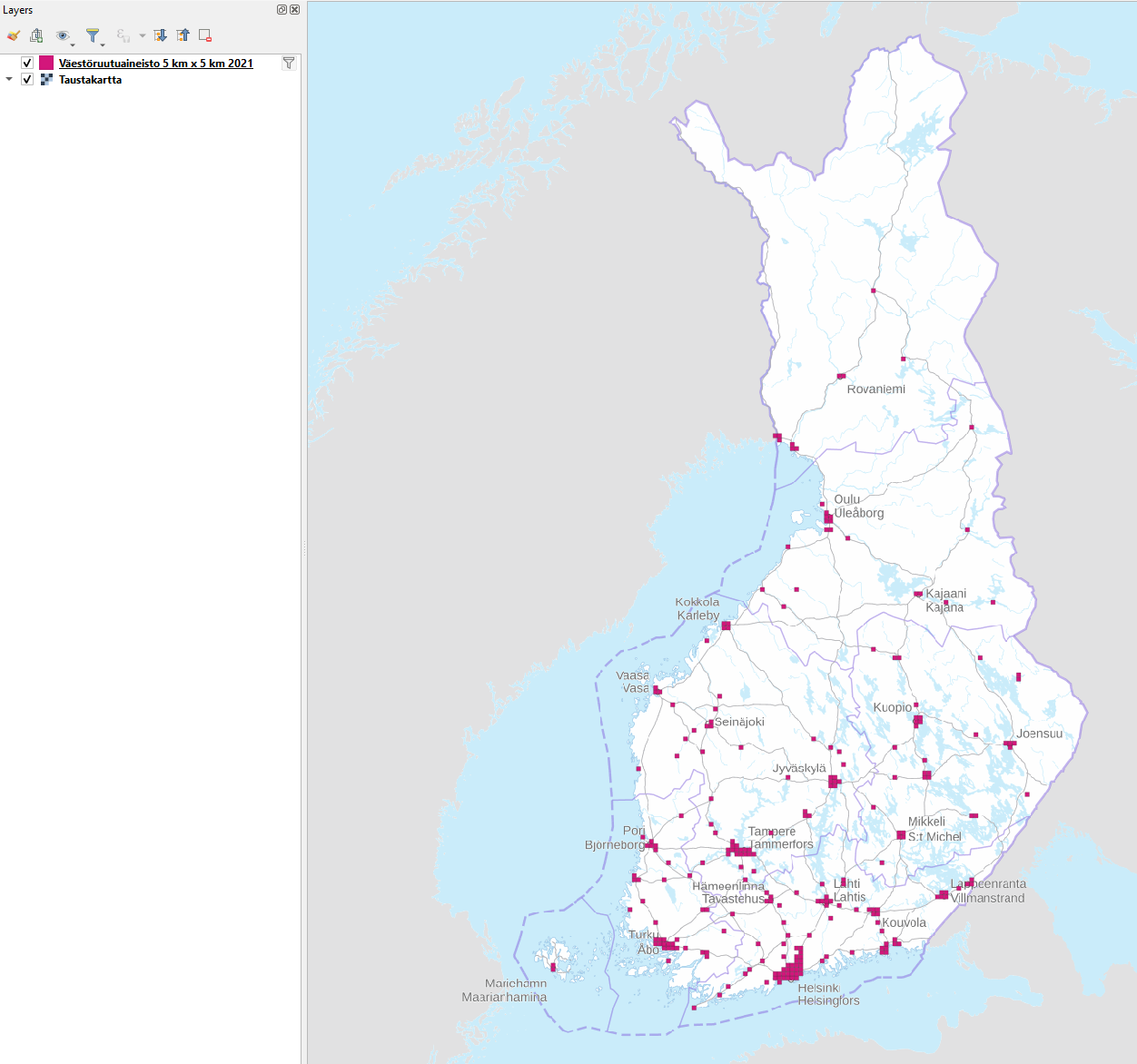
The data on the map does look different from when we loaded the full dataset (a background map was added to make it visually easier to read). If we change our mind about the query, it can be easily modified by clicking on the little funnel symbol which appears next to the filtered layer name in the Layers panel. This re-opens the Query Composer.
Save the WFS layer locally
If you want to make a local copy of the data loaded from the WFS, it can be done by exporting the WFS layer to a GeoPackage. This process requires some attention as you want to be sure not to accidentally export large amounts of useless data. Filtering by query (as described above) is a good way to start, but sometimes we can additionally limit the data by its geographic extent.
To only save the needed data, start by either zooming into the area you are interested in, or by selecting the features you want to save (from the WFS layer). Once you have done one of the two, click on the right mouse button over the layer name and click on “Export” > “Save features as…”.
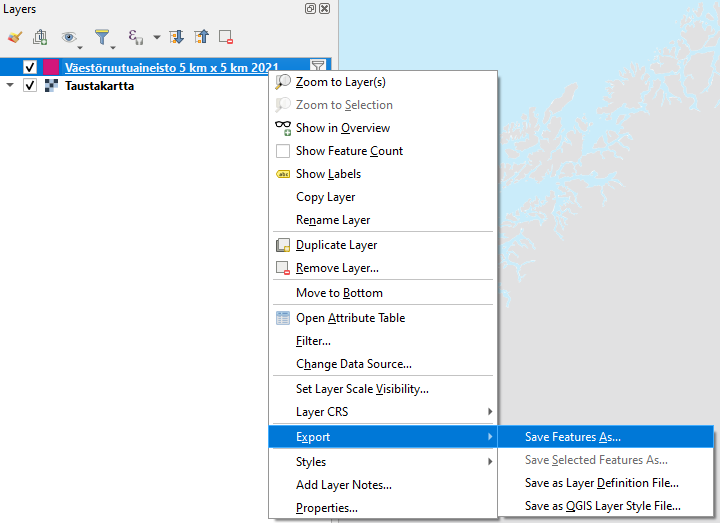
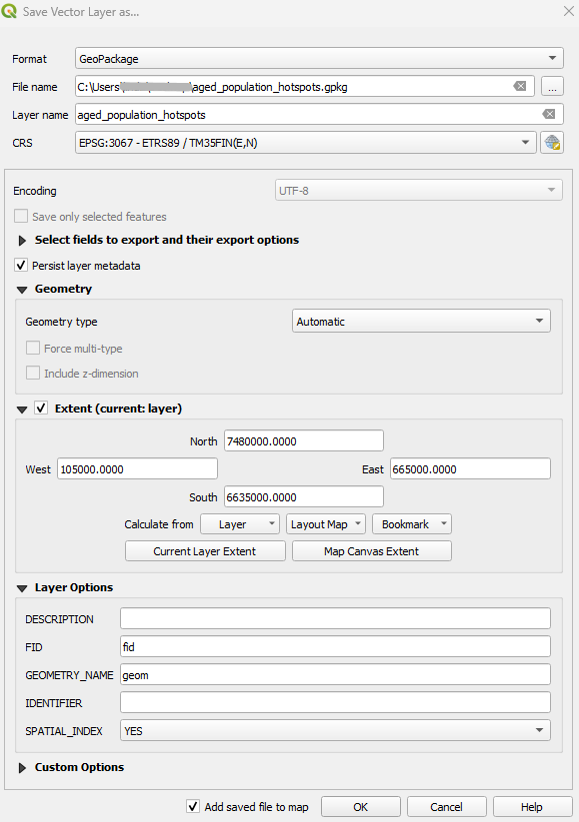
The best way to save the data is as GeoPackage. Give a name to the file (best done by clicking the button with three dots at the end of the text field and giving the full path). Also give a name to the layer and make sure that the coordinate system (CRS) is what it is supposed to be.
Then, especially when the WFS dataset you’re dealing with is large, the following is important! To filter out anything outside of our map view we tick the box “Extent” and click on “Map Canvas Extent”. This way you only save the relevant selection of the potentially very big amount of data available in the WFS dataset. However, if the dataset is small or if you just happen to need the whole dataset and don’t want to limit anything, then don’t worry about the extent.
Finally, if you want to add the layer to your map, tick the box “Add saved file to map” and then just OK.
Wow! Now you know how to connect to a WFS, how to filter out the data you need and how to save it locally in your own environment for further use. You’re ready to explore different Finnish (list by Gispo) and international (site by Spatineo) WFS sources to find some interesting data to play with.
If you want to dive into e.g. spatial analysis with QGIS or building your own database for geographic data, check our courses here!
This article is written by Linda Talve.
In short, any image is a raster. They can be produced in different ways, for example by computers, cameras or sensors. Here I’ll concentrate on rasters made by remote sensing: by satellite imaging, pictures taken by planes or drones. The sensor (in a camera for example) calculates different wavelengths radiating from the surface of the Earth, and this information in saved as a raster.
The well known divide in spatial data types is rasters and vectors. While vectors can be points, lines or areas, rasters are made of pixels. These pixels have some kind of coordinate information in them. This means that the image consists of these small (or bigger) squares called pixels that have some sort of value to them. In most cases we see them as colours. Pixel size varies from image to image and the smaller the size (the less area one pixel covers) the sharper the image is.
All the pixels have some kind of numerical value that typically refers to the brightness or intensity of the pixel.
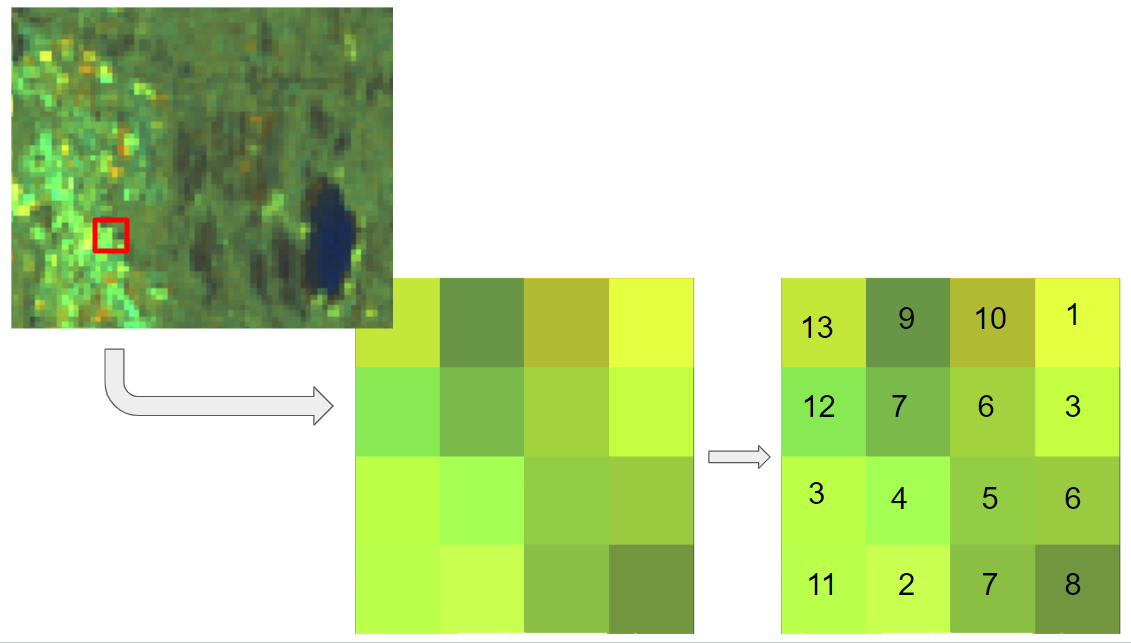
In spatial data rasters can hold a lot of information in large scales and they are good for visualising continuous data, for example vegetation or land cover. The downside is that they are quite a lot bigger in file size than vector files. The sharper the image (the smaller the pixel size) the larger the file is going to be.
Visualising multiband images
Satellite images usually consist of multiple different bands that measure different parts of the light spectrum. Different satellites measure different bands, for example in Landsat 8 there are 11 bands. These include for example normal red, green and blue bands and a few different infrared bands: near, shortwave and thermal. More on these in here. When visualising a satellite image we usually need three different bands to make the image: red, green and blue. This combination in this order makes what we see as normal looking image like this:
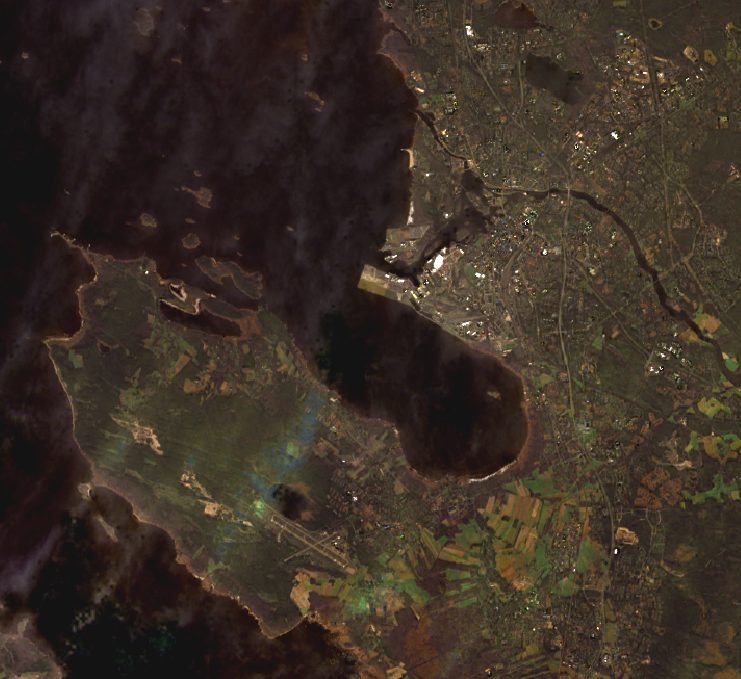
This satellite image is from Landsat 8, downloaded from Earth Explorer. Image is from June 2023 above Oulu, Finland. Here all the different areas, city, forests, fields and sea are visualised quite well. The white streaks in the image are clouds.
If we switch the order or the bands used in visualisation we end up with different kinds of images. For example that same image in two different combinations would look something like this:
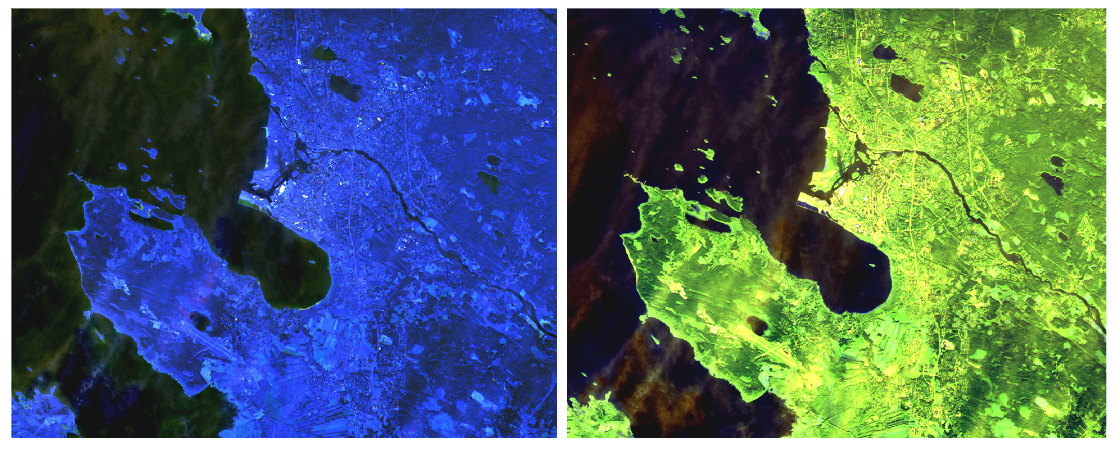
Different satellites have different sets of bands and the bands (more exactly their wavelengths) might differ a bit from satellite to satellite. NASAs Landsat satellites might be the most known but there are also European Space Agency’s (ESA) Sentinel satellites. These bands are images of specific wavelengths reflected from the surface of the Earth. All the bands have specific spectral coverages, for example in Landsat 8 and 9 bands 6 and 7 are targeting vegetation. With new sensors and satellites we’ll get more spectral coverage.

Well what’s the point with stacking different bands together?
Combining bands in a specific way can help you to visualise different things in the satellite image. For example if you have a Landsat 8 image and you want to see the vegetation more clearly. Using bands 6 for red, 5 for green and 4 for blue gets you a false colour image that is best for vegetation analysis!
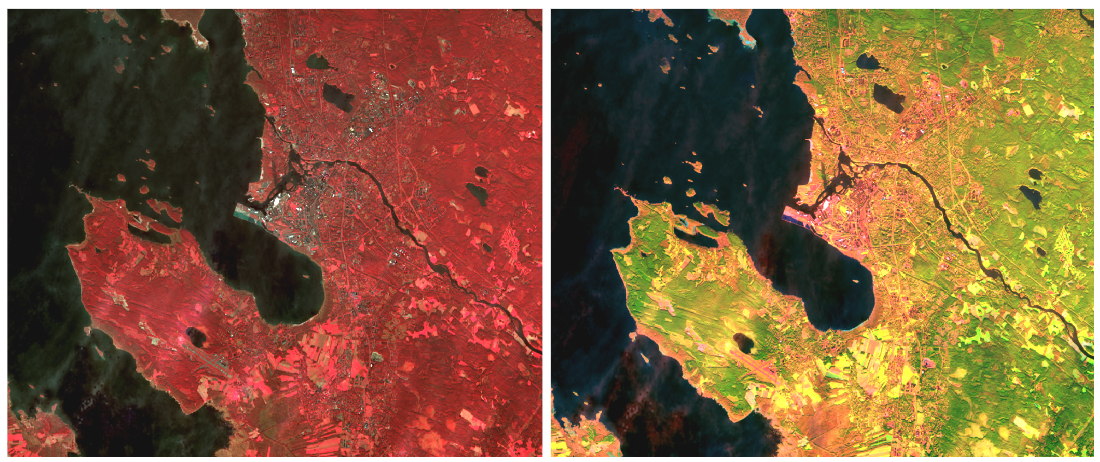
Here on the right is the previously mentioned false colour image for vegetation analysis and on the left there is colour infrared for urban using bands 5, 4 and 3.
With false colour for vegetation analysis we can see fields in different states of growth in different colours, swamps and maybe different kinds of forests. With the false colour for urban areas we can see the built areas highlighted.
There are many different ways to combine different bands to get different information out of the satellite image. Here are some examples with Landsat: https://www.usgs.gov/media/images/common-landsat-band-combinations
Along with visualisation helping with analysing your satellite images, there are many tools in QGIS and AI to help you to get the most information out of your satellite images!
In the next part of this raster series we will talk about Raster Analysis.
Contact us if you need help with working with your rasters!
Preface
We frequently get questions like “Can I use PostGIS from my ArcGIS software?” or “Is PostGIS compatible with ArcGIS solutions?”. If you like to have short and quick answer, you can pick any from the options below:
A) No
B) Yes
C) It depends
D) It is complicated
Options A and B are very straightforward answers, probably the answer is coming from people who like to simplify your question and move forward. Option C is more like “What is your real problem?” -question. Option D comes from senior GIS experts, who have seen the rise and fall of Avenue, ArcStorm and other historical GIS tools.
What is the truth? Well, it depends and it is complicated. However, you can find a lot of discussion about this subject in various mailing listings and blog posts. Why do I need to write another blog post about this very controversial subject? People need help and our company’s main target is helping people.
Disclaimer: quite many people recommend that you shouldn’t write this blog post. Main reasons are legal and technical issues. Legal issues: you can’t handle without lawyers and they usually just recommend something. All technology related items have been collected from open sources and I have tried to add links, so you can find more information about. If there are any errors, those are mine. Please let me know if you find any inaccuracies or errors, I will update the blog as soon as possible.
Two options to connect ArcGIS to PostGIS
Roughly speaking there are two (2) options to choose from:
- You can register existing PostGIS vector layers as read-only layers to ArcGIS
- You can create ESRI Enterprise Geodatabase to PostGIS
Registering existing tables from PostGIS to ArcGIS, you edit and update layers from QGIS, Geoserver, SQL application or other PostGIS compatible softwares. However, there is some limitations for those tables which can limit your data models:
- Only one (1) spatial column per table
- No columns with user-defined types
Other limitations are quite easy to handle, if you are following best practices in spatial data modelling: each table has to have a unique identifier (like primary key) and tables should have spatial index.
Creating an ESRI Enterprise Geodatabase is a very complicated task. If you like to choose this path, you better read documentation very carefully, be sure that you have enough software licences and understand that editing of Enterprise Geodatabase is only possible with ArcGIS software. In some cases, it is possible to read Enterprise Geodatabase with Open Source software.
Why is the Enterprise Geodatabase so complicated? History of the Enterprise Geodatabases start from 1990’s: ArcSDE technology was purchased by Esri in 1996 and then they re-develop it to a “database independent spatial database”. At this time, you can use Oracle, Microsoft SQL, IBM DB2, PostgreSQL (with or without PostGIS) and other databases behind the Enterprise Geodatabase. It seems that it is possible to edit and maintain Enterprise Geodatabases with SQL, but it is recommended that you use only ArcGIS software to maintain Enterprise Geodatabases, whatever database you are using behind it.
Conclusions
So, here are my conclusions about short and quick answers for questions like “Can I use PostGIS from my ArcGIS software?” or “Is PostGIS compatible with ArcGIS solutions?”:
| No | If you like to edit a pure PostGIS database, you can’t do it with ArcGIS. |
| Yes | You can register PostGIS tables as read-only layers to ArcGIS or you can create Esri Enterprise Geodatabase to PostGIS. |
| It depends | If you like to edit and maintain a pure PostGIS database with various software, ArcGIS is not giving you any benefits.However, if you are already in a vendor-lock situation, the PostGIS database can give you some possibilities to open up your spatial database to other uses. |
| It is complicated | Connecting ArcGIS to PostGIS is not really a technical question. It is more a business question: how many more years your organisation would like to be in a vendor-lock situation or are you already ready to take leverage of Open Source software and freedom of the action? It is perfectly ok for private companies and private persons to make independent decisions on how to spend their money, but when you use other people’s money (aka work in the public sector) you have to carefully study the best affordable solution for your geospatial challenges. What is stopping you from taking the first step today? |
If you need help, please reserve a free consultation hour from here.
Some materials into to the topic for those interested:
ArcGIS Desktop documentation
SQL access to enterprise geodatabase data
An overview of geodatabase system tables
System tables of a geodatabase in PostgreSQL
Presentation: Accessing your Enterprise Geodatabase using SQL
ArcGIS Enterprise
ArcGIS 11.2 and ArcGIS Pro 3.2 requirements for PostgreSQL
Executing SQL using a connection to an enterprise geodatabase
Other blogs
Esri enterprise geodatabase and PostGIS database
A couple of weeks back I got to represent Gispo at the FOSS4G-NA Baltimore 2023, a conference that brought together diverse perspectives and showcased new developments in the field of open-source geospatial technology. Each presentation, workshop, and informal gathering at the conference served as a showcase for the current state of geospatial technology and the evolving dynamics of our community. This was my first NA-version of FOSS4G, an experience one might preemptively think of as ‘just another regional FOSS4G,’ but it proved to be anything but.

The landscape of open-source geospatial software is ever evolving, with cloud-native geospatial technologies, among others, transitioning from emerging concepts to practical, implemented solutions—as notably seen in Baltimore. This progression is characterized by the increased use of advanced data formats and infrastructures that enhance analytical capabilities and improve the efficiency of data management practices.
Furthermore, a significant theme at the conference was the sustainability of our community. In his keynote, Paul Ramsey underscored the urgent need for a more sustainable approach to maintaining the open-source geospatial software packages that our societies rely on so heavily. He pointed out that we have yet to secure the ongoing financial support for the software maintenance, let alone the innovation necessary for developing new features.
Advancements in Cloud-Native Geospatial Technologies
Cloud-Native Spatial Data Infrastructure was presented as part of the Keynote from Chris Holmes. In short, a cloud-native spatial data infrastructure is centered around using cloud resources and technologies to store, manage, and access geospatial data in a way that is cost-effective, scalable, and user-friendly. It simplifies data publishing, reduces the need for complex server setups, and aims to bring the power of geospatial data to a broader audience, by making it accessible in cloud-native formats.
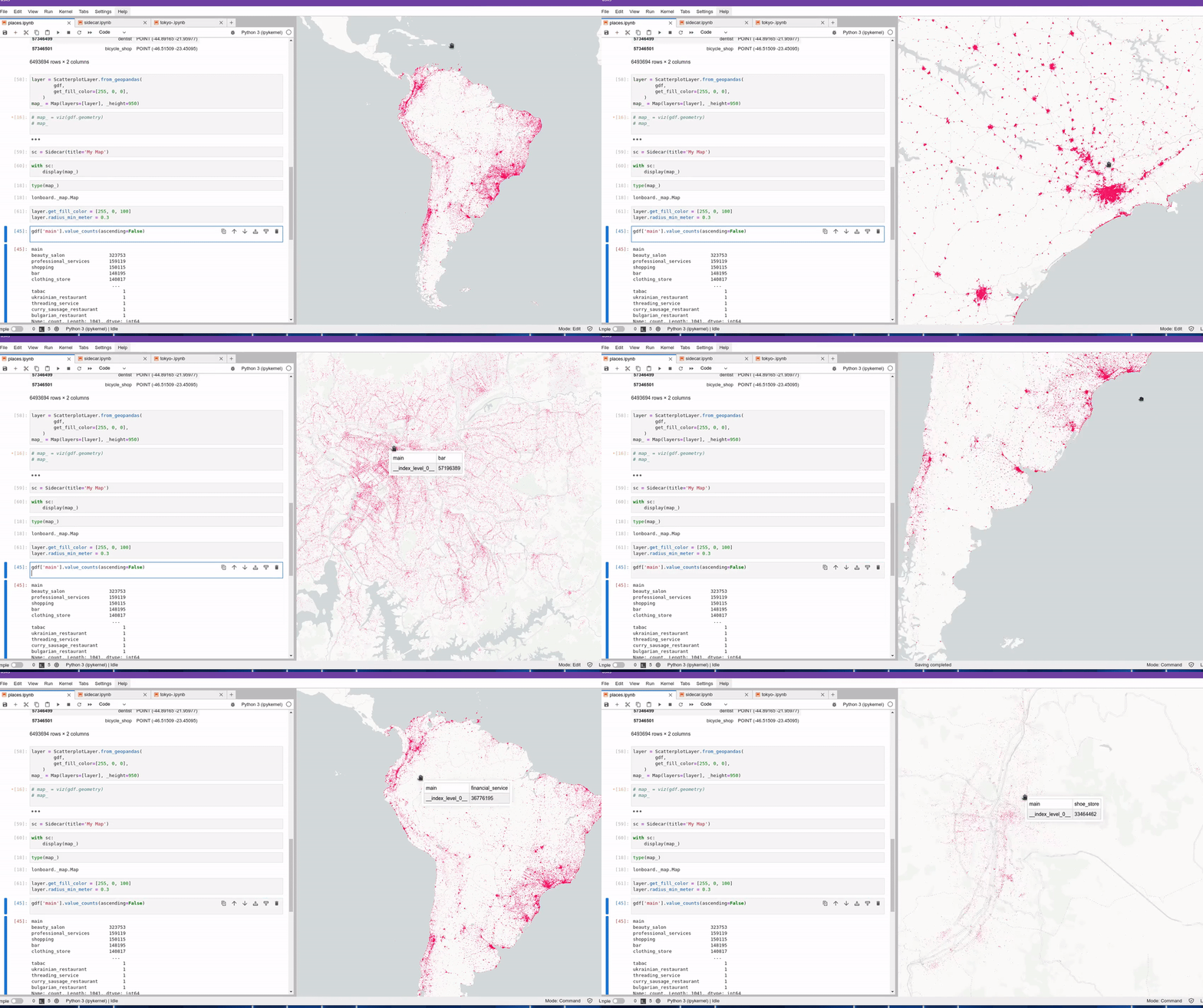
The conference centered on this pivotal theme across numerous presentations. There were presentations that delved into the capabilities of e.g. GeoParquet for vector data, explored the efficiency of PMTiles for vector tiles (in addition to other tiled data), and examined the utility of COPC for point cloud storage. These discussions are highly relevant to our mission at Gispo. We are eager to harness these advanced data formats and integrate them into our customers’ workflows, thereby enhancing their geospatial capabilities and enabling a more sophisticated use of geospatial data.
Gispo Ltd.’s Contribution: Full-House Workshop and Presentation
At Gispo Ltd., our goal is to contribute to the ongoing evolution of the geospatial industry. The high attendance at our workshop and presentation indicates a great interest in the practical application of FOSS4G technologies for Enterprise GIS systems. We remain focused on supporting this interest by providing expertise in the implementation of open-source geospatial tools.

Our workshop and presentation were designed to provide practical insights into enterprise-level OLTP (Online Transaction Processing) systems, showcasing how PostGIS can serve as a robust backend while QGIS functions as an intuitive user interface for comprehensive data management. Given the presence of numerous core developers at the conference, the extensive focus on PostGIS was to be expected.
A Personal Take: FOSS4G-NA vs. Global Perspectives
At FOSS4G-NA Baltimore 2023, there was a tangible shift in the technological tide with cloud-native technologies and formats taking center stage, a progression from what was observed at FOSS4G Prizren earlier in the year. This shift underscores a growing recognition within the community of the importance of scalable, flexible infrastructure that can accommodate the increasing volume and complexity of geospatial data. Furthermore, presentations in Baltimore were notably data-intensive, signaling that ‘big data’ isn’t just a buzzword in our field but a substantial focus for innovation.
In addition to the thematic focus points, another difference I noted was the narrative surrounding ESRI vs FOSS4G. From my observations, the contrast between proprietary and open-source geospatial solutions appears less emphasized in European discourse, yet it remains a notable topic of discussion in this North American forum.
Call to Action: Strengthening Our Community Together
In light of the discussions at FOSS4G-NA, there is a recognized need to address the financial sustainability of the open-source geospatial software community. Paul Ramsey’s keynote underscored the fundamental role that open-source technologies play in the infrastructure of contemporary society. Far from being mere instruments for development, these technologies constitute the groundwork for forward-thinking, transparent, and fair innovation worldwide. However, there is a marked disparity between the huge value these foundational technologies provide and the financial models currently supporting them.
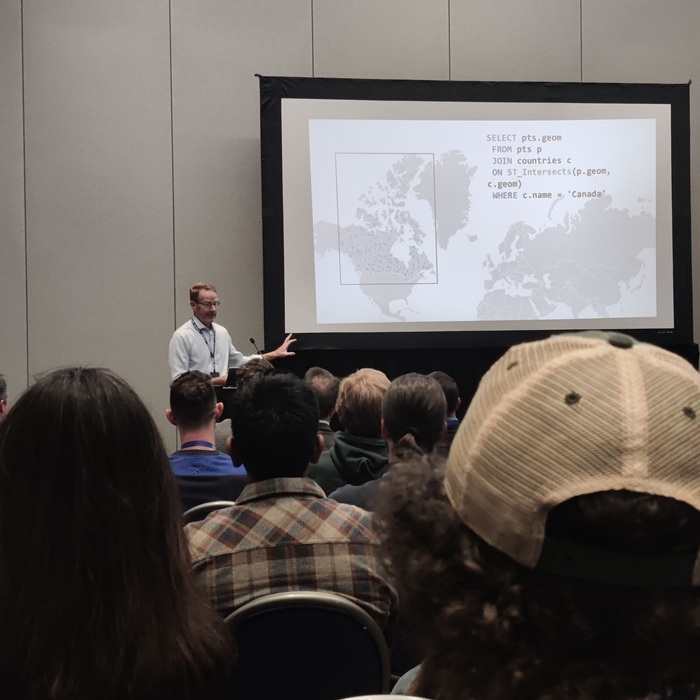
Furthermore, Vicky Vergara’s keynote underlined a pivotal message: the leadership of open source geospatial technology rests in our hands. There is no external entity solely responsible for guiding its evolution. It is a collective endeavor that requires active participation and investment from all sectors.
Therefore, we as well encourage government bodies, businesses, and research institutions to actively engage in creating sustainable financial models for open source geospatial technology. By pooling our resources and expertise, we can forge a path that ensures the vitality and continued success of the FOSS4G community. We at Gispo Ltd. are committed to this collaboration and call on partners across industries to join us in this essential effort to sustain and advance the open source technologies that serve as pillars of our society.
Conclusion: Forward Together with Open Source Geospatial
While navigating the economics of open source presents its challenges, it’s clear that the collective rewards are substantial. The value and global impact of FOSS4G technologies cannot be overstated, particularly when innovation is crucial for tackling the pressing challenges our planet faces.
A prime example of the FOSS4G-community’s swift innovation was showcased at Baltimore. First, ‘lonboard’ package ( Kyle Barron as the main developer) is published in Baltimore, then Qiusheng Wu integrates Lonboard to Leafmap mere weeks after its introduction in Baltimore. The uprising of lonboard as well as the rapid adaptation to another python package is a powerful demonstration of the open-source community’s drive and efficiency. It’s an inspiring cycle of knowledge sharing and immediate action that propels the entire industry forward.
At Gispo Ltd., we take inspiration from such dynamism and are committed to embodying this spirit of innovation in our collaborations with clients. Our aim is to harness this collective expertise, ensuring that our partnerships not only benefit from the latest open-source advancements but also contribute to the continuous evolution of the geospatial field.

Machine learning (ML) is a subfield of Artificial Intelligence (AI) in which computers are utilized to learn from data without being explicitly told what to do. In practice, ML methods are used for solving problems that might be impractical for humans due to time or resource constraints.
ML approaches are divided into three main categories: supervised, unsupervised and reinforcement learning. In supervised learning, models are trained on labeled datasets, learning to map inputs to corresponding outputs. This enables accurate predictions on new, unseen, but similar data. Supervised learning is used for instance in email filtering (junk mail). In contrast, unsupervised learning involves models learning on their own, finding patterns, relationships or structures in the data. Typical examples of unsupervised learning techniques are some clustering algorithms, such as K-Means clustering. Finally, reinforcement learning is a type of ML where models receive feedback on interactions with their environment aiming to learn a policy guiding actions towards specific objectives. Reinforcement learning can be utilized in e.g. recommendation systems.
OpenAI’s chatbot, ChatGPT, is a good example of a widely popular AI application. It is based on foundation models GPT-3.5 and GPT-4, fine-tuned using both supervised and reinforcement learning. Foundation models are large scale ML models pre-trained on a large quantity of data. “Pre-trained” is pivotal here; finding a suitable dataset or creating one from scratch can be very time and resource consuming, let alone training the model. Since the heavy lifting is already done, users can focus on fine-tuning the model for more specific downstream tasks.
In the realm of open source GIS, NASA and IBM have just released (August 2023) a geospatial AI foundation model for Earth observations called Prithvi. It is trained with NASA’s Harmonised Landsat Sentinel 2 satellite data and unlike most remote sensing models, it can handle time series of images. The model can be fine-tuned for tasks such as burn scars segmentation or land cover classification. There are a few demos to try here. Just to show an example, here’s how Prithvi can be used for flood segmentation:
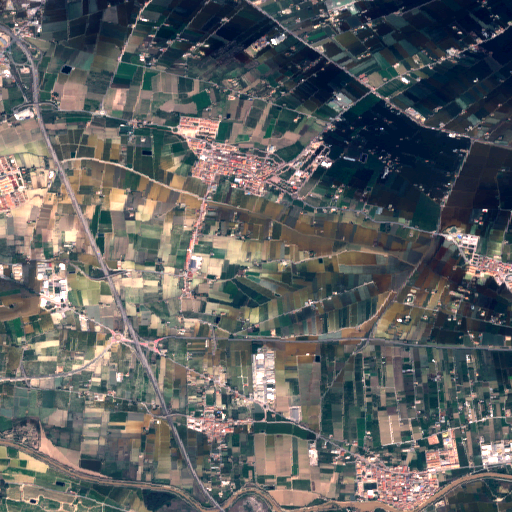
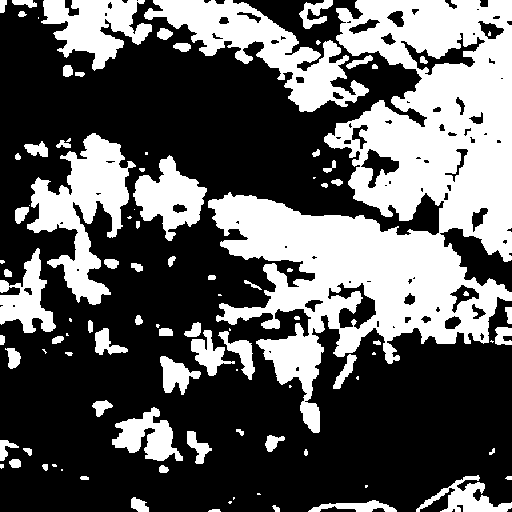
The second picture is the model prediction on the input raster (the first) where white area is water while black is land. Images downloaded from https://huggingface.co/spaces/ibm-nasa-geospatial/Prithvi-100M-sen1floods11-demo.
Another example of recently released (April 2023) open source foundation model is Meta’s Segment Anything Model (SAM) which can be used for image segmentation. SAM can be utilized for segmenting geospatial data, for instance, with a Python package segment-geospatial. There is also a QGIS plugin Geometric Attributes that uses the said package. The plugin can be used to calculate the centerline, width, deviation, shape and adjacency of polygons, and to segment geospatial data. However, the segmentation process is quite slow in the plugin (at least it was for me), so I’d recommend using segment-geospatial directly and then QGIS for viewing the result. You can check the plugin and some examples here.
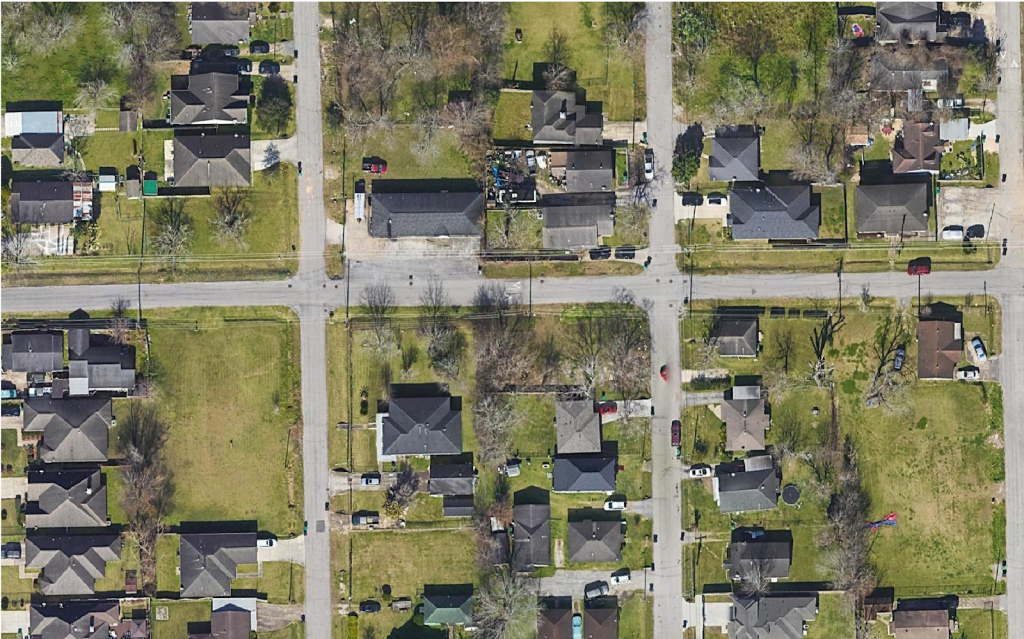
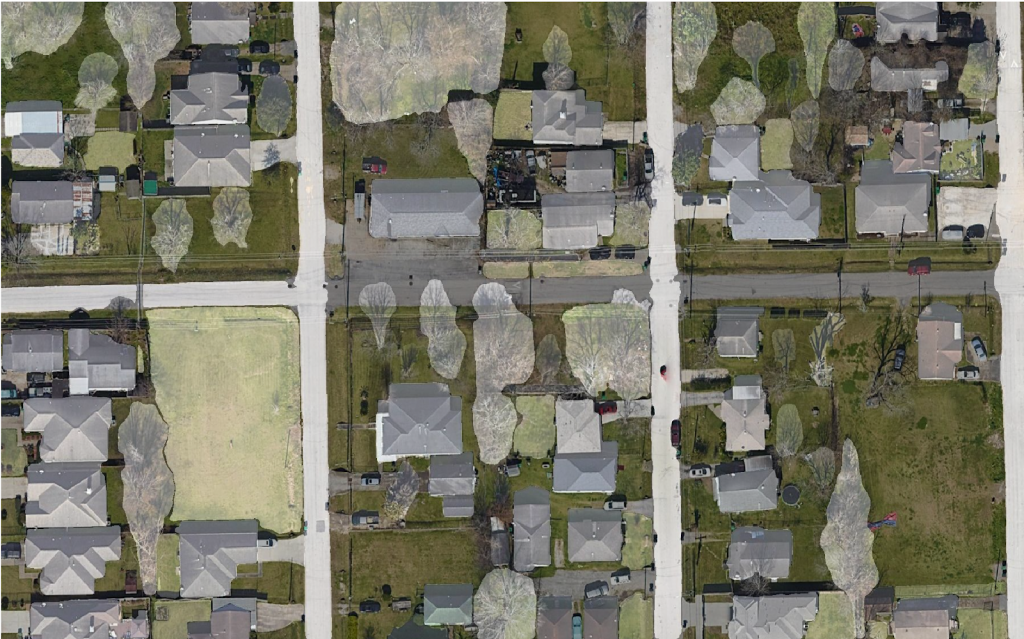
The result of raster segmentation using segment-geospatial Python package.
With the recent developments in AI foundation models, progress has been made in harnessing their power to address geospatial challenges. AI foundation models are becoming useful tools, simplifying the application of machine learning techniques to a wide range of tasks. These advancements hold promise for enhancing geospatial analysis in the future.
This article was written by Mika Sorvoja.