

In this guide we’ll set up a full working QGIS plugin development environment for VS Code on Windows.
This setup supports:
- Autocompletion for qgis and pyqt libraries
- Runtime debugging
- Tests
- VS Code test integration
- Test coverage
- Test debugging
- Linting and formatting
If you are developing a public QGIS plugin I recommend using QGIS Long term release for development and having that as a minimum QGIS version requirement.
This setup should work with “Standalone installer for long term release (continued with dependencies from old OSGeo4W)” and QGIS installed with “Long-term release in old OSGeo4W (continued with previous dependencies)”. The current installer also known as the new OSGeo4W V2 installer is not supported by this setup yet since at the time of the writing there are some issues with how python 3.9 is handling dll loading.
In this tutorial we’ll set up a development environment to work with the following project structure:
🗁 my-qgis-plugin
 ┣ 🗋.git
 ┣ 🗁 myqgisplugin
 ┃ ┣ 🗋metadata.txt
 ┃ ┣ 🗋plugin.py
 ┃ ┗ 🗋__init__.py
 ┣ 🗁tests
 ┃ ┣ 🗋test_plugin.py
 ┣ 🗋.gitignore
 ┣ 🗋LICENSE
 ┣ 🗋README.md
 ┣ 🗋requirements-dev.txt
 ┗ 🗋pyproject.toml
Creating new sample plugin
Create new plugin using cookiecutter-qgis-plugin template.
- Make sure you have git installed
- Install cookiecutter into some (virtual) python environment (you can create one just for cookiecutter)
>\bin\python-qgis-ltr.bat -m venv .venv > .venv\scripts\activate (.venv) > python -m pip install -U pip (.venv) > pip install cookiecutter
- The python-qgis-ltr.bat messes up with the environment (git is not in the path anymore), so it is a good idea to restart the command prompt at this point
- Create a new plugin and answer the questions as you wish
> cookiecutter https://github.com/GispoCoding/cookiecutter-qgis-plugin
VS Code startup
Right-click the plugin directory created in previous step and click Open with Code. If you don’t have the Python extension installed, install it at this point.
Setting up a virtual python environment
We’ll use a virtual python environment to install all our development tools and packages so those don’t interfere with the QGIS environment.
First add all the paths containing dll files inside QGIS installation directory to the user’s PATH environment variable.
<QGIS-INSTALLATION-FOLDER\>\bin<QGIS-INSTALLATION-FOLDER\>\apps\qgis-ltr\bin<QGIS-INSTALLATION-FOLDER\>\apps\Qt5\bin
With command prompt create a virtual python environment and save path to QGIS python libraries as .pth file by giving a commands:
# Navigate to the plugin folder > cd my-qgis-plugin >\bin\python-qgis-ltr.bat -m venv --system-site-packages .venv > \bin\python-qgis-ltr.bat -c "import pathlib;import qgis;print(str((pathlib.Path(qgis.__file__)/'../..').resolve()))" > .venv\qgis.pth
If you are running PowerShell, make sure to change the encoding of the .venv\qgis.pth from
UTF-16 LEtoUTF-8.
Now with a different command prompt window activate the virtual python environment and upgrade pip by giving a commands:
> .venv\scripts\activate
(.venv) > python -m pip install -U pip
If you are running PowerShell and get an error about
Activate.ps1 cannot be loaded because running scripts is disabled on this system, you can run the following line and then try again: Set-ExecutionPolicy RemoteSigned -Scope CurrentUser
Set that just created environment as a Python Interpreter for this project.Ctrl+Shift+P -> “Python: Select Interpreter”
If the .venv interpreter is not showing in the list use “Enter interpreter path” > “Find” and browse for .venv/Scripts/python.exe.
Install recommended development tools
With the virtual python environment activated install the recommended development tools.
(.venv) > pip install pytest pytest-qgis pytest-cov flake8 flake8-qgis black isort
| Tool | Purpose |
|---|---|
| pytest | Test framework |
| pytest-qgis | pytest plugin for making it easier to write QGIS plugin tests |
| pytest-cov | Test coverage tool with pyproject.toml configuration support |
| flake8 | Linting support |
| flake8-qgis | Linting support for PyQGIS specific code |
| black | Python code formatter |
| isort | Sorts imports automatically as recommended |
You can also automate the linting and formatting to happen before committing via pre-commit tool. It can be installed with:
(.venv) > pip install pre-commit
(.venv) > pre-commit install
It will automatically download the linting and formatting tools (configured in .pre-commit-config.yaml) and run those before each commit.
pytest config
You could configure pytest and coverage further by giving configurations in pyproject.toml file. For example:
# pyproject.toml
[tool.pytest.ini_options]
addopts = "-v --tb=short --cov=myqgisplugin"
testpaths = [
    "tests"
]

[tool.coverage.run]
omit="myqgisplugin/somepackage/*"
flake8 configuration
We must set up few settings for flake8 so it is black compatible. Flake8 doesn’t yet support pyproject.toml so we must use its own .flake8 configuration file.
# .flake8
max-line-length = 88
extend-ignore =
    E203
isort configuration
For isort to be black compatible we must set up it to use black profile.
# pyproject.toml
[tool.isort]
# Black compatible values for isort https://black.readthedocs.io/en/stable/compatible_configs.html#isort
profile = "black"
multi_line_output = 3
Project Settings
Paste the following settings to the workspace settings file: ./.vscode/settings.json.
{
    "python.languageServer": "Jedi",
    "python.linting.enabled": false,
    "python.linting.flake8Enabled": true,
    "python.formatting.provider": "black",
    "editor.formatOnSave": true,
    "[python]": {
        "editor.codeActionsOnSave": {
            "source.organizeImports": true
        }
    },
    "python.testing.unittestEnabled": false,
    "python.testing.nosetestsEnabled": false,
    "python.testing.pytestEnabled": true,
    "files.associations": {
        "metadata.txt": "ini"
    }
}
Note 1: Currently the only one language server supporting autocompletion for qgis and PyQt5 libraries is the
Jedilanguage server. Qgis and PyQt5 packages are using compiled python code and other language servers are having troubles parsing the API from those libraries (Actually this is for security reasons).
In the following QGIS releases python stub files that describes the API are included in theqgispackage so also much betterPylancelanguage server can be then used. If you have*.pyifiles inC:/OSGeo4W64/apps/qgis-ltr/python/qgisgo with thePylancelanguage server.
Note 2: If you choose to
add the vscode configin Cookiecutter template a./myqgisplugin.code-workspacefile will be created to the root. You can use it instead of manually copying the settings.
Testing
With the above settings VS Code should be able to discover your tests automatically.
Deploying the plugin
The main plugin lies in the myqgisplugin directory (name differs if you chose a different name in cookiecutter). To make the plugin available for QGIS, it has to has access to that directory (or copy of it).
1) Copying the plugin manually You can copy the directory manually to C:/Users//AppData/Roaming/QGIS/QGIS3/profiles/default/python/plugins everytime you do changes and then install / reload the plugin with QGIS. You can also utilize tools like qgis_plugin_tools or pb_tool to accomplish this in a easier way.
3) Using symbolic link With symbolic links you can achieve the same result of having the code in QGIS plugin folder but you don’t have to worry about doing the copying again each time you change the code. There is a huge risk though of losing your code if you uninstall the plugin by accident.
2) Modifying QGIS_PLUGINPATH Other alternative is to modify the environment variable QGIS_PLUGINPATH to make QGIS search the plugins from different directories. This way you can have QGIS find the plugin straight from your development environment. As with the upper method, there is a hugre risk of losing your code if you uninstall the plugin.
Starting the plugin
Now that the plugin is deployed, it can be started by installing it from QGIS Plugins > Manage and Install Plugins.

To use the plugin, just open the Python console first and the click Plugins > MyQGISPlugin > MyQGISPlugin and a friendly text should be printed at the bottom of the console.

Debugging
With VS Code debugging works so that you should start a debugging server on QGIS side and then attach to it in VS Code.
There are two alternative ways to start the debugging server on QGIS. Either use a Debugvs -plugin or add a small code snippet to your plugin code.
1) Debugvs plugin
Install the Debugvs plugin from QGIS plugin repository. Debugvs needs a ptvsd python package available so install it first.
In your Osgeo4W Shell (C:\OSGeo4W64\OSGeo4W.bat).
> py3_env
> python3 -m pip install ptvsd
If you get an error that you don’t have module pip then install it first by downloading get-pip.py and executing it with python3 get-pip.py
ptvsd is though now deprecated project and the recommended debugging library is now debugpy. There are not yet any QGIS plugin for debugpy.
2) Code snippet in plugin code
This method is using the new debugpy library.
In your Osgeo4W Shell (C:\OSGeo4W64\OSGeo4W.bat).
> py3_env
> python3 -m pip install debugpy
Insert the following code in to the __init__.py file of your plugin’s main package (if you are using qgis_plugin_tools)
Note: If you are using qgis_plugin_tools, you don’t have to insert the following code, just add the following environment variable to enable debugging:
QGIS_PLUGIN_USE_DEBUGGER=debugpy.
import os
import shutil

if os.environ.get("QGIS_DEBUGPY_HAS_LOADED"):
    try:
        import debugpy
        debugpy.configure(python=shutil.which("python"))
        debugpy.listen(('localhost', 5678))
    except Exception as e:
        print("Unable to create debugpy debugger: {}".format(e))
    else:
        os.environ["QGIS_DEBUGPY_HAS_LOADED"] = "1"
Debug launch configuration
To launch the debugging, create the following launch configuration in file ./.vscode/launch.json.
{
    // Use IntelliSense to learn about possible attributes.
    // Hover to view descriptions of existing attributes.
    // For more information, visit: https://go.microsoft.com/fwlink/?linkid=830387
    "version": "0.2.0",
    "configurations": [
        {
            "name": "Python: Remote Attach",
            "type": "python",
            "request": "attach",
            "connect": {
                "host": "localhost",
                "port": 5678
            },
            "pathMappings": [
                {
                    "localRoot": "${workspaceFolder}/myqgisplugin",
                    "remoteRoot": "C:/Users/${env:USERNAME}/AppData/Roaming/QGIS/QGIS3/profiles/default/python/plugins/myqgisplugin"
                }
            ],
            "justMyCode": false,
        },
        {
            "name": "Debug Tests",
            "type": "python",
            "request": "test",
            "console": "integratedTerminal",
            "justMyCode": false,
            "env": {
                "PYTEST_ADDOPTS": "--no-cov"
            }
        }
    ]
}
The first configuration is for attaching to the debugging server running on QGIS side.
The second makes sure that tests can be debugged in VS Code even if using testing coverage.
Note: Cookiecutter’s
./myqgisplugin.code-workspacefile also has these configurations set if you choose to include vs code configs.
To start the debugging:
- Start QGIS
- Launch the
Python: Remote Attachlaunch configuration - Put some breakpoints and start the plugin from QGIS
Recommended VS Code extensions
- EditorConfig for VS Code
Everyone who has been sending data from one user to another and sharing it between applications knows that there is always a lot of friction involved. Some questions are always a pain to answer. Who created this? When was this updated? How is the data licensed?
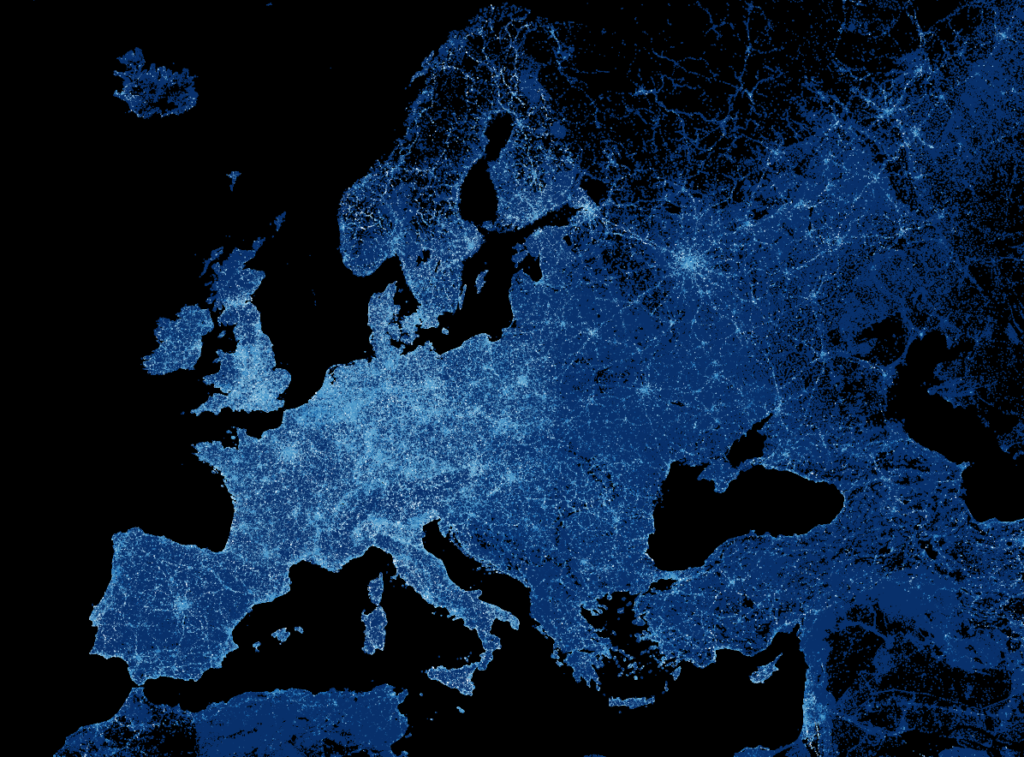
Frictionless is an open-source toolkit that aims to bring simplicity to data flows and answers these questions. Containerization has been a growing trend in software development already for several years and Frictionless Data Packages aim to bring the same approach to data.
A Data Package is a simple container format used to describe and package a collection of data. The container comes with the metadata and the actual dataset (or URL/POSIX path). A Data Package can contain any kind of data. At the same time, Data Packages can be specialized and enriched for specific types of data. The idea of Frictionless data has already been around for some time and the full Data Package spec was written in 2017 but especially in the geospatial field it is still very rare to see Data Packages.
For QGIS users it is good to note that despite the name, Data Package is not the same thing as GeoPackage. But just like GeoPackages, now it is possible to create Frictionless Data Packages with QGIS.
Spatial Data Packages with QGIS
Last year we developed the first version of Spatial Data Package plugin for QGIS. The developed QGIS plugin can also export the styles used in QGIS with the Data Package. We have been working on the development with a Swiss company cividi. They are focused on solving urban planning challenges with a data-driven approach.
With the plugin users can export their QGIS projects to the interactive platform cividi has been developing. Besides geometry and the entered metadata, the plugin also embeds the QGIS styles from the project inside the data container. This is a good example showing how the Data Package specification can be extended if necessary.
The plugin has a lot of resemblance to the Unfolded plugin we also developed last year.

You can read a description of the plugin workflow from cividi’s blog.
We are currently developing a few new features to the plugin, but it would be great to hear feedback from Frictionless data experts and Data Package users. Leave us comments for future improvements you would like to see! Open an issue or a pull request on GitHub or send us an email at info@gispo.fi.
As with all open source projects, estimating the number of users and the size of the community is difficult. QGIS as a project has grown significantly during the past decade, but just how big QGIS really is and how many people use it? This is a question that pops up regularly with colleagues and customers, but answering it is surprisingly difficult.
This article on the topic is already 10 years old. At that time it came to the conclusion that at the very minimum there are 35 000 QGIS users and may easily exceed 100 000. So we can assume that as the baseline. Open source graphics software Blender has estimated that they have between 1 to 3 million users worldwide. Blender is a good comparison in the sense that it is also a multi-platform desktop application with an active user base and a plugin ecosystem. So maybe QGIS could be around those figures or even bigger?
This blog post aims to look at different indicators which might give a clue on how many QGIS users there are globally. Let’s go!
How many QGIS developers are there?
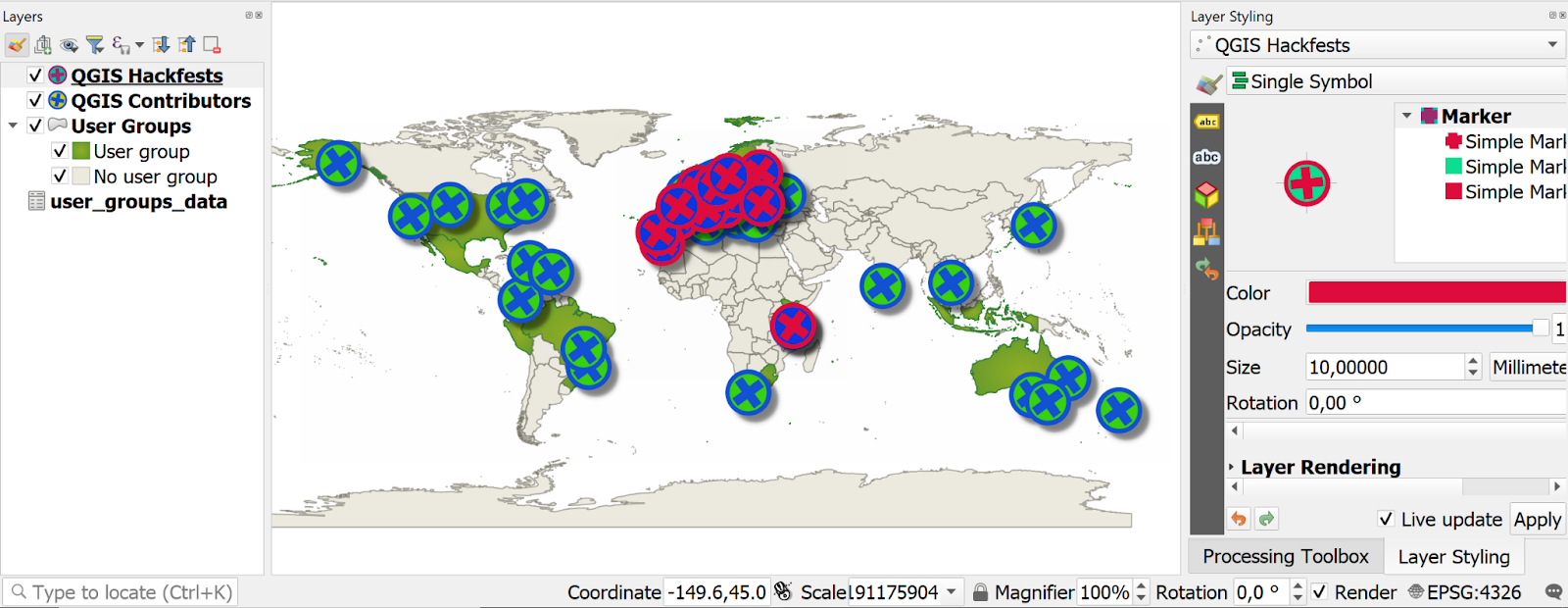
This is the easiest question to answer, because the development is open and transparent like it should be. While writing this blog post, there are in total 433 core contributors on GitHub. During the last month (April 2021), there have been 46 active developers who have pushed 396 commits to the master branch. So that is more than 10 commits per day!
To put that in perspective, we can view a few other major open source projects:
- Django project has a whopping 2040 contributors, but only 30 of them have been active during last month
- Blender has 193 people contributors on their repository and from these 65 have committed in April 2021.
- Mongo has 500 contributors out of which 107 have been active during last month
These projects are very different in nature, but still QGIS does have a pretty solid developer base. The massive input from Nyall Dawson can’t go unmentioned: he has contributed almost a whopping 15 000 commits to QGIS core.
How many QGIS users are there?
One could think that the number of downloads would be the best source of users. However this has a few caveats:
- People are using different operating systems and through multiple installation methods (OSGeo4w, conda, homebrew…)
- Some of the biggest organisations using QGIS do not allow – for obvious reasons – users to install anything to themselves. Instead they have a centralized way for installations.
According to the official website logs, a total views for the download page has been to date in 2021 2.7 million. Large number of these might be website crawlers or automatic clicks and of course not all visits end up downloading the software. On the other hand, that number is only for the English site. Other languages account for yet another million views.
Another point of view can be gained by analysing the number of downloaded plugins. There are roughly 10 plugins which have more than half a million downloads and the most downloaded plugin in the repository has been downloaded 3 million times. However this aspect has at least three problems:
- There are some heavy users which have multiple profiles and multiple installations of QGIS. I think I account for 10+ downloads for qgis2web. So this is a minor problem, but gives a bit too high number of plugin users.
- When a new version of a plugin is released and users update their versions, that is counted as a new download. For instance for OpenLayers plugin “only” around 300 000 downloads out of the almost 3 million total have been done for the latest version.
- Many users don’t use plugins at all and as there are different people using different plugins, it can only provide an estimate. Or some organisations centrally share plugins with profiles.
It is also important to note that there are 35 official QGIS user groups listed on the QGIS website. User groups are local organizations who share knowledge, organise events and sometimes also sponsor QGIS development. Bigger groups can have thousands of members and smaller just a few.
Support, training & social media numbers
Where do people go when they have technical questions? To StackExchange of course. There are currently 7 500 unanswered questions regarding QGIS and the tag “qgis” has 1.1k watchers. When comparing the tags between different software components, we can see that QGIS has clearly the most questions with 50% more than then next, which is “arcgis-desktop”. Some might say that this is because QGIS is the most problematic software to use, but still this is in an indicator among others.
High number of questions is partly due to the fact that there is no single source of support for QGIS compared to commercial licensed alternatives (commercial break: we at Gispo are among companies offering commercial support for QGIS). This means that places like StackExchange are the logical places for many to seek help.
People tend to start their professional journey with new software by taking a course where they learn how to do that. We at Gispo have given training to more than 1000 individuals in Finland only and the online courses on Udemy and Coursera on QGIS have had more than 10 000 registered participants. Then there is the whole world of universities and educational institutions. Many universities teach QGIS on their GIS courses and thus they account for thousands of new QGIS users every year.
But how do most people learn new skills nowadays? Same way as they learn how to fix a broken pipe or bake a cake: with Youtube.
The Youtube video QGIS 3 for absolute beginners has almost 500 000 views. I think that is a quite good indicator: if you are not about to use QGIS you probably have no reason to watch the long tutorial and also it is highly unlikely that you end up watching it multiple times. If you add the views from the older version of the same video by Klas Karlsson, that results to more than 1.2 million views in total. However to put this in context: this Blender tutorial has more than 8 million views.
Let’s take a look at the numbers on social media besides Youtube. There are multiple QGIS user groups on Facebook, QGIS Users Group has nearly 20 000 members and a group called QGIS community has 47 000 members. On Linkedin the QGIS group has 27 000 users. On Reddit the r/QGIS subreddit has a bit 9 400 members. The official QGIS Twitter account has around 50 000 followers.
How does QGIS compare to the big E
The analysis is hard to conduct fully without mentioning ESRI and their products. ESRI was the industry standard with Arc* products for a few decades, so a comparison to them can give a good idea of the total size of the market. Although for licensed software it is easy to track the number of users, it is hard to find that information openly. This blog post from five years ago suggests that there are 4.4 million ArcGIS Online users. So claiming that there would be millions of QGIS users wouldn’t be such a stretch. After all, many ArcGIS Online is just one ESRI product and many ArcGIS users might also be using QGIS.
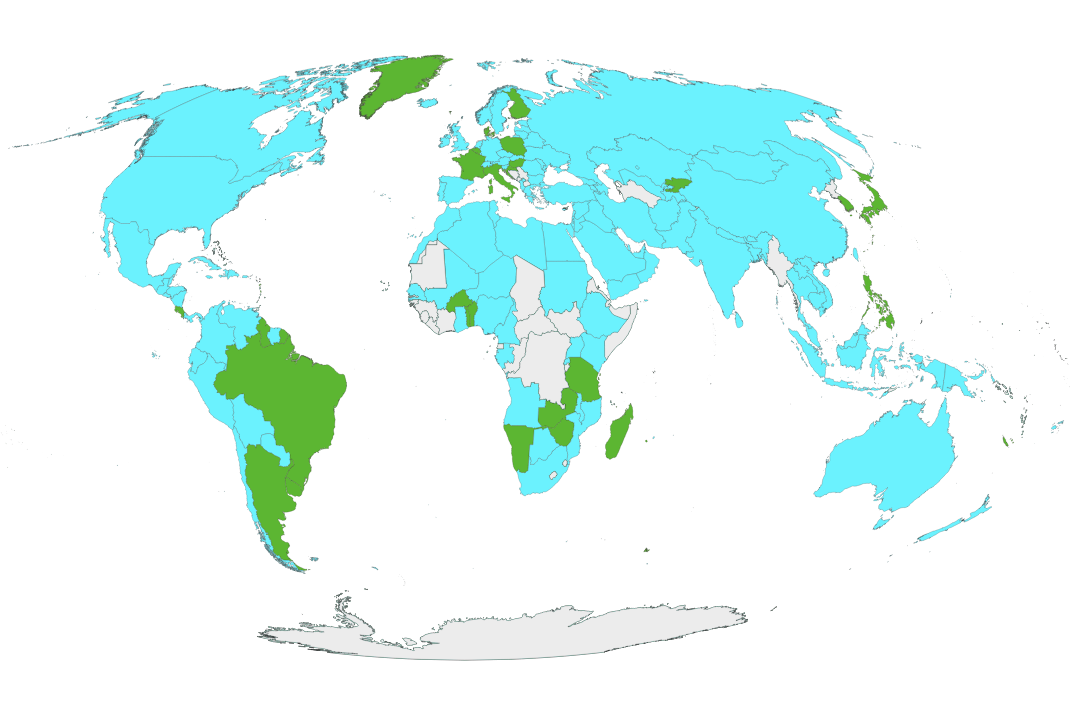
Google Trends has been used in many cases to compare the popularity between QGIS and ESRI products in different countries. Google Trends analyzes the popularity of top search queries in Google Search across various regions and languages. If given two queries and a time frame, Google Trends can show the popularity between those two. I did a comparison between QGIS and ArcGIS in the last 6 years and QGIS has surpassed ArcGIS in many countries.
On Reddit an annual survey for GIS experts has been conducted, which is also an interesting point of view to the topic. Although the survey is very limited and US-centric, still it gives an interesting indication: 88% of respondents use ArcGIS and 48% use QGIS . As a primary primary GIS tool: 78% use ArcGIS and 16% use QGIS. Just like with the data from Google Trends suggests, the regional variation is big: in the United States 88 % use ArcGIS and only .6% use QGIS whereas in Europe the tables have turned: ArcGIS 46% and QGIS 49 %.
Conclusions
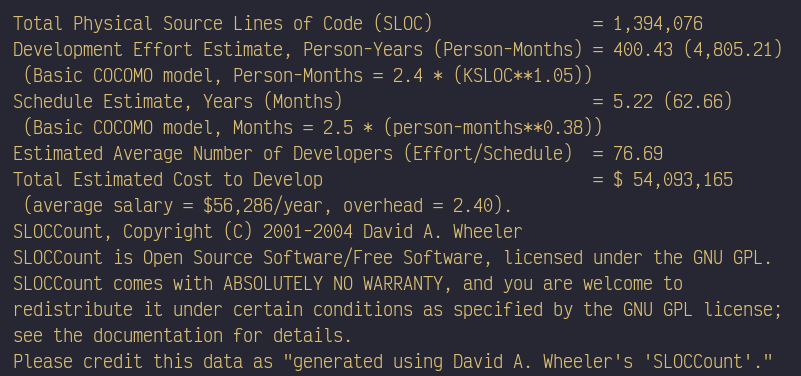
In the past ten years QGIS has grown to mature and well-established open source projects to which many organizations rely on. It has been recognized as a critical piece of the whole open source ecosystem. According to sloccount, QGIS project is currently worth 54 million USD. This is only looking at the source lines of code, but still quite a number!
Before going to the final figures, I should point out caveats and loopholes in the analysis. But as the whole analysis is an estimate, I’ll just skip that part. Thank you for all the tips and comments to my tweet about the topic. These are mostly my personal views, but would be great to hear if someone has a more scientific approach to the analysis.
My own educated guesses based on everything written earlier:
- There are around 2 000 people who are involved in the development of QGIS, write issues, give training courses, write tutorials and much more. These people use QGIS on a daily basis and much of their work relies on the software. Out of these only around 20 to 50 people are actively involved in core development.
- Approximately 200 000 active users who use QGIS on a weekly basis. These are members in user groups, social media groups. They are active end-users who use QGIS for cartographic work, data analysis and much more.
- Over 2 million irregular users worldwide. Definitely in the range of “millions of users”. These are the people who might be still running QGIS 2.18. Or the people who once installed QGIS but haven’t used it much.
Awesome figures, but the good news is that there is definitely room for more people! Do you agree with the analysis? Remember: everyone is welcome to join the open and free QGIS community!
Open source GIS community did it again! QGIS 3.18 was upgraded in late February 2021 with loads of new features, among others landed the capabilities for visualizing point clouds in your favorite GIS desktop.
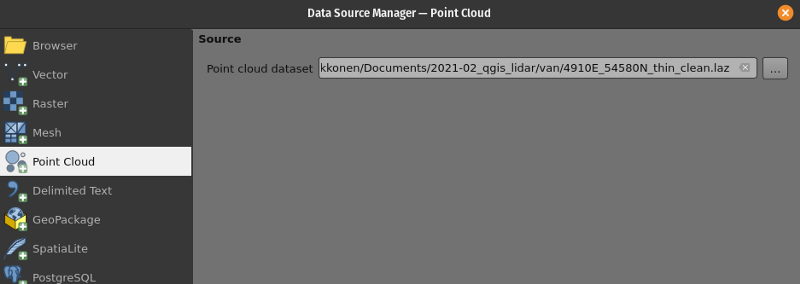
For just visualizing your .laz-files, there’s not much more to it. Just load the dataset and see how far your computer gets with the data (point cloud datasets are often big).
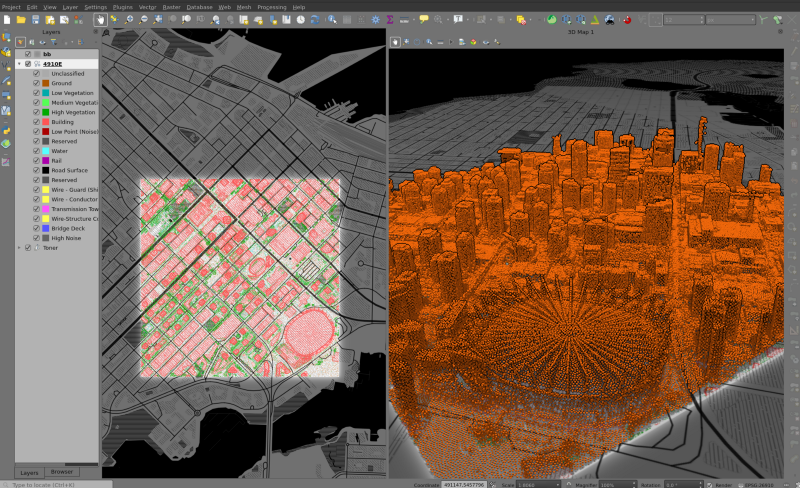
QGIS will serve you greatly as a platform for visualizing your point cloud data as part of your GIS workflows. Nevertheless, as the point cloud datasets are often that big, in many cases, it is relevant to preprocess the data.
This can be done with PDAL, which is the library the enables the point cloud visualization in QGIS. PDAL is a command-line tool (server-side / desktop) for processing and analyzing point cloud data. It is an extremely powerful set of tools for such huge datasets as lidar and point cloud data almost always tends to be.
For example, the dataset I’m using (from Vancouver) had originally slightly less than 40 million points from an area of 1 square kilometer. QGIS, at least on my laptop, did handle that amount of points and did not take more than one or two minutes to load the dataset. Nevertheless, having that much data did not really serve my purpose and could slow my QGIS workflow. Thus, with PDAL I reduced the dataset’s size from approximately 40 million to slightly more than two hundred thousand points, while reducing the filesize from 1.1 gb (as .las) to 2.2 mb (as .laz).
pdal translate 4910E_54580N.las 4910E_54580N_thin.laz sample - filters.sample.radius=3It is worth mentioning that QGIS had problems just when opening the “3D view” and visualizing the point cloud data in 3D. Visualizing the data in 2D (as is) did not slow QGIS down.
There’s no other GIS tool that could visualize jointly your point cloud data together with such a variety of GIS formats. By just exploring lidar data in flat 2D is already very useful and helps to understand visually some processes and peculiarities related to point cloud data.
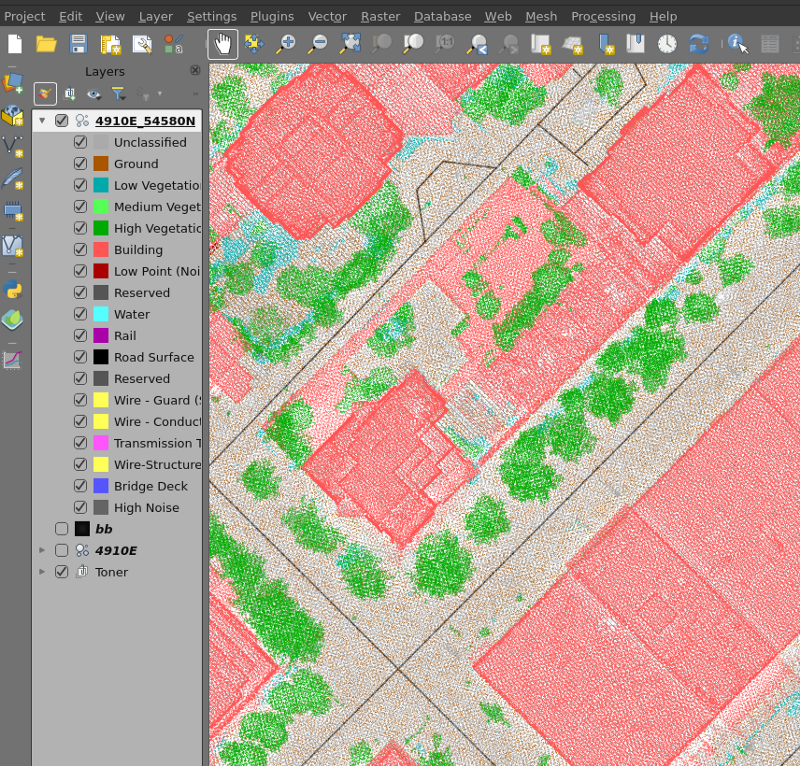
While I already was very happy with my results from reducing the size of the file, I observed some noise in the data, points out of the bounding box, and some other minor issues. These could be removed easily using PDAL’s pipeline functionalities for denoising. Pipelines are in the very core of PDAL providing a possibility for automatizing and chaining geoprocesses together while keeping it simple (text files saved as .json-files):
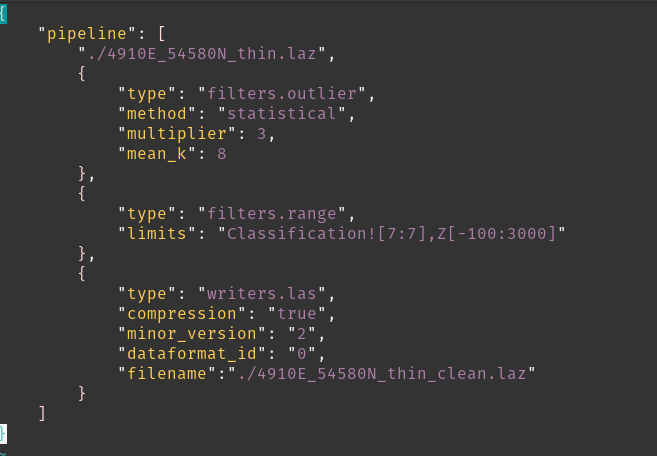
Then I just ran the pipeline file in the command line:
pdal pipeline denoise.jsonThis is how you can manipulate the point cloud with PDAL and bring it back to QGIS for visualizing and other possible workflows.
You can use PDAL for a myriad of processes, such as for producing raster files, such as Digital Elevation or Terrain Models from your point cloud data.

That’s it! There’s a lot to go about with QGIS 3.18 and for sure the QGIS & PDAL partnership is not falling short. I’ll leave you with an explorative visualization by another relatively new feature “contour renderer” for remarking on-the-fly the contours of a raster file:
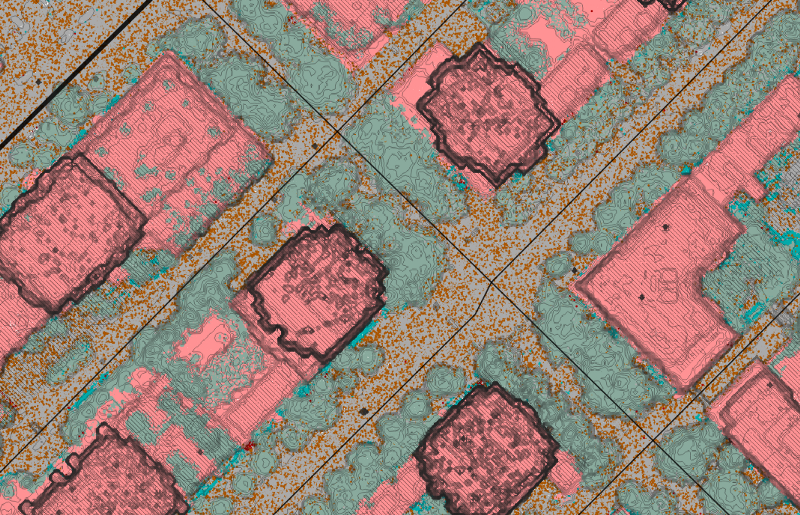
It is worth noting that the point cloud support is a major effort from the open source geospatial software community, including especially the QGIS and PDAL communities, and the direct developer efforts from companies such as Lutra Consulting Ltd., Hobu Inc., and Nyall Dawson. A crowdfunding campaign was held in late 2020, and a group of contributors supported financially the point cloud support.
“We must undertake a concerted global effort to encourage and invest in the creation of digital public goods: open source software, open data, open AI models, open standards and open content.” (United Nations, 2020)

As the world crawls through the Covid-19 crisis, the United Nations published their Roadmap for Digital Cooperation directly from the Secretary-General’s office. The roadmap makes an important remark on the use of open source technologies as a global digital public good. Besides open source technologies, the report emphasizes open data, open standards, open AI and open content as a digital public good that are essential for “unlocking the full potential of digital technologies and data to attain the Sustainable Development Goals, in particular for low- and middle-income countries” (2020, 8).
As you imagined, this is a matter that we’re passionate about at Gispo. Open Source software and open data are more than Gispo’s mission, it is why we exist.
Openness in the core of the UN’s roadmap for digital cooperation
In the Roadmap for digital cooperation, UN expresses full commitment on open source software while calling for continuous support on open source software projects:
“Even when the relevant digital public good or open source solution is found, support and additional investment are still required to scale them up and successfully implement them” (2020, p. 9).
Besides building an UN-wide organizational culture for supporting financially open source software projects, there’s an important multiplier effect to it. The open source software projects UN promotes and finances enables unprecedented possibilities for users all around the world. The multiplier effect happens as open source software (e.g. QGIS) and open data (e.g. OpenStreetMap) is a shared digital public good. While anyone in the developing world can use open source software so can the rest of the world. Open source software empowers modern complex IT systems all around the globe, from the leading multinational companies to the most advanced governmental services.
Before open source software, when the UN decided upon a certain software they resolved a single challenge for just a particular process or a project, whereas now as the UN decides to support an open source project, they enable and support solutions for an innumerable amount of organizations and countries.
Openness + Geospatial = invaluable impact
“Your dedication, expertise and guidance – in geospatial data, methods, frameworks, tools, and platforms – is urgently needed. The data needs for the Sustainable Development Goals (SDGs) are great, and time is not on our side. Reliable, timely, accessible and disaggregated geospatial information must be brought to bear to measure progress, inform decision-making and ensure effective and inclusive national and sub-national programs that will chart the path towards the ‘Geospatial Way to a Better World’, to assist in the implementation of the SDGs, and transform our world for the better.” (Secretary-General António Guterres, 2018: message to the United Nations World Geospatial Information Congress)
As Secretary-General Guterres remarked, to transform our world for the better, geospatial data, tools, and frameworks are urgently needed. The implementation of the SDGs requires geospatial solutions that are scalable and open to innovation and sharing; with open source geospatial software, it is possible to equip the UN and the member states for success in the implementation of the SDGs.
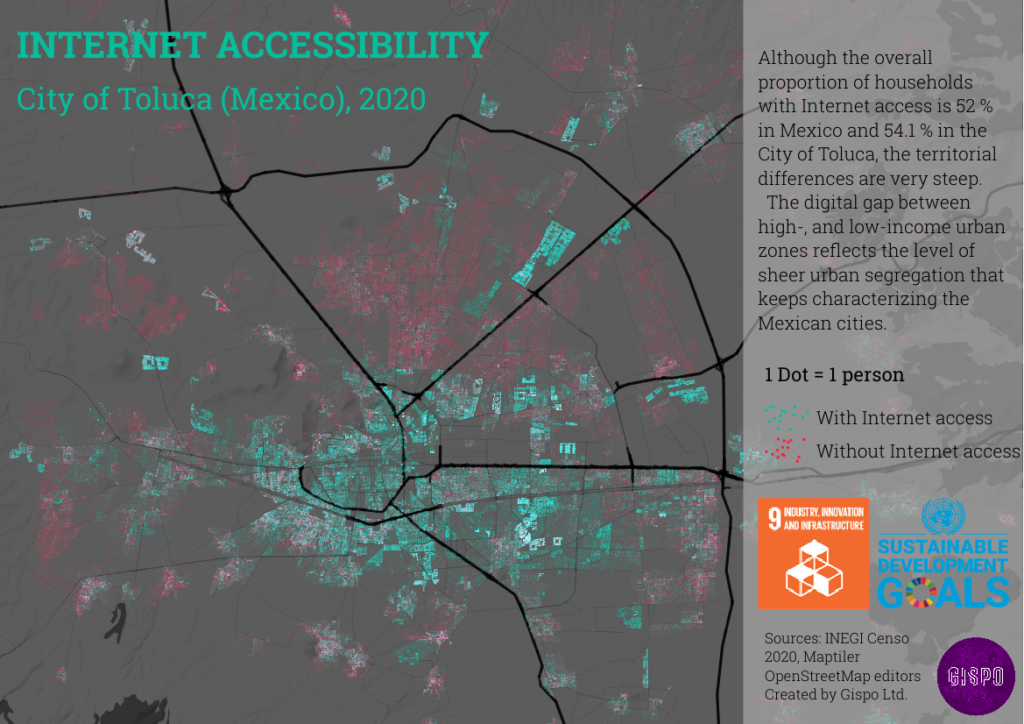
“The Geospatial Way to a Better World” is part of the digital revolution the world is going through. For monitoring and protecting the environment, in addition to analyzing and assessing the overall planetary health, geospatial is inherently part of “combating climate change and advancing global sustainability, environmental stewardship and human well-being” (2020, 3).
From theory to practice: Gispo’s customers at the forefront
To address the tremendous business and social challenges related to achieving the SDGs, we at Gispo do our best to help our customers in different UN entities to maximize the benefits from using geospatial data.
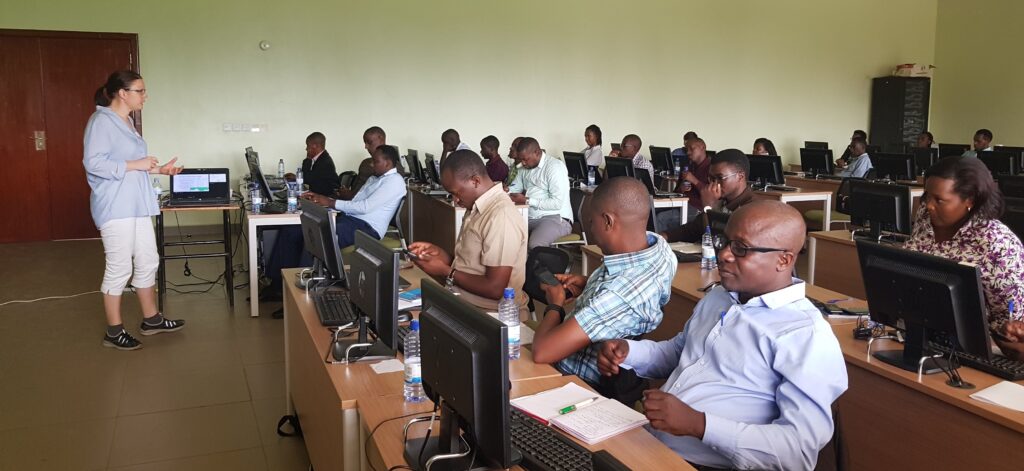
Within the UN, we’ve had the pleasure to help different agencies by:
- Advising the customer in the use of open source geospatial software to gain the maximum benefit in their field.
- Creating visually appealing maps and data visualizations from their own data that can be presented to their directives and other audiences who require quick and informative geospatial visualizations.
- Deploying enterprise-level spatial IT solutions based on open source geospatial software.
These are some of the ways how Gispo has helped the UN as well as many other customers to build geospatial solutions that are capable of driving us towards achieving the SDGs.
Just recently, Gispo helped the marvellous team from IIEP-UNESCO to gain and create some insights for using open source geospatial software for educational planning. At the end of the project, we got to participate in a webinar on educational planning titled as “Educational planning with geospatial data” from which you can learn from the video below:
Amélie Gagnon (IIEP) and Topi Tjukanov (Gispo) describing the project outcomes.
If you have any questions or thoughts regarding this blog post, please feel free to get in touch with us. In the meantime, we’ll be reporting on how we are utilizing open source geospatial software and open geospatial data for moving towards those SDGs we all want to reach.
Sources and remarks:
- United Nations. 2020. Secretary-General’s Roadmap for Digital Cooperation -web-based report. Enter the report’s landing page or read directly the document (pdf).
- For more information on IIEP-UNESCO and their geospatial team, see: http://www.iiep.unesco.org/en/our-expertise/geospatial-data-educational-planning-and-management
This is not the first time I find myself wondering about the relationship between quite an overwhelming amount of available data and the amount of effort it takes to find a good “ready to go” data set. Why is it so hard? The data is there, but it never seems to fit my needs. The typical data analysis workflow bounces back and forth in between trying to apply a method to a data set coming from a source, noticing some weird behaviour, tracing it down to the data and trying to fix the problem just to bounce back onto a different, but very similar, problem. In short, it takes time to ensure that you have managed to get the data from the source to your analysis environment in the right form. In this blog, we are going to present a case study on how to build an interface which automatically takes care of all the conversions needed to make the data behave well!
Introduction
At the beginning we have an API which gathers GPS data information about the movements of the snowplow units in the city environment. The API is developed to gather just the most essential information: the timestamp, the location and the type of the operation the snowplow unit is currently operating on. The API gathers this information from all active snowplow units once in every five seconds so there is a lot of data. However, there are a few major issues which hinder the utilization of this data:
- There is a very limited selection of things you can query from the url based API
- The data is in JSON format
One of the biggest downfalls related to the first issue was that if a user wanted to know history information about snowplow units’ movements, one would have to specify the machine ID. It was not possible to query for the data rows which had been gathered during the latest five minute period. The only way to figure out this was to search for a specific number of latest records for every machine ID and then look at the timestamp of each record to see when the particular GPS information was gathered. As you can imagine, this is not an applicable way of doing things when there are almost one hundred snowplow units. Yet, that kind of information is very useful when you think of monitoring the process of plowing the snow off the streets.
In general, the second issue would not necessarily be a problem. However, in this case it is. The main reason for this is that the main point in the whole API is to gather information about snowplow’s whereabouts. It requires quite a wizard to recognize the name of the street the snowplow unit is moving along straight from the coordinate information. And wouldn’t it be nicer to see the location information on the map base? This is of course possible but the JSON data inside of the API is not the easiest data source for any Geographic Information System.
The need for utilizing GIS software is not just the fact that it adds a huge amount of value to the gathered location data but it also opens up possibilities for various kinds of spatial data analysis and data enrichment processes which can help to optimize the plowing operation in many ways. However, if we really want to make diverse and efficient use of geographic information, we should turn onto spatial databases. In addition to that, databases natively allow multiple users to exploit the data at the same time.

For the above mentioned reasons, our solution was based on the aim to transfer the data from the API to the PostGIS database. As a technical solution we utilized PostgreSQL (a free and open source relational database management system emphasizing extensibility and SQL compliance) and its spatial extension called PostGIS. Onto that, we tailored PostgreSQL’s Foreign Data Wrapper solution with the help of multicorn. With the help of another extension, pg_cron, we make it possible to run periodic jobs in PostgreSQL. As a result, we derived an interface which, at a user-defined frequency, goes to fetch the new data rows from API and inserts them into the PostGIS database. The PostGIS database is easy to access from any GIS software (like QGIS) and utilizing it does not require programming skills.
Development
The interface solution has been created with docker-compose. Docker is a tool which is planned for smoother creation, development and execution of various applications. Docker makes it possible to store the application and all its dependencies (packages, libraries etc.) into the same container. In addition to the fact that docker makes it easier to start using the application by storing all its pieces to the same parcel, docker also guarantees that the application will work in every Linux computer exactly the same way.
Once you have installed docker and docker-compose, install also PostgreSQL and PostGIS. Rest of the required installations include e.g. multicorn and plpygis (for Foreign Data Wrapper support for PostGIS). After the required dependencies have been installed, you still have to connect to your database and enable multicorn and pg_cron extensions. The complete documentation of the Snowplow FDW can be found at Github. Alternatively, you can just fork the Github repository and start using the application.
Logic of the interface
The logic of the actual interface is relatively simple. The API url is used as an option which gets delivered as a key when calling the Snowplow FDW application. From this key, the code searches for substrings which determine what kind of information we wish to fetch from the API. There are three alternatives: either we are fetching a metadata table, latest location information about the units or history information of a snowplow unit. By metadata table we refer to some kind of static information stored in the API like the table about possible machine types. The second alternative is related to a kind of “summary page” of the API which contains the table of each machine ID, its machine type and its latest location information. In both of these cases the code fetches the data from the given url address associated with the certain JSON column name and adds it to a variable which multicorn then utilizes in the creation process of the desired kind of PostGIS table.
With the third alternative, the procedure is a bit more complicated. Since our goal was to transform data into as practical form as possible, we do not want to fetch the history information of each snowplow unit into a distinct table but rather to create one massive data table with all the history information. Naturally, when doing this, we need to add one extra column to the table which specifies the snowplow unit ID a data row is related to.

Creating the FDW server
The Snowplow Foreign Data Wrapper server interface application can be created by executing one SQL statement:
CREATE SERVER dev_fdw FOREIGN DATA WRAPPER multicorn OPTIONS (wrapper 'snowplowfdw.SnowplowForeignDataWrapper');Creating metadata tables
If we wish to use Snowplow FDW for creating a metadata table about machine types we need to execute the following SQL statement:
CREATE FOREIGN TABLE types_temp(
id integer,
name varchar
) server dev_fdw options (
url ''
);
After that we need to create a PostGIS table for storing the unit information fetched from the Snowplow API:
CREATE TABLE types(
id integer,
name varchar
);
Finally we can insert the data from the foreign table to the types table:
INSERT INTO types(
id, name)
SELECT id, name FROM types_temp;
Creating a scheduled task for updating history data table
The task of creating a scheduled task responsible for updating history information of the units can be split into two phases. In the first phase we have a scheduled task which updates the contents of a table storing “summary page” information. This allows us to find out which units have been active by comparing the latest timestamp of each unit to the moment when we previously run history data gathering scripts. If the latest timestamp has happened after the previous data gathering process, we update the latest location information of that snowplow unit in our “summary page” information table.
In the second phase of the scheduled task for updating history data table we utilize the up to date list of the active units. For every active snowplow unit, we construct the url for its history information and fetch a certain number of rows from there. The number of fetched rows depends on the frequency of the scheduled tasks. For example, if you want to gather history data once in every hour and we know that the API collects data at most in every five seconds, the theoretical upper limit for the amount of new data rows is 60×60/5=720. However, fetching a couple more extra rows does not hurt since the application checks for possible duplicate rows before adding them to the history data table.
Since both of these phases contain a bunch of logic in addition to just fetching the data from url, function scripts have been developed to take care of these tasks. The user can control the process via PgAdmin (or other PostgreSQL management and development platform). There a user can create the functions for updating both the “summary page” information table and the history data table. The functions are coded with plsql language (the scripts can be found in their entities from Github documentation) and inserted under cron schema. After that, the user needs to create the empty PostGIS tables for both “summary page” information and history table. The SQL statements needed for that are very similar to the ones needed when creating a metadata table and they can again be found in Github.
The scheduled tasks themselves are created, monitored and terminated with SQL statements like
— Execute the function one minute past every hour
SELECT cron.schedule('1 */1 * * *', $$select cron.updatefunction1()$$);
— Execute the function five minutes past every hour
SELECT cron.schedule('5 */1 * * *', $$select cron.updatefunction2()$$);
SELECT * FROM cron.job_run_details WHERE jobid=; SELECT cron.unschedule( );
Utilizing gathered data
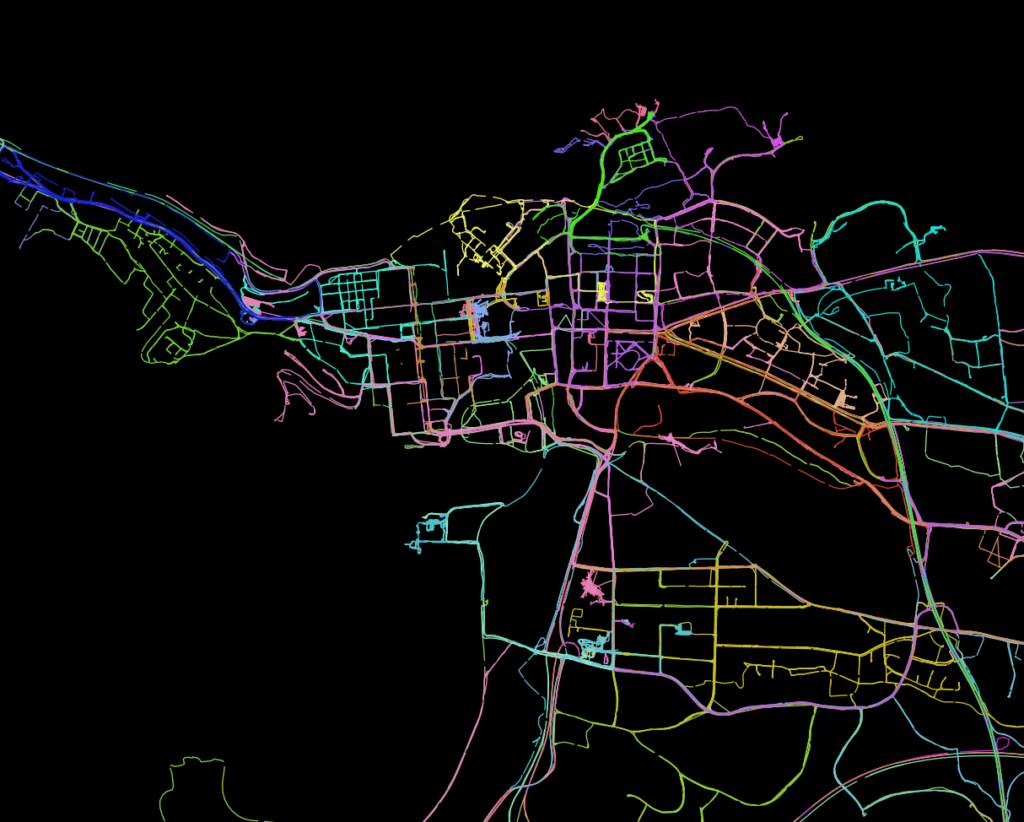
Now when we have created the FDW application which automatically fetches all the data gathered in the Snowplow API into PostGIS tables once an hour (or any other way; there are detailed instructions in Github on how to modify the frequency and start times of the periodically executed tasks), we can start to play with the data. Below you can see some examples which are produced with QGIS (free and open source GIS software).

Before the blog actually starts, here is an unofficial theme music and opening video for the post. Please dedicate a few seconds to watch it.
Ok. Thanks. Now you can start reading.
In November 2019 I started #30DayMapChallenge on Twitter. I thought it was a good idea to take the concept of Inktober and make a geospatial version out of that. So for each day of November there would be a theme and people could interpret that theme the way they liked and make a map around that theme. I was assuming last year that a few people might join in, but the outcome was very different. Hundreds of people made maps and the challenge really blew up (in a positive way!). You can read more about it from my previous blog post on the topic.
So I just had to do the challenge also in 2020. On September 1st this year I published the themes on Twitter. I also prepared a GitHub repository this year with all the necessary information and some extra links to tutorials, data and tools.

During the month the challenge happened also on other platforms besides Twitter. At least there were some Facebook groups where people were doing the challenge, there were some posts on Instagram, LinkedIn and on other social media platforms too. This is great to see, as my vision is that this wouldn’t be a thing for only people on Twitter.
Like last year, some of the topics were easier than others. Probably a new favorite for me was day 12 when the purpose was to do a map without GIS software. People went really innovative on this one and the end result was maps with not only pen and paper, but also maps with chocolate, carrots, MS Excel and everything in between. The entries for that day were ones where creativity was really unleashed. During the challenge I noticed a real sense of fatigue approximately halfway through the challenge and other people commented the same thing. But overall I was really happy how the challenge seemed to be above all a positive experience for the majority.
Whopping statistics of the 2020 challenge
More than 7 000 maps were done by more than 1 000 people. These + 1 000 people come from at least 69 different countries and speak at least 32 different languages. The twitterspehere rewarded the mappers with almost 23 000 retweets and way over 100 000 likes. Those are astonishing numbers. There is nothing more I can say about that.

Clearly the first three days are easy (points, lines and polygons) and attract the most participants. A halfway fatigue is also visible on that graphic. Still I find it astonishing that even on the most “unpopular” day of the month well over 100 maps were published!
When looking at the likes the maps received, clearly there seems to be some sort of negative correlation between the time spent to make the maps and the number of likes they got and others commented that they noticed the same thing. Maybe it just indicates that the best ideas don’t come when forced?

Although the high number of entries makes me a happy mapper, I think the success of the challenge shouldn’t only be about the number of people making the maps. I got a lot of positive feedback from people saying that this challenge made them share their visualizations for the first time and made many people try out different tools. As written in the code of conduct, that is the gist of the challenge!
The amazing community around the challenge
First of all I want to thank everyone who did maps. Not going to mention anyone by name here, because all of the 7000 did a great job and I am very thankful for dedicating their time and effort to the challenge. Based on my poll on Twitter that was a lot of time on average.

A thanks to people who devoted their blood, sweat and tears to collect the results and helped people to find and browse the results easier. I want to highlight a few here who contributed in different ways. Thanks to Sebastian who added an iCal file to the original GitHub repository so that it was easier to follow which day we were on. Thanks to David for his relentless work collecting metadata for the challenge and above all the awesome gallery he has put up again also this year. Thanks to Haifeng Niu for collecting very interesting Twitter statistics from the challenge, for writing a blog post about your process and releasing the code too. Also want to thank Aurelien Chaumet who was really active on Twitter during the month and collected statistics and metadata too.
Thank you to the organisations who promoted and took part in the challenge. I was really happy how for example British Cartographic Society and Ordnance Survey took part in the challenge. Some major private companies from the geospatial field also took part in different ways which was awesome to see.
The challenge is also spreading to the academic community. Academic journal Regional Studies, Regional Science currently has a Call for Papers on “Innovation in Regional Graphics” where they are “inviting submissions from suitable entries to the #30DayMapChallenge on Twitter”. So if you have ambitions of writing an article around some of the maps you made for the challenge, you should definitely check that out.
Map challenge in 2021
I have tried to ask for ideas from people, for future development but in general people seem to be quite happy with the concept. One thing I want to highlight next year even more is that doing less than 30 maps is fine. Clearly some people chipped in their contributions on one or two days which they felt most close to their expertise or when they had the time to do the maps and felt like they had to explain that somehow. I hope that next year that would feel even more common way to take part.
In the blog post from last year I wrote that the challenge will be bigger and better next year and data will be more organized. Well that was achieved, so let’s keep the same goals for the coming year. I even bought myself the 30daymapchallenge.com domain and one plan is to build a whole website around the challenge. I even have a dream about #30DayMapChallenge merchandise, but let’s see. Overall I think the challenge is on right tracks and as 2020 is what it is and November in Finland is cold, dark and wet, this community effort lit up my November at least.
Once again: thank you everybody who took part and let’s make this next year even bigger and better!
Clouds are usually the biggest obstacle for leveraging satellite imagery in cloud-prone regions. We at Gispo are currently developing a tool for extracting good quality mosaic images from satellite data for UN operations. The pilot project is implemented together with the UN Open GIS initiative and the project aims is to test the tools in UNISFA-mission in South-Sudan.
For peacekeeping field operations it is crucial to get cloud-free satellite imagery from the areas of interest.
UN Open GIS is developing ‘Cloud-Free Satellite Imagery’, supported by Finland and project leading by Mr. Pekka Sarkola (@posiki) of GISPO (@gispofinland), to change analyze during the cloud covering period (i.e. rainy season) for UN field operations. pic.twitter.com/4ruTxd1GJE
— UN Open GIS (@UNopenGIS) October 25, 2020
The pilot project aims to build a tool that detects cloud-free images from European Space Agency’s (ESA) satellite imagery (Sentinel) and builds cloud-free mosaic images for fulfilling the requirements the missions have.
The tool targets to in various different UN operations and other worldwide organizations like FAO, WHO, Worldbank, and other NGOs.
How to detect clouds?
Our colleagues Mikael Vaaltola and Joona Laine at Gispo are currently working with the tool. When asked about the challenge the team faces, Mikael clarifies that there are two main challenges in generating cloud-free satellite image mosaics:
“The first one is seemingly obvious: how to detect and determine which areas are actually covered by clouds? There are multiple methods for cloud detection in satellite imagery, and finding the method with the ideal balance between detection accuracy and performance can be difficult.”
He continues and points out that:
“The second challenge is developing and refining a process to create new mosaics automatically as soon as new imagery is available. Ideally, the end result should contain the latest cloudless Sentinel 2 -data available and have a uniform appearance without noticeable gaps or edges.”
Image processing pipeline under construction
Creating cloud-free satellite imagery consists of two computationally expensive steps: firstly, detecting the clouds and generating cloud masks, and secondly, creating the resulting mosaic image from several gigabytes of data. This is taken into account in the image processing pipeline, which is designed for a horizontally scalable cloud-computing environment. All components are containerized and utilize open-source tools and libraries such as GDAL.
More information about the project:
Pekka Sarkola (pekka@gispo.fi / +358 40 725 2042)
UN Open GIS
Visualizing spatial data with high volumes in an informative way can be tricky. One trick I have used quite a bit is that I have turned the points in QGIS very small and then used transparency to highlight frequency and color to show categories. The main problem with visualizing tiny tiny poins is that the visual outcome is dependent on the rendering order of the points. Main characteristics of this type of map is that the points are overlapping, but typically the rendering order is somewhat random. Or not exactly random, but dependent on how the data is stored in your file or database.
To highlight this problem, here are locations of data about animal collisions and visualized in the same way but just the rendering order has been manually defined in QGIS. So same data but just rendered in different ways. Looks very different:

One way to solve this problem is to create small multiples, i.e. a single map for each category. I have done this for example with GeoNames data earlier, but I knew that there were clear caveats also in this. Better way would be to bin the data into an equally sized grid and show which is the most common value in each grid cell.
Of course using binning can create a very simplified view of the data. Using just raw points answers better to a question “where” but binning enables the answer to the question “what”. So neither is a visualization method that suits all purposes. But as just rendering points and making them very small is easy and anyone with basic QGIS skills can do that, I thought writing a blog post about binning might be interesting.
Binning methodology
Time to cook. Ingredients for this recipe include:
- QGIS
- PostGIS
- Point data with categories
Like said, the idea is to group the points to a grid. Binning can of course be done with any polygons (e.g. binning pig farm points with municipality polygons), but a regular grid has a lot of advantages compared to something like administrative areas which are very different in shape and size. Doesn’t really matter if you make a regular square grid or a hexagonal grid for the bins, but I recommend hexagons if you have the choice. They are not only more pleasing to the eye, but they also have real advantages in spatial analytics especially if you are working on a single level and don’t have to worry about hierarchy.
But to start with, you can open QGIS and open the processing tool Create Grid. The tool allows you to create grids in the form of squares, hexagons or diamonds (sounds fancy, but it’s just square turned 45 degrees.). Next select a suitable extent, which you can easily do based on a layer extent or draw directly to the canvas. Finally select a suitable spatial resolution. This depends totally on the scale you are working on and the point frequency your data has. As a reference I have used grids of around 10×10 kilometers to 50×50 kilometers to cover Finland and for the U.S. my hexagons have been around 5 times bigger. But it is a compromise between readability and your machine performance and your data. Then create the grid.

It might also be possible to run the whole analysis in QGIS (at least the spatial join), but PostGIS is much more efficient with large datasets. After you have your grid, you should export your grid and points to PostGIS to their own tables. I usually use the Export to PostgreSQL tool inside QGIS but you can read more about different ways of doing this from my previous blog post.
The following SQL query is the core of this analysis. It is the one I used to create data for the maps you see later in this blog post. The data I’ve used here is GeoNames (table name geonames) and a hexgrid covering the U.S. (table name usa_gid):
CREATE TABLE naturalhexes
AS
SELECT DISTINCT ON (id) id, count, geom, naturalname
FROM
(WITH places_ct AS(
	SELECT geom,
	CASE
      WHEN field_2 ILIKE '%forest%'  THEN 'forest'
	  WHEN field_2 ILIKE '%rock%' THEN 'rock'
	  WHEN field_2 ILIKE '%valley%' THEN 'valley'
	  WHEN field_2 ILIKE '%lake%' THEN 'lake'
	  WHEN field_2 ILIKE '%creek%' THEN 'creek'
	END naturalname
	FROM geonames
	WHERE
	field_2 ILIKE '%rock%' OR
	field_2 ILIKE '%valley%' OR
	field_2 ILIKE '%lake%' OR
	field_2 ILIKE '%creek%'
	)
SELECT count(*), p.naturalname, g.geom, g.id
  FROM usa_grid g
  JOIN places_ct p
  ON ST_Intersects(g.geom, p.geom)
  group by g.id, p.naturalname
  ORDER BY id, count DESC) foo
I am using a few PostgreSQL specialities here:
- WITH starts a Common Table Expression (CTE) which enables to write a statement that can be then used in a larger query. Our CTE returns the point locations (geom) of all features which contain some of our selected words. I use the case to
- To search the words I am using ILIKE, which compares strings just like normal LIKE, but is case insensitive.
- ST_Interescts joins the points to hexagons and groups them by the hexagon id and the name pattern. So the last part of the query returns a count, name pattern, hexagon id and the hexagon geometry.
- As a final step the DISTINCT ON in the beginning of the query keeps the “first” row of each group of duplicates. In this case duplicate hexagons. As the last part of the query sorts the hexagons based on the count of specific name patterns, DISTINCT ON keeps the hexagon with the highest value.
There are few tweaks which could be made to the query if it were to be optimized. Firstly the pattern matching is not very efficient in this way. Secondly this method doesnt take into account cases where there are two names which have an equal number of
Hexbins mapped
As QGIS is a really strong visualization tool, having this interesting piece of data in your database allows you to make some informative visualizations out of the hexes. I used Categorized symbology and played around with the color palettes to get the most out of the data. As a general rule of thumb you shouldn’t use more than 5-6 classes in choropleth maps, but I stretched that a bit.

After publishing this map on Twitter, I learned a few interesting things. For example the word Bay probably comes from the French word bayou, which is a slow-moving creek or a swampy section of a river or a lake. It was striking how clear the spatial pattern was in this data. Places containing the word “Spring” are clearly located in the dry areas and “Creek” seem to be covering most of the country.
I also tried different types of pairs and compared e.g. the words high and low:

Which clearly had a correlation between the real elevation and “old” vs. “new” which had a difference between the east and west as I was hoping to see.

So this method is definitely not only limited to comparing names, but any type of points with categories. One way to take the analysis and visualization even further would be to create a bivariate map, where the intensity of the colors would indicate the number of names and colors would indicate the type.
Seems like with PostGIS 3.1 a new function ST_HexagonGrid for creating grids will be introduced which would make it possible to run the whole analysis with a single SQL query.
How to make animated maps with QGIS? With the native temporal support! Already in earlier versions of QGIS it has been possible to visualize temporal data with the excellent Time Manager plugin. I have been making a lot of animations (a.k.a. geogifs) with Time Manager and wrote a blog about the process a few years ago which became really popular. Now starting from the version 3.14, there is a native support to work with the fourth dimension, so time to update the process!
The temporal capabilities have been developed mostly by Nyall Dawson who has also made a tutorial video about the process of making animations. Many of the functionalities are based on Time Manager, so if you have used that previously, you can get going with it quite fast.
It is still very new, so there’s not much about it even in the QGIS documentation, but I will hope that this blog post can give you a nudge to try it out, make some awesome animations and maybe even contribute to the functionality.
About temporal data
Once you have installed a version of QGIS with Temporal Controller (>= 3.14) for your OS, you are good to go. Firstly for this tutorial to make more sense, you need to acquire a vector dataset with some information about time and preferably in a valid way. In QGIS the basic valid datetime format is YYYY-MM-DD hh:mm:ss, but the Temporal Controller can work also only with date information (e.g. . YYYY-MM-DD). Read more about different types to represent date and time from my old blog post.
So just like integers, decimal numbers or strings, time can be represented as a QGIS data column type. Easiest way to make an animation is to have data that has that column type ready, but you can also make that using QGIS expressions out of not-so-perfect date attributes. You can do this by parsing the information and converting it (to_datetime function in the expression evaluator).
If you just want to try it out and don’t have any temporal data on your machine, you can try out some of my previously extracted datasets for Time Manager demos:
- Here you can find an extract of train traffic to create some moving points. It’s a pretty big GeoPackage (90 mb), but is pretty fun to play with.
- Here you can load a set of meteorite landings. Originally from NASA and I’ve extracted it specifically for animation purposes. Craig Taylor has made some cool stuff with it.
- Or you can download buildings in the Helsinki region. Originally extracted from Helsinki Region Infoshare.
The datasets might need a bit of attribute handling to work with the Temporal Controller (except for the trains). Remember that you can use any layer that has any type of information about time. And if you’ve heard the good old GIS phrase of how 80% of all information has a spatial component, I can with good confidence say that the same 80% probably also has a temporal component of some kind.
Temporal Controller walkthrough
So once you have acquired some data you should open up a new project. If you have a vector layer in your project, you should open up the Properties of that layer. You can do that by right clicking the layer and selecting properties or with a double-click on the layer list. Now on the left you will see all the familiar tools and a new one: Temporal. If you go to that menu you should see the following view:
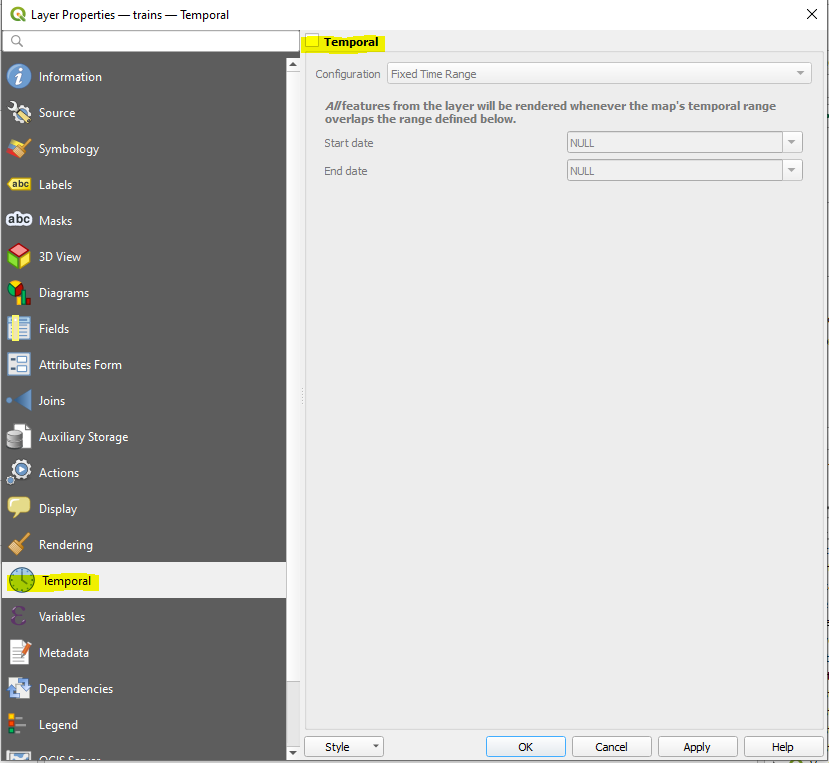
Looks like a nice and simple UI. Next up you need to tick the box and select which configuration type fits your data.
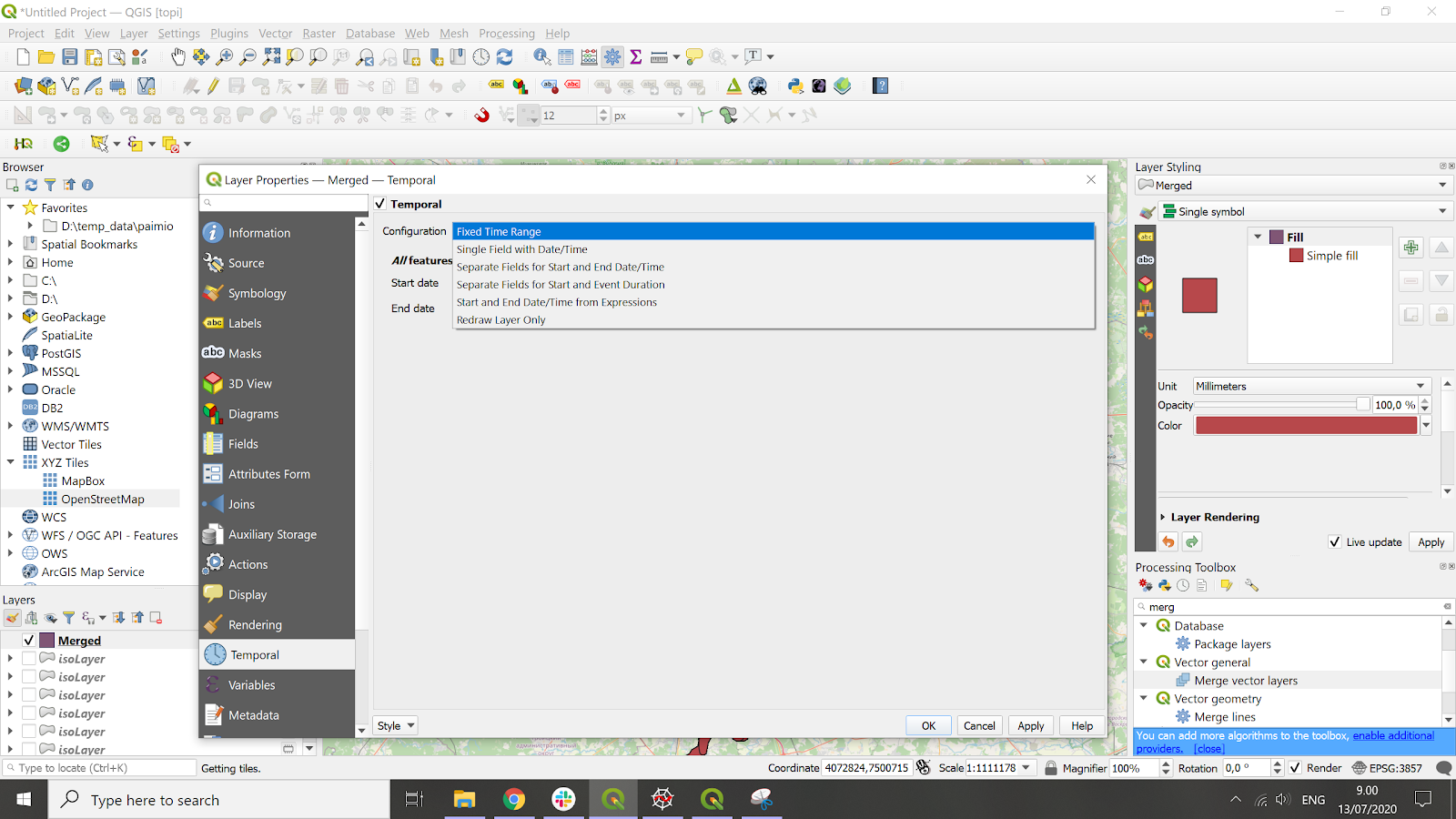
Configuration offers you the following options:
- Fixed time range. Here you can manually select when ALL the features of the layer will be drawn on the map. This option doesn’t require the data to have any date or time fields. Could be helpful e.g. with a background layer in your animation.
- Single field with Date/Time. This option only requires one attribute and set the event duration manually for all features. See more below.
- Separate Fields for Start and End Date/Time. Your data should have two attributes with start and end times. Individual features that interact with the maps temporal extent will be rendered. An example of this type of data could be building vectors which would have building date and demolition date.
- Separate Fields for Start and Event Duration. Like the ones above, this also works on individual features, but event duration should be read from the data. As an example if you are working with the meteorite data, you could build event durations based on the magnitude of the meteorite to build a nice visual effect. So bigger meteorites stay on the map for a longer time.
- Start and End Date/Time from Expressions. If your data does not have a valid datetime column you can use this option to make one form existing fields. For instance if you are using the region_buildings dataset in your animation provided to you earlier, you could build a valid timestamp using the expression to_date(“YYYYMMDD”) as the starting date and for example to_date(‘2020-01-01’) as the end date to make the buildings appear cumulatively.
- Redraw Layer Only. Like the first option, but layer gets redrawn on every frame. The first option and this are probably the biggest changes compared to Time Manager. This basically allows you to redraw layers even without a temporal attribute. You can for example use random values here that change on every frame or parse out seconds from. You can get some crazy ideas by applying the ideas from this presentation by Nyall Dawson.
If you are using the train data that was provided earlier, you should select Single field with Date/Time. The event duration defines how long the features will be visible after the start. As the GPS points in the train data are a bit spotty, I would say that somewhere between 10 seconds and a minute might be a good first try for the event duration in this case.
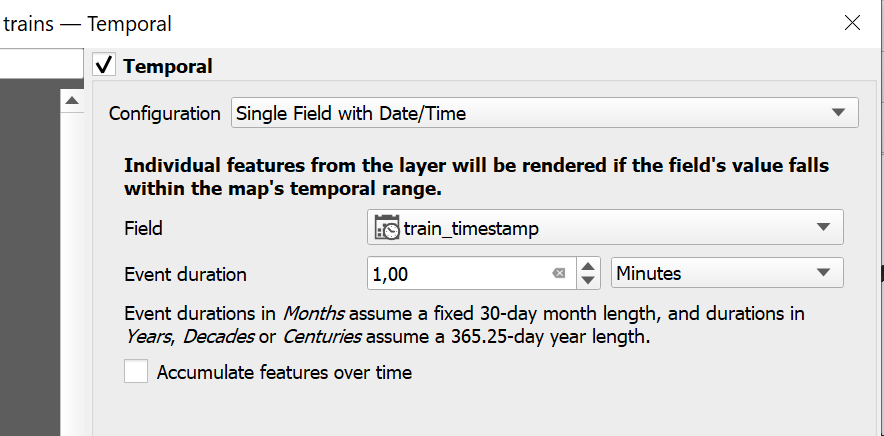
After setting that part up, you can move to explore and filter your data with the dock widget. Just like with Time Manager, the Temporal Controller has a dock widget which allows you to analyze and preview your masterpiece in the QGIS main window. If you can’t see it, go to View → Panels → Temporal Controller.
After the panel appears, you should click on the green play button on the left to activate the animated temporal navigation. Now you should see more buttons in your dock and in practice this means you can move forward and backwards in your animation. Next you should click on the blue arrows for the Temporal Controller to read the time attributes from your data and filter it accordingly.
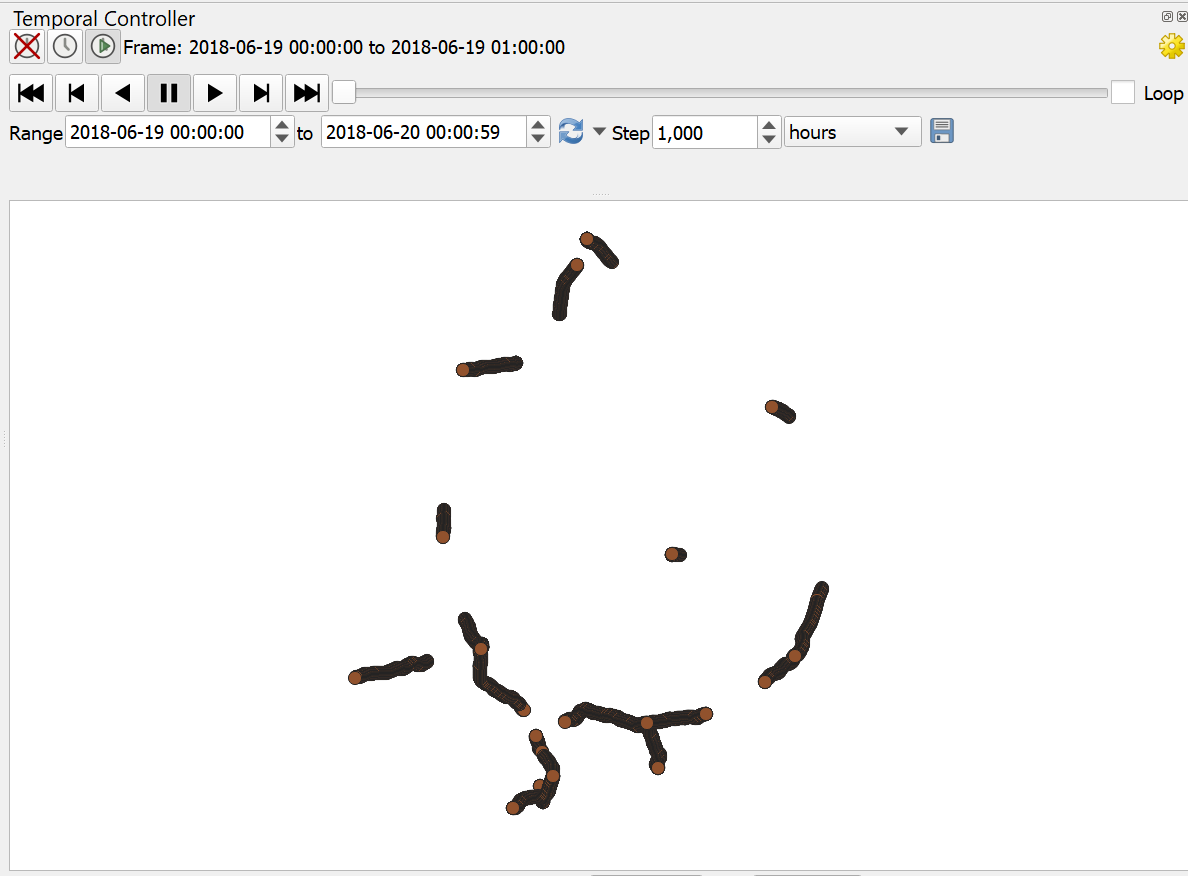
The Step value in the dock is basically frame duration: how big of a piece of the data each frame should show. Adjust this accordingly based on your dataset. Because with the train data we are working with only a single attribute, it makes sense to make the Step value in your animation to match your event duration or make it a bit more. Also take note that having a very small step value and a long time frame leads to a huge pile of frames. So getting these values just right (no blank frames, no overlapping frames, not too many output frames etc.) takes a bit of tweaking.
The time how long each frame takes to load (and later the export) depends on your machine performance, file format and the settings you have chosen. If you are working with a large file and updates between frames take a long time, you might want to speed up your process and build an index for your column with the timestamp. You can do this by going to the Processing menu and selecting the “Add attribute index” tool. I have made a feature request to have this option inside the Temporal Controller. Also please use more efficient file formats with bigger files (e.g. PostGIS or GeoPackage instead of CSV or GeoJSON).
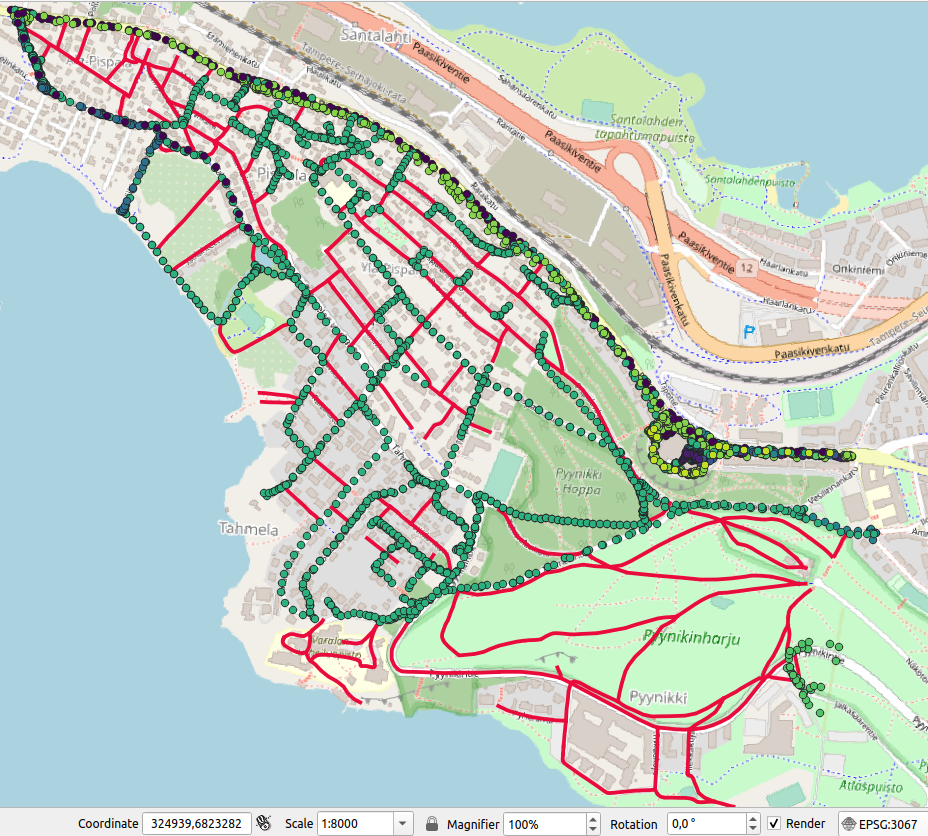
So now it’s mostly just styling. Try for example using expressions (e.g. symbol size based on the speed value for a bubbling effect) and categorize the train color by train id. You might end up with something like this:

From frames to an animation
So now you have an animation that you can explore in your QGIS project. Next up if you click on the save button (the floppy disk of course) you get the following dialog where you can pick where to save the results. This is very similar to the normal map image export dialog in QGIS, but unlike with Time Manager you can now define the output resolution by hand and make high-resolution animations if you wish.
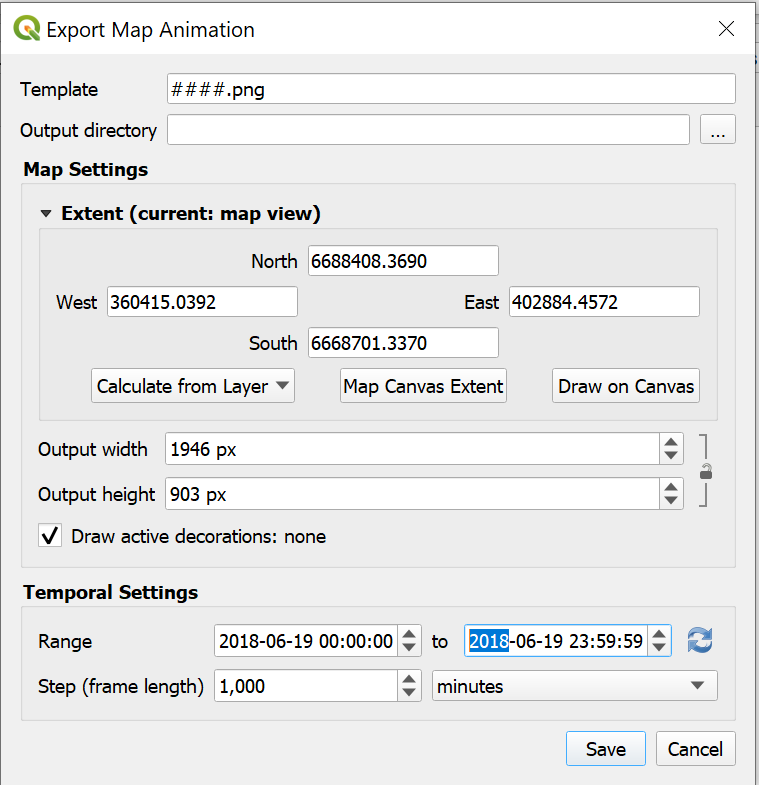
Currently by default QGIS outputs frames as individual png files. I am usually making gif animations with something between 100 to 500 frames. These are not too long and the size stays moderate (e.g. for Twitter which has a 15 mb gif limit).
For turning the images to an animation you have several options:
- On Windows 10 you can use the built-in Video Editor app. Just import the frames to a project and make a video. Very simple.
- If you are familiar with using command line tools, on any OS you can use ffmpeg. A really powerful tool and you can find instructions on basic usage from my QGIS Atlas blog post.
- If you want to make an animation online, you can use for example ezGIF.com. Works well on smaller animations.
- For shorter gif animations and if you are more familiar with image editing, on any OS you can use GIMP.
- On Mac you can use gifsicle.
Animation speed and possible effects which you can add in the editing part are totally up to your own imagination. But the framerate of the final animation is a really deifining factor in how easy your animation is to read. Especially with gif animations where you can’t go forward and backwards. Hopefully we will also see a native animation export with Temporal Controller in the future.
Styling with expressions and some more animation ideas
Advanced cartographic styling is undoubtedly one of the most powerful capabilities of QGIS. When writing this I looked back at my old blog post about Time Manager where I gave some styling tips. Those are still very valid:
- Don’t add unnecessary elements on your map. Even ditch (or at least simplify) the background map if you can. Don’t forget that you can change your project background color and black is always cool.
- Experiment with colors and blending modes. Just like with any static map, these really give that extra touch to your outputs.
- Use expressions and dynamic styling.
Let’s stop on that final point for a while. In my old train animation I used the train speed attribute to define the circle size. You can do this by going to Layer properties and clicking the small black arrow on the right side of Size and select Edit. From there you can test out different values for point size, label positions or whatever you think you can use values dynamically from the data.
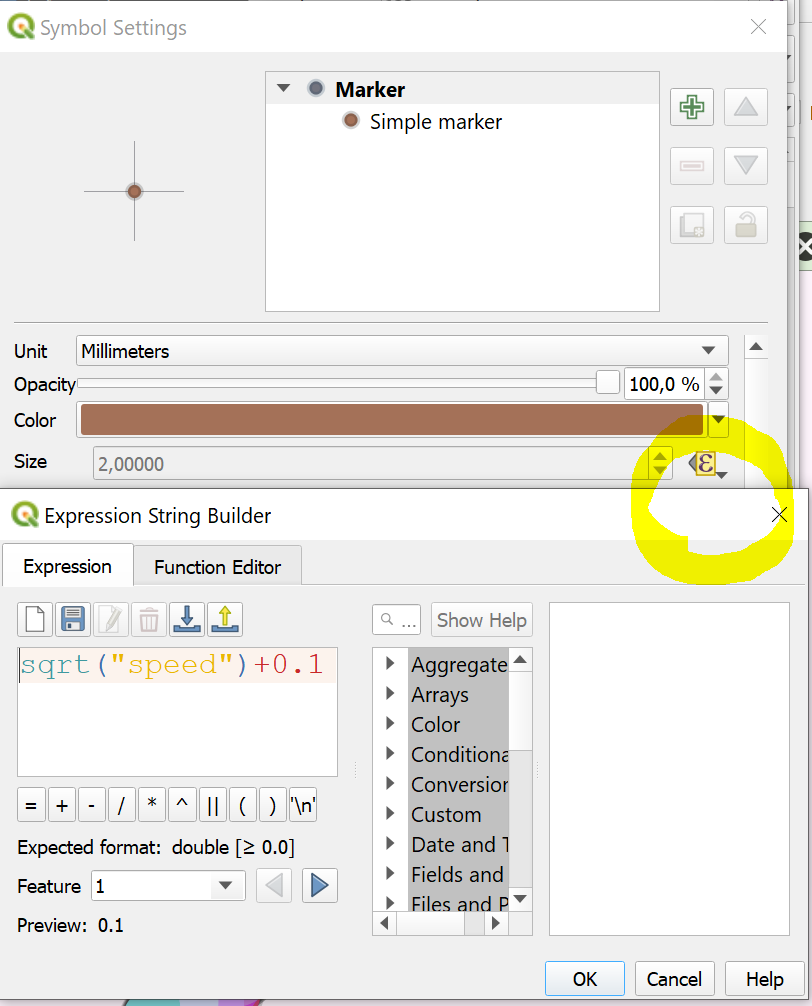
Now when the Temporal Controller is a native component in QGIS rather than a plugin that brings you even more possibilities. As an example if you were to visualize the train data you end up having sometimes gaps in the animation or alternatively multiple points at the same time. This is due to spotty GPS traces and you might face similar data issues with your own data too. One idea how to tackle this is with expressions and the geometry generator.
In the dialog below I have written an expression that takes the centroid of each individual train. It first groups the set of points which are inside the currently visible timeframe and by the train_id attribute into a multipoint and then replaces that with a centerpoint. As you can see, the expression uses @map_end_time and @map_start_time variables. For some reason this filtering is still painfully slow, but it’s just a proof of concept.
Other time related variables which have been added to the list include variables for the whole animation starting and ending times as well as ones for frame rates and frame numbers. Combining these for instance with the symbol colors could bring you

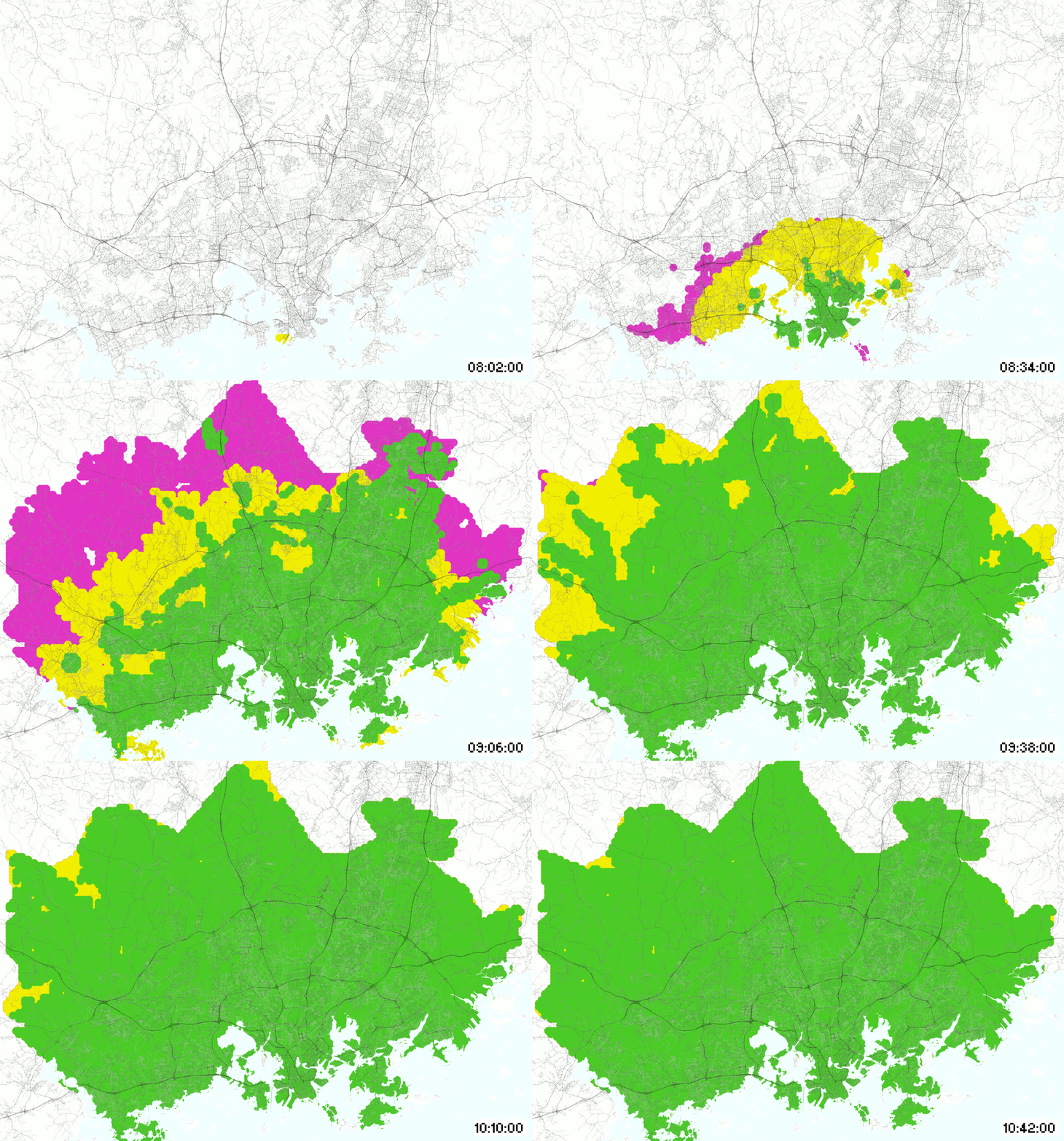
So what else could you animate besides just the example datasets given earlier? I have made several animations with isochrones that show you how far you can reach from a specific point at a specific time. I think the original idea came from the Digital Geography blog few years ago. But what if you want to do something like this?
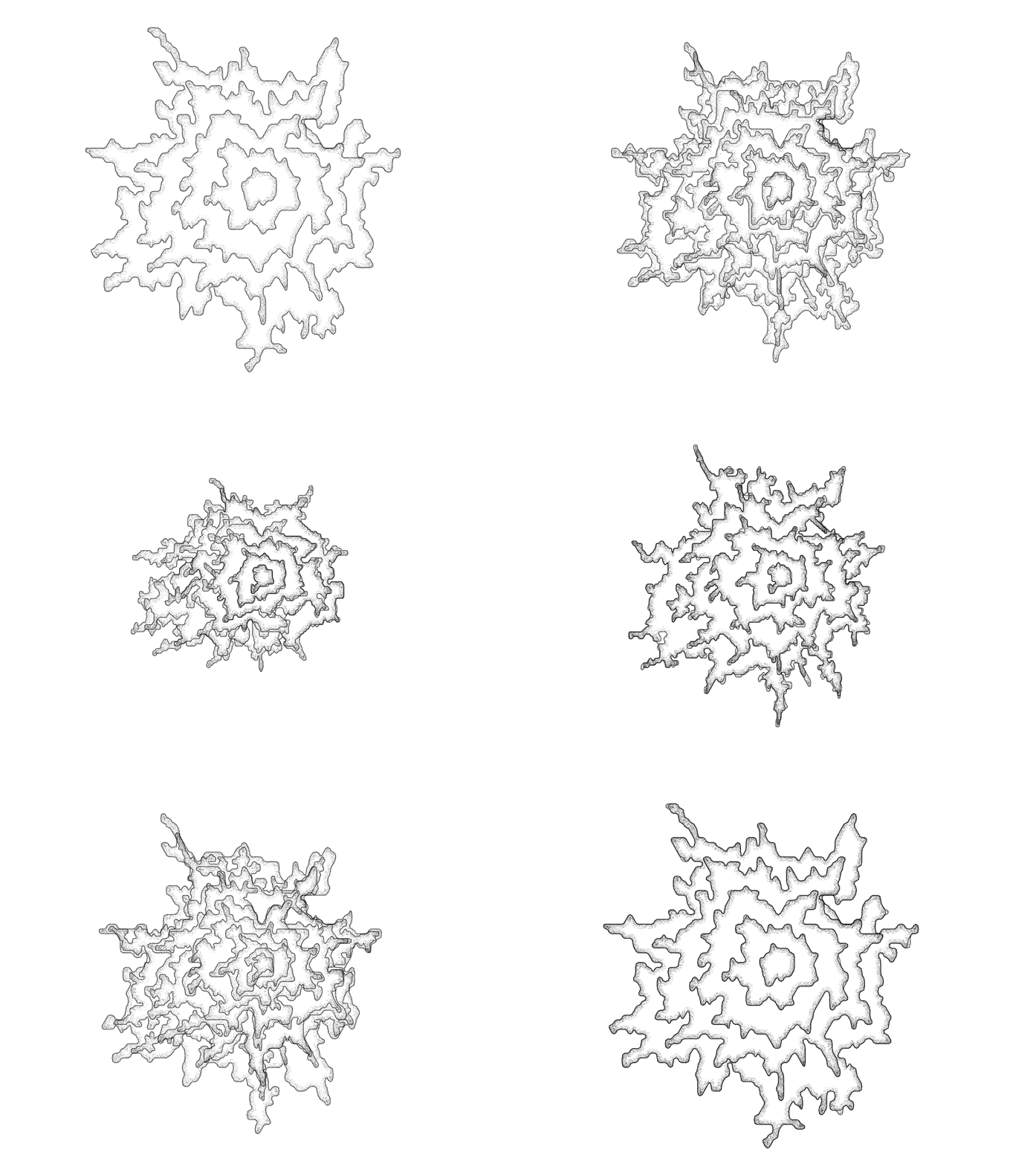
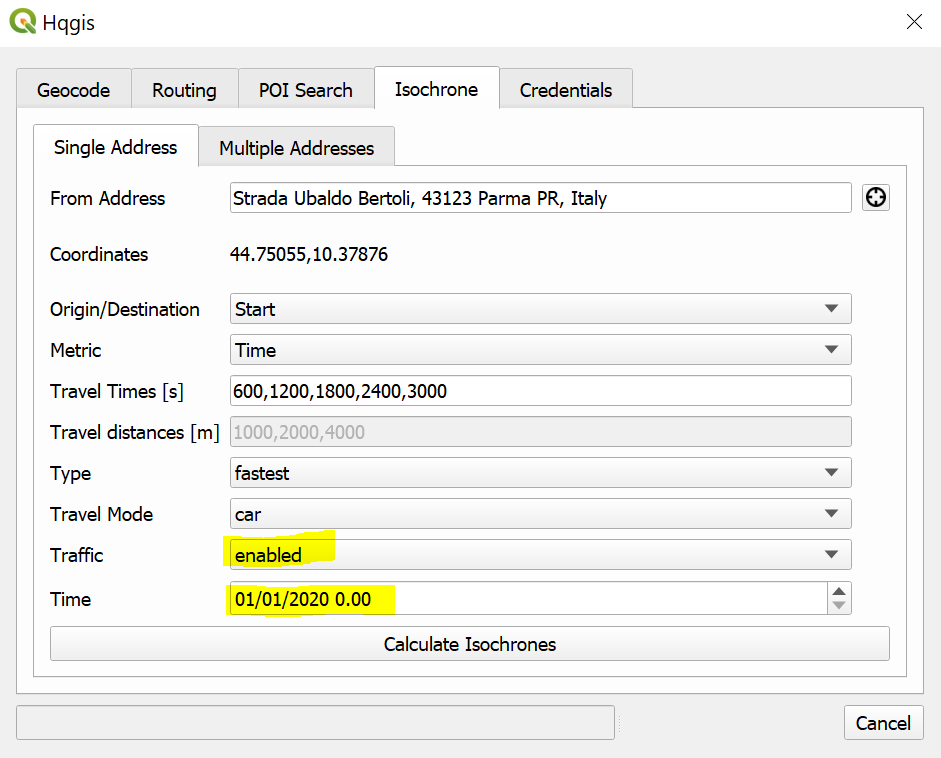
You can use the HQGIS plugin to get isochrones through the HERE API from a city (or any location) of your choice and by changing the time attribute. As you change the start time to different times of the day you will see the pulse of the city: during peak rush hours in the morning and in the afternoon you can’t reach as big of an area as you can during the night. I have done this manually 24 times (for each hour of the day) and then merged the vector layers (Processing → Merge vector layers). Doing the data collection manually for a single isochrone animation is still ok, but highly recommended to write a Python script for bigger data collection.
Other ideas for use cases of the Temporal Controller include (but not limited to):
- Animated choropleth maps. Bar chart races have been a huge hit in data visualization over the past year or two. Maybe with a smooth interpolation like that we could make animated thematic maps just as popular?
- Animated GPS tracks. Export data from your training app, GPS device or somewhere else. Really nice and simple data to get started with and contains standard datetime information. See example from Tim Sutton.
- Animated rasters. In this blog post I have been covering vector functionalities, but the Temporal Controller can also work with rasters! For example WMS-T. You are able to constrain the DateTime range for any temporal layer from WMS-T providers.
You can see some more examples on the Time Manager website or on my Twitter timeline.
What’s next?
Of course the temporal functionalities can be now also found from the PyQGIS API. That brings you a whole world of opportunities for automating different workflows and creating animations with purely scripting.
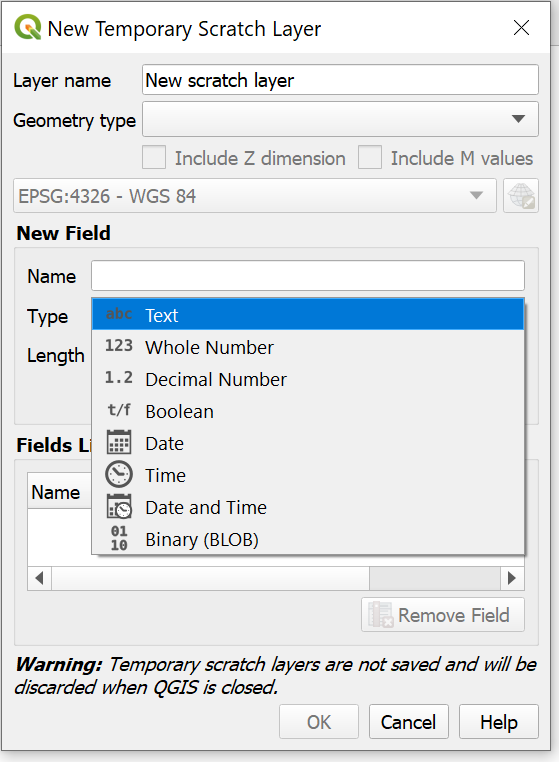
Temporal Controller has just been added to QGIS so it’s not yet perfect and lacks many of the capabilities that Time Manager has. For instance adding animation time as text to the map currently requires tedious work with temporary layers, but hopefully that gets improved e.g. through annotations.
Hope you enjoyed reading and hope to see many creative and beautiful animated maps!