

Variables in QGIS – A Practical Guide to make your GIS Tasks more efficient
Variables. A word you might have heard back in math class. I’m here to tell you that the math teacher was right when they said: “One day, you’ll find this useful.” That day is today. Because today, we’re going to talk about variables. More specifically user variables in QGIS.
What is a Variable?
Short and sweet: it’s something that can change. Imagine you have a bowl of cinnamon buns. Then you eat all the buns and fill the bowl with cat food instead. The bowl is the same, but the content has changed. The bowl is the variable, while the cinnamon buns and the cat food are the values. Just like with variables in QGIS, you get very different results depending on the value of the variable. Well, you can imagine the difference when someone asks you to go get the bowl and they’re expecting cinnamon buns but get cat food…
Where are Variables in QGIS?
In QGIS, you can find variables in several different places. This is because there are different scopes that regard different variables. Below is a table of the various variable levels in QGIS:
| Scope | Description | Example Use Case |
| Global | Applies to the entire QGIS user profile, regardless of which project you open. | User name, operating system, or paths to external programs. |
| Project | Applies to all layers within that project. Saved in the specific .qgs or .qgz file. | Project title, contact person for the project, or project ID number. |
| Layer | Applies only to a specific layer. | Layer name, data source, or specific settings for just that layer. |
| Model | Applies only within a model (made in the Model Designer) | Project path for a model, a parameter that is used in a geoprocessing algorithm |
| Layout | Applies only to a specific layout. | Page size, orientation, or layout-specific metadata. |
| Layout Item | Applies only to a specific layout object. | An individual map frame, legend, or scale bar. |
The scopes are hierarchical. If you use the same variable name at, for example, the project and layer levels, the value at the layer level will be the one used in the end.
What Variable Types are found in QGIS?
In QGIS, there are built-in variables (system variables) and user-defined variables.
- Built-in variables are those already created by QGIS. You cannot change or delete these variables, but you can, of course, read their values. For example, there is a global variable called qgis_version that tells you which version of QGIS is being used. At the project level, there is the variable project_path, which tells you where on the hard drive the project file is located.
- User-defined variables are those you create yourself to store specific information relevant to your workflow. These are the ones that can really amp up your workflow. You give the variable a name and then you define the value of that variable.
How to add a variables in QGIS?
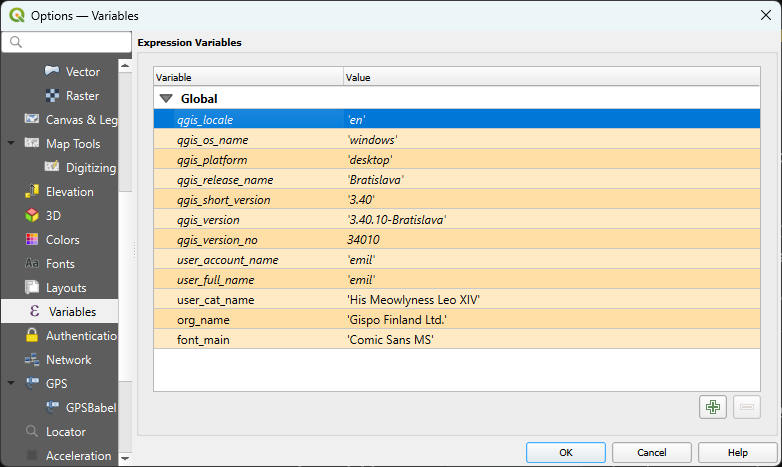
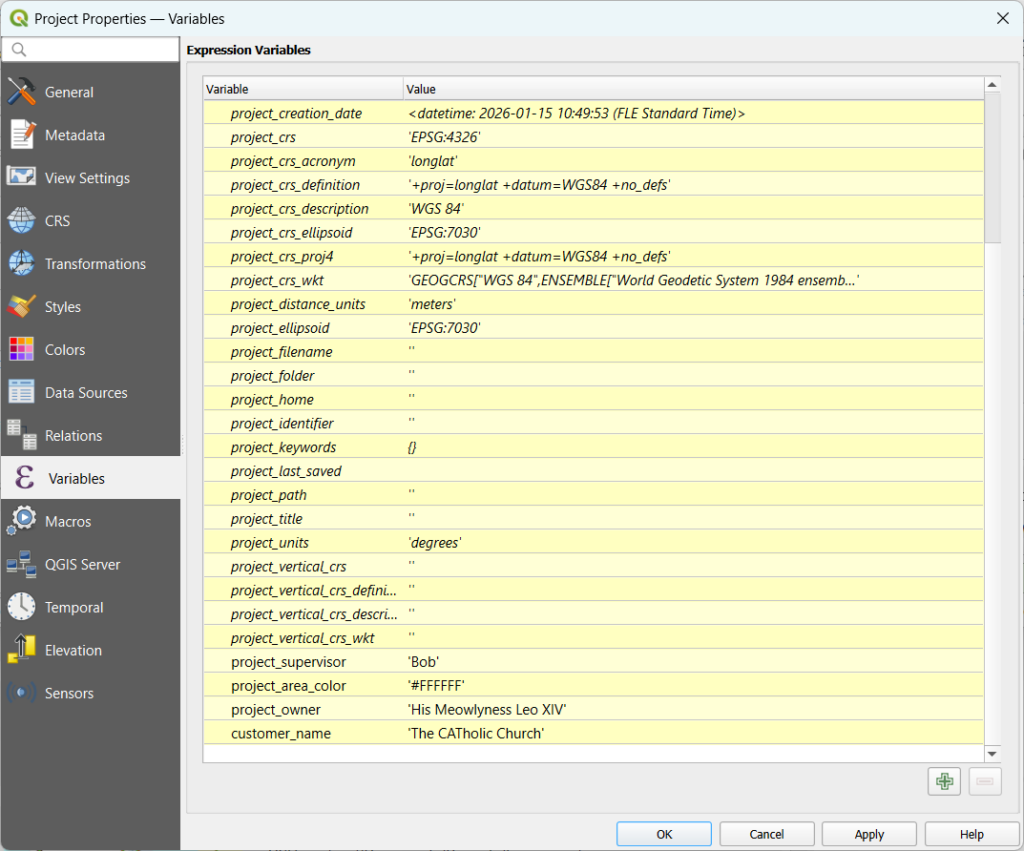
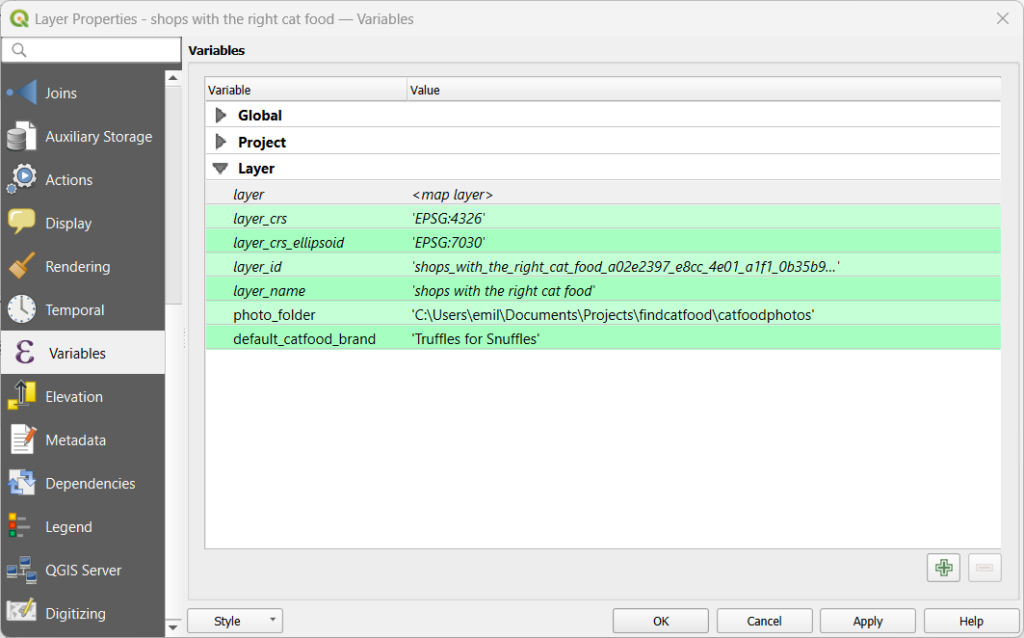
Depending on the wanted scope of the variable you intend to create, you’ll be creating them in different places. When viewing variables you’ll also see the built-in variables, which are always in italic. The variables are categorized by colour, so you’ll notice the different scopes.
Create a Global Variable
- Go to Settings -> Options -> Variables
- Press the green plus sign
- Write the name and value of the variable
Create a Project Variable
- Go to Project -> Properties… -> Variables
- Press the green plus sign
- Write the name and value of the variable
Create a Layer Variable
- Right click on the layer
- Choose Properties and go to the Variables tab
- Press the green plus sign
- Write the name and value of the variable
Create a Model Variable
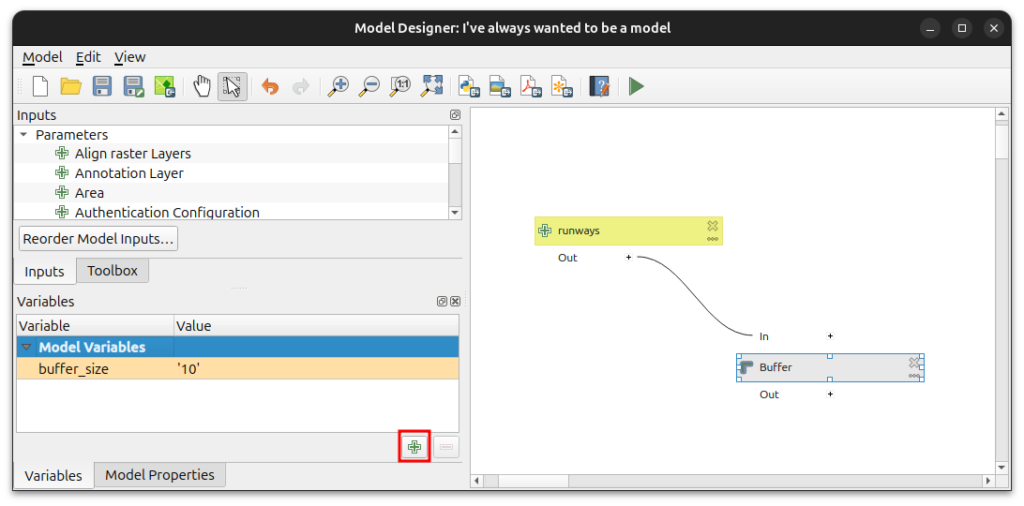
For creating a variable within a QGIS model do the following.
- Open the Model Designer: Processing -> Model Designer…
- Create a model and save it
- Reopen the model
- Press the green plus sign on the Variables tab
Create a Layout Variable
When creating a layout variable you’ll need to have the layout window open. The variables are found in a slightly different location.
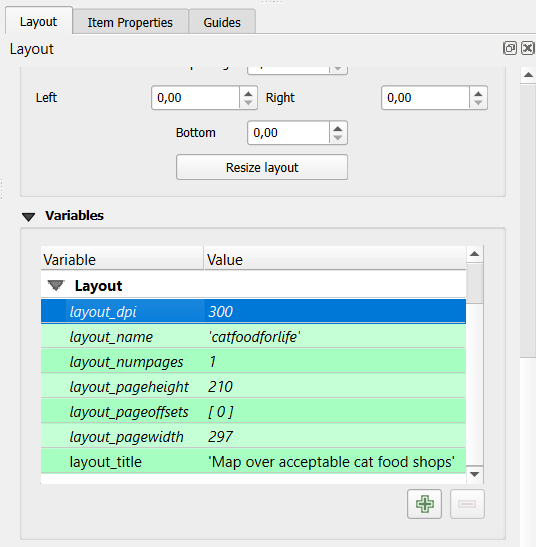
- Go to Layout -> Layout Properties…
- On the right side panel you’ll now be on the Layout tab. Scroll down until you see Variables.
- Press the green plus sign
- Write the name and value of the variable
Create a Layout Item Variable
- Select the layout item (could be for example a map, scale bar or legend)
- On the Item Properties tab scroll down to Variables and the section called Layout item
- Press the green plus sign
- Write the name and value of the variable
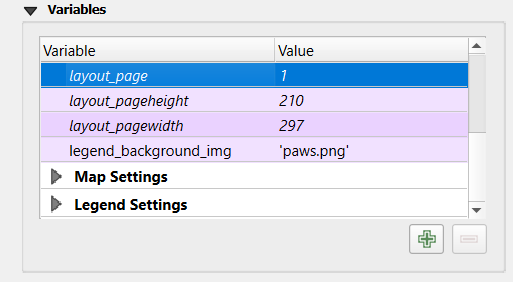
Depending on the layout item, you’ll notice that below the newly added variable in the list there might be “Map Settings”, “Legend Settings” or something else. These are built in variables for that specific type of layout item and these cannot be changed, however you can use them if you need them.
Why should I use user defined variables in QGIS?
Okay but why should I use variables, what are the benefits? When using variables you can speed up your work process. The main thing to keep in mind is do I need to reuse this thing over and over? If the answer is yes, then a variable might be a good idea. You have to decide the context the variable should be defined in. Is it a global, project or map variable you should create? Here are a few examples, but in reality you’ll have to come up with good use for variables yourself, because you know your workflows and environments. However, here follows a few ideas for user defined variables in QGIS.
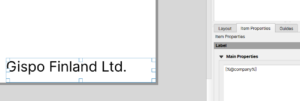
Let’s say you have a project where you’ll be making many maps. You can use variables when creating the layout. Perhaps you have a variable with your company name, and then you’ll add that to your map layout template. Every time you create a new map layout based on your template, you’ll have the company name in the same place.
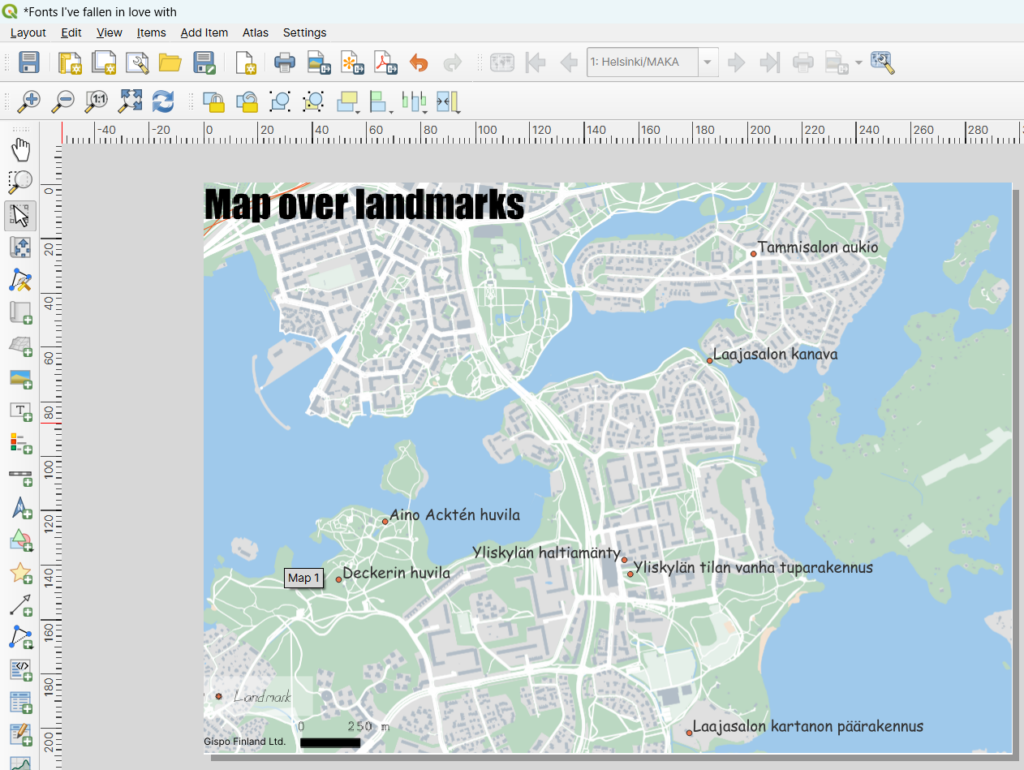
Perhaps you have a map with many layers with labels. Any serious map maker uses at least three working days for choosing the correct font (don’t mention this to my boss). When finally a perfect font is found, you’ll need to use it on several (often all) layers that have labels, in order to make it look consistent. After a working day (or two) you realise that actually the perfect font was not the one you thought it was and you’ll want to change it back to Helvetica or something . Now to do this for all the layers is tedious work. Instead you should use a project variable called “label_font” or something similar that has the value ‘Helvetica’. When setting the label fonts you’ll use the Data Defined Override button and choose the variable “label_font”.

You can do this with other fonts as well. Sometimes maps demand some texts here and there, perhaps listing the sources, map maker, company name, scale bar, legend and so on. Use a “default_font” variable and use that when setting the labels. A trained eye can spot different fonts from far away and making a person like that disappointed is not something to recommend.
If you are using field apps like Mergin Maps and QField, then you’ll definitely have some use for variables. You can check out the documentation for Mergin Maps and QField for more information.
In the end you can do very powerful stuff with variables. What uses can you come up with?
